Why a Software Stops Responding on Windows 11: Understanding the Causes and Choosing the Right Solution
A software stops responding on Windows 11 at the worst moment: during an export, a meeting, photo editing, an online declaration, or opening a somewhat heavy file. The window turns gray, clicks no longer produce anything, and Windows sometimes displays that famous message that makes you want to click ten times in a row. Bad idea. Behind this freeze, there is rarely a single magical cause: temporary overload, software conflict, flaky driver, corrupted files, or simply a process in progress. The issue is therefore not just to “close what is blocking,” but to understand whether the problem comes from the application, the process, or Windows 11 itself.
In Brief
🧭 A “not responding” message generally means that the application is no longer properly processing user actions. It may be truly frozen… or simply busy with a heavy task.
⏱️ The first good reflex is often to wait 1 to 2 minutes without clicking repeatedly, as repeated commands can worsen the freeze or cause a crash.
🛠️ The right method follows a simple order: check the Task Manager, restart the application, use Repair or Reset, then move on to SFC, DISM, or clean boot if the problem recurs.
⚠️ Forcing closure can resolve a frozen program, but results in loss of unsaved data. Use it when waiting changes nothing.
Make the Right Diagnosis Before Repairing
When software stops responding on Windows 11, you first need to know if only the application is frozen or if the entire system is slowing down. This distinction avoids unnecessarily reinstalling a program when the real problem comes from resources, a driver, a background service, or Windows itself.
The “not responding” message does not necessarily mean the software is broken. In practice, Windows mainly signals that the application no longer responds to events sent by the system: clicks, keyboard keys, window resizing, closing, moving. It may be calculating, waiting for a resource, reading a network file, or stuck in a loop due to a bug. Joking aside, it’s a bit like talking to someone who hears you but can no longer respond.
The first question to ask is therefore very simple: is the freeze affecting only one application, or the entire machine? If only Word, Photoshop, Outlook, a browser, or a business tool freezes, the diagnosis remains focused on that software. If the taskbar, Start menu, mouse, or keyboard respond poorly, it rather points to a system issue: resource saturation, graphics driver, frozen Windows Explorer, unstable service, or heavily used disk.
In the field, it is observed that many users immediately close the program as soon as the window turns gray. Yet, in typical cases like opening a large file, exporting a video, or syncing a cloud folder, waiting a short minute sometimes avoids losing ongoing work.
The most reliable diagnostic logic is to proceed in steps. Start with reversible actions, then gradually increase the level of intervention. In other words: no need to go through a full reinstallation if a simple application restart, built-in repair, or update suffices.
- Isolated application: close properly, restart, repair the application, check for updates.
- Multiple applications affected: check resources, drivers, services, and Windows updates.
- Entire system frozen: wait briefly, try Task Manager, then forced restart as a last resort.
- Recurring freeze: analyze logs, test a clean boot, and consider a test user profile.
The correct diagnosis begins with a simple question: is it the software that is freezing, or is Windows 11 unable to keep up?
Why does software stop responding in Windows 11?
Software freezes in Windows 11 mainly when it lacks resources, encounters a compatibility conflict, waits for an inaccessible file, or relies on corrupted components. The symptom is the same for the user, but the solution varies depending on whether the cause comes from the program, the active process, or the system.
It is tempting to put all freezes in the same box: “Windows is slow.” But the reality is more subtle. A software that freezes can be the victim of a temporary CPU spike, a lack of available memory, an unstable graphics driver, a defective add-on, an overly intrusive antivirus, or a damaged configuration file. Same symptom, different causes. That’s why “miracle” solutions work once, then fail the next time.
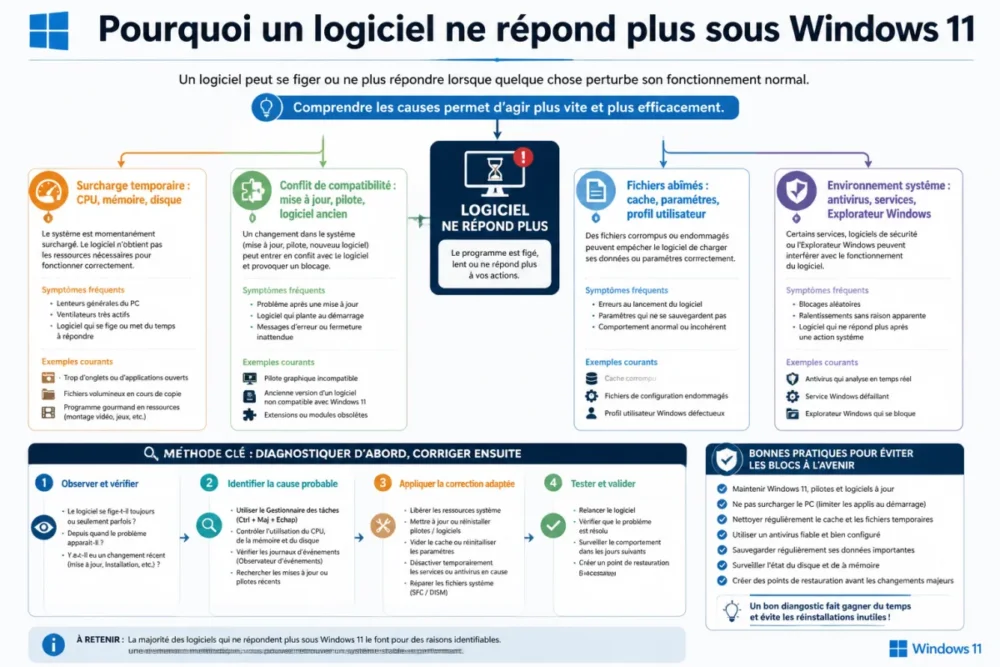
Temporary overload remains one of the most common cases. Several browser tabs, a video conference, a synchronization tool, an editing software, and an antivirus scan can interfere with each other. Windows 11 arbitrates resources, but if a program waits too long for a response from the disk, network, or processor, its interface may stop responding. This is especially noticeable on heavy applications or tools that handle many files.
Compatibility conflicts often occur after an update: Windows patch, graphics driver, new software version, browser extension added, somewhat outdated business plugin. In this scenario, the application started correctly yesterday, then today shows “not responding” at launch, printing, opening a specific file, or using a targeted function. Compatibility mode can help with some older programs, but it does not fix an internal bug or a corrupted file.
Third category: application files or user settings. An application can freeze because its cache is inconsistent, its local profile is damaged, a preferences file is unreadable, or a previously installed component has been removed. This is where the repair application function built into Windows becomes useful. According to Microsoft’s official procedure for repairing applications and programs in Windows, some applications can be repaired or reset from settings without directly uninstalling.
Finally, one must not forget the system environment: antivirus, startup services, scheduled tasks, drivers, Windows Explorer, user rights, system components. In practice, a support agent often observes that “random” freezes do not come from a single software, but from a common element: a synchronization service, a security extension, an outdated driver, or a degraded Windows session.
| Observed Symptom | Probable Cause | Priority Action | Level |
|---|---|---|---|
| Only one window is grayed out | Ongoing processing or application bug | Wait, then Task Manager if necessary | Easy |
| The freeze recurs at startup | Damaged files or settings | Repair or reset the application | Easy to medium |
| Several programs freeze | Resources, drivers or services | Check CPU, memory, disk and startup | Medium |
| Windows becomes completely unusable | System failure or deep freeze | Forced restart as a last resort | At risk |
What first steps to try when an application stops responding?
When faced with an application that stops responding, first wait briefly, avoid repeated clicks, then open Task Manager to check if the program is still using resources. If nothing moves, end the task, restart the application, and recover autosaved files if the software offers it.
The first useful step is counterintuitive: do nothing for a few moments. When a frozen program receives ten clicks, five keyboard shortcuts, and three close requests, it sometimes stacks commands instead of responding faster. Result: the interface becomes even slower, or even closes abruptly. It is therefore better to wait 1 to 2 minutes, especially if the application is working on a large document, an archive, a video render, or a print job.
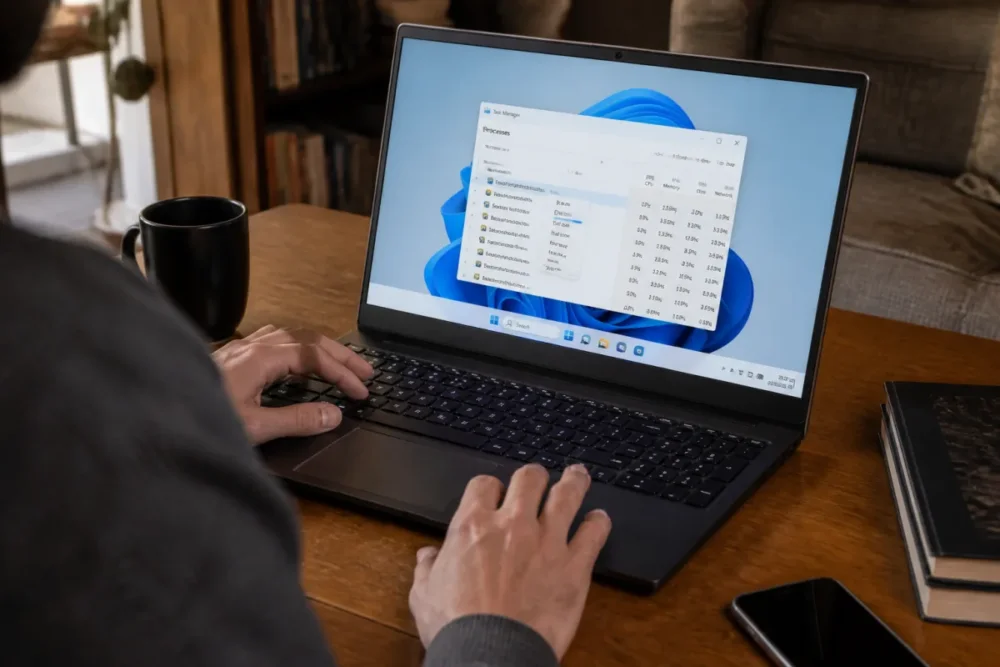
If the window remains frozen, open the Task Manager. The quickest shortcut is Ctrl + Shift + Esc. You can also use Ctrl + Alt + Delete, then choose Task Manager. Select the concerned program and observe its behavior: CPU, memory, disk usage, “Not responding” status. If the application is no longer using resources and has been frozen for several minutes, the End Task button becomes logical. But beware: forcing closure causes loss of unsaved data.
If the computer is not completely frozen, you can also restart the interface rather than reboot everything. In Task Manager, look for Windows Explorer, then use the restart option if available. This action can resolve slowdowns of the taskbar, windows, or Start menu without directly affecting the application. Bonus: it is often faster than a full restart.
Then, restart the application and observe the exact moment it freezes. This is valuable information. At startup? When opening a file? When printing? During synchronization? After activating a plugin? The more precise the trigger, the easier the fix becomes.
- Startup freeze: suspect an update, an application profile, or an add-on.
- Freeze on a file: test another file, a local copy, or a different format.
- Freeze when printing: check the printer driver and the print queue.
- Freeze after a few minutes: check the memory, disk, services, and background tasks.
Forcing closure fixes the immediate symptom; understanding the trigger prevents the same freeze from happening again tomorrow.
How to fix software that freezes without reinstalling everything?
To fix software that freezes, first prioritize built-in functions: update, repair, reset, clear cache, and compatibility mode. Reinstallation only becomes relevant if the application files are likely corrupted or if the publisher clearly recommends it.
Under Windows 11, native repair is often underused. For compatible applications, the path is simple: Settings > Apps > Installed apps, then select the application, Advanced options, and finally Repair or Reset. The distinction matters: “Repair” attempts to fix the app without deleting its data, while “Reset” may erase local settings. In other words, start by repairing before starting over from scratch.
If the option does not appear, Microsoft indicates another route via the Control Panel > Programs > Programs and Features, then right-click on the program and choose Repair or Change when this option exists. It’s less modern but still useful for some classic desktop software.
Compatibility mode also deserves its place, especially for an older program that worked better under a previous version of Windows. Right-click the shortcut, Properties, Compatibility tab: you can test a suitable mode, run the program as administrator, or modify some display settings. Good to know: it’s not a magic potion. If the application depends on an abandoned component or an incompatible driver, compatibility mode may improve launch without fixing all functions.
A family reported that billing software froze only during PDF export, never on opening. The fix was not a full reinstall, but updating the software and the associated virtual printer driver. The symptom seemed general, but the cause was actually very targeted.
Quick fixes should be tested in a reasonable order:
- Update the application from its internal menu or the Microsoft Store if it depends on it.
- Restart Windows 11 to clear stuck processes and reload services.
- Repair the application from settings or the Control Panel.
- Test compatibility mode if the software is old or poorly adapted to Windows 11.
- Temporarily disable extensions if the problem concerns a browser, Outlook, a creation tool, or modular business software.
- Clean reinstall only after backing up data, licenses, templates, and important settings.
It is also useful to distinguish between “over” reinstall and clean reinstall. The first often keeps old settings, and thus the problem as well. The second involves uninstalling, restarting, deleting leftovers documented by the publisher if necessary, then reinstalling the latest version. Provided you know what you are deleting, obviously. Otherwise, it’s better to go through the publisher’s support.
How to know if the problem comes from Windows 11?
The problem is more likely from Windows 11 if multiple programs freeze, if the taskbar becomes unstable, if Windows Explorer restarts frequently, or if errors return after repairing the application. In this case, you need to check system files, drivers, services, and startup.
When multiple applications display “not responding,” the investigation needs to be broadened. It may not be each software that is malfunctioning, but the environment on which they run. Windows 11 can be slowed down by an unstable driver, corrupted system files, a problematic third-party service, an incomplete update, or an antivirus that inspects used files too aggressively.
Two built-in tools are often mentioned in IT procedures: SFC and DISM. SFC, which stands for System File Checker, checks certain protected system files. DISM, on the other hand, is used notably to repair the Windows image used as the maintenance base. Microsoft documents DISM in its Windows environment on Microsoft Learn, DISM documentation for Windows. In practice, these commands are used in a Terminal or Command Prompt opened as administrator, but they should not be run randomly if the user does not know how to interpret the messages.
A common procedure is to check the status of Windows Update, restart, then run the maintenance commands if the blockages persist. It is always preferable to back up important documents before system repair operations. Even though SFC and DISM are recognized tools, they are part of a diagnostic approach, not a promise of instant cure.
Minimal startup is the next step when a conflict between services is suspected. The idea is simple: start Windows with a minimum of third-party elements, then progressively reactivate services or startup applications to identify the one that triggers the blockage. It is effective, but a bit tedious. The cherry on top: it is often at this stage that one discovers that an “indispensable” utility launched at startup is not so indispensable after all.
| Windows Tool | What it helps to check | When to use it |
|---|---|---|
| Task Manager | CPU, memory, disk, blocked processes | At the first blockage |
| Event Viewer | Repeated application and system errors | If the problem recurs regularly |
| SFC and DISM | System files and Windows image | If multiple applications are affected |
| Minimal startup | Conflicts of services or software at startup | If the blockage disappears in a clean environment |
The Event Viewer can also provide clues, notably in the Application and System logs. One should not panic at every warning: Windows logs many. However, an error that recurs at every blockage with the same application, module, or driver name deserves attention. In a professional context, this is typically the information to pass on to support.
When should you move to a heavier solution?
You should move to a heavier solution when the blockage repeats despite simple fixes, affects multiple software, prevents normal PC shutdown, or is accompanied by recurring system errors. At this stage, isolated repair of an application risks masking a broader problem of session, driver, or Windows.
Clean reinstallation of software becomes reasonable if the application still blocks at the same point after repair, update, and testing a new file. Before that, back up data, templates, libraries, profiles, licenses, and settings. Some software stores information in the user folder, others in ProgramData or in a cloud space. The publisher should remain the reference for precise paths, because deleting the wrong folder can cause more damage than the initial blockage.
Creating a Windows test user account is another very useful method. If the software works in a new profile, the problem probably comes from user settings, cache, extensions, or an element specific to the session. If the problem reproduces exactly, one should rather look at the overall program installation, Windows 11, drivers, or services. It is simple, clean, and often more telling than a long list of manipulations.
Certain signals should prompt you to stop DIY troubleshooting at home: inability to open multiple applications, frequent forced restarts, startup errors, black screen, keyboard and mouse freezing, inability to install updates, or repeated data loss. In these cases, publisher support, Microsoft support, or a qualified technician becomes more relevant than a series of randomly applied tutorials.
One last point deserves to be made: if a critical business software freezes, the priority is not to test all possible options, but to protect the data. Export, backup, copy the working folder, capture the error message, note the exact context. These elements are invaluable for support, especially if the problem is intermittent.
Conclusion: treat the symptom without ignoring the cause
A software not responding under Windows 11 is not necessarily a sign of a computer at the end of its life nor of an irrecoverable application. The message primarily indicates a breakdown in communication between the interface and the system. The right response is not to confuse urgency with haste: wait briefly, identify if the freeze is isolated, close properly if necessary, then fix according to the probable cause.
Overall, the most reliable method remains progressive: Task Manager, targeted restart, application repair, update, compatibility mode, then system tools like SFC, DISM, or minimal startup if several signals point to Windows 11. To summarize: treat the symptom to regain control, but seek the cause to prevent its recurrence.
Key takeaways
- 🧩 A frozen software may be busy, not necessarily broken.
- ⏳ Waiting 1 to 2 minutes sometimes prevents unnecessary data loss.
- 🛑 Ending a task quickly fixes the issue but deletes unsaved work.
- 🔧 Repairing the application should precede a full reinstallation.
- 🧪 SFC, DISM, and minimal startup are mainly useful if multiple programs freeze.
FAQ
Why does my software show “not responding” and then work again on its own?
Because it was probably busy with a heavy task: calculation, backup, export, disk access, printing, or network synchronization. If the return to normal happens in less than 1 to 2 minutes and remains rare, it is not necessarily worrying.
Is it dangerous to click on “End Task”?
It is not dangerous for Windows in most cases, but it is risky for your unsaved data. Use this option when the application does not come back after a short wait or when it clearly prevents you from continuing to work.
Why do several applications stop responding at the same time?
When several programs freeze together, the cause is often more global: saturated resources, unstable driver, background service, antivirus, heavily used disk, or faulty Windows component. In this case, Task Manager and Event Viewer are more useful than simply reinstalling software.
Can compatibility mode really fix an old software?
Yes, especially if the program was designed for an older version of Windows and freezes at launch or display. However, it does not always fix missing dependencies, incompatible drivers, or internal application bugs.
When should I contact publisher support?
Contact them if the freeze recurs despite repair, update, and clean reinstallation, or if the application handles important data. Provide the exact context, Windows 11 version, time of the freeze, and visible errors in Event Viewer.









