.en-bref { max-width: auto; margin: 2em auto; padding: 1.5em 1.8em; color: #78350f; font-family: “Inter”, “Segoe UI”, sans-serif; text-align: left; position: relative; box-sizing: border-box; background: #fff2d7; border: 0; border-left: 0px solid #b45309; border-radius: 0; box-shadow: none; }
.en-bref h2, .en-bref .en-bref-header { font-size: 1.15em; font-weight: 700; margin-bottom: 0.6em; color: #b45309; }
.en-bref p, .en-bref li { font-size: 1em; line-height: 1.65; margin: 10px; }
.en-bref strong { color: #451a03; }
.mg-callout{margin:1.5em 0;padding:.9em 1.1em;border:1px solid;border-left-width:4px;border-radius:10px;font-size:.97em;line-height:1.65}.mg-callout>:first-child{margin-top:0}.mg-callout>:last-child{margin-bottom:0}.mg-callout__label{display:block;margin:0 0 .35em;font-weight:700;font-size:.82em;letter-spacing:.03em;text-transform:uppercase}.mg-callout__label::before{margin-right:.45em;font-size:1.05em;vertical-align:-.06em}.mg-callout–info{background:#eff6ff;border-color:#bfdbfe;color:#1e3a5f}.mg-callout–info .mg-callout__label{color:#2563eb}.mg-callout–info .mg-callout__label::before{content:”\2139\FE0F”}.mg-callout–tip{background:#f0fdf4;border-color:#bbf7d0;color:#14532d}.mg-callout–tip .mg-callout__label{color:#15803d}.mg-callout–tip .mg-callout__label::before{content:”\1F4A1″}.mg-callout–warning{background:#fffbeb;border-color:#fde68a;color:#7a4a10}.mg-callout–warning .mg-callout__label{color:#b45309}.mg-callout–warning .mg-callout__label::before{content:”\26A0\FE0F”}.mg-callout–danger{background:#fef2f2;border-color:#fecaca;color:#7f1d1d}.mg-callout–danger .mg-callout__label{color:#dc2626}.mg-callout–danger .mg-callout__label::before{content:”\1F6D1″}.mg-proscons{display:grid;grid-template-columns:1fr 1fr;gap:16px;margin:1.5em 0}@media(max-width:560px){.mg-proscons{grid-template-columns:1fr}}.mg-proscons__col{padding:.9em 1.1em;border:1px solid;border-radius:10px}.mg-proscons__title{display:flex;align-items:center;gap:.4em;margin:0 0 .5em;font-weight:700;font-size:.9em;letter-spacing:.02em}.mg-proscons__col ul{margin:.3em 0 0;padding-left:1.15em}.mg-proscons__col li{margin:.3em 0;line-height:1.55}.mg-proscons__col–pro{background:#f0fdf4;border-color:#bbf7d0;color:#14532d}.mg-proscons__col–pro .mg-proscons__title{color:#15803d}.mg-proscons__col–pro .mg-proscons__title::before{content:”\2705″}.mg-proscons__col–con{background:#fef2f2;border-color:#fecaca;color:#7f1d1d}.mg-proscons__col–con .mg-proscons__title{color:#dc2626}.mg-proscons__col–con .mg-proscons__title::before{content:”\274C”}ol.mg-steps{list-style:none!important;counter-reset:mgstep;margin:1.6em 0;padding-left:0!important}ol.mg-steps>li.mg-steps__item{counter-increment:mgstep;list-style:none!important;padding-left:0!important;padding-bottom:1.4em}ol.mg-steps>li.mg-steps__item:last-child{padding-bottom:0}ol.mg-steps>li.mg-steps__item>:last-child{margin-bottom:0}ol.mg-steps>li.mg-steps__item>.mg-steps__title{margin:0 0 .25em;font-weight:600}ol.mg-steps>li.mg-steps__item>.mg-steps__title::before{content:counter(mgstep) “. “;opacity:.45;font-weight:500;font-variant-numeric:tabular-nums}ol.mg-steps>li.mg-steps__item:not(:has(.mg-steps__title))::before{content:counter(mgstep) “. “;opacity:.45;font-weight:500;font-variant-numeric:tabular-nums}.mg-kpis{display:grid;grid-template-columns:repeat(auto-fit,minmax(140px,1fr));gap:14px;margin:1.5em 0}.mg-kpi{padding:1em .9em;border:1px solid #e5e7eb;border-radius:12px;background:#f9fafb;text-align:center}.mg-kpi__value{display:block;font-size:1.7em;font-weight:800;line-height:1.15;color:#111827}.mg-kpi__label{display:block;margin-top:.35em;font-size:.85em;color:#6b7280;line-height:1.35}
.wp-block-image,.ai-image{margin-bottom:1.75em}.wp-block-image>figcaption,.ai-image>figcaption{margin-top:.5em}
.magic-lb-overlay{position:fixed;inset:0;background:rgba(15,23,42,.92);display:none;align-items:center;justify-content:center;z-index:99999;cursor:zoom-out;padding:20px}
.magic-lb-overlay.open{display:flex}
.magic-lb-overlay img{max-width:95vw;max-height:95vh;object-fit:contain;border-radius:8px;box-shadow:0 8px 32px rgba(0,0,0,.5)}
.magic-lb-close{position:absolute;top:16px;right:20px;color:#fff;background:rgba(0,0,0,.5);border:none;width:40px;height:40px;border-radius:50%;font-size:24px;cursor:pointer;display:flex;align-items:center;justify-content:center}
.magic-lb-close:hover{background:rgba(0,0,0,.8)}
.wp-block-image img{cursor:zoom-in;transition:transform .15s ease}
.wp-block-image img:hover{transform:scale(1.01)}
.magic-img-link{display:inline-block;text-decoration:none}
(function(){
var ov=document.getElementById(‘magic-lb’);if(!ov)return;
var img=ov.querySelector(‘img’),btn=ov.querySelector(‘.magic-lb-close’);
function open(src){img.src=src;ov.classList.add(‘open’);document.body.style.overflow=’hidden’}
function close(){ov.classList.remove(‘open’);img.src=”;document.body.style.overflow=”}
document.addEventListener(‘click’,function(e){
var a=e.target.closest(‘a.magic-img-link’);
if(a){e.preventDefault();open(a.getAttribute(‘href’));return}
var i=e.target.closest(‘.wp-block-image img’);
if(i&&!e.target.closest(‘a’)){e.preventDefault();open(i.currentSrc||i.src)}
});
ov.addEventListener(‘click’,function(e){if(e.target===ov||e.target===btn)close()});
document.addEventListener(‘keydown’,function(e){if(e.key===’Escape’)close()});
})();
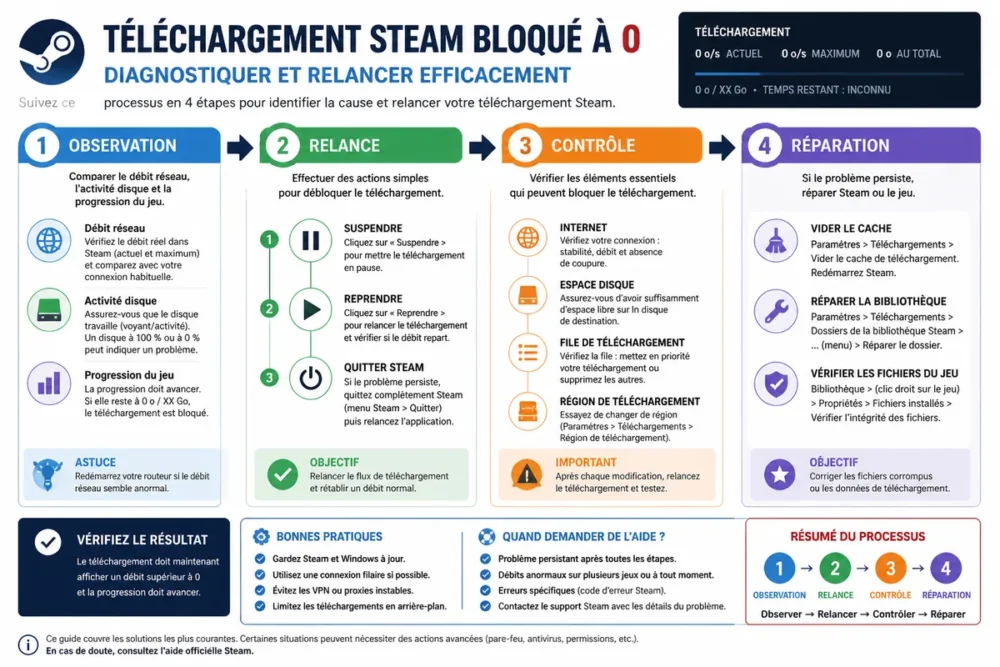
To fix Steam downloads stuck at zero, pause then resume the download, completely exit Steam, and check the download region. If the rate remains zero, check disk activity, clear the cache, test the network, and verify the game files before considering a reinstallation.
A Steam rate of zero does not always mean a failure: Steam may be decompressing, verifying, or writing files while network activity stops. A real blockage combines frozen progress, no sustained disk activity, and the inability to resume the download.
In brief
🔎 0 bytes per second is not always a blockage: observe the disk and progress before changing Steam.
🔄 The first risk-free action is to pause then resume the download, then completely restart Steam.
🛠️ If only one game is affected, check its files and the library hosting it. If the entire library is concerned, rather examine the network, region, and global settings.
🛡️ A VPN, antivirus, or firewall should only be disabled briefly for a targeted test, then immediately reactivated.
Steam rate at zero: recognizing a real blockage
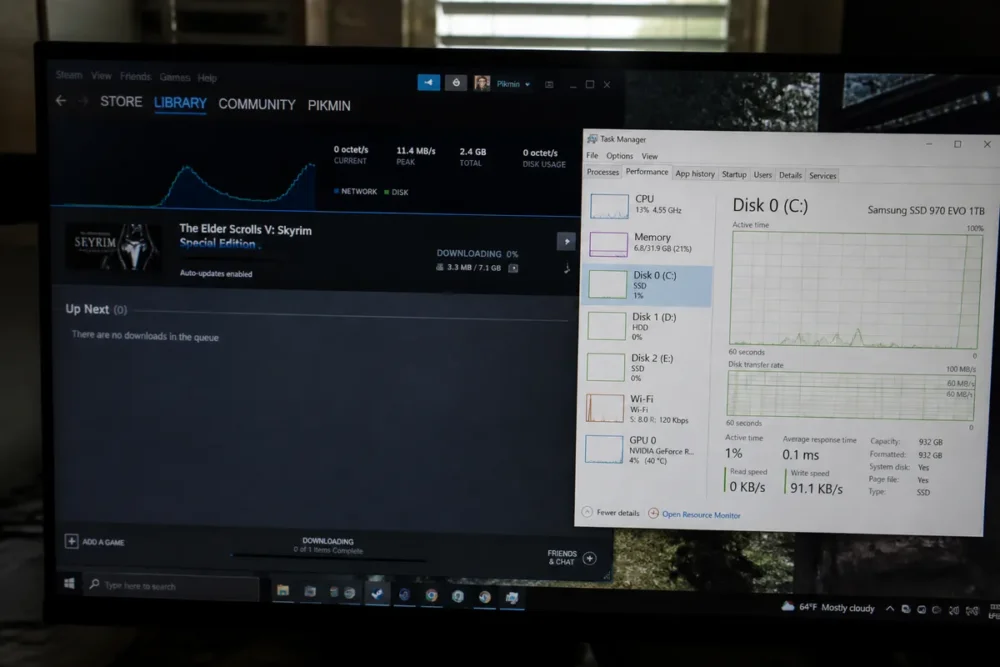
Steam is truly blocked only if the network rate, disk activity, and progress remain zero for several minutes. An alternation between download and stop may instead correspond to normal update operation. The Windows Task Manager allows distinguishing these two situations without changing the configuration.
Why Steam may temporarily stop network throughput
Steam updates are processed in blocks. After reception, a block may be decompressed, verified, then written to disk before the network download resumes.
A zero rate with visible disk activity often corresponds to a processing phase, not a network failure. A slow, nearly full, or heavily used disk by another application can prolong this phase.
Indicators to check before changing settings
Open Task Manager with Ctrl + Shift + Esc, then check the columns or graphs related to network and disk. The labels may vary depending on the Windows version, but the goal remains the same: to verify if Steam is still reading or writing data.
Also note the extent of the problem. A single blocked game points to its files or its library. Several games affected simultaneously suggest more a Steam setting, the network, or a service-side disruption.
Start with risk-free checks
Begin with reversible actions: test the Internet, pause then resume the download, close Steam from the notification area, and check available space. These checks take little time and avoid clearing a cache or changing a protection before identifying the symptom.
Check the connection, servers, and concurrent downloads
Test another online service from the same computer. Temporarily suspend bandwidth-heavy activities, such as another download or an online backup. Also check if multiple games are affected and if Steam reports a service disruption.
In the Steam queue, confirm that the game is not paused and that another priority update is not monopolizing the download.
Completely close Steam then restart the PC
-
Pause the download
On the Steam downloads page, pause the game then resume it. Watch for a few moments to see if the speed and progress resume.
-
Exit Steam
Use the exit option from the Steam icon in the Windows notification area. Closing only the window does not always terminate the process.
-
Restart then reboot
Reopen Steam normally. If the download remains stuck, restart the computer to reset processes and the local connection.
Check space and access to the destination disk
An update may require space for downloaded files, temporary files, and decompression. Check the free volume in File Explorer, then verify that an external or secondary disk is connected and accessible.
Fix download settings in Steam
Steam settings should be changed progressively, one action at a time. First clear the cache if the client seems to retain an inconsistent download state, then change the region, then check speed limits and time windows.
Clear Steam download cache
In Steam, open settings, then the downloads section and the cache clearing option. The exact location may vary depending on the interface version.
This operation may interrupt downloads and require a reconnection. It normally does not delete installed games, but make sure you have your credentials before starting it.
Change download region
Select another nearby region in the download settings, restart Steam if necessary, then resume the game. A different region can bypass a load or a localized incident on a content server.
Change the region only once, then compare the result before multiplying manipulations. Return to the initial region if the speed does not improve.
Remove limits and time windows
Check the bandwidth limit, allowed hours, and the option that allows or forbids downloads during a game session. A previously configured restriction can explain a Steam speed of zero without a connection failure.
Repair the disk, library, and affected game files
When the problem affects only one title, the disk or local data become priorities in diagnosis. Close applications that write on the same volume, check disk usage, and use Steam tools before any manual deletion.
Reduce disk saturation
The Task Manager indicates if the disk reaches 100% usage. High disk activity with zero network throughput signals a possible write bottleneck, and not necessarily an Internet problem.
Close software that performs copies, scans, or backups on the same disk. Do not delete Steam folders randomly to free up space.
For a separate problem related to impossible writing, also consult this guide on Steam disk write error.
Repair the Steam library folder
In Steam storage settings, select the affected library and launch the offered repair tool. Then restart Steam before testing the download again.
Verify the integrity of game files
Open the game properties, then the section dedicated to installed files and start the verification. Wait for the analysis to finish before resuming the update.
This action is especially relevant when only one game is stuck, after an interruption or an incomplete update. It does not guarantee a solution for a generalized network problem.
Testing the network and security protections without weakening the PC
Another network allows you to separate a Steam problem from an issue related to the box, Wi-Fi, or local filtering. VPN, antivirus, and firewall tests should remain short, reversible, and only performed if previous checks have yielded no results.
Restart the box or try another network
If other online services are also unstable, restart the box and then test Steam again. A mobile connection sharing or another Wi-Fi network can serve as an isolation test, without being a sustainable solution for a large game.
| Test | Result | Direction |
|---|---|---|
| Another game on the same PC | Only one game remains stuck | Check its files and library |
| Another network | Steam restarts immediately | Examine the box, Wi-Fi, or internet provider |
| Another device | The blockage also affects the other device | Examine the network or the Steam service |
Check firewall and antivirus permissions
Make sure Steam is allowed to access the network and write in its library folder. If you need to isolate interference, disable the protection only during a short test, then reactivate it immediately.
For a connection failure rather than zero download, the diagnosis may follow another path, notably with Steam error 105.
If Steam still does not download: resume, reinstall, or ask for help
Reinstallation should only occur after tests of resuming, cache, network, library, and files. When Steam remains stuck despite these checks, document the symptom precisely and provide useful information to support rather than deleting folders at random.
Pause then resume the download
Pause the game, completely exit Steam, relaunch the client, then resume the download. Observe the network, disk, and progress again for several minutes to distinguish a real resumption from a simple display variation.
Reinstall Steam while keeping your games: last resort
Back up important data and locate the exact location of the libraries before any operation. Do not delete any game folder without verifying its role. A prepared reinstallation can preserve the libraries, but uncontrolled deletion may require re-downloading the games.
Prepare a useful request for Steam support
Provide the game name, Windows version, download region, disk used, and error messages. Add the list of actions already attempted and screenshots without personal data.
The official page Steam Support dedicated to installation and update problems is the reference point for continuing assistance.
Frequently Asked Questions
The following four cases cover the most common situations: zero display during a write, clearing the cache, changing the region, and blockage limited to a single game. Each answer refers to a specific check rather than a general manipulation.
Why does Steam show 0 bytes/s while the game seems to be progressing?
Steam may decompress, verify, or write files between two network download phases. Check disk activity in the Task Manager before concluding a failure.
Does clearing the Steam download cache delete installed games?
Clearing resets download data and may require reconnection. The operation normally does not delete installed games, but it can interrupt ongoing downloads.
Why can changing the download region help?
Another nearby region can avoid a temporarily overloaded or affected content server. Test one region at a time and revert to the initial setting if the speed does not change.
What to do if only one Steam game is stuck?
First check the free space, the status of the library, and the integrity of the game files. A download that works for other titles is less likely to indicate a general network outage.
The safest method is to first check the disk, then proceed from restarting and Steam settings to repairing the library, without hastily reinstalling.









