| Key Points | Details to Remember |
|---|---|
| 🔍 Definition | Error 105 indicates the inability to reach the Steam servers |
| ⚙️ Causes | Connection, firewall, proxy |
| 🛠️ Solutions | Restart, check, configure |
| 🌐 Network | Test stability and bandwidth |
| 🔒 Security | Temporarily disable antivirus/firewall |
| 📞 Support | Contact Steam if the problem persists |
When Steam returns the enigmatic « Error 105 – Unable to connect to server », the entire gaming experience freezes. You click, wait… and nothing happens. Rather than tearing your hair out, let’s take a look together at the mechanisms behind this error message. By analyzing step by step the possible origins and exploring concrete solutions, you will be equipped to resume your games smoothly.
Understanding Error 105 on Steam
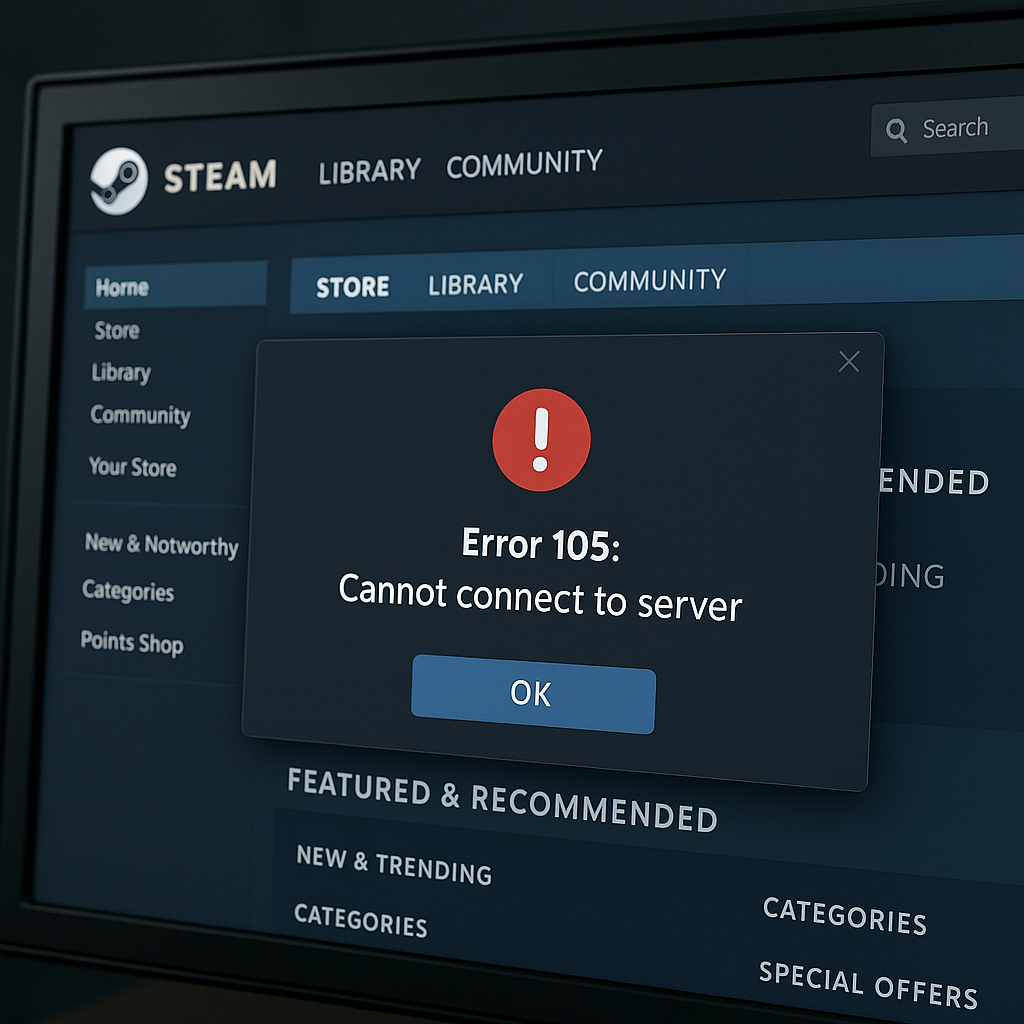
Error 105 is not a simple one-time bug: it signals that your Steam client cannot establish a stable communication with Valve’s servers. It generally appears as a pop-up before launching the library or when connecting to the platform.
On the scale of error messages, 105 is related more to network issues than an internal Steam problem. For the savvy geek, it’s the same principle as an inaccessible website: the client requests a resource, the server does not respond—or worse, returns an empty shell.
Depending on your PC configuration and network environment, the cause can be multiple: an overprotective antivirus, a capricious router, or even maintenance on Valve’s side. Before panicking, a little dose of method and logic is necessary.
Diagnosing Possible Causes
Internet Connection Issues
You might say « my Wi-Fi works, web browsing is smooth », but Steam may require other ports and protocols. An asymmetric bandwidth, packet loss, or a faulty DNS can easily cut off the connection.
- Check the Wi-Fi signal: move closer to the router and reload Steam.
- Test another network: a smartphone in modem mode can validate if your box is at fault.
- Change your DNS: Google (8.8.8.8 / 8.8.4.4) or Cloudflare (1.1.1.1) often offer better stability.
Firewall and Antivirus Interferences
When the antivirus acts overzealous, Steam appears as an intruder: some packets are filtered or blocked, making the connection impossible. Ideally, temporarily disable protection to test, then manually allow Steam in the whitelist.
On Windows 10 and 11, go to Settings → Windows Security → Firewall. In « Allowed apps », check all entries related to Steam. You can also create a dedicated outbound and inbound rule, specifying TCP ports: 27014–27050 and UDP: 27000–27015.
Misconfigured proxy settings
If you are using a proxy to hide your IP or bypass a restriction, the configuration may be outdated. Steam is not always compatible with all proxy servers, especially when they require authentication.
In the Steam client, go to Settings → Web Browser → LAN Settings and disable the proxy if you are unsure. On Windows, go to Control Panel → Internet Options → Connections → Network Settings and uncheck the box “Use a proxy server”.
Steam server-side outages
Finally, keep in mind that Steam is not infallible. During major launches or promotions, the servers experience overload. Before any complex troubleshooting, simply check the official status at {https://steamstat.us} or on forums like Reddit to see if others are affected.
In case of maintenance or peak activity, the only option is to wait. This can range from a few minutes to several hours, depending on the extent of the incident.
Step-by-step solutions
After identifying the probable cause, let’s move on to concrete actions to bring Steam back online.
- 1. Full restart: PC, Internet box, router, and Steam client.
- 2. Flush DNS: open the command prompt and type `ipconfig /flushdns`.
- 3. System file repair: on Windows, run `sfc /scannow`.
- 4. Uninstall-reinstall: if a component is missing, Steam offers to re-download a dependency, which can restore corrupted modules.
- 5. Manual configuration: add Steam to your firewall, adjust your router rules (UPnP or port forwarding).
Between each step, restart the Steam client to check if error 105 has disappeared. This iterative process allows you to quickly isolate the weak link.
Advanced tips and tricks
If despite everything the connection remains unreachable, here are some less common avenues:
- Dedicated VPN: switch to a reliable service to test another network exit point.
- Change your MTU: a value that is too high can fragment packets and cause handshake failures.
- Safe mode with networking: this eliminates any third-party software interference.
- Reinstall the network driver: an outdated or damaged driver can be the source of lost packets.
These adjustments take some time, but they often target cases where the average user hits an invisible wall. One by one, they help highlight the defective piece of the puzzle.
When to contact Steam support
After exhausting troubleshooting options and waiting a reasonable amount of time, submitting a ticket to Steam support becomes relevant. Prepare a structured report:
- Precise description of the bug and screenshots of error 105.
- Steam logs (`steam/logs/connection_log.txt`).
- List of steps already attempted and their results.
- Network environment (type of box, VPN, proxy, antivirus used).
The more complete your file is, the better Valve’s team can identify a possible server problem or a rare setting to adjust.
FAQ
What is error 105 on Steam?
It is a message indicating that your client cannot establish reliable communication with the Steam servers. Often related to a network issue, a blocking firewall, or an inadequate proxy configuration.
Can I play offline after this error?
Yes, offline mode remains accessible if your library has already been synchronized and you have launched your game at least once online before.
Do I need to reset my router for every problem?
Not systematically. Start with a quick reboot. If the error occurs frequently, a full reset or a firmware change can be considered.
Can a VPN really fix error 105?
In some cases, yes. If your internet provider filters certain ports or if your geographic area experiences network congestion, a reliable VPN often provides an alternative route.
How long should I wait in case of a server outage?
Major interruptions rarely last more than a few hours. If nothing changes after 24 hours, it is wise to open a support ticket.









