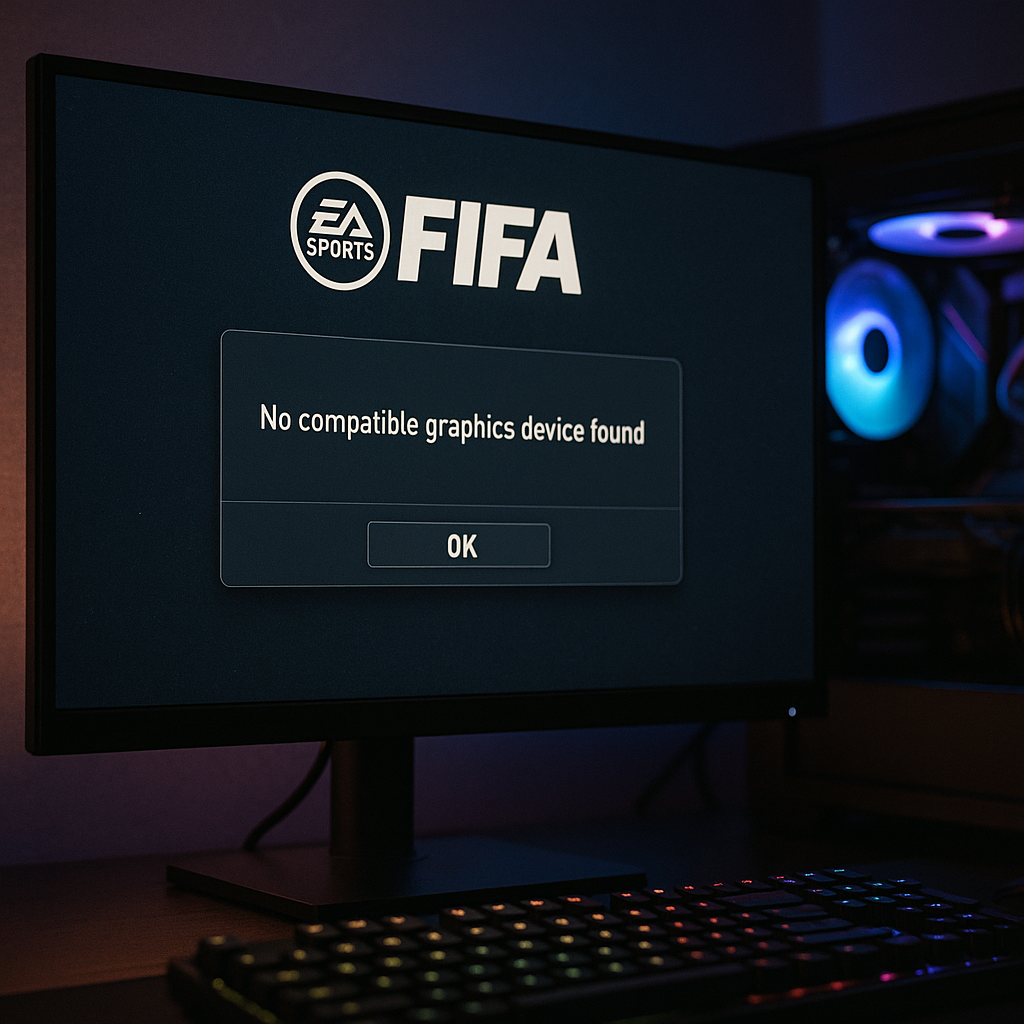
When launching FIFA, a message as clear as it is worrying: “No compatible graphics device found.” If your game stops dead on this screen, don’t panic: this guide focuses on the possible origins of this alert and offers concrete ways to regain smooth rendering and graphics that meet expectations. We break down settings, drivers, hardware, and even some tips worthy of an experienced technician.
Understanding the “No compatible graphics device found” alert
When FIFA does not detect a graphics card that meets its requirements, it displays this error message. Essentially, the game cannot communicate with your GPU, either because the driver is missing or too old, or because the hardware does not meet the imposed DirectX or Vulkan standards. Specifically, without a recognized card, FIFA cannot initialize its 3D engine.
This blockage usually occurs even before the game mode selection screen. If you find yourself facing a black screen with this label, the issue lies in the compatibility between the driver, the DirectX version, and the hardware configuration.
Common causes
Outdated or incompatible graphics drivers
GPU manufacturers (NVIDIA, AMD, Intel) regularly release updates to optimize their drivers. A version that is too old can prevent FIFA from detecting your card. Conversely, a beta or corrupted version can create conflicts. According to official NVIDIA documentation, a WHQL-certified driver ensures better support for recent titles.
Corrupted configuration or game files
A damaged file in the FIFA directory can block the initialization of the graphics engine. This includes the settings file (FIFASettings.cfg) or certain DirectX modules integrated into the launcher. In rare cases, corruption affects the rendering system (DXGI) and prevents any GPU detection.
Unsupported or defective hardware
Entry-level GPUs or those prior to the DirectX 11 generation may be excluded. Likewise, a faulty PCIe slot or a damaged card (memory failure, blocked fan) can interrupt communication. This case is sometimes encountered on certain laptop configurations, where the integrated card poorly substitutes the dedicated chip.
Checking hardware compatibility
Before any software manipulation, a quick look at the hardware is essential:
- GPU model: identify the exact name in Device Manager or via a tool like GPU-Z.
- DirectX version: press
Win+R, typedxdiag, and check the version in the System tab. - Video memory: FIFA requires at least 2 GB for a proper experience at 1080p.
- PCIe slot: ensure the card is in PCIe 3.0 or higher.
| Component | Minimum configuration | Recommended configuration |
|---|---|---|
| GPU | DirectX 11, 2 GB VRAM | DirectX 12, 4 GB VRAM |
| Processor | Intel Core i3 / AMD FX | Intel Core i5 / AMD Ryzen 5 |
| RAM | 8 GB | 16 GB |
| System | Windows 10 (64-bit) | Windows 11 (64-bit) |
Step-by-step solutions
1. Update your graphics drivers
Go to the manufacturer’s website to download the latest WHQL driver. On Windows 10 and 11, the GeForce Experience tool (NVIDIA) or Radeon Software (AMD) simplifies the installation. After the update, restart the PC to ensure all DirectX libraries load correctly.
2. Adjust FIFA launcher settings
In Origin or EA App, access the game properties. Under “Advanced launch options,” add -dx12 or -dx11 to force a specific API. Sometimes forcing DirectX 11 restores compatibility if DirectX 12 mode crashes the GPU.
3. Run as administrator & verify file integrity
Right-click on the FIFA executable → “Run as administrator” can lift certain write locks. Then, in the game Properties tab, choose “Repair game” so the application compares local files with those on the EA server and restores any missing or corrupted parts.
4. Reinstall DirectX or force launcher reset
If the message persists, download the DirectX web installer from the Microsoft site. Let the wizard restore missing modules. You can also delete the contents of the %ProgramData%/Origin folder (or EA App) to force a new extraction of startup data.
5. Complete game reinstallation
As a last resort, uninstall FIFA then manually delete the installation folder (usually under Program Files (x86)EA SportsFIFA). A clean install avoids leaving an error lingering in a DLL file or acceleration module.
Special cases and advanced tips
Managing external GPUs (eGPU)
On some laptops, a USB 3.1 or Thunderbolt 3 eGPU enclosure can cause conflicts. Make sure the external digital card is set as default in the NVIDIA or AMD control panel before launching FIFA.
Using DDU to cleanly uninstall drivers
Display Driver Uninstaller (DDU) is a free tool that deeply cleans your drivers. It removes registry traces and residual files. Just like in the case of an dependency error on Valorant, DDU ensures a clean starting point before reinstalling your driver.
When to consider GPU support or replacement?
If, after all these steps, FIFA still ignores your GPU, two options remain: open a ticket with EA support, attaching your DXDiag reports, or test your card in another PC. If the fault is confirmed, considering an upgrade to a newer model may be necessary — especially for AAA titles with high graphical demands.
FAQ
Why doesn’t FIFA detect my dedicated graphics card?
Most often, it is a missing or corrupted driver. Consider switching the launcher executable to “High performance” in Windows settings, then update the driver.
Can I force FIFA to run with the integrated graphics card?
Theoretically yes, via the Intel HD Graphics panel, but most versions do not support an integrated card for 3D rendering. Smoothness will often be compromised.
What role does DirectX play in GPU detection?
DirectX acts as an intermediary between the game and the graphics API. If your version is too old or there is a DLL conflict, the GPU will not be reported as “compatible.”









