Gaming • By Franck • 9 minutes read
Nothing is more frustrating than wanting to play with friends locally and finding that the Minecraft LAN feature stubbornly refuses to work. After several unsuccessful attempts, here is the complete guide – tested and approved – to solve the problem.
Contents
- What does “LAN not working” mean in Minecraft?
- How to fix LAN not working (10 steps)
- How to connect to Minecraft LAN
- FAQ
- Final thoughts
What does “LAN not working” mean in Minecraft?
Minecraft cannot detect your local game: the game fails to open the required ports or your network connection blocks communication between machines.
How to fix Minecraft LAN not working
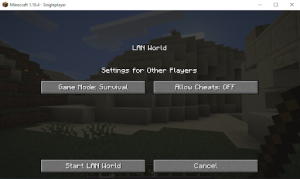
The fixes are ranked from most effective to less common; test them in order to save time.
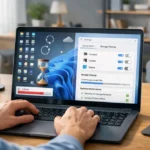
1. Whitelist Minecraft in Windows Defender Firewall
- Open the Control Panel → System and Security → Windows Defender Firewall.
- Click on “Allow an app through the firewall,” then on “Change settings.”
- Check
java.exe(private + public) and confirm.
Read: Roblox error code 279 – how to fix it?
2. Enable network discovery
- Network and Sharing Center → “Change advanced sharing settings.”
- Check “Turn on network discovery” for private & public profiles.
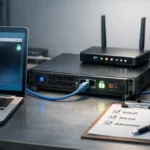
3. Verify all players are on the same network
PCs and consoles must share the same Wi-Fi (or cable); otherwise, the game will not be visible.
4. Disable router AP isolation
If your router has an “AP Isolation” option, disable it so Wi-Fi devices can communicate with each other.
5. Make a direct connection
On the host: note the IPv4 IP + the port displayed in “Open to LAN.” On the client: “Direct Connect” button → enter IP:Port.
6. Play with the same Minecraft version
Make sure all participants use the same release. In the launcher: Profile → “Use version” → select the identical version on each PC.
7. Temporarily disable antivirus
Some antiviruses block Java. Turn off real-time protection for a few minutes to test.
8. Update network drivers
Device Manager → Network adapters → right-click → “Update driver.”
9. Reinstall Minecraft
A corrupted installation can prevent LAN. Uninstall from Control Panel then download the latest version.
10. Remove mods (or use the same ones)
Incompatible mods can block LAN detection. Test without mods, or ensure all players have exactly the same ones.
How to connect to Minecraft LAN
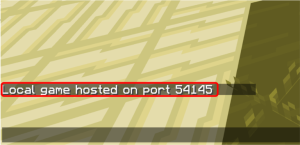
- Host: Single player mode → Esc → “Open to LAN” → choose game mode + “Start.”
- Note the displayed IP and port.
- Clients: Multiplayer → “Direct Connect” → enter
IP:Port→ “Join.”
FAQ
LAN? Acronym for Local Area Network, wired or Wi-Fi local network. The LAN world still doesn’t appear? Check firewall, disable AP isolation, then test direct connection to IP:Port.
To read: Change Valorant username – how to go about it?
Final thoughts
The error “LAN not working” is common but rarely fatal: by methodically applying these ten fixes, you should regain the joy of local multiplayer in Minecraft. If the problem persists despite everything, consider a full network diagnosis or using a dedicated server.