Optimizing Your Android Smartphone Battery in 2026: The Complete Guide to Gaining Autonomy
Optimizing Android battery in 2026 is not about piling up random tips. It’s about acting on the real consumption areas: screen, network, background, and charging. By the end of this guide, you will know what to adjust, in what order, and what each setting really changes in daily use.
The goal is simple: gain hours of autonomy without turning your phone into a slow and frustrating block. We will therefore sort what truly impacts from what is folklore, then adapt the settings to your usage: messaging, GPS, streaming, photos, work, or gaming.
In brief
🔋 The screen remains the primary consumption source. Brightness, screen timeout, and always-on display often make the most visible difference.
📡 The network can drain the battery faster than expected, especially in low reception areas. The phone then strains its radios more.
🧠 Adaptive battery and app optimization limit background activity without breaking daily use.
🌡️ Heat is a discreet enemy. Overheating during charging or leaving the smartphone in the sun damages long-term autonomy.
What you will get by applying this guide
Expected result: a smartphone that lasts better throughout the day, clearer battery statistics, and a clear method to spot what consumes too much. You will also know when behavior is normal, when it is not, and how to preserve battery health in the long term.
What to prepare before starting
No need for root, miracle apps, or obscure tweaks. However, a minimum method is needed to optimize phone autonomy without getting lost in menus.
- A recent Android smartphone, with access to Battery and Apps settings.
- 10 to 20 minutes for basic settings, a bit more if you sort your apps one by one.
- A battery charged at least to 30% to compare effects without stressing the phone.
- A test cycle during a normal day, not during exceptional use.
- A margin of variation: menus change depending on Samsung, Pixel, Xiaomi, and other Android overlays.
Why does the battery drain fast on Android?
On Android, the battery mainly drains when the screen stays bright, an app runs in the background, the network signal is weak, or location works non-stop. Heat and poorly managed charging worsen everything. In other words, it is almost never a single cause.
The 5 most common causes of excessive consumption
- Screen too bright or on too long: this is often the first leak, especially on days with lots of checking.
- Apps active in the background: messaging, social networks, navigation, games, and sync services can stay awake.
- Weak or unstable mobile signal: the phone searches for its connection more often, which drains the battery.
- Location and wireless connections constantly solicited: GPS, Bluetooth, Wi-Fi, and other radios are not free in energy.
- Heat and poorly managed charging: the battery dislikes thermal spikes and extreme habits.
| Action | Usual impact on battery life | When to activate it |
|---|---|---|
| Lower brightness and adjust sleep mode | Very strong | As soon as the screen often stays on |
| Power saving mode | Strong | As soon as the battery drops below 20% or before a long outing |
| Turn off unnecessary Bluetooth, Wi-Fi, or GPS | Strong to medium | When you don’t need them |
| Limit background apps | Strong to medium | If an app stays active without reason |
| Close all apps in a loop | Low | Only after a real freeze |
The battery does not “leak” on its own: it is mainly drained by the screen, the network, the background, and heat.
How to read battery statistics without making mistakes?
Look less at the raw percentage and more at the context. An app can rise in the list because it has been used a lot, not because it consumes poorly. The right reflex is to compare the last 24 hours, then spot background activity without visible use.
The most useful reading mode
- Open Settings > Battery on your Android phone.
- Display consumption over the most meaningful period: often 24 hours or since the last charge.
- Spot the apps at the top of the list, then check if you really used them.
- Distinguish between an app used for a long time and an app that consumes while barely opened.
- If an app remains suspicious, open its settings to limit its background activity.
When an app is really responsible
An app becomes suspicious when it appears high in the statistics without a clear reason, when it syncs continuously or maintains invisible activity while you barely use it. That’s when you need to act, not when a streaming or GPS session logically explains the consumption.
Android settings to prioritize changing
The logic is simple: start with what works continuously. The screen, radios, and background generally consume more battery than small secondary settings. In other words, it’s better to fix three major items than twenty micro-details.
Adjust the screen
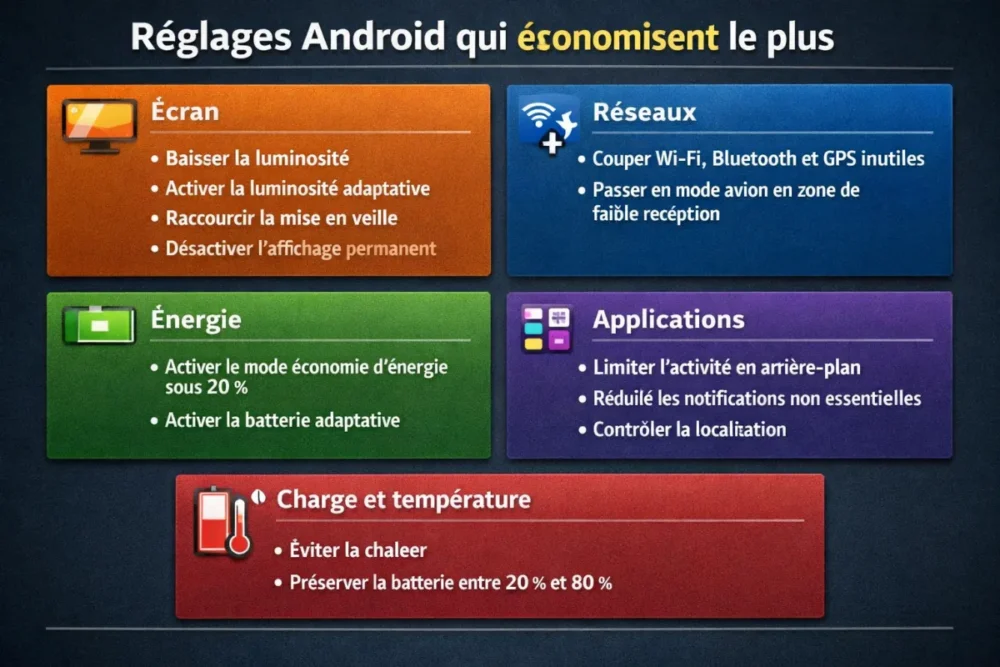
The screen is the most visible drain during normal use. It is therefore the first place to optimize Android battery without depriving yourself too quickly. On many models, a few settings are enough to significantly improve battery life.
- Reduce the brightness manually if the automatic setting is too aggressive.
- Enable adaptive brightness if it is well calibrated on your device.
- Shorten the sleep delay to prevent the screen from staying on unnecessarily.
- Disable always-on display if you don’t really need it.
- Use dark mode on OLED screens: the gain can be significant depending on usage, sometimes up to 30% in favorable conditions.
- Reduce the refresh rate if your model allows it and you don’t need maximum smoothness all the time.
Expected result: an immediate decrease in consumption during long reading, messaging, and web browsing sessions.
Manage wireless connections
- Turn off Bluetooth, Wi-Fi, or GPS when not in use.
- Enable airplane mode if you are in a low reception area and the phone keeps searching for a signal.
- Limit unnecessary network searches, especially when on the move.
- Prefer a stable connection over one that constantly drops.
Expected result: fewer micro network searches, fewer invisible requests, and more consistent battery life while mobile.
Activate power saving features
- Turn on power saving mode as soon as the battery drops below 20% if you want to extend phone usage.
- Use adaptive battery when available: it learns your habits and reduces the activity of less useful apps.
- Limit app optimization on a case-by-case basis if some apps remain too power-hungry.
- Keep in mind that this mode reduces performance and restricts certain functions. This is normal.
Good to know: power saving mode is not a magic band-aid. It mainly saves time by limiting secondary tasks.
The right reflex is not to aim for 0% or 100% at all costs, but to maintain a steady charge and controlled temperature.
How to reduce app consumption?
Start with apps that keep a service active, trigger too many notifications, or sync constantly. The goal is not to close everything, but to restrict the background activity of truly power-hungry apps. This is often where the best gain is achieved without loss of comfort.
Actions app by app
- Close unused apps after heavy use: GPS, video, gaming, photo editing.
- Uninstall unnecessary apps that run for no reason and sometimes keep services active.
- Reduce non-essential notifications to avoid constant phone wake-ups.
- Limit automatic synchronization of accounts that do not need continuous refreshing.
- On some Android devices, management is found in Settings > Notifications > App settings to disable what is not really needed.
Permissions that really matter
- Location: grant access only when necessary.
- Background: block apps that have no reason to be active constantly.
- Synchronization: space out refreshes if usage does not justify continuous updates.
Expected result: fewer system wake-ups, fewer invisible checks, and a battery that lasts better between charges.
Does fast charging really damage the battery?
Fast charging is not the main problem; heat is. On a recent smartphone, it remains very useful for quickly recovering battery life, provided you do not charge in an already hot environment. Proper charger use matters more than its raw power.
Good Charging Habits
- Avoid high temperatures during charging, especially in the sun or inside a closed car.
- Favor regular cycles rather than repeated extremes.
- Try to stay often between 20% and 80% if you want to preserve the chemical health of the battery over time.
- Use a suitable and certified charger for your model.
Temperature and Battery Health
A battery poorly tolerates violent fluctuations. Above 35 °C or below 0 °C, autonomy and lifespan can degrade. If you feel the phone heating up strongly while charging, remove the case, stop heavy usage, and let it breathe.
How to Adjust Settings to Your Usage?
The right profile depends on your day. When mobile and in poorly covered areas, you need to turn off unnecessary radios and switch to power saving earlier. For streaming, gaming, or photos, it is better to limit heating and background tasks rather than disable everything.
For Trips and Travel
- Activate power saving before leaving if the day looks long.
- Turn off unnecessary connections when you don’t need Wi-Fi, Bluetooth, or GPS.
- Monitor low reception areas: that’s where autonomy drops fastest.
Expected result: a phone that lasts better on transport, abroad, or in rural areas.
For Gaming and Streaming
- Reduce brightness before starting a long session.
- Avoid charging during heavy gaming, as heating adds up quickly.
- Keep secondary notifications off to limit system wake-ups.
Concrete example: one hour of gaming in full sun with fast charging and maximum screen brightness can drain the battery much faster than an equivalent session indoors with moderate brightness.
For Intensive Professional Use
- Stabilize notifications to avoid cascading interruptions.
- Limit continuous synchronization of low-priority accounts.
- Check videoconferencing and messaging apps, often more power-hungry than you think.
Expected result: more reliable autonomy over a full day, without having to hunt for a charger at 3 p.m.
How to Know if the Battery is Worn Out?
A worn battery doesn’t just drain quickly. It can also drop from 30% to 15%, cause sudden shutdowns, or heat up more than before. If autonomy remains poor despite good settings, the problem probably comes from physical wear.
Warning Signs
- Very rapid discharge despite moderate use.
- Sudden shutdowns while the displayed percentage still seems correct.
- Unusual heating during simple tasks.
- Percentage jumping inconsistently from one moment to another.
- Autonomy becoming insufficient despite all useful settings already applied.
When to Consider Replacement
If the battery no longer lasts the day even though you have already adjusted the screen, background, and radios, you should consider a diagnosis at a store or after-sales service. It’s better to check the real condition of a smartphone battery than to keep compensating with makeshift settings.
Errors to Absolutely Avoid
Joking aside, many supposedly clever “tricks” cause more discomfort than they bring in autonomy. The goal is not to put the phone on a dry diet, but to remove real energy leaks.
False Good Ideas
- Closing all apps permanently: this is not the right reflex daily.
- Installing miracle optimization apps: they often promise more than they deliver.
- Disabling too many useful functions for minimal benefit.
- Changing ten settings at once without checking what they actually do.
Habits that Damage the Battery
- Letting the phone heat up for too long, especially during charging or heavy use sessions.
- Using inappropriate or questionable charging equipment.
- Frequently waiting for the battery to drop to zero before recharging.
- Forgetting energy-consuming apps that run in the background for no reason.
Action Plan to Apply Starting Today
If you want to optimize Android battery without spending your evening in menus, start with the order that yields the most: screen, networks, apps, charging. This is the simple version, but it’s also the one that works best in real life.
- Lower the brightness and reduce the sleep delay.
- Activate adaptive battery and power saving mode at the right time.
- Turn off unnecessary connections and monitor areas of poor reception.
- Sort out power-hungry apps and disable notifications that wake the phone too much.
- Charge under good conditions by avoiding heat and extremes.
Key Takeaways
🔋 Start with the screen: it is almost always the most cost-effective lever.
📶 Weak signal is costly: on the move, the network heavily impacts battery life.
🛡️ Adaptive battery really helps when apps run too much in the background.
🌡️ Heat wears out the battery faster than fast charging itself.
⚙️ Optimizing Android battery mainly requires prioritizing the right settings, not installing miracle tools.
FAQ
Why does the battery drain even without using the phone?
The cause often comes from background apps, notifications, automatic synchronization, or an unstable network signal. The phone then works without you seeing it. If consumption remains high at night or on standby, first check the battery statistics.
Is charging overnight dangerous?
On a recent smartphone, overnight charging is not dangerous in itself. The real point of caution is heat and charger quality. If the phone stays warm and you use proper equipment, the risk is limited.
Should 5G be disabled to save battery?
Not systematically. The problem mainly comes from unstable 5G or poorly covered areas, where the phone constantly searches for its signal. In this case, a more stable connection can be more economical. The right choice therefore mainly depends on your actual coverage.
Does power saving mode really slow down the phone?
Yes, because it limits certain functions and reduces performance to extend battery life. This is not a flaw; it is the very principle of the mode. The idea is to activate it at the right time, not to keep it mandatory all the time if you need smoothness.