Automatic Data Backup: The Complete Guide to Securing Your Files in the Cloud and Locally
Automatic data backup is the simplest way to protect your files without thinking about it every day. The idea is clear: a copy is created at regular intervals, then you retrieve it in case of failure, human error, theft, or attack.
In this guide, you will learn how to build a solid strategy, combine cloud backup and local backup, set the frequency, avoid synchronization pitfalls, and, above all, restore your data when needed. In short, practical, concrete advice without any fluff.
In Brief
🛡️ Automatic data backup protects your files even when you forget manual copying.
☁️ The cloud provides remote access, continuity, and off-site copies, but depends on the Internet and the provider.
💾 Local backup remains the fastest to restore, especially on external hard drives, SSDs, or NAS.
🔁 The best approach remains a hybrid backup: a fast local copy, an external copy, and regular restoration tests.
Why Automate Your Backups?
Automating an automatic data backup eliminates the most common weak link: human forgetfulness. A disk failure, ransomware, accidental deletion, or stolen computer always happens at the worst time. Automation thus turns a fragile reflex into a reliable mechanism.
The real benefit is not just to “make a copy.” It is to keep a usable version of the files, at the right time, without having to remember to launch anything. For an individual or a small team, this peace of mind is well worth the small initial setup.
- Protection against failure: a hard drive does not warn before failing.
- Protection against error: a mistakenly deleted file can be recovered.
- Protection against attack: an off-site copy limits ransomware damage.
- Time saving: the task runs automatically in the background.
A backup that has never been tested is not protection; it is a hypothesis.
In practice, automatic data backup covers everything that really matters: photos, videos, office documents, emails, project files, configurations, and sometimes even a complete system. The more critical the data, the more indispensable automation becomes.
What’s the Difference Between Backup, Synchronization, and Archiving?
Confusing these three concepts causes many strategies to fail. Backup keeps a recoverable copy. Synchronization replicates the state of a folder across multiple devices. Archiving is used to store files that change little over time. In other words, the three serve different needs.
| Function | Main Purpose | Strength | Risk to Know |
|---|---|---|---|
| Backup | Restore data in case of loss | Recoverable versions | If not tested, restoration may fail |
| Synchronization | Keep the same files on multiple devices | Daily usage convenience | A deletion can propagate everywhere |
| Archiving | Keep files long-term | Organization and clutter reduction | Not suitable for frequently changing files |
Synchronization is useful for working on multiple machines, but it does not replace a true automatic data backup. If you delete a folder and synchronization runs, the deletion can be replicated. That is precisely why a serious strategy always keeps an independent copy.
Synchronization replicates the state of a folder; backup keeps a recoverable version.
Good to know: a cloud service like webmail or online storage often already protects files hosted on its servers. However, what remains stored locally on your computer, phone, or external drive must be backed up separately.
Which strategy to choose between cloud and local?
The right answer is not “cloud versus local,” but “cloud and local.” The cloud facilitates remote access and offers an off-site copy, while local storage speeds up restoration. Combining both follows the logic of the 3-2-1 rule: multiple copies, on multiple media, with one off-site from the main location.
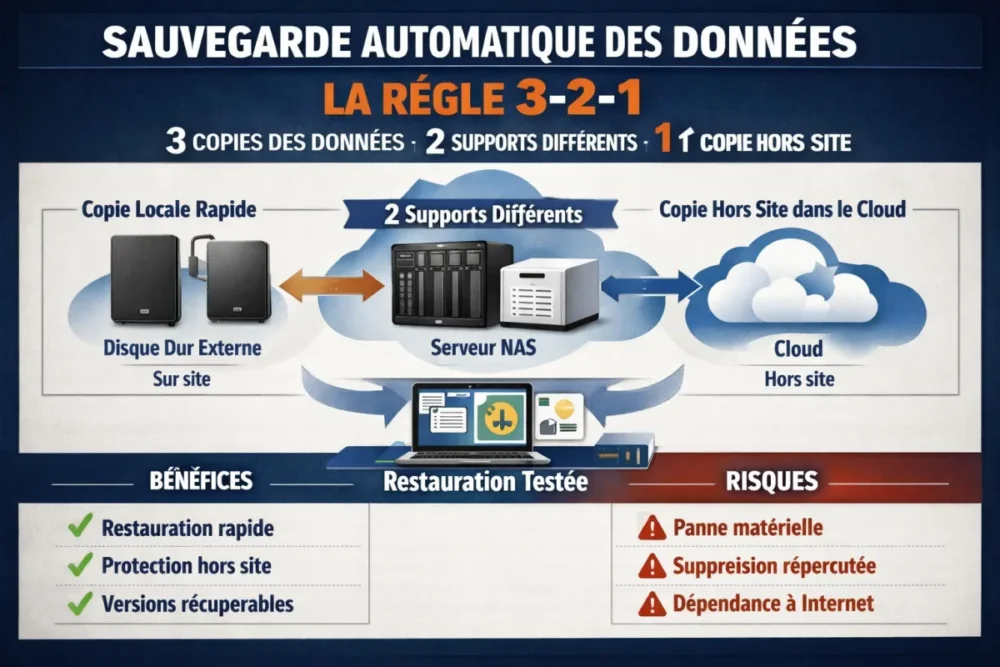
| Solution | Ideal use | Main advantage | Point of caution | Budget reference |
|---|---|---|---|---|
| External hard drive | Simple local backup | Fast restoration | Risk of physical failure | 2 TB: €100 to €200 |
| External SSD | Laptop, mobile work | Very fast | Often lower capacity | 500 GB: around €100 |
| NAS | Advanced use, multiple devices | Centralization | More technical setup | 4 TB: around €300 |
| Cloud | Off-site copy and multi-device access | Accessible everywhere | Dependence on Internet and provider | Variable subscription |
The right choice mainly depends on your work pace. If you modify few files, a scheduled local backup may be enough to start. If your files change daily, cloud backup or hybrid backup becomes much more comfortable. In both cases, the real question is not just “where to store,” but “how to restore quickly and stress-free.”
- Cloud only: simple, convenient, off-site, but depends on internet access.
- Local only: fast and controlled, but exposed to physical disasters.
- Hybrid: the best compromise to secure your files without complicating your life.
How to set up automatic backup step by step?
The setup must remain simple, otherwise it won’t last over time. The right order is to identify critical data, choose the appropriate medium, define the frequency, activate automatic data backup, then test restoration. This logical sequence is what turns a tool into real protection.
Step 1: identify the data to protect
Start by listing the folders that must never disappear: photos, videos, office documents, client exports, project files, locally stored emails, address books, and important settings. The idea is not to back up everything without thinking, but to target what would be painful, long, or impossible to rebuild.
Concrete example: on a personal computer, you can target the Photos folder, the Documents folder, and the working directory of a business software. On a professional workstation, add production folders, templates, exports, and shared files. On a smartphone, think of contacts, photos, and videos.
Expected result: you know exactly which data must enter the automatic data backup loop.
Step 2: choose the local copy
For a local backup, start with an external medium clearly dedicated to this use. An external hard drive works very well for most needs. An external SSD becomes interesting if you often move your equipment. A NAS takes over when multiple machines must share the same strategy.
The important point is not the fanciest technology. It’s the separation of roles. Your main drive is for working, your backup medium is for restoring. Mixing the two is an open door to double data loss.
Expected result: your local copy is ready to receive regular backups without being used as a workspace.
Step 3: choose the cloud layer or backup software
If you are looking for a simple solution, favor a service or software that supports scheduling, version history, compression, encryption, and fast restoration. Tools like Acronis True Image or Veeam Agent for Windows are good examples of this approach, with options suitable for both individuals and more advanced uses.
The cloud has a very clear advantage: your backed-up files remain accessible remotely from a connected device. Data stored on external servers is generally encrypted and compressed before being stored in data centers, which enhances security and space efficiency.
Expected result: you have a second copy, off-site, capable of taking over if the local hardware fails.
Step 4: define the backup frequency
The frequency should match your rate of modification. Active files deserve daily backup, or even continuous in some contexts. Archives that are rarely changed can be handled weekly. The faster the data changes, the higher the frequency should be.
The right logic is not “do more to do better,” but to choose an interval consistent with the sensitivity of the files. A local database, a production folder, or mission photos benefit from being copied more often than an old archive folder.
Expected result: your automatic data backups follow the real risk level, without overloading the system.
Step 5: test the restoration without waiting for a disaster
Restoration testing is the step most often missing. Take a test file, delete it intentionally or modify it, then check that it correctly restores from the backup. Also verify that an older version is recoverable if your tool manages versioning.
If you manage multiple devices, try restoring on a different machine or on a test profile. This way you will spot issues with permissions, paths, or compatibility before they become problematic at the worst time.
Expected result: you know that your automatic data backup system really works, not just on paper.
What settings make restoration reliable on a daily basis?
A good backup is not just automatic. It must be restorable, readable, and controlled. For that, three settings matter more than the rest: versions, access security, and regular verification. Without these three building blocks, the copy may exist, but its practical value quickly decreases.
- Version history: keep multiple states of the same file to revert after a bad modification.
- Encryption: protect sensitive data, especially in the cloud or on a portable medium.
- Compression: reduce the space occupied by backups when the tool offers it.
- Off-site storage: keep at least one copy away from the main usage location.
- Regular tests: verify that a specific file restores without error.
The goal of automatic data backup is not to pile up copies, but to be able to revert cleanly.
In a professional environment, access to backups must also be protected by a strong password and, if possible, strong authentication. This is even more true if multiple people use the same space or if the backup contains client data, sensitive projects, or elements subject to confidentiality obligations.
What common mistakes cause an automatic backup to fail?
The most common errors are not technical. They are organizational. Automatic data backup often fails because backup and synchronization are confused, because everything is left on the same medium, or because restoration is never tested. In other words, the problem rarely comes from the tool alone.
- Thinking that synchronization replaces backup: a deletion can propagate everywhere.
- Keeping only one copy: if it is in the same place, it suffers the same disaster.
- Never checking versions: an error can silently overwrite a good file.
- Forgetting local smartphone data: photos and documents remain vulnerable if nothing is planned.
- Not testing restoration: the day the copy is needed, it is too late to discover a defect.
The most insidious risk is “double loss.” You lose a file on the main computer, then synchronization or a bad manipulation also replaces the copy. To avoid this, always keep at least one independent backup, with versions preserved over time.
What best practices should you apply according to your profile?
The right system depends on your actual use. An individual, a freelancer, and a small business do not have the same volumes or the same level of requirements. The logic remains identical, however: simplify the routine, multiply useful copies, and limit points of failure. Automatic data backup must adapt to your daily life, not the other way around.
For an individual
Aim for a simple solution: local copy on an external drive and cloud copy for irreplaceable photos, documents, and files. There is no need to complicate things if you mainly want to protect memories, administrative documents, and a few personal projects. The essential thing is to automate and test a restoration from time to time.
For a self-employed person or freelancer
Add versioning and encryption. Your deliverables, invoices, client files, and work files must be able to revert to a precise state if an error occurs. Here, automatic data backup also serves as a safety net against bad manipulation or version conflicts.
For a small business
Document the internal rule: what to back up, where, how often, who can access the copies, and how to validate restoration. This is also the right level to separate rights, store an off-site copy, and regularly check data integrity. A clear procedure avoids “we thought it was backed up.”
Conclusion: building a truly useful automatic backup
If you remember only one thing, remember this: an automatic data backup is only valuable if it is regular, redundant, and tested. The cloud + local duo remains the most balanced formula to protect your files, reduce risks, and recover your data without panic. Automation does most of the work; it’s up to you to keep control over restoration.
Key Takeaways
Key points to remember
- 🧩 An automatic backup protects, but a tested restoration really protects.
- ☁️ The cloud provides off-site copy and remote access.
- 💾 Local restores faster and remains essential for urgent recoveries.
- 🔐 Encryption, versions, and strong authentication reduce risks.
- 🔁 The 3-2-1 rule remains the most solid basis for securing your files.
FAQ
Is the cloud enough for automatic data backup?
No, not if you want to minimize risk as much as possible. The cloud is excellent for off-site copy and remote access, but a local copy remains very useful for quick restoration. The most robust remains a hybrid backup, with at least two distinct locations.
How often should an automatic backup be launched?
The frequency depends on how often your files are modified. Active documents or sensitive projects deserve daily backup, even continuous if the tool allows it. Archives that are rarely modified can be backed up weekly without major problems.
How can I tell if my backup really works?
The only real test is to restore an actual file. Take a document or a photo, delete or modify it, then recover it from the backup. If the restored version is correct and complete, your automatic data backup is doing its job well.
Should I also back up files that are already online?
Yes, especially if these files also exist locally or are related to your work. Cloud services often manage their own protections, but this does not replace your personal strategy. The right approach is to distinguish what is only synchronized from what is actually backed up.
Which medium should I choose to start simply?
To start without complicating things, an external hard drive dedicated to local backup is often the simplest starting point. Then add a cloud copy for the most important files. This combination already covers the main everyday risks.