Securing Your WordPress Site: The Step-by-Step Guide to Effectively Protect Your Site
Update: May 2026. To secure your WordPress site, start with the most cost-effective: a complete backup, quickly applied updates, a strong password, two-factor authentication, removal of unnecessary access, and basic monitoring. If you manage these six levers, you already cut the ground from under many common attacks.
By the end of this guide, you will have a clear method to protect your site without getting lost in jargon. The idea is not to promise invulnerability — that doesn’t exist — but to build multiple layers of protection, in a simple, testable, and sustainable way.
In Brief
🔒 The first step is WordPress backup. Without possible restoration, every operation becomes a somewhat risky bet.
🛠️ WordPress update, theme, and plugins: this is the most cost-effective trio to fix already known vulnerabilities.
🧠 A strong password and two-factor authentication block a large part of opportunistic attempts.
👀 A WordPress security plugin mainly serves to monitor, alert, and limit access, not to do all the work for you.
Why WordPress Security Must Be a Priority
WordPress powers more than 40% of websites worldwide. In other words, it is a massive target, closely watched by attackers. And since only 20% of sites run the latest version of the CMS according to a frequently cited figure, many sites carry avoidable vulnerabilities for weeks or even months.
The most common risks are known: takeover of an administrator account, injection of malicious code, redirection to dubious pages, data theft, spam sent from your site, or simple blocking of the administration. The problem is that a single weakness is often enough to bring down the whole system.
- Update vulnerabilities: an outdated WordPress core, theme, or plugin.
- Overly broad access: too many administrator accounts, recycled passwords, shared credentials.
- No safety net: no recent backup, thus no quick restoration.
- No monitoring: the incident is only noticed once the site is already degraded.
A WordPress site is protected in layers: update, backup, access, monitoring. If one layer is missing, the rest loses effectiveness.
How to Know if Your WordPress Site Is Already Vulnerable?
The right reflex is to spot three signals: outdated versions, too many administrator accounts, and no tested backup. If even one of these points is problematic, your WordPress site is already more exposed than it should be. The goal is not to guess everything but to take a clear inventory before acting.
Check the Simplest Symptoms
Log into the administration and check the updates page, the user list, and the status of your plugins. If you see a plugin not updated for a long time, an unknown account, or a theme that no one uses anymore, note it immediately. These are very concrete red flags.
Spot Warning Signs from the Visitor Side
A page that loads slowly for no reason, strange pop-ups, links pointing elsewhere, or browser messages on a suspicious site should make you react. This kind of symptom is not always a hack, but it deserves immediate verification. Better to clear a false alarm than to let a real problem settle in.
What You Should Achieve by the End
The real goal is not “having installed a plugin.” The good result is a WordPress site that can withstand an incident without losing everything, with better locked-down access and a simple maintenance base to repeat. In practice, aim for these six concrete results:
- A reliable backup of the database and files.
- Updates applied without unnecessary delay.
- Restricted access to only those who need it.
- Enhanced authentication for administration.
- Minimal monitoring of connections and modified files.
- A response plan if a problem occurs anyway.
What to prepare before starting
Before securing your WordPress site, set the stage. You don’t need to be a system administrator, but you must have WordPress access, hosting access if possible, and some uninterrupted time. The most important thing: do not touch critical settings without a recent backup.
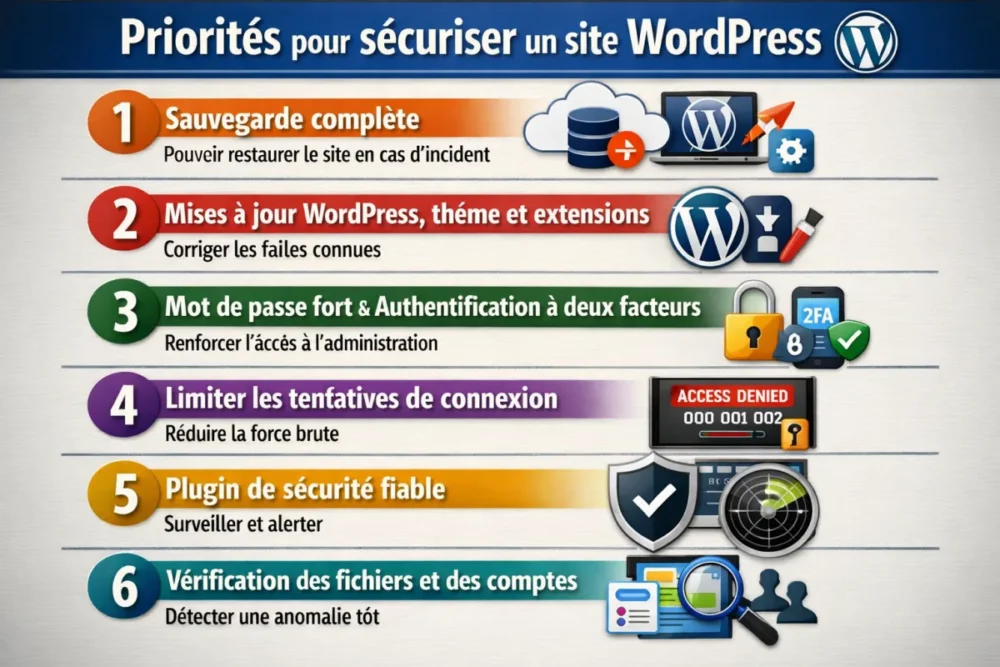
| Action | Urgency | Difficulty | Main effect | Recommended order |
|---|---|---|---|---|
| Complete backup | Very high | Easy | Restore the site in case of trouble | 1 |
| WordPress, theme, and plugin updates | Very high | Easy to medium | Fix known vulnerabilities | 2 |
| Strong password and two-factor authentication | High | Easy | Block abusive logins | 3 |
| Limiting administrator accounts | High | Easy | Reduce overly broad access | 4 |
| Reliable security plugin | Medium | Easy | Monitoring and alerts | 5 |
| File and log control | Medium | Medium | Detect anomalies early | 6 |
- Expected level: beginner to intermediate, without advanced server skills.
- Time required: 45 to 90 minutes for a first serious securing.
- Necessary tools: WordPress interface, hosting access, backup solution.
- Practical check: keep at least 1 GB of free space on the server before updates, when possible.
Step 1: take stock before acting
Don’t start by installing things randomly. First do a quick audit to know where you stand, otherwise you risk fixing one issue and leaving three others open. The goal of this step is simple: identify what is up to date, what is exposed, and what is completely missing.
Check the version of WordPress, the theme, and plugins
In the dashboard, open the updates page and note the version of the WordPress core, the active theme, and the plugins. If an update has been available for a while, treat it as a priority. Outdated versions are the most common entry point.
Identify active administrator accounts
Go to the user list and count the accounts with an administrator role. If there are too many, reduce them to the strict necessary. A shareable, forgotten, or test-created administrator is often the dumbest weakness of the site.
Check for the existence of a recent backup
Check the date of the last complete backup. If the database was backed up but not the files, or vice versa, it’s not enough. You must be able to roll back with a coherent state of the site, not with a half-security net.
Step 2: strengthen access to administration
This step reduces the risk of intrusion by brute force or credential theft. It acts directly on the site’s entry point. If your access is weak, everything else becomes more fragile, even with good security plugins.
Choose a truly strong password
Use a long, unique password without dictionary words or company names. An obvious username combined with an average password makes an attacker’s job easier. The goal is to make guessing so costly that it’s no longer worth it.
Enable two-factor authentication
Two-factor authentication adds a validation step at login. Even if a password leaks, access remains much harder to gain. It is one of the most cost-effective protections for a WordPress administrator account.
Limit login attempts
Reducing the number of allowed attempts hinders automated attacks that test credentials in bulk. The principle is simple: if someone tries twenty times in a row, they should be blocked quickly. It’s basic but very effective against opportunistic attacks.
Remove unnecessary or overly exposed accounts
Delete test accounts, former providers, generic addresses, and any account that no longer has a reason to exist. The fewer accesses there are, the fewer weak points there are. Cherry on top: daily management becomes clearer.
If you never test your restoration, your backup remains a promise, not a protection.
How to update WordPress and its components without breaking the site?
Do it in this order: full backup, disk space check, WordPress core updates, then theme and plugins updates, and finally a visual check of the site. When in doubt, test first on a staging environment. This way you avoid blind updates, which often end in cold sweats.
Why updates reduce vulnerabilities
Updates fix already known vulnerabilities. Since WordPress 3.7, small security updates are automatic, but major updates still require attention. This is exactly where many sites fall behind.
How to secure the update process
Before launching anything, check that a backup is in place and that the server has enough free space. Then update WordPress, then the theme, then the plugins one by one if the site is critical. This pace limits unpleasant surprises and helps you identify the source of any potential conflict.
What to do before updating a plugin or theme
Review the compatibility indicated by the publisher, check the date of the last update, and ask yourself if the plugin is still really useful. An old and poorly maintained plugin quickly becomes an entry point. If it no longer adds value, uninstall it outright.
Step 4: install a reliable backup strategy
A good WordPress backup must allow you to restore the site quickly, without tinkering. Backing up only the database is incomplete. Backing up only the files is also incomplete. You need both, and you need to know how to reuse them when the time comes.
What exactly to back up
Keep the database, site files, active theme, and plugins. If you use large media files, also check that they are properly included. A backup that forgets half the site will make you waste a lot of time in case of an incident.
How often to back up depending on the type of site
For a site that changes little, a weekly backup is a reasonable baseline. If you publish often, you should increase the frequency. The right reflex is not to aim for “a lot,” but to aim for “often enough so that data loss remains low.”
Where to store backups so they are truly useful
Keep them off the main server whenever possible. If the server goes down or the site is affected, a backup stored in the same place can disappear along with the rest. Plugins like UpdraftPlus or BackWPup are often used to automate this task and send copies elsewhere.
Test a restoration before the day of the problem
Restoring on a test environment or on a copy of the site allows you to verify that everything really works. The test takes time, yes. But the day the site breaks, you will be glad to have validated the process in advance.
Step 5: secure the site at the technical level
This step does not always require deep server changes, but it seriously strengthens the foundation. The idea is to reduce unnecessary attack surfaces and make administration less exposed. We are not looking for sophistication, we are looking for efficiency.
Enable HTTPS and check the certificate
HTTPS encrypts exchanges between the visitor and the site. Check that the SSL certificate is active on the entire domain, not just on the homepage. If some pages remain on HTTP, you allow part of the traffic to circulate less securely.
Protect sensitive files
Configuration files and sensitive areas should not be accessible more than necessary. If your host or your WordPress configuration offers protection settings, activate them without hesitation. The less a critical file is exposed, the more stable the site is.
Check file and folder permissions
Permissions that are too broad facilitate unauthorized modifications. A folder or file that can be rewritten too easily becomes an open door. Here, the logic is simple: give the minimum useful access, no more.
Reduce unnecessary attack surfaces
Remove themes and plugins you no longer use. Also avoid components installed “just in case” but never updated. Each dormant element adds a layer of complexity and therefore, potentially, a weak point.
Step 6: choose a useful, non-intrusive security plugin
A WordPress security plugin is not a magic wand. However, well chosen, it can save you time on monitoring, alerts, limiting login attempts, and detecting suspicious behavior. The goal is to pick a good one, not to stack three that conflict with each other.
Essential features to look for
Aim for the following features: WordPress firewall, login limitation, file change alerts, activity log, and WordPress malware scan. If the plugin does all this without slowing down the site or cluttering the interface, you are on the right track.
What a good plugin should do without slowing down the site
It must monitor without blocking normal use, alert without spamming, and remain understandable for a non-specialist. A good security tool makes itself forgotten when everything is fine, then becomes very talkative the day something goes wrong. That’s exactly what we expect from it.
Why avoid stacking too many plugins
Too many security plugins sometimes create duplicates: two firewalls, two blocking systems, two layers of alerts. As a result, the site slows down, and settings become tedious to maintain. Better to have a single reliable plugin than a patchwork that is hard to follow.
Step 7: monitor and detect anomalies
Security does not stop once the settings are done. A WordPress site lives, evolves, and changes. You must therefore keep an eye on connections, changed files, and security alerts to quickly spot a drift before it grows.
Spot suspicious logins
If an account logs in at unusual hours, from an address that does not match your usual usage, note it. A single login is not proof, but a series of matching clues deserves immediate verification.
Track modified files
An unexplained file modification, especially in a theme or plugin, should attract attention. The principle is simple: the earlier you spot the modification, the faster the correction. Waiting “to see” is rarely a good strategy.
Analyze the site in case of doubt
If strange behavior appears, run a WordPress malware scan with your security tool, then compare what has changed recently. The idea is not to become paranoid, but to have a control reflex when the signals no longer add up.
How to react if your WordPress site is already compromised?
Cut off non-essential access, restore a healthy version if you have one, then change all passwords related to the site. Next, check user accounts, installed plugins, and modified files. The faster you act, the less chance the attack has to spread.
Isolate the problem without making the situation worse
Avoid making multiple changes in all directions. If the site is visibly affected, keep track of what you do and limit interventions to the bare minimum. Urgency sometimes pushes you to tinker, but tinkering often complicates restoration.
Restore a clean backup
If a clean backup exists, it becomes your fastest way to a stable site. Verify that it dates from before the incident and that it contains both files and the database. Restoring a contaminated backup just moves the problem.
Regain control over access and accounts
Change WordPress passwords, hosting passwords, and if needed, database and FTP passwords. Delete or disable suspicious accounts. Then inspect user roles to ensure no unnecessary access has been retained.
The right reflex in case of an incident is first to regain control, then only to look for the exact origin.
Good practices to maintain over time
Securing your WordPress site once and for all does not exist. What does exist, however, is a simple routine that prevents the accumulation of small oversights. Good maintenance is better than a major panic intervention every six months.
- Every week: check for updates and the presence of a recent backup.
- Every month: check user accounts, logs, and security alerts.
- After each major change: quickly test the site in real browsing.
- Every quarter: review unnecessary plugins and clean up.
This routine takes little time, but it changes everything. You reduce oversights, detect anomalies faster, and keep a cleaner site. In other words, you move from “reactive” security to “controlled” security.
Conclusion: the most effective method to securely maintain WordPress long-term
If you had to remember only one thing, it would be this: securing your WordPress site relies on multiple layers, not on a single tool. Quick updates, tested backups, locked access, HTTPS, a well-chosen security plugin, and regular monitoring together form a solid foundation.
The most effective is often the simplest: few tools, clean settings, regular checks, and a true maintenance discipline. It’s less glamorous than a miracle solution, but much more useful when a real problem occurs.
To remember
- 🔐 Complete backup tested before any sensitive action.
- 🛠️ Quick updates of core, theme, and plugins.
- 🧩 Limited access, strong passwords, and two-factor authentication.
- 📡 Monitoring connections, modified files, and alerts.
- 🧯 In case of incident, restore then change all sensitive access.
FAQ
Is WordPress really secure?
Yes, provided it is maintained and properly configured. WordPress is not “dangerous” by nature: it is mainly update delays, weak access, and missing backups that create problems. Well maintained, it remains a solid base.
Is a security plugin enough?
No. A security plugin helps a lot, but it does not replace updates, backups, or good passwords. True security relies on several complementary layers. It’s less marketable, but much more reliable.
How often should you back up WordPress?
For a site that is rarely changed, a weekly backup is a reasonable baseline. If you publish often or if your business depends directly on the site, increase the frequency. The essential thing is to be able to roll back without losing too much content.
How can I tell if my site has been hacked?
Watch for unusual symptoms: strange redirects, modified pages, unknown accounts, security alert messages, or a sudden drop in performance. The most reliable method remains to compare what has changed and run a scan if serious doubt arises.
What is the first thing to do in an emergency?
Block non-essential access, then restore a clean backup if you have one. Next, change all passwords related to the site and check user accounts. In this kind of situation, acting quickly matters more than trying to understand everything immediately.