| Key points | Details to remember |
|---|---|
| 📋 Definition of the error | Startup Repair analyzes and repairs damaged system files at startup. |
| ⚠️ Common causes | Corrupted OS files, defective sectors, incompatible drivers. |
| 🔧 Main solutions | Safe mode, Command Prompt and System Restore. |
| 💾 Backup and recovery | System image, Restore points and external drives. |
| 🛡️ Prevention | Regular updates and periodic hard drive checks. |
| ⌛ Estimated time | About 30 to 60 minutes depending on the chosen method. |
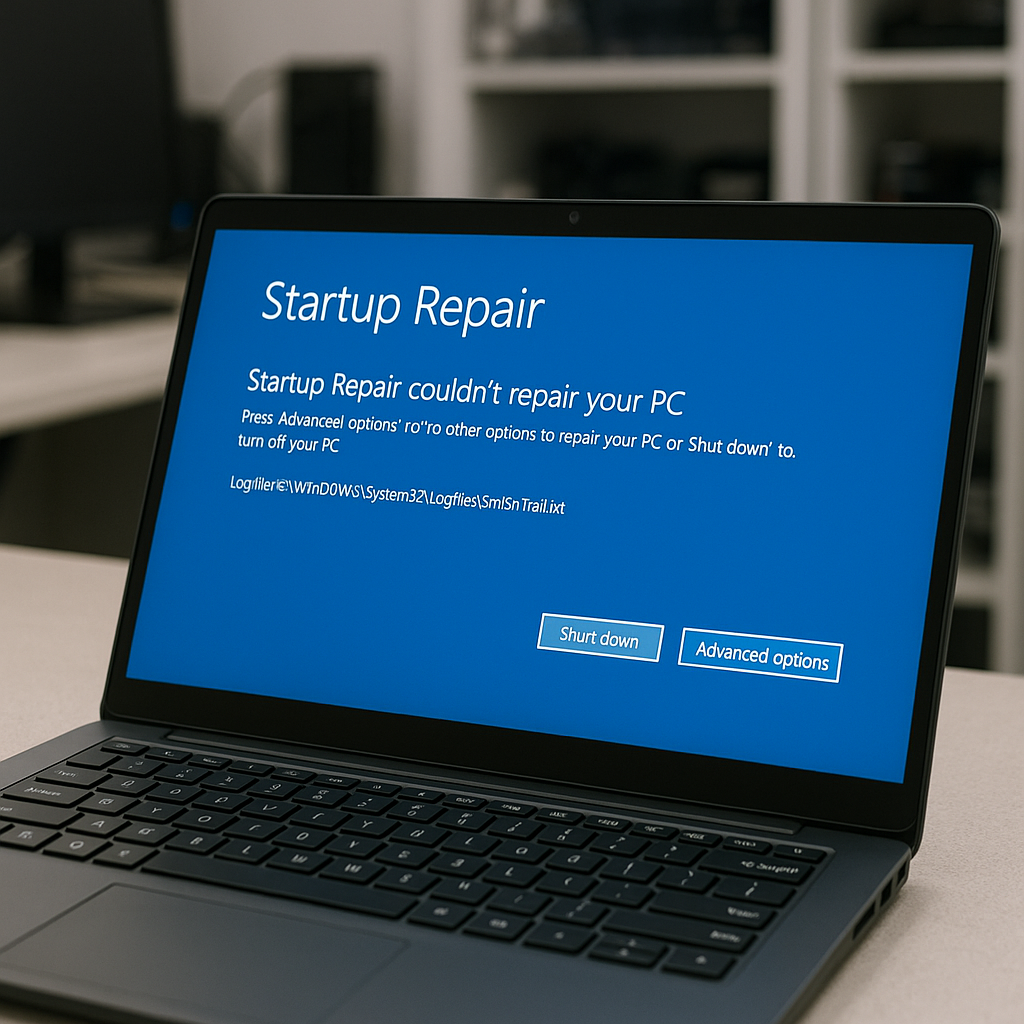
Sometimes Windows 10, your faithful everyday companion, hesitates to pass the startup stage. The message “Startup repair couldn’t repair your PC” then appears, blocking access to the desktop. Like a seized engine, this deadlock can be discouraging. Yet, behind its appearance as an impassable sentinel, this automated repair hides accessible remedies, provided you understand where the blockage comes from and how to act methodically.
Understanding the “Startup repair couldn’t repair your PC” error
Before diving into solutions, let’s take time to dissect the mechanics. When Windows detects a critical anomaly at startup, it launches Startup Repair, an automatic tool responsible for diagnosing and fixing problems. If the error persists, it means the tool, due to lack of capability or access, was unable to restore balance.
Underlying causes
Several factors can knock on Startup Repair’s door:
- A system file corrupted following an interrupted update or a virus.
- A partition or a defective hard drive sector.
- A recently installed driver incompatible with the hardware configuration.
- A BIOS modification or a misconfigured SSD/HDD (AHCI mode vs IDE).
Symptoms before triggering
Often, Windows warns you by slowing down. Longer black screen, endlessly spinning loading circle, successive restarts: the system tries to save the situation, then gives up by displaying the famous notification.
Step-by-step resolution methods
Each of the following solutions deserves to be applied in order, from the simplest to the most invasive. We go from gentle mode to heavy surgery, keeping the Windows environment as intact as possible.
1. Restart in safe mode
Safe mode loads Windows with a minimum of drivers. To access it:
- Restart the PC and press F8 several times (or Shift + F8 if available).
- Select “Safe mode” from the menu.
- Once in the restricted environment, uninstall recent suspicious drivers or software.
In reality, this is often enough to regain footing. If you manage to return to the desktop, take the opportunity to launch chkdsk /f to detect defective sectors.
2. Using the Command Prompt
When Safe Mode remains inaccessible, the next step is to open the command prompt from the repair options:
- On the error screen, click on “Advanced options” then “Command Prompt.”
- Run:
bootrec /fixmbr
bootrec /fixboot
bootrec /rebuildbcd
These three lines rewrite the boot registry and rebuild the list of installed operating systems. As a bonus, if a BCD was corrupted, this mix should revive it.
3. System Restore
Windows automatically creates restore points. To use them:
- Open “Advanced options” again and choose “System Restore.”
- Select a date prior to the appearance of the problem.
- Let the procedure run without interruption.
This method does not affect your personal files; it only restores settings and drivers.
4. Reset or Reinstall
If none of the techniques heal the issue, Windows 10 offers two last remedies:
- Reset: keeping or not your files, this option refreshes the system.
- Clean reinstall via a USB media, completely erasing the system partition.
Resetting can restore balance without requiring a full backup, while reinstalling demands a bit more preparation (USB key, license, backup).
Preventing the Error from Reoccurring
Once the crash screen is behind you, a few simple actions reduce the risks:
- Regularly update Windows and your drivers.
- Schedule chkdsk and sfc /scannow from time to time.
- Create a restore point before each major installation.
- Maintain an automated backup system on an external drive or in the cloud.
Regular maintenance, much like maintaining a car, often prevents startup troubles.
FAQ
How to force Windows 10 to launch Safe Mode if F8 doesn’t work?
Type msconfig in Run, go to the “Boot” tab then check “Safe Mode boot.”
Can the chkdsk command worsen the situation?
No: it is designed to detect and isolate corrupted sectors. However, on a severely damaged disk, the operation can take a long time.
Can data be recovered before a reset?
Yes, by connecting your disk to another PC or via a Linux Live USB, then copying essential files.
Can the error return after reinstallation?
Rarely, if the problem was purely software-related. If the hard drive has physical defects, it will need to be replaced.
{
“@context”: “https://schema.org”,
“@type”: “Article”,
“headline”: “Erreur “Startup repair couldn’t repair your PC” Windows 10 : guide complet”,
“description”: “Un guide détaillé pour résoudre l’erreur “Startup repair couldn’t repair your PC” sous Windows 10 grâce à des méthodes pas à pas et des conseils pratiques.”,
“keywords”: [“Startup Repair”, “Windows 10”, “dépannage”, “mode sans échec”, “invite de commandes”],
“mainEntity”: {
“@type”: “FAQPage”,
“mainEntity”: [
{
“@type”: “Question”,
“name”: “Comment forcer Windows 10 à lancer le mode sans échec si F8 ne fonctionne pas ?”,
“acceptedAnswer”: {
“@type”: “Answer”,
“text”: “Tapez msconfig dans Exécuter, allez dans l’onglet “Démarrer” puis cochez “Démarrage en mode sans échec”.”
}
},
{
“@type”: “Question”,
“name”: “La commande chkdsk peut-elle aggraver la situation ?”,
“acceptedAnswer”: {
“@type”: “Answer”,
“text”: “Non : elle est conçue pour repérer et isoler les secteurs corrompus. En revanche, sur un disque gravement endommagé, l’opération peut prendre du temps.”
}
},
{
“@type”: “Question”,
“name”: “Peut-on récupérer ses données avant une réinitialisation ?”,
“acceptedAnswer”: {
“@type”: “Answer”,
“text”: “Oui, en branchant votre disque sur un autre PC ou via un Live USB Linux, puis en copiant les fichiers essentiels.”
}
},
{
“@type”: “Question”,
“name”: “L’erreur peut-elle revenir après réinstallation ?”,
“acceptedAnswer”: {
“@type”: “Answer”,
“text”: “Rarement, si le problème était purement logiciel. Si le disque dur présente des défaillances physiques, il faudra le remplacer.”
}
}
]
}
}









