| Key Points | Details to Remember |
|---|---|
| 📺 Definition | The error occurs when YouTube cannot start playback. |
| ⚙️ Common Causes | Outdated cache, blocking extensions or unstable connection. |
| 🛠️ Solutions | Clear the cache, disable plugins or update the browser. |
| 🔧 Prevention | Keep software up to date and avoid excessive blockers. |
| 📞 Support | Contact YouTube support if the problem persists despite all checks. |
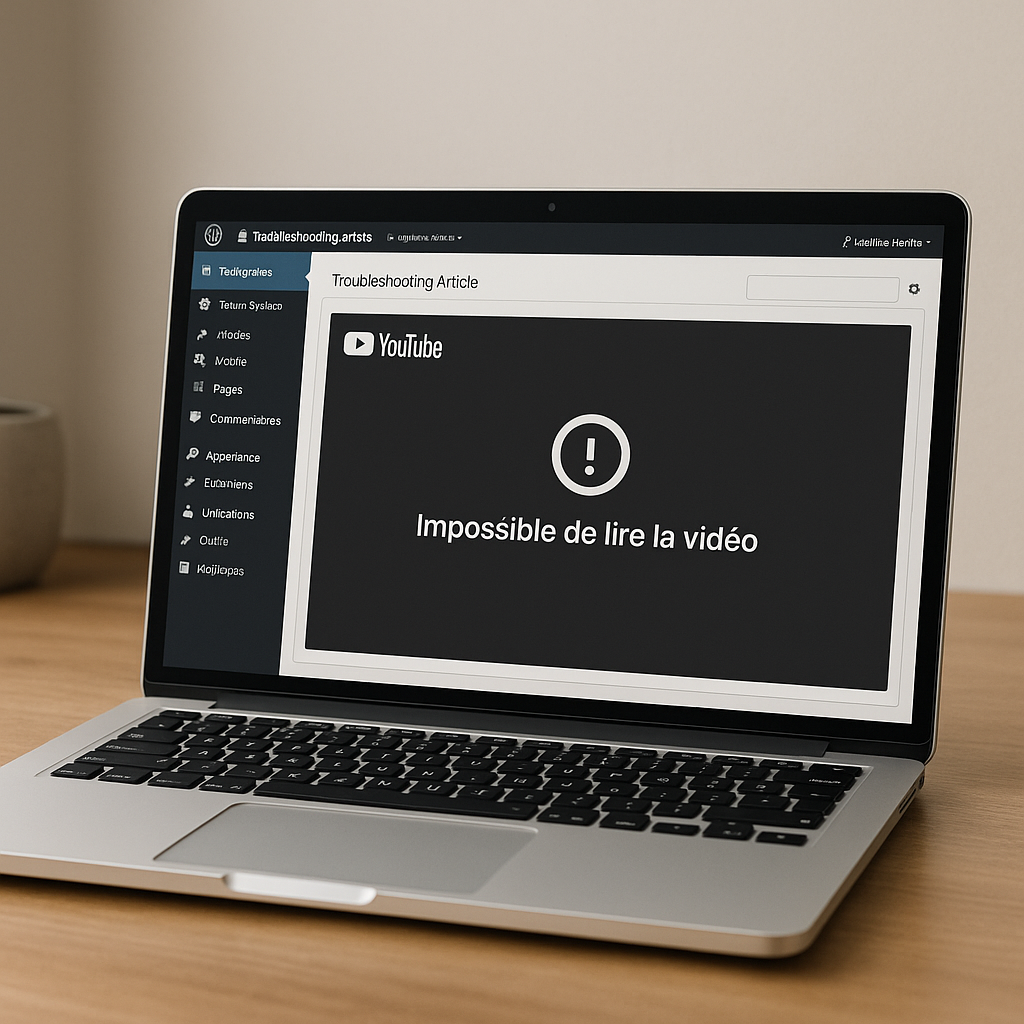
When YouTube displays the message “Unable to play video,” one immediately wonders if the problem comes from our device, the platform, or the network. This error, as frustrating as it is, actually has several possible roots. By exploring the main causes and applying some simple tips, you can often be back up and running in a few minutes. In this article, I break down the common origins, propose practical methods to return to smooth viewing, and also address long-term prevention.
Understanding the “Unable to play video” error
On YouTube, the web player relies on a combination of technologies (HTML5, codecs, DRM, etc.). When one of these malfunctions, the video freezes and this error message appears. It is not a fatality: it is primarily a signal indicating that the browser or connection cannot load the necessary resource.
Unlike a widespread outage, this anomaly often occurs in isolation, sometimes even on a single video. This is a strong indication that it is primarily a local issue.
Common origins
- Outdated browser cache: temporary data can prevent the player from refreshing the necessary files.
- Extensions or blockers: some add-ons cut essential scripts.
- Internet connection: too low or unstable bandwidth interrupts loading.
- Privacy settings: overly strict settings block YouTube cookies.
- Incorrect DRM configuration: on some browsers, digital rights management gets misconfigured.
Solutions to fix the error
Before panicking, try these quick solutions in the order indicated. Each takes less than two minutes and can restore playback.
1. Refresh and reload the page
A simple Ctrl+R or a click on the refresh button is sometimes enough to properly restart all modules. If the video remains inaccessible, proceed to the next step.
2. Clear cache and cookies
Over time, the browser cache accumulates corrupted or outdated files. On Chrome or Firefox, go to privacy settings then choose Clear browsing data. Check the boxes Cached images and files and Cookies before confirming.
3. Temporarily disable extensions
Adblockers, VPNs, or security tools can block essential requests. Open a private browsing window (where most extensions are inactive) or manually disable your add-ons to test playback.
4. Update the browser
The latest versions include important fixes for video playback and DRM management. Check that your browser is up to date via its About menu.
5. Check the Internet connection
A speed below 5 Mb/s may be sufficient for 720p, but any drop in bandwidth causes the stream to crash. Run a speed test, move closer to the router or switch to Ethernet to rule out unstable Wi-Fi.
6. Adjust the video quality
Try lowering the resolution (from 1080p to 480p, for example). In “Auto” mode, YouTube can switch profiles quickly, but manual adjustment can prevent interruptions by limiting the load.
7. Use the mobile app or Smart TV
If the issue persists on desktop, try another platform. On mobile or via the dedicated Smart TV app, the player differs and may bypass the glitch.
| Identified cause | Recommended action |
|---|---|
| Outdated cache | Clear cache and cookies |
| Blocking extension | Disable or browse in private mode |
| Quality too high | Lower the video resolution |
| Unstable connection | Move closer to the router or test with Ethernet |
Prevent playback issues
Rather than suffering these interruptions, some good habits minimize the risks:
- Regularly update your browser and extensions.
- Limit the number of add-ons and favor certified ones.
- Keep antivirus up to date to avoid malicious scripts.
- Monitor the health of your connection (monthly speed tests).
By breaking these tasks into simple reminders, you avoid the accumulation of factors weakening playback.
When to contact YouTube support
After following all the previous steps, if the message persists on multiple browsers or devices, it is legitimate to contact the support team. Explain:
- The tests already performed.
- The system configuration (OS, browser version).
- The URL of the concerned video.
YouTube support can then investigate a possible server-side outage or geographic filtering. Do not neglect this option if you rely on the platform for professional broadcasting.
FAQ
Why does the error appear only on certain videos?
Because each video may use different codecs, resolutions, or DRM. A local incompatibility with a particular format causes the error.
Does clearing the cache delete my passwords?
No, you only delete “temporary” files and cookies: your usernames and passwords remain saved if you do not check the dedicated box.
Can a VPN be responsible for this blockage?
Yes, some VPN servers compress or filter video traffic. Disable it to test if playback returns.
Is reinstalling the browser necessary?
It is a last resort. In most cases, clearing the cache or disabling an extension is enough.









