Full storage: why it fills up and how to free up space without stress
When full storage appears even though you have “almost nothing” added, the culprit is rarely a single large file. In practice, it is mainly photos, videos, cache, downloads, attachments, and backups that silently accumulate. The right approach is to free up space where it really hides, without deleting randomly.
The most effective method is simple: check what is taking up space, delete unnecessary files, clear the cache when relevant, then check the recycle bin and backups. On Android as well as on Windows, built-in tools often allow you to recover several gigabytes in a few minutes, hassle-free.
In brief
📱 Photos, videos, cache, and downloads are the main causes of full storage space.
🧹 To go fast, start by clearing the cache, deleting large files, and emptying the recycle bin.
☁️ Check synchronized copies in the cloud before deleting the local version of a file.
⚠️ Native tools on Android and Windows are often enough to recover space safely.
Why does storage fill up so quickly?
Storage fills up quickly because the system, applications, and your daily usage create a layer of invisible data through accumulation. In other words, it’s not just what you see in the gallery or the Downloads folder that matters, but also everything that lodges in the background: thumbnails, caches, temporary files, local copies, and backups.
The most frequent causes
- High-quality photos and videos: they quickly take up a lot of space, especially if you often film.
- Large applications and games: some apps swell with their local data, media, and updates.
- Cache and temporary files: they help speed up apps but end up cluttering storage.
- Forgotten downloads: PDFs, ZIPs, images, videos, or files received once and never sorted.
- Attachments and automatically received media: messaging apps and social networks can store much more than expected.
- Local backups and cloud synchronization: duplicates appear when the same data exists in multiple places.
Why does space seem to disappear for no reason?
Because the visible volume is not the real volume. An app can keep large caches, the recycle bin can remain full, and some system updates reserve space to function properly. Result: your device seems saturated while part of the space is occupied by hidden or temporary files.
Full storage is not always visible: it builds up in layers until the device starts to slow down or blocks an update.
How to quickly diagnose what is taking up space?
The simplest way is to start from the overall picture, then go into the heaviest categories. This sorting avoids random deletion and saves you time. Generally, the most demanding areas are easy to spot if you look at them in the right order: media, applications, downloads, then temporary data.
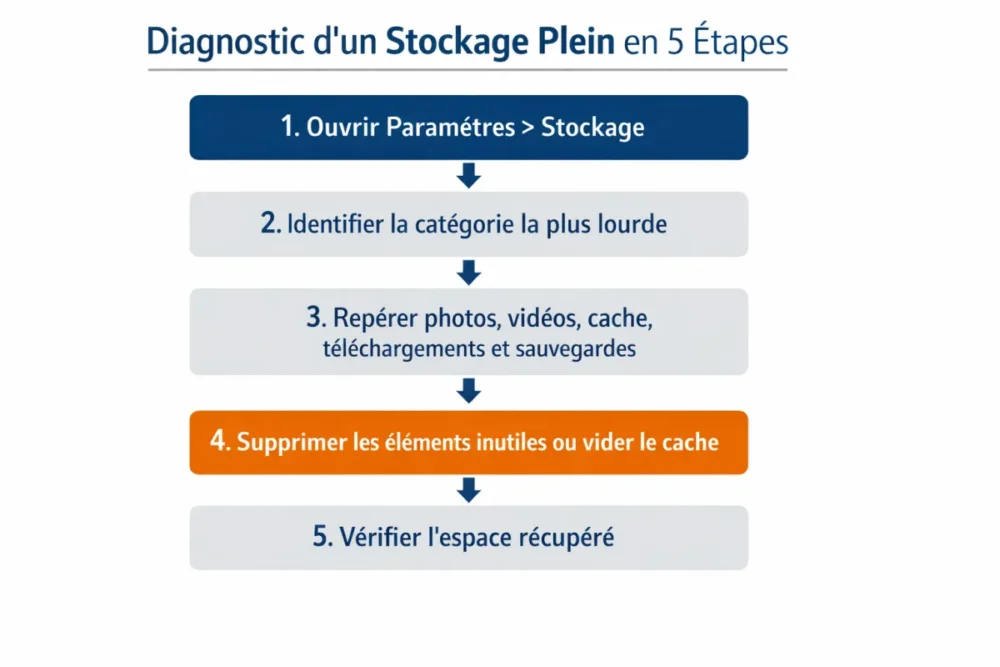
- Open the storage settings on your device to see the overall distribution.
- Identify the heaviest category: photos, videos, apps, downloads, or documents.
- Identify large files: long videos, archives, attachments, and old backups.
- Check the recycle bin if your system has one, as space is not always freed immediately.
- Check the cache and temporary files if storage remains too low despite cleaning.
| Source of clutter | How to spot it | Quick action | Risk level |
|---|---|---|---|
| Photos and videos | Gallery, Media category, camera folders | Move, back up, or delete duplicates | Low if the copy is already backed up |
| App cache | Heavily used app or heavy browser | Clear the cache | Low |
| Downloads | Downloads folder or received files | Delete obsolete files | Low |
| Backups and local copies | Multiple versions of the same document or media | Keep only one useful copy | Medium: check before deleting |
When you want to free up space without stress, the golden rule is simple: start with large volumes, not small details.
How to free up space immediately without risk?
The safest actions target files that are clearly unnecessary or already backed up. You can quickly recover space by cleaning downloads, deleting duplicate media, clearing app caches, and checking the recycle bin. The goal is not to delete everything, but to tidy up where accumulation is most obvious.
What you can delete without too much stress
- Forgotten downloads: PDFs, ZIPs, old installation files, test images.
- Duplicates: same photo sent multiple times, same document in several versions.
- Old screenshots: they accumulate quickly and are rarely useful for long.
- Already archived items: if a reliable copy exists elsewhere, the local version becomes a candidate for cleaning.
- The recycle bin: as long as it is not emptied, space does not always truly return.
The most useful cleanups in apps
- Clear the cache of heavy apps, like browsers or social networks, to delete accumulated temporary data.
- Delete or put unused apps to sleep if they haven’t been used for a long time.
- Clear an app’s data only if you accept losing offline content and some saved information.
- Reinstall a too-large app can sometimes start fresh, after verifying important data.
On Android, it is worth noting that some built-in cleaning functions can do a good part of the work at once. The Smart Storage feature, when available, helps automatically free up space. Some manufacturer overlays, like maintenance tools, can also delete cache, unused apps, and unnecessary items without touching photos.
For media, the rule is the same: if your photos are already backed up in Google Photos, you can delete the local copy without losing the online version. For downloaded movies or music, go through the libraries of the relevant apps to properly remove offline files.
How to clean according to the device without making mistakes?
The logic remains the same everywhere, but menus change. On smartphones, the main focus is to manage the gallery, received media, and heavy apps. On computers, it’s mainly downloads, large folders, and unnecessary software. On the cloud, the real trap is synchronized duplicates and shared files that are forgotten.
On smartphone
On Android, open Settings, then Storage, to view usage. Depending on the device, you will then see more or less detailed categories. The Free up space option allows you to manually delete photos, videos, and apps not recently used. This is also where you identify what is really taking up space.
- Check the gallery: long videos, screenshots, and duplicates are often the most worthwhile to sort through.
- Check the Downloads folder: it often contains files forgotten for weeks.
- Disable automatic media downloads if received messages fill the phone too quickly.
- Use maintenance tools when available, especially on some recent Android models.
On computer
On Windows 10 and 11, File Explorer allows you to check available space by opening This PC then the disk properties. Then, the Storage Assistant can automatically delete temporary files and Recycle Bin items. If a low disk space message is related to the Temp folder, Microsoft Update tools, resetting the Microsoft Store, and wsreset.exe can help resolve the situation.
- Clean the Downloads folder before touching system folders.
- Uninstall unnecessary software that takes up space without being used.
- Identify large folders to avoid searching randomly.
- Clear the browser if its local data grows too large.
On the cloud
In the cloud, the problem often comes from automatic synchronizations and redundant copies. A shared file, photo album, or device backup can exist in multiple places at once. To recover space, keep a single reference version when possible and eliminate duplicates that add nothing.
It is always advisable to check shared items or old backups before deleting. A poorly identified copy can return to local storage at the next synchronization, and you will feel like the space disappears again. In short, sorting must be clean, otherwise the problem quietly returns.
How to prevent storage from becoming full again?
Prevention relies on a light but regular routine. There is no need to spend hours cleaning everything: a small monthly check is often enough to avoid saturated storage. The idea is to sort early, before large files and caches take up all the space.
Good habits to establish
- Sort media once a month to avoid the snowball effect.
- Delete unnecessary downloads as soon as they are no longer needed.
- Limit redundant backups to avoid unnecessarily duplicating the same files.
- Archive old documents on a dedicated medium or in a separate space.
- Control attachments and media received automatically in messaging apps.
Useful settings to activate
- Low storage alerts to react before blockage.
- Selective synchronization to avoid copying everything everywhere.
- Regular cache management when the app allows it.
- Native cleaning tools on Android or Windows to automate the initial sorting.
In other words, you need to think of storage as a living space: if you let boxes pile up, you end up not being able to move around. With a few simple actions, you can keep room for updates, avoid slowdowns, and keep useful files without suffering saturation.
Conclusion
The most effective way to get out of full storage is not to delete everything at once, but to follow a clear logic: diagnose, remove large items, clear the cache, check the recycle bin, then establish a small maintenance routine. This method allows you to free up space without stress and without unpleasant surprises.
Key Takeaways
- 📸 Photos, videos, and downloads fill up storage faster than you think.
- 🧹 Emptying the cache and recycle bin often frees up space immediately.
- ☁️ Always check synchronized copies before deleting a local version.
- 💻 On Windows and Android, native tools are often enough for an initial cleanup.
- 🔁 A monthly routine prevents storage from filling up too quickly again.
FAQ
Why doesn’t space return after deletion?
Because some of the deleted items may remain in the recycle bin or in temporary areas. Some applications also keep caches, so space is not freed instantly. Sometimes you need to empty a second level of storage to see the real result.
Is it dangerous to clear the cache?
Generally, no: the cache is used to store temporary data. Deleting it may slightly slow down the first opening of an application, but it does not delete your photos or accounts. It is often one of the safest actions to free up space.
What should be deleted first when storage is full?
Start with large volumes that are easy to identify: videos, downloads, attachments, duplicates, and unused applications. Then check the cache and recycle bin. This approach yields good results without touching sensitive files too quickly.
How to keep your photos while freeing up space?
The simplest way is to ensure they are properly backed up in the cloud before deleting the local copy. You can also transfer your albums to an external drive or a computer. The goal is to keep a single reliable version, not three copies competing for space.
Why does my phone fill up even without new apps?
Because storage also fills up with cache, automatically received media, temporary files, and backups. Even without installing new apps, daily use is enough to increase occupied space. That’s exactly why regular cleaning makes all the difference.









