| Key points | Details to remember |
|---|---|
| 📌 Definition | Generic error message indicating an unexpected issue |
| 🔍 Main causes | Network instability, app or server bugs |
| ⚙️ Basic actions | Restart the device and relaunch Instagram |
| 🔄 Network checks | Test Wi-Fi and mobile data |
| 🆘 Support | Contact Instagram support if necessary |
| ✅ Expected outcome | Return to smooth navigation without error |
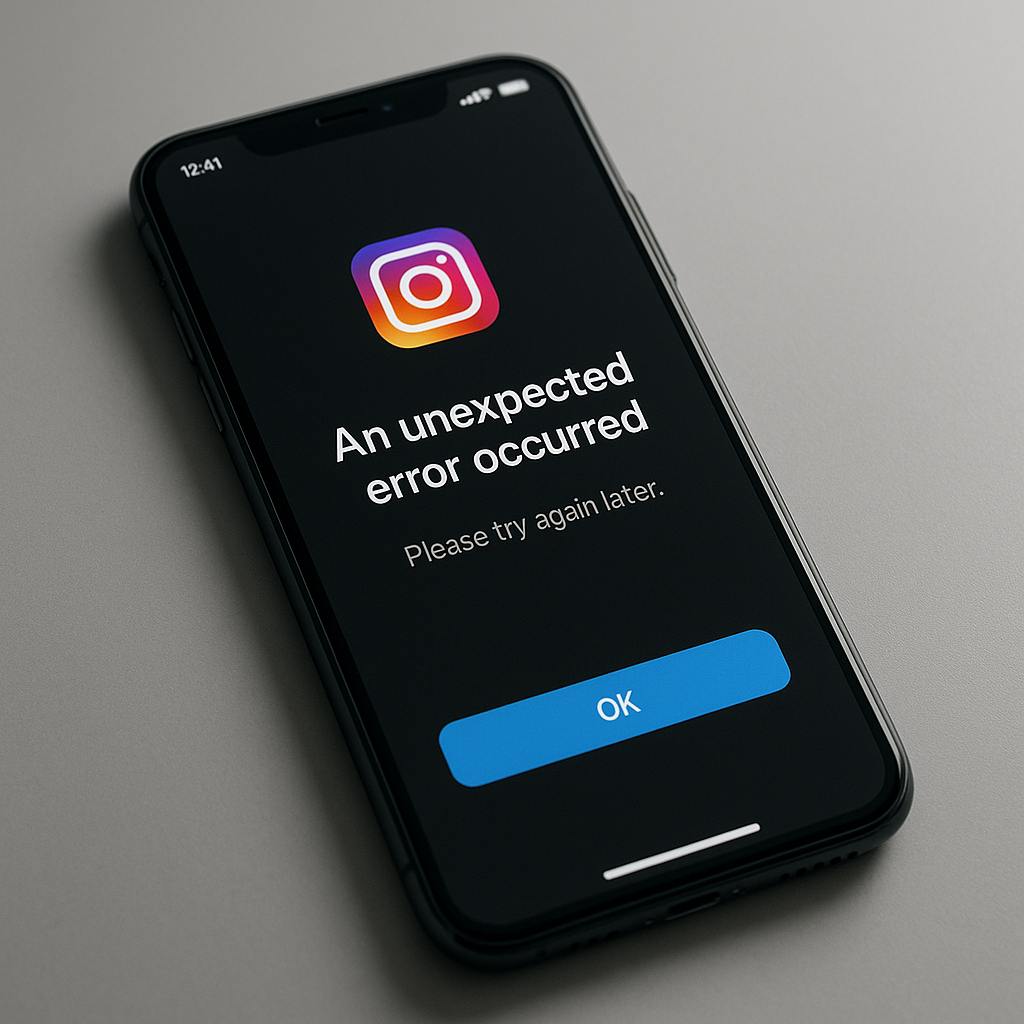
Encountering a cryptic message like “An unexpected error occurred” just when you want to share a photo can quickly ruin your day. One might think that a simple refresh fixes everything, but in reality, this error has several origins. From saturated cache to a server issue, each lead deserves to be explored before considering support. Let’s review the essential checks and advanced solutions to get Instagram running smoothly again.
Understanding the origin of the error
The phrase “unexpected error” primarily reveals a generic response from Instagram’s servers. Rather than a targeted message – such as account blocked or bad authentication – we receive a catch-all warning. This means the app has not precisely identified the failure:
- A temporary server bug on Instagram’s side can interrupt the connection.
- A conflict with application files, especially after an incomplete update.
- A permission issue preventing access to the camera or storage.
In some cases, the error occurs sporadically: you like a photo without issue, then suddenly, the red flag. The challenge is to isolate the cause, whether software, hardware, or network-related.
Preliminary checks
Before diving into more advanced manipulations, a few simple steps often suffice to clear the error message.
Restart the app and device
Force closing the app, followed by a full smartphone restart, can clear a temporary bug. On iPhone, swipe up and bring up the app switcher. On Android, go through the application settings. After restarting, it is often observed that the problem has disappeared.
Check the Internet connection
Instagram relies on a continuous data flow. An unstable or weak connection causes timeouts, hence this famous error message. Try:
- Switching between Wi-Fi and mobile data.
- Restarting your modem or router.
- Checking if other apps are working properly.
If you notice high latency, wait a few minutes or move closer to a stronger signal source.
Resolving the error: advanced methods
When basic checks are not enough, the approach becomes more technical. Here are three proven techniques.
Update or Reinstall Instagram
Updates frequently fix bugs reported by the community. If you are using an outdated version, go through the App Store or Play Store to install the latest version. And if the error persists, uninstall and then reinstall the app to start fresh with a clean slate.
Clear Cache (Android) or Reset Data
On Android, the cache stores all temporary files. Over time, it can become corrupted and cause unexpected behavior. To clear it:
- Settings → Apps → Instagram → Storage → Clear Cache.
- Avoid “Clear Data” if you want to keep your preferences, but know that this operation resets everything.
On iOS, the only option is to uninstall and then reinstall, which acts similarly to clearing the cache.
Test on Another Device or Network
We don’t always think about it, but sometimes the problem is related to the smartphone or the router. Try connecting to Instagram from:
- A computer via the website.
- A friend’s mobile device, using your credentials.
- A public Wi-Fi network (to rule out specific filtering).
If everything works elsewhere, you will have isolated the issue between device and connection.
Account Settings and Permissions
It is often assumed that the error comes from the app, but an account or permission setting can disrupt everything.
Check Account Status
A reported or temporarily restricted account sometimes triggers this generic message. Go to Instagram settings, “Security” section, then “Login Activity.” If you see suspicious logins, secure your account immediately.
Recheck App Permissions
Without access to the camera, microphone, or storage, Instagram can crash when loading media. Go to:
- Device Settings → Apps → Instagram → Permissions.
- Enable camera, storage, and contacts if necessary.
Then restart the app to test.
When to Contact Instagram Support
If, after trying everything, the error persists, it’s time to seek official assistance. In the app:
- Profile → Menu (≡) → Settings → Help → Report a Problem.
- Describe the error precisely and add screenshots.
Patience and precision are your allies: a well-formulated report facilitates the identification of the malfunction by the teams.
Then wait for a response by email. Times may vary, but Instagram is generally responsive to these technical bugs.
FAQ
- Why does Instagram display ‘An unexpected error occurred’?
This generic message indicates an unidentified problem: server, corrupted cache, or missing permission.
- Is the error related to my internet connection?
Often yes: an unstable connection causes timeouts. Switching between Wi-Fi and mobile data helps diagnose.
- How do I clear the cache on Android?
In Settings → Apps → Instagram → Storage, tap “Clear Cache” to delete temporary files.
- What if nothing works?
Contact support via Profile → Settings → Help → Report a Problem providing screenshots and details.









