| Key Points | Details to Remember |
|---|---|
| 🛠️ Definition of LS-0013 Code | Launch error preventing the game from opening |
| 🔍 Possible Origin | Software conflicts or corrupted files |
| ⚙️ Main Solutions | Integrity check, update, cache cleaning |
| 🧰 Other Tools | Disabling antivirus, firewall, reinstalling |
| 📡 Prevention | Regular updates and backups |
| 📚 Resources | Official forums and Epic Games documentation |
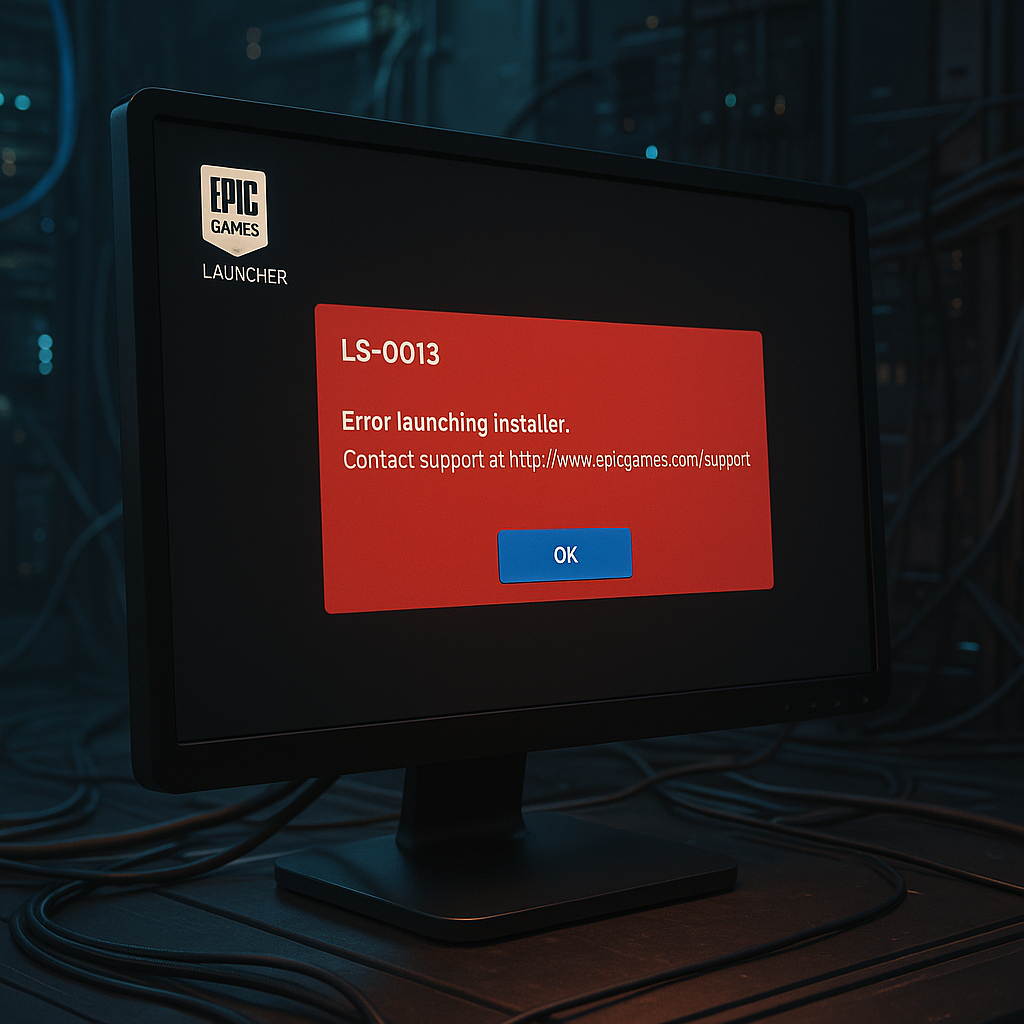
You launch your favorite game from the Epic Games Launcher and suddenly the LS-0013 error message appears. Frustrating, isn’t it? Rather than spending the night reinstalling or cursing the connection, discover here a structured method to understand, fix, and prevent this alert. Between technical explanations and practical tips, you should walk away smiling.
Origin and Meaning of the LS-0013 Code
This code, LS-0013, appears when the Epic client detects a critical obstacle to starting a title. Literally, it is a signal indicating that something in the launch process – authentication, local files, server communication – is not meeting expectations. One might think it is an isolated problem, but in reality, several factors can combine to block execution.
Digging a little deeper, we notice that this message is not purely cosmetic: it comes from a module dedicated to security and component verification. If one of these is missing or seems altered, the launcher immediately stops to avoid an unstable or corrupted experience.
Common Causes of the LS-0013 Error
Through diagnostics, these triggers are often found:
- Corrupted or missing files after an incomplete update.
- Epic Games service improperly started or in conflict (missing administrative rights).
- Antivirus/firewall interference blocking certain outgoing connections.
- Launcher cache outdated, clogged, or damaged.
- Network problem or temporarily unavailable server.
It even happens that, as with the error “We couldn’t install a required dependency” encountered on Valorant, the source is an unreachable dependency. The common point? System checks that slow down or stop abruptly.
Step-by-step Solutions to Fix LS-0013
1. Verify File Integrity in Epic Games Launcher
The first step is to let the client check what it has actually installed. In the library, click on the three dots under the concerned game, then on “Verify.” The process can take several minutes, depending on the size of the title. The goal: recover any missing files or repair those that are corrupted.
2. Update or Reinstall the Epic Games Launcher
An outdated launcher can lose compatibility. Completely exit the application (icon in the taskbar) then re-download the latest version from the official website. If the update fails, a complete uninstall/reinstall often guarantees a clean client, free of previous bugs.
3. Clear the Launcher Cache
Without touching the games, just clear the local cache:
- Close Epic Games Launcher.
- In the explorer, go to
C:Users[VotreNom]AppDataLocalEpicGamesLauncherSavedwebcache. - Delete the contents of the webcache folder.
- Reopen the launcher and let it resynchronize.
This cleaning forces the reconstruction of temporary data which can sometimes be problematic.
4. Temporarily Disable Antivirus and Firewall
Antivirus and firewall like to filter every connection. Before playing, briefly disable them to test launching. If the game starts, add EpicGamesLauncher.exe and the game folder to the exclusions. Ultimately, this is the best defense against unexpected blockages.
5. Check Connection and Epic Services
Nothing serious works without a network. Make sure you have a stable connection and check the server statuses published on the Epic Games website. If everything is green on their side, restart your router, then your PC, to get a fresh IP address.
6. Reinstall the Problematic Game
When nothing else works, the radical method: uninstall then reinstall the game. Yes, it’s tedious, but it’s often the miracle solution if a component has definitively malfunctioned. Take the opportunity to check available space and clean old logs.
Preventive Tips and Best Practices
To avoid reliving this scenario, a few simple habits:
- Regularly update Windows, drivers, and Epic Games Launcher.
- Backup your settings and profiles via the Cloud or an external folder.
- Occasionally clean the cache and temp files.
- Check antivirus exclusions around the ports used by Epic.
Prevention is a bit like lubricating a door: you don’t think about it when everything is fine, but as soon as it squeaks… it’s already too late.
FAQ
1. Why does the LS-0013 error reappear after cleaning?
If the source is a missing server-side dependency or an unsupported system component (such as .NET framework, Visual C++), a simple cache clear will not suffice. Remember to check all Windows updates and Microsoft redistributables.
2. Can you play offline after encountering LS-0013?
Not immediately. You must first unlock online authentication for the Epic Games Launcher. Once launch is validated, you can enable offline mode, provided you have a valid license.
3. What is the link between LS-0013 and conflicts with other launchers?
When multiple game management programs coexist (Steam, Origin, Ubisoft Connect), they can compete for access to certain files or network services. In this case, close all other launchers before launching Epic.
{
“@context”: “https://schema.org”,
“@type”: “WebPage”,
“about”: {
“@type”: “Thing”,
“name”: “Erreur LS-0013 Epic Games”
},
“keywords”: [“LS-0013”, “Epic Games Launcher”, “fichiers corrompus”, “cache”, “solution erreur”]
}
{
“@context”: “https://schema.org”,
“@type”: “Article”,
“headline”: “Code erreur LS-0013 Epic Games : comment débloquer le lancement d’un jeu”,
“description”: “Guide complet pour comprendre et corriger le code LS-0013 dans Epic Games Launcher, incluant diagnostic, solutions et bonnes pratiques.”,
“keywords”: [“LS-0013”, “Epic Games”, “erreur lancement”, “cache launcher”, “intégrité fichiers”],
“mainEntity”: {
“@type”: “FAQPage”,
“mainEntity”: [
{
“@type”: “Question”,
“name”: “Pourquoi l’erreur LS-0013 réapparaît-elle après nettoyage ?”,
“acceptedAnswer”: {
“@type”: “Answer”,
“text”: “Si la source est une dépendance manquante côté serveur ou un composant système non pris en charge, un simple cache clear ne suffira pas. Pensez à vérifier toutes les mises à jour Windows et les redistribuables Microsoft.”
}
},
{
“@type”: “Question”,
“name”: “Peut-on jouer hors ligne après avoir rencontré LS-0013 ?”,
“acceptedAnswer”: {
“@type”: “Answer”,
“text”: “Il faut d’abord débloquer l’authentification en ligne de l’Epic Games Launcher. Une fois le lancement validé, vous pourrez activer le mode hors ligne.”
}
},
{
“@type”: “Question”,
“name”: “Quel lien entre LS-0013 et conflits avec d’autres launchers ?”,
“acceptedAnswer”: {
“@type”: “Answer”,
“text”: “Lorsque plusieurs programmes de gestion de jeu coexistent, ils peuvent se disputer l’accès à certains fichiers ou services réseau. Fermez tous les autres launchers avant de lancer Epic.”
}
}
]
}
}









