| Key points | Details to remember |
|---|---|
| 🛠️ Definition | Error 1067: unexpected stop of the MySQL service on Windows |
| ❌ Possible causes | Corrupted files, configuration issues or access rights |
| 🔍 Diagnosis | Windows Event Log and MySQL log |
| 🚑 Solutions | Check my.ini, reinstall or reassign rights |
| 💡 Best practices | Backup and test before each modification |
At a time when every millisecond counts for your databases, encountering an error 1067 signals a MySQL service that stops abruptly. Unlike a simple restart, here the process quits without a clear explanation. In this article, we will dissect this cryptic message, explore the most frequent leads, and present concrete solutions to get your MySQL service back on track—without tearing your hair out.
Understanding MySQL error 1067
Imagine you are hosting a Windows server, everything has been working perfectly for weeks, and suddenly the MySQL service refuses to start. Quite frustrating. Technically, error 1067 comes from the Windows service manager which receives an unexpected return code: “Service terminated unexpectedly”. MySQL does not always provide the problem details, so it is necessary to investigate elsewhere.
The lack of precise information in the Windows interface pushes you to dig into the file system, logs, and internal configurations. One might think a simple restart is enough, but in reality, you need to identify the exact source – whether it is a misconfigured my.ini file, a corrupted database, or insufficient access rights to the data folder.
Main causes and diagnostics
1. Malformed my.ini configuration file
The my.ini file contains the MySQL configuration: paths, ports, encodings… A missing comma or an incorrect path and the service crashes at startup. Always check that:
- The [client] and [mysqld] sections are properly delimited.
- The paths to datadir, innodb_log_file_size, and socket exist on the disk.
- You have not mixed options from different MySQL versions.
2. Data file corruption
A power outage or abrupt shutdown can corrupt InnoDB or MyISAM tables. The service forces a stop to protect consistency. To diagnose:
- Run innochecksum or myisamchk on your .ibd, .frm, or .MYD files.
- Check the error.log usually located in the data folder.
3. Access rights and Windows accounts
If MySQL runs under a specific account (Local System or a dedicated user), ensure that this user has read/write rights on the installation and data folders. Sometimes, an antivirus or group policy blocks access, causing the service to fail.
Step by step: diagnosing via Windows logs
The first reflex is to open the Windows Event Viewer. You often find an alert or error line specifying the faulty path or module.
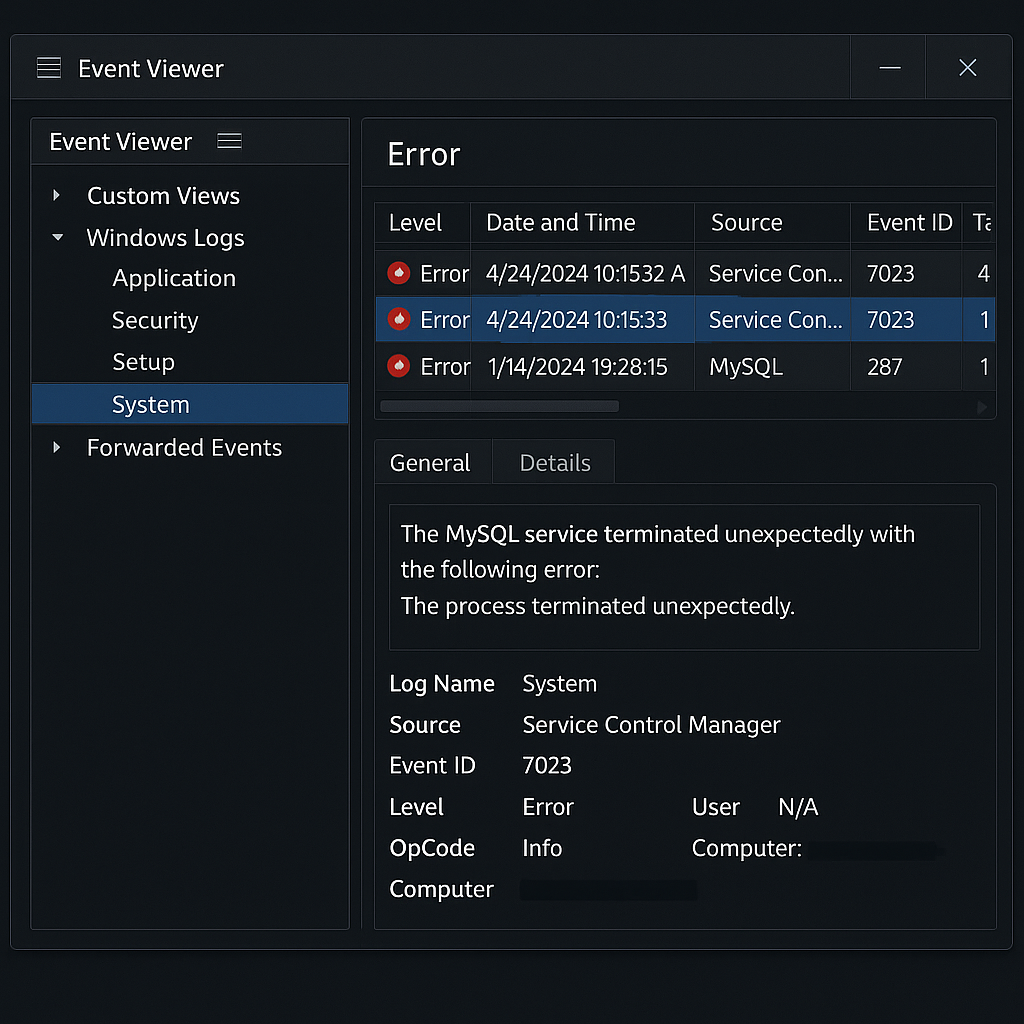
In the Application Log tab, locate ID 1067. The description may mention a missing path or a module that is not responding. From there, you will know whether you need to rework the configuration, repair the files, or adjust permissions.
Practical solutions to resolve error 1067
1. Validate and restore the my.ini file
Start by backing up the current one, then restore a working version. If you don’t have one:
- Copy the my-default.ini provided by your MySQL distribution.
- Adjust the datadir and innodb_log_group_home_dir paths.
- Restart the service via the console:
net stop mysql
net start mysql
2. Repair corrupted tables
In case of corruption, put MySQL into safe mode:
- Stop the service.
- Run mysqld –console –skip-grant-tables –skip-external-locking.
- In a new tab, connect and execute:
REPAIR TABLE nom_de_table;.
Then put the service back into normal mode and verify that everything starts without issues.
3. Check Windows permissions
Open Explorer, right-click on the MySQL data folder, then Properties → Security. Add the system account or the one dedicated to MySQL and give it full control. Restarting the service will often be enough to clear the error.
Best practices to avoid the occurrence of error 1067
Beyond resolution, prevention saves you the most time:
- Back up my.ini and your databases before any update.
- Test in a pre-production environment.
- Monitor error logs daily.
- Document every change to quickly understand how to roll back.
By establishing these habits, error 1067 will never catch you off guard.
FAQ
What is MySQL error 1067?
It is a code returned by the Windows service manager indicating that MySQL stopped unexpectedly, often due to incorrect configuration or corrupted files.
How to view Windows event logs?
Open the Event Viewer (eventvwr.msc), navigate to Windows Logs → Application, and filter by ID 1067 or “MySQL” to isolate messages related to the service.
Can I restore my default my.ini file?
Yes: in the installation folder, rename your my.ini then copy the provided my-default.ini. Simply adjust the paths before restarting the service.
What commands should I use to repair a corrupted table?
Start MySQL in safe mode (–skip-grant-tables), connect with mysql.exe and execute REPAIR TABLE nom_de_table;.
{
“@context”: “https://schema.org”,
“@type”: “WebPage”,
“about”: {
“@type”: “Thing”,
“name”: “Erreur 1067 Service terminé inopinément sur MySQL”
},
“keywords”: [“MySQL”, “Erreur 1067”, “Service terminé”, “Diagnostic MySQL”, “Windows Event Viewer”]
}
{
“@context”: “https://schema.org”,
“@type”: “Article”,
“headline”: “Erreur 1067 Service terminated unexpectedly sur MySQL”,
“description”: “Cet article guide à travers l’identification et la résolution de l’erreur 1067 de MySQL indiquant un arrêt inattendu du service, avec des pistes pratiques et des bonnes pratiques.”,
“keywords”: [“Erreur 1067”, “MySQL”, “dépannage”, “Windows”, “Service”],
“mainEntity”: {
“@type”: “FAQPage”,
“mainEntity”: [
{
“@type”: “Question”,
“name”: “Qu’est-ce que l’erreur 1067 MySQL ?”,
“acceptedAnswer”: {
“@type”: “Answer”,
“text”: “L’erreur 1067 survient lorsque le service MySQL s’arrête de manière inattendue sous Windows, souvent liée à un fichier de configuration corrompu ou à un accès aux données bloqué.”
}
},
{
“@type”: “Question”,
“name”: “Comment consulter les journaux d’événements Windows ?”,
“acceptedAnswer”: {
“@type”: “Answer”,
“text”: “Ouvrez l’Observateur d’événements via eventvwr.msc, allez dans Windows Logs → Application et filtrez sur l’ID 1067 ou MySQL pour repérer les erreurs.”
}
},
{
“@type”: “Question”,
“name”: “Comment restaurer le fichier my.ini à son état d’origine ?”,
“acceptedAnswer”: {
“@type”: “Answer”,
“text”: “Renommez l’actuel my.ini, copiez my-default.ini depuis le dossier d’installation et ajustez les chemins datadir avant de redémarrer le service.”
}
},
{
“@type”: “Question”,
“name”: “Quelles commandes permettent de réparer une table corrompue ?”,
“acceptedAnswer”: {
“@type”: “Answer”,
“text”: “Démarrez MySQL en mode sans échec (–skip-grant-tables), connectez-vous et exécutez REPAIR TABLE nom_de_table; pour corriger les fichiers corrompus.”
}
}
]
}
}









