Slow WordPress Site: Diagnosing Causes and Restoring a Fast Site
A slow WordPress site is quickly noticeable: pages that open sluggishly, a lagging admin panel, frustrating mobile experience, and visitors leaving before even seeing the content. The good news is that you can often regain a good loading time without rebuilding everything, provided you identify the real bottleneck instead of tinkering randomly.
In practice, the most common causes often look similar: too weak WordPress hosting, absent WordPress cache, overly heavy WordPress images, too many WordPress plugins, a resource-hungry theme, or external scripts crashing the party. The idea is not to change everything at once, but to test, fix, then measure again. That’s how you speed up cleanly.
In brief
⚡ A slow WordPress site should ideally load in under 2 seconds to remain comfortable.
📉 Beyond 5 seconds, bounce rates rise sharply and conversion starts to suffer seriously.
🧰 The quickest gains often come from ruthlessly sorting the trio of cache, images, and plugins.
📱 Mobile must be tested first: a site that “passes” on desktop can remain painful on smartphones.
Why can’t a slow WordPress site be fixed by changing just one setting?
Because a slow WordPress site is often the result of several cumulative bottlenecks. The cache may be fine, but the images too heavy; the hosting may hold up, but the theme can overload the page. Unless you measure precisely, you risk fixing the wrong issue and wasting time.
The slowdown is quickly visible from the user side: a feeling of heaviness, click lag, pages loading in fits and starts, or an admin panel that becomes painful to use. And it’s not just a comfort issue. When loading exceeds 5 seconds, the bounce rate can be twice as high as on a site that loads in 1 second. Each additional second can also cost up to 7% in conversion.
A site that takes longer to load doesn’t just lose comfort: it loses visitors, visibility, and revenue.
In other words, the question is not just “why is it slow?”, but “what is the main bottleneck?”. This diagnosis allows prioritizing actions that really save seconds, not just nice intentions.
How to know if the problem comes from cache, plugins, or hosting?
Direct answer: by testing first, then isolating each layer. A slow WordPress site almost never reveals its cause at first glance. You need to measure overall behavior, check technical metrics, then compare the impact of each fix on a typical page, on mobile and desktop.
Before touching the theme or installing another plugin, you need a clear baseline. Otherwise, you end up with a site still slow but much harder to maintain. Here is the most useful diagnostic logic in practice:
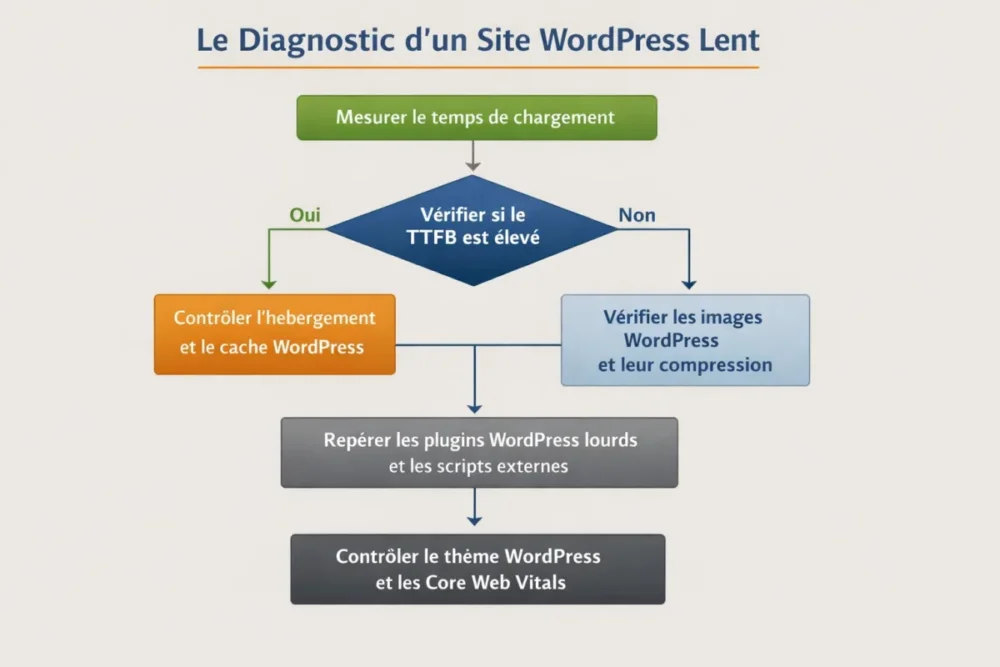
Test the site’s performance
Start with reliable tools like Google PageSpeed Insights, then compare if possible with GTmetrix or WebPageTest. The goal is not to chase a perfect score, but to spot what really slows the page: the server, the code, the images, or external resources. TTFB and Core Web Vitals provide good clues about the problem’s origin.
- Measure loading time on mobile and desktop.
- Spot the TTFB to know if the server responds too slowly.
- Observe Core Web Vitals to understand perceived experience.
- Compare multiple pages: homepage, product page, article, contact page.
Identifying the Bottleneck
A high server response time often points to WordPress hosting or the absence of WordPress caching. Very heavy pages usually indicate WordPress images, scripts, or style sheets. If a specific page is slow while the rest of the site performs well, the issue sometimes comes from the theme, a page builder, or a plugin that loads too many resources.
| Probable Cause | Visible Sign | Priority Action | Urgency |
|---|---|---|---|
| Insufficient hosting | High TTFB, overall slowness across the entire site | Check the plan, server resources, and saturation | High |
| Cache absent or misconfigured | Each visit rebuilds the page | Activate a reliable caching system | High |
| Images too heavy | Pages take long to load, especially on mobile | Compress, resize, switch to WebP if possible | High |
| Too many plugins | Slow admin, conflicts, bloated pages | Remove unnecessary or slowest plugins | Medium to high |
| Heavy theme or builder | Massive loading of CSS and JavaScript | Lighten the structure, test Gutenberg or a simpler theme | Medium |
What are the most common causes of a slow WordPress site?
Direct answer: in most cases, slowness comes from a mix of server, theme, plugins, and media. The causes are rarely mysterious. What complicates things is that they add up. A small flaw everywhere eventually creates a truly big slow WordPress site.
Hosting and Server
Inadequate hosting, especially low-end shared hosting, can significantly slow down the site because server resources are shared. If the site is slow everywhere, even on light pages, the problem often comes from there. When the server hits its limit, other optimizations will only save a few seconds, not fix the root cause.
When hosting is too weak, every other optimization feels like a band-aid on a wooden leg.
In this case, changing the plan or provider can have more impact than spending hours tweaking details. It should be noted that some slowdowns also require a technical review of the server configuration, and sometimes the help of an experienced developer.
The WordPress Theme
A theme that is too heavy often loads too much CSS, too much JavaScript, and sometimes too many visual options that are not really useful. Very rich page builders can also bloat the page, with Elementor often cited as an example of a solution to use with caution, while Gutenberg often remains lighter. The goal is not to demonize a tool, but to check its real cost on speed.
- Reduce blocks, widgets, and non-essential effects.
- Check if the page remains fast without superfluous visual modules.
- Compare a “full-frame” built page and a simpler version.
WordPress Plugins
Too many plugins, heavy or poorly coded plugins, very loaded multilingual plugins: all this can slow down a slow WordPress site. The good method is to sort plugins to remove those that are unnecessary or the slowest, then test the impact of disabling one at a time. This avoids the famous “let’s see what breaks” session that ends in a headache.
If a plugin seems indispensable but costs too much in performance, sometimes you have to look for a lighter alternative or reconsider its scope of use. A regular audit of unused or disabled plugins also helps keep a site clean and fast.
Images and Media
Unoptimized images are often the heaviest part of a page. If they come in high resolution, uncompressed, and in a poorly adapted format, they weigh down the entire loading, especially on mobile. The right reflex is simple: resize properly, compress, and use a more efficient format like WebP when possible.
- Adjust the image size to the actual needs of the page.
- Compress before or after import, depending on your workflow.
- Enable lazy loading when it is relevant.
- Check the rendering on smartphones, not just on large screens.
Cache and database optimization
Without cache, WordPress has to rebuild each page on every visit. This approach is fine in theory, but it is costly in terms of response time. Cache therefore reduces server load and improves perceived speed. At the same time, a database cluttered with revisions, transients, or unnecessary data can also slow everything down, especially on old or very active sites.
However, it is important to remain methodical: cleaning the database without backup or verification is the best way to create unnecessary problems. We optimize, yes, but we keep control over what we touch.
How to fix a slow WordPress site, step by step?
Direct answer: start with the quickest wins, then move on to deeper technical optimizations. A slow WordPress site is better fixed with a series of targeted actions than with a “miracle solution.” The goal is to reduce loading time without degrading content or stability.
1. Start with immediate gains
First of all, address what weighs the most and what can be fixed the fastest. Images, cache, and plugin sorting often offer the best initial results. This is where you gain seconds without shaking the entire architecture.
- Reduce image weight and check formats.
- Activate or fix the cache to avoid rebuilding on every visit.
- Remove unnecessary plugins or the slowest extensions.
- Update WordPress, the theme, and extensions to stay stable.
2. Lighten the technical structure
Next, address resources that load in the background. Minifying and deferring certain CSS and JavaScript files, limiting non-essential external calls, and loading JavaScript more intelligently can really improve speed perception. On some sites, a WordPress CDN also becomes useful, especially when traffic is geographically dispersed.
An all-in-one plugin can help simplify implementation if you don’t want to multiply settings. In this logic, tools like WP-Rocket or LWS Optimize can serve as a base, provided you keep an eye on the actual effects after activation. The essential thing remains the measured result, not the plugin’s name.
3. Improve hosting if needed
If the site remains slow despite classic optimizations, the hosting is probably insufficient. In this case, you need to check the quality of the offer, resource limits, and the capacity to absorb load spikes. For an e-commerce site or a high-traffic site, this step often becomes a priority because a saturated server brings down the rest of the chain.
Good to know: a site can seem “well optimized” visually while remaining slow due to poor server configuration. That’s why you should not confuse clean design with real performance.
Optimizing WordPress is not about stacking “magical” plugins. It’s about removing what slows down, then checking the gain, one step at a time.
How to verify that the fixes work?
Direct answer: by repeating exactly the same tests after each major modification. The classic trap is to fix three things at once and then no longer know which one helped. To keep control, you have to compare results before and after, on the same pages and under the same conditions.
Indicators to monitor
- Overall loading time.
- TTFB, to spot a server-side issue.
- Total page weight, especially on media-rich pages.
- Number of requests sent at loading.
- Core Web Vitals, to track the quality perceived by the user.
A good test is ideally done on several typical pages: home, article, product page, form, or contact page. Mobile must remain the priority, because a slow WordPress site is often even more noticeable on small screens than on computers.
How to prevent a slow WordPress site from coming back?
Direct answer: by setting up a simple maintenance and monitoring routine. Speed is not a gain you acquire once and for all. As soon as you add a plugin, an image, a feature, or a visual effect, loading time can increase. Prevention is therefore as important as repair.
Establish a maintenance routine
- Perform updates regularly, without waiting too long.
- Monitor new WordPress plugins before keeping them in production.
- Clean the database at reasonable intervals.
- Check the speed after each theme, page, or plugin change.
Adopt sustainable good practices
The most cost-effective approach often remains choosing lightweight extensions, limiting unnecessary visual effects, and optimizing each new content as soon as it goes live. On a site that publishes frequently, an uncompressed image or an external marketing module can be enough to cause performance to drop again. It is therefore better to integrate speed into the editorial routine, not just in emergency fixes.
When to call an expert?
Direct answer: when the diagnosis remains unclear, when the site is already optimized but still slow, or when the problem seems to come from the server, the code, or an advanced configuration. At this level, we often talk about settings that require real technical experience, especially if the slow WordPress site also affects the back office or dynamic pages.
A developer or performance specialist can go faster on topics like server configuration, fine script optimization, managing external requests, or in-depth bottleneck analysis. This is particularly useful when the site must remain fast despite heavy traffic or heavier features, such as a member area or a store.
Key takeaways
⚡ The slow WordPress site is better fixed with a diagnosis than with random adjustments.
🧩 The main causes often remain cache, images, plugins, and hosting.
📊 Measuring before and after each change helps identify real improvements.
🛠️ Quick gains come first from heavy media, sorting extensions, and cache.
📱 Mobile must be tested first, as slowness is often more penalizing there.
FAQ
How do I know if my WordPress site is really slow?
The easiest way is to test several pages with a tool like PageSpeed Insights and compare results on mobile and desktop. If pages often exceed 2 seconds, or if some clearly exceed 5 seconds, the site deserves a real diagnosis. Also look at TTFB and Core Web Vitals to understand where it’s stuck.
Should I change hosting first or optimize images?
In most cases, it’s better to start with the quickest fixes: images, cache, and plugins. If the slow WordPress site remains problematic everywhere, even after these actions, hosting becomes a serious suspect. In other words, optimize first what can be fixed quickly, then address the server if needed.
Can Elementor slow down a WordPress site?
Yes, a very rich page builder can slow loading if it is poorly used or overloaded with widgets. This does not mean you should abandon it everywhere, but you need to measure its real impact. In some cases, Gutenberg or a more sober structure gives better performance results.
Is cache enough to make WordPress fast?
No, cache helps a lot, but it does not compensate for everything. If images are huge, if plugins are too numerous, or if hosting is too weak, the site can remain slow despite an active cache. The right reflex is to address multiple layers, not just one.
When should I call a developer?
As soon as the problem seems to come from the server, specific code, advanced configuration, or a difficult-to-isolate conflict. If the site remains slow after classic optimizations, an expert eye can save a lot of time. And often, it prevents making things worse by trying to go too fast.