Why your smartphone battery drains too fast: the most common causes and effective solutions
If your smartphone battery drains quickly, the most common causes are almost always the same: screen too bright, background apps, unstable network, and worn-out battery. The good news is that you can often regain real battery life with a few simple settings, without technical jargon or complicated setups.
The right reflex is to diagnose before acting. A phone that drops to 20% by midday, heats up for no reason, or drains even in standby does not tell the same story as a device heavily used for browsing, video, and social networks. In the first case, you need to look for a specific cause. In the second, you mainly need to correct what consumes too much.
In brief
📱 Screen, apps, network, and battery account for most of the battery drain on a smartphone.
🔋 A worn-out battery may seem full at 100% while draining far too quickly.
📶 A poor signal forces the phone to continuously search for a network, which drains energy.
⚡ On Android as well as on iPhone, the right settings often allow you to gain several hours of use.
Why does your smartphone battery drain so fast?
Short answer: because the energy goes where you don’t always look. The screen, apps running in the background, network searching, and battery condition are the four usual suspects. Before talking about a malfunction, you need to check the uses that draw the most from the battery.
- Check battery consumption in settings to spot the dominant apps and services.
- Lower the brightness and enable adaptive brightness if available.
- Test the phone without a flaky network: if the drain slows on stable Wi-Fi, the mobile signal is probably playing a role.
- Observe heating: a phone that heats quickly often consumes more than expected.
When the battery suddenly drops, the culprit is not always hardware. Very often, a screen that is too bright, an unstable network, or a greedy app is enough to drain the battery life.
What are the most common causes?
In most cases, rapid battery drain does not come from a single factor, but from a discreet stacking: a bright screen, some overly active apps, a flood of notifications, then a mediocre network forcing the smartphone to work harder. It’s the sum that hurts, not always a big spectacular bug.
A power-hungry screen
The screen remains one of the biggest energy consumers. If the brightness is constantly high, if the sleep delay is too long, or if the refresh rate stays maxed out, the battery melts before your eyes. On some Samsung models, reducing the resolution can also help. Animated wallpapers consume more than static ones.
- Excessive brightness: very costly both outdoors and indoors.
- Too long sleep time: the screen stays on for no reason.
- High refresh rate: smoother, but more demanding.
- Animated wallpaper: nice, but rarely innocent for battery life.
Apps consuming in the background
Social networks, video streaming apps, and some demanding games sometimes continue working even when you think you have closed them. Add to that too frequent synchronizations, constant notifications, and some poorly optimized apps, and you have a phone that drains silently.
An app that is not open on the screen is not necessarily at rest. In the background, it can wake the battery in small bursts all day long.
An unstable network connection
Poor mobile coverage forces the phone to constantly search for a signal. Result: the battery drains faster, sometimes without you feeling like you are using the phone more. Wi-Fi, Bluetooth, GPS, and tethering also strain the device when they remain unnecessarily active.
An aging or tired battery
Lithium-ion batteries do not like to last forever. After 2 to 3 years of use, their capacity naturally decreases, which can give the impression that the charge “disappears” faster, even when the indicator still shows 100%. A sudden drop in percentage, ridiculous standby time, or abnormal heating should alert you.
A software or settings issue
An update, a system bug, or a poorly calibrated setting can also increase consumption. On some Pixels, it is normal to observe a slightly faster discharge for a few days after a major update, while the system readjusts. This is not always a malfunction, but you should monitor the evolution.
| Likely cause | Common signs | First useful action |
|---|---|---|
| Screen too bright | Battery drops mainly during the day, intensive use outdoors | Reduce brightness, enable adaptive brightness |
| Background apps | Discharge even when the phone seems “at rest” | Identify the most demanding apps in settings |
| Unstable network | Lower autonomy when moving or in poorly covered areas | Test on stable Wi-Fi and limit signal searches |
| Worn battery | Sudden percentage drop, shutdown before 0%, heating | Check battery health and consider replacement |
| Extreme temperatures | Reduced autonomy in severe cold or heat | Avoid prolonged exposure, keep the device sheltered |
How to know if the problem comes from the screen, an app, or the battery?
The simplest method is to observe what changes when you turn off one factor at a time. Lower the brightness, leave the phone alone for a while, then compare behavior on stable Wi-Fi and mobile network. If the drop slows significantly, you already have a serious lead.
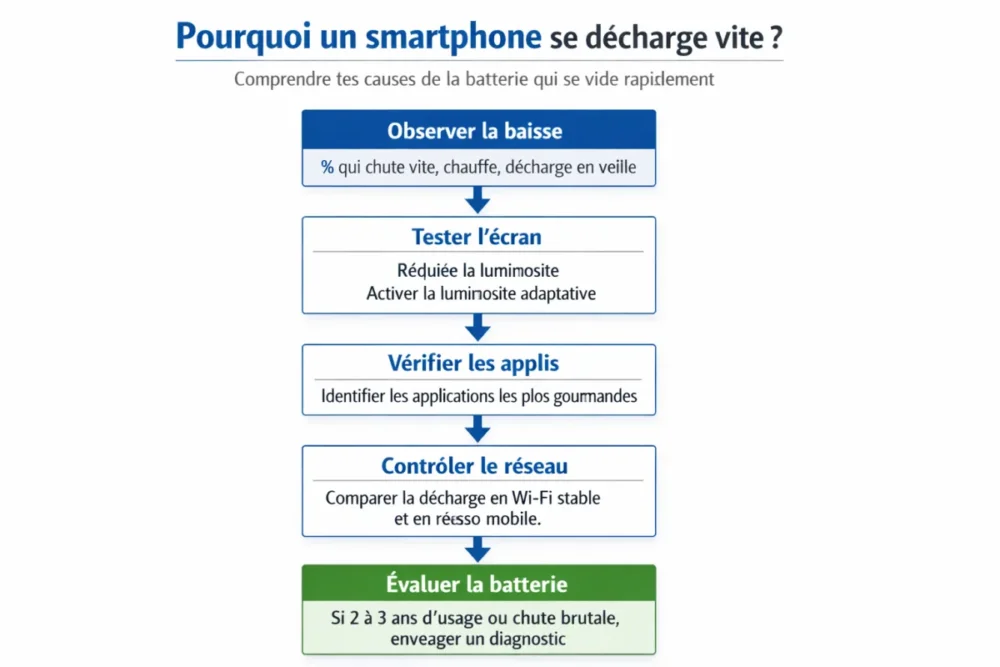
- Check battery usage in settings: if one app stands far ahead of the others, it deserves investigation.
- Test the screen: lower the brightness for a few hours and see if autonomy stabilizes.
- Turn off what is not essential: GPS, Bluetooth, Wi-Fi, unnecessary notifications, overly frequent syncs.
- Compare on a stable network: if everything is better on Wi-Fi, the mobile signal is probably the cause.
- Monitor heating: a warm phone during light use is not normal.
On Samsung, the useful path is Settings > Battery and device care, then Optimize now if the system offers it. On Pixels, you can go through Settings > Battery > Battery diagnostics to check if the issue looks like normal discharge or something more serious.
What solutions really work to recover autonomy?
The goal is not to blindly turn everything off, but to apply settings that have a real impact. The most effective actions are simple: lower brightness, enable automatic optimization, limit demanding apps, reduce connected services, and calm notifications that wake the screen every two minutes.
- Reduce the brightness and enable adaptive brightness.
- Start battery optimization in the phone settings.
- Limit power-hungry apps identified in battery usage.
- Disable unnecessary services when not in use: GPS, Bluetooth, Wi-Fi, hotspot.
- Replace the live wallpaper with a static image.
- Reduce non-essential notifications to avoid constant wake-ups.
Quick settings to apply immediately
If you want to act now, start with this winning trio: lower brightness, power saving mode, and fewer apps running in the background. On both iPhone and Android, this often gives the best immediate results. On some Samsungs, lowering the resolution can also help, provided the model allows it.
- Android: open battery settings, then enable optimization or power saving mode.
- iPhone: go to Settings > Battery to monitor usage and activate power saving if needed.
- Samsung: use Optimize now and check the most active apps.
- Pixel: run the battery diagnostic if the drain seems abnormal.
Preserving the battery in the long term
Heat remains the number one enemy. A phone that heats up unnecessarily ages faster, and an already tired battery loses autonomy even faster. It is therefore better to avoid prolonged exposure to the sun, heavy usage during charging, and dubious accessories. A reliable charger and stable habits are better than last-minute hacks.
When should you repair or replace the battery?
If the autonomy remains very low despite correct settings, if the percentage drops inconsistently, if the phone shuts off before 0%, or if the heating becomes abnormal, you should consider a hardware issue. A worn-out smartphone battery cannot be “repaired” with a magic trick: after a certain point, replacement becomes the cleanest solution.
- Very low autonomy despite moderate use and optimized settings.
- Sudden percentage drops while you are barely doing anything.
- Sudden shutdowns before the battery reaches 0%.
- Unusual heating without heavy apps or charging in progress.
- Deformation or swelling of the phone: in this case, don’t delay.
In this case, having the device diagnosed avoids wasting time looking for a bug that no longer exists. When the battery is truly at the end of its life, settings only postpone the deadline. In other words, they help, but they do not resurrect a tired cell.
Errors to avoid to not worsen the discharge
When the smartphone discharges quickly, it’s easy to close everything, disable everything, and recharge haphazardly. Bad strategy. The best is to target what really consumes, maintain clean charging habits, and not confuse a useful solution with total panic.
- Closing all apps repeatedly: it’s not always effective and can even force power-hungry restarts.
- Leaving the phone in heat on a dashboard, bed, or under the sun.
- Ignoring an important update when it sometimes fixes a consumption bug.
- Using dubious chargers or cables that can degrade charging and the battery.
- Always waiting for 0% before recharging: this is not good for the battery.
To summarize this section, a good diagnosis is better than a hundred poorly targeted small actions. A battery that drains too quickly can come from a too power-hungry screen, a chatty app, an unstable network, or simply a battery at the end of its life. The more you isolate the cause, the clearer the solution becomes.
Key Points to Remember
To Remember
- 📌 The screen, apps, network, and battery explain most rapid discharges.
- 🔎 A simple diagnosis prevents confusing heavy use with a real fault.
- ⚙️ Battery and brightness settings often provide an immediate gain.
- 🌡️ Heat, cold, and an unstable network accelerate consumption.
- 🛠️ If the battery is 2 to 3 years old and drops suddenly, a replacement may be necessary.
FAQ
Why does my phone lose 10% in a few minutes?
Such a rapid drop often points to a power-hungry app, an unstable network, too high brightness, or an already tired battery. If the phenomenon occurs mainly in standby or without heavy use, the problem deserves a proper diagnosis. Start by checking battery usage in the settings.
Is it normal for the battery to drop after an update?
Yes, for a short time, especially on certain smartphones like Pixels. The system may reindex data or adapt to new settings, which draws a bit more from the battery. If the abnormal discharge lasts a long time, apps and battery health should be checked.
How do I know if my battery is worn out?
Classic signs are very low autonomy, a sudden percentage drop, shutdown before 0%, and sometimes unusual heating. After 2 to 3 years of use, a capacity drop is normal. If behavior becomes clearly inconsistent, a check is necessary.
Is power saving mode enough to fix the problem?
It helps, but it doesn’t solve everything. If there is an app consuming too much, a bad network, or a worn battery, power saving mode will only limit the damage. It’s a good safety net, not a miracle cure.
Should I close all my apps to save battery?
Not necessarily. What matters most is identifying the truly power-hungry apps rather than constantly closing everything. On a modern smartphone, constantly closing all apps doesn’t always bring a net gain. It’s better to target the real sources of consumption.