PC overheating: understanding the causes and effectively cooling your computer
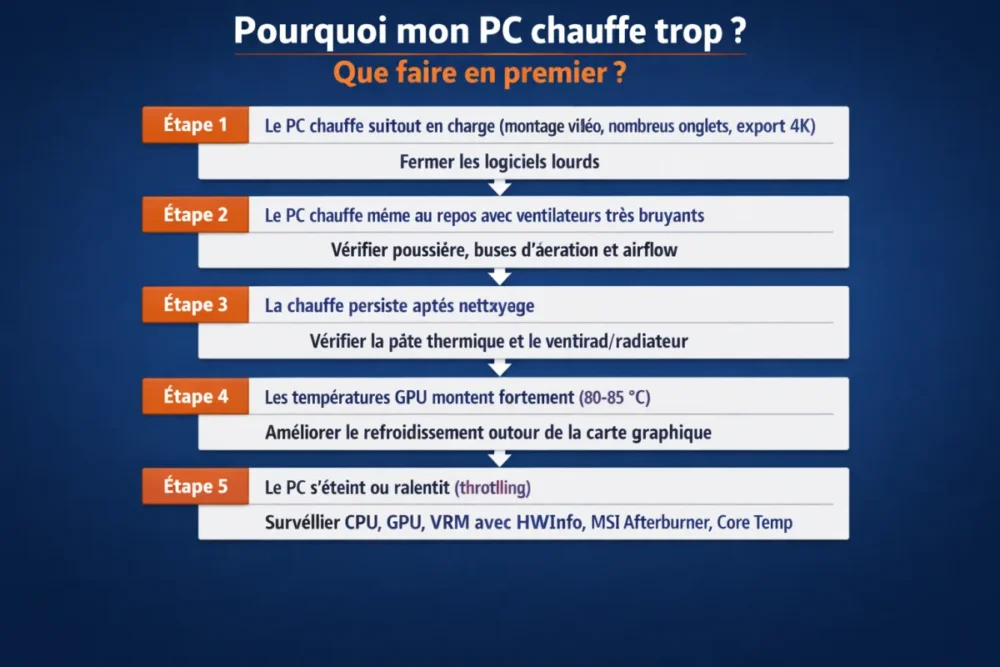
If your PC is overheating, the right reflex is not to dismantle everything immediately, but to proceed in order: software load, dust, airflow, then thermal paste or faulty ventilation. In practice, the first three actions to take are simple: close heavy programs, check that the ventilation grilles are not blocked, then clean the device if the overheating persists.
A hot computer is not necessarily broken. However, if the fans run at full speed while idle, if performance suddenly drops, or if the machine shuts down without warning, then we are talking about a real PC overheating. The goal of this guide is to help you distinguish the normal from the abnormal, then act quickly without risky tinkering.
In brief
🔥 A computer that heats up under load is normal; it becomes worrying when the temperature remains high at rest.
🧹 Dust and blocked grilles are among the most frequent causes of overheating.
⚙️ A resource-hungry software, like Chrome or a video export, can be enough to raise the processor temperature.
🧪 The right diagnosis relies on a monitoring tool and on observing the fans, noise, and shutdowns.
Why should a PC that overheats alert you?
When a PC overheats, the problem is not just the noise nuisance. Excessive heat can trigger throttling, that is an automatic reduction of the processor or graphics card frequency to protect the hardware. Result: the PC slows down, becomes less smooth, and sometimes ends up shutting down abruptly if the temperature rises too much.
- Decreased performance: a slow PC when it heats up is not a coincidence, it is often a sign of active thermal protection.
- Accelerated wear: repeated high temperatures fatigue components over time.
- Reduced stability: crashes, screen freezes, and unexpected restarts become more frequent.
- Hardware risk: if ventilation is no longer sufficient, some components endure very poor operating conditions.
A PC that overheats does not always tell you it is broken. It often tells you it is struggling to breathe, working too hard, or that its cooling is no longer adequate.
How to recognize real overheating?
Real overheating is not limited to a warm case or a fan speeding up during a heavy task. It is mainly detected by a set of signals that regularly recur: abnormal noise, sudden performance drops, warning messages, or even safety shutdown. This is when we move beyond the simple “it’s a bit warm” to enter the overheating diagnosis.
Visible signs
- Very noisy fans while you are not doing anything special.
- Sudden slowdowns in games, office work, or video editing.
- FPS drops or more noticeable stuttering than before.
- Sudden shutdowns or restarts during heavy load.
- Abnormally hot case on a desktop PC or burning chassis on a laptop.
Symptoms depending on the type of computer
On a laptop, overheating is often felt sooner because the internal space is compact and air intakes are easy to block. On a desktop PC, the problem more often comes from airflow inside the case, dust, or poorly sized cooling. In heavy uses like gaming, video exporting, or editing, a temperature rise is normal, but it should not lead to instability.
The most frequent causes of a PC overheating
In most cases, a PC overheats for quite down-to-earth reasons. It is not always a “dead” component: very often there is a mix of dust, poorly thought-out airflow, too heavy software load, or thermal paste that has lost its effectiveness.
| Common cause | Typical sign | First useful action |
|---|---|---|
| Dust in fans and air vents | Fans at full speed, poor air circulation | Clean the grills and openings |
| Too heavy load | Heating during video editing, gaming, or with too many tabs open | Close unnecessary software and reduce the load |
| Insufficient airflow inside the case | High temperatures despite fans running | Check the front/bottom air intake and rear/top exhaust |
| Aging thermal paste | Processor temperature too high, throttling | Consider a clean replacement of the thermal paste |
| Undersized cooling | Loud noise and rapidly rising temperatures | Adjust the air cooler or water cooling to the load level |
Dust and clogged grills
Dust is a classic issue. It accumulates on fans, heat sinks, and air vents, blocking airflow. On a PC scale, just a few thin layers are enough to degrade cooling. On a laptop placed on a blanket or soft surface, blockage can become immediate and very problematic.
Insufficient cooling
An air cooler that is too small, an ill-suited radiator, or a poorly ventilated case can cause temperatures to rise even without excessive dust. On some processors, liquid cooling with a 240 mm or 360 mm radiator often becomes the minimum reasonable option when the machine handles heavy loads. On the GPU side, a modern card can reach around 80 to 85 °C without necessarily being abnormal, but it does not like being suffocated.
Aging thermal paste
Thermal paste improves the contact between the processor and its heat sink. If it dries out, ages, or was poorly applied, heat transfer degrades. It seems like a tiny detail, but it can make a real difference on the processor temperature, especially after several years of use.
Too heavy a load
A computer heats up more when its processor is heavily used. This is the case during a 4K video export, heavy editing, or when too many tabs remain open simultaneously. A PC equipped with an Intel Core i5 and 8 GB of RAM can, for example, overheat during long exports: the hardware is not necessarily defective, it is just pushed to its limits.
Ambient temperature and environment
A room that is already hot, a PC placed against a wall, blocked air intakes, or a computer placed on an unsuitable surface create a vicious circle. The hardware draws in already warm air, expels heat less effectively, then heats up even faster. In other words, good cooling often starts with a proper environment.
If air comes in poorly and goes out poorly, the PC no longer really “cools”: it just circulates heat in a loop.
Quick diagnosis: finding the source of the problem
The best way to avoid guesswork is to see what the machine is actually doing. A monitoring tool allows tracking CPU, GPU, and sometimes VRM temperatures in real time, which helps determine if the heating comes from the processor, the graphics card, or a global ventilation problem. Then, these measurements are cross-referenced with the PC’s behavior to trace back to the cause.
- Measure temperatures with HWInfo, MSI Afterburner, Core Temp, Ryzen Master, or Intel XTU.
- Observe the context: heating at idle, during gaming, while exporting, or right from startup.
- Listen to the fans: constant noise, whistling, or complete lack of rotation.
- Test a simple scenario: close everything, then restart a single task to see what causes the temperature to rise.
What the diagnosis tells you
- If the PC heats up mainly under load, the cause may simply be high demand.
- If heating persists at idle, the dust / airflow / ventilation angle becomes a priority.
- If the fans run at full speed without effectiveness, inadequate cooling or worn thermal paste is plausible.
- If the PC shuts down abruptly, a serious cooling issue or a component protecting itself should be suspected.
How to cool your PC quickly?
When you need to lower the temperature without delay, the idea is not to “fix everything” within the hour. You first need to relieve the machine. Closing the heaviest software, reducing the load, clearing ventilation areas, and cleaning air intakes often yield visible results fairly quickly. It’s simple common sense, but it often works better than you might imagine.
- Close unnecessary programs, especially those consuming CPU and memory.
- Temporarily reduce the load: fewer tabs, fewer effects, fewer parallel tasks.
- Elevate the laptop to allow air to circulate under the chassis.
- Clear the back of the desktop PC so that hot air can exit properly.
- Check filters and grills if your machine has any.
Basic cleaning
Dusting remains the most cost-effective action in the short term. Start with the ventilation grills, then accessible fans, without blowing randomly in all directions at the risk of spinning a fan too fast. If you’re comfortable, a more thorough cleaning often recovers several degrees and a noticeably quieter PC.
Optimize software cooling
Not everything happens inside the case. A system launching many background tasks, software open without reason, or overly aggressive performance settings raise temperatures unnecessarily. Reducing this software background noise can calm a graphics card temperature or a processor temperature that runs hotter than it should.
- Check applications that start with Windows.
- Close programs that remain active without real use.
- Monitor the heaviest processes in the task manager.
- Adjust the power mode if you don’t need maximum performance all the time.
When should you go further?
If cleaning and load reduction change nothing, consider a deeper problem. At this stage, the PC is overheating probably because a cooling element is worn out, poorly installed, or no longer adequately sized for actual use. Here, it’s better to proceed methodically rather than randomly replacing parts.
Replace the thermal paste
Thermal paste eventually loses effectiveness. When it has aged, been poorly applied, or no longer does its job properly, the processor heats up faster and higher. A new, thin, and even application can significantly improve cooling, especially on a machine used for several years.
Check for hardware problems
A fan that no longer spins, a poorly fixed heatsink, or a component that heats abnormally require a real check. An insufficient cooler can also become the weak link: for example, an inadequate air cooler can cause throttling to appear as early as 60 to 70 °C and make the machine noisy without solving the underlying problem.
Calling in a Professional
If the PC shuts down on its own, if you don’t feel comfortable disassembling it, or if the overheating persists despite cleaning, it’s better to entrust the machine to a technician. This is especially true for a laptop, where access to components is more delicate and where improper handling can cost more than the repair itself.
How to Prevent Overheating in the Long Term?
Once the problem is fixed, the smartest thing to do is to prevent it from coming back. Prevention is based on three pillars: regular maintenance, good airflow, and usage adapted to the machine’s capabilities. It’s not spectacular, but it’s exactly what keeps a PC stable and quiet over time.
- Regularly dust off the grills, filters, and extraction areas.
- Leave space around the case to avoid recycled hot air.
- Monitor temperatures from time to time with a simple tool.
- Adapt your usage if your setup is modest for editing, gaming, or heavy exports.
- Stay attentive to noise: a noisy PC fan is often a good indicator before failure.
Key Takeaways
🧠 A PC overheats for a specific reason: load, dust, airflow, or insufficient cooling.
🧼 Cleaning and clearing air intakes are the first steps to take.
📉 Slowdowns, throttling, and sudden shutdowns signal real overheating.
🧪 A tool like HWInfo or Core Temp helps identify the component that is overheating.
🛠️ If overheating persists, the thermal paste or cooling system may be the cause.
FAQ
Is a high temperature always abnormal?
No, not necessarily. A PC can heat up during gaming, video exporting, or heavy tasks, and this is normal within certain limits. What should alert you is high heat at idle, a fan screaming for no reason, or a machine suddenly slowing down.
How often should you clean your PC?
There is no single frequency, as it depends on the environment. In a dusty room or with a pet, cleaning will need to be more regular. In practice, a visual check from time to time and dusting as soon as noise or temperature rises too much is often enough to avoid the worst.
Should you always change the thermal paste?
No, not systematically. However, if the processor heats up more than before even though dust has already been addressed, thermal paste becomes a serious consideration. It is particularly relevant on an old PC, a laptop already opened several times, or a machine showing signs of throttling.
How to know if the problem comes from the CPU or GPU?
The simplest way is to monitor both with suitable software. If the processor temperature rises mainly during multitasking or editing, the CPU is probably the main culprit. If FPS drops and heat appear mainly during gaming, the graphics card temperature should be examined first.
Can a ventilated base help a laptop?
It can help in some cases, especially if the laptop already has limited air intake. But it does not replace cleaning, a proper environment, or a well-functioning internal ventilation system. In other words, it’s a helping hand, not a magic wand.