Roblox Parental Control: The Simple Guide to Securing a Child’s Account
Roblox parental control is no longer just a “bonus” setting to quickly activate between two game sessions: it has become the main safeguard to prevent unwanted conversations, impulsive purchases, access to overly mature experiences, and sessions that far exceed the allotted time. The real issue, therefore, is not to turn Roblox into an unusable vault, but to smartly configure a child’s account so they can play without being unnecessarily exposed.
Roblox has strengthened its parental tools with a fairly clear logic: a Roblox parent account linked to the child’s account, settings for communication, content, spending, and screen time, followed by regular checks. The problem? In practice, many parents get lost in the menus, don’t know what to prioritize, or think they have locked everything when a sensitive point remains open. That’s why this guide goes straight to the point: useful settings, their real role, their limits, and the method to verify that everything works.
In Brief
🛡️ The Roblox parental control primarily serves to regulate communications, accessible content, purchases, and screen time. It is the foundation of Roblox security for children, especially if the account is used on mobile, tablet, and computer.
🔐 To activate it properly, you generally need a Roblox parent account, link it to the child’s account, then validate parental access. Roblox states that this verification can be done via an official ID or a credit card.
💬 The most important settings concern blocking or limiting Roblox chat, choosing the content maturity level, limiting monthly spending, and locking changes with a parental PIN code.
✅ The right reflex: never stop at activation. You must test the restrictions, check every device used by the child, and review after a phone change, age change, or change in gaming habits.
Why Has Roblox Parental Control Become Essential?
Roblox parental control is essential because the risks do not come only from the game itself, but also from social interactions, in-app purchases, user-generated content, and time spent online. Properly configured, it reduces these risks without blocking all usage.
Roblox is not a single, closed, and perfectly predictable game. It is a platform of experiences created by a huge community, with very different worlds, chats, friends, private servers, virtual items, and Robux purchases. In other words, a child does not “just play Roblox”: they navigate a social, creative, and commercial space. And it is precisely this mix that makes Roblox parent settings important.
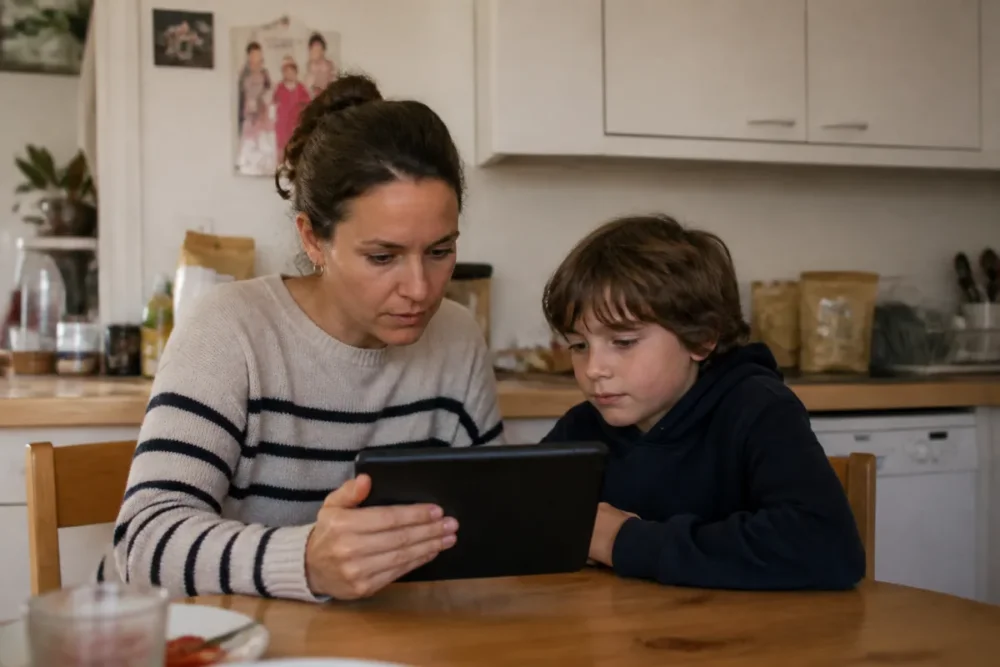
In practice, family concerns often revolve around three topics: “Who is my child talking to?”, “Can they buy something without me noticing?”, and “Are they encountering experiences appropriate for their age?”. These questions are very concrete. They are not resolved with a single magic button, but with a combination of settings: Roblox privacy, content restrictions, spending limits, and regular supervision.
One family recounts that the trigger was not shocking content, but a repeated invitation to join a private server with unknown players. In practice, this type of situation often pushes parents to review contact, chat, and friend request settings, even when the account seemed already “secured.”
It is also important to keep a significant nuance in mind: Roblox parental controls are not meant to replace a family discussion. They reduce exposure, lock certain accesses, and make spending more controllable, but they do not understand the emotional context of a conversation, the insistence of another player, or the fatigue of a child who wants “just five more minutes.” Joking aside, it is often in those five minutes that the rules are broken.
A good parental setting does not eliminate risk: it makes it more visible, more limited, and easier to manage.
What does Roblox parental control really allow?
Roblox parental control allows managing the maturity level of content, communications, contacts, screen time, and spending. It can also help block certain experiences, monitor activity, and limit unauthorized changes through parental supervision.
According to the official Roblox pages dedicated to families and parental controls, parents can link their account to their child’s account to manage several aspects of the experience: accessible content, exchanges, connections, screen time, and spending. The Roblox Parental Controls page notably presents the management of spending, content filters, and screen time. Roblox support also details the overview of parental controls and their supervision logic.
Overall, the system is based on a simple idea: the parent does not just set up a device, they supervise an account. This is quite clever because a child can switch from a tablet to a computer, then to a phone. But it also means that it is necessary to check that the settings are properly applied everywhere, especially after a reinstallation, a new login, or a password change.
The most useful protections to activate as a priority
If you had to remember only the most important options, start with those related to interactions and spending. These are often the two areas where parents discover too late that a setting was missing. Content maturity settings come just after, as they determine the experiences accessible to the child’s account.
- Communications: limit or block Roblox chat depending on the child’s age and level of autonomy.
- Contacts: control friend requests, connections, and people authorized to interact.
- Content: choose the maturity level of accessible experiences and block certain sensitive content.
- Spending: set monthly limits and receive notifications related to purchases.
- Screen time: regulate usage duration to avoid endlessly long sessions.
- Locking: prevent the child from modifying sensitive settings without parental validation.
Limits to know before locking everything down
Roblox parental control does not turn the platform into a completely risk-free space. A child can be influenced by a peer, try to bypass a rule, change devices, or join an experience that seems harmless but whose interactions are not always so. Provided it is seen as a layer of protection and not as absolute surveillance, the tool becomes much more useful.
| Area to adjust | What it protects | Limit to keep in mind |
|---|---|---|
| Chat and messages | Reduces unwanted exchanges | Does not replace learning good online habits |
| Content and experiences | Filters according to maturity level | Classification may change with updates |
| Spending | Limits impulsive purchases | Payment methods linked need to be monitored |
| Screen time | Frames the duration of play | Family rules remain necessary outside the app |
| Parent account | Centralizes supervision | The parent account itself must be well protected |
How to activate Roblox parental controls step by step?
To activate Roblox parental controls, create or log into a parent account, link it to the child’s account, validate parental access, then open the parental control settings. Then adjust communications, content, spending, and screen time before testing each restriction.
The exact method may slightly vary depending on the Roblox app, browser, or interface version. Good to know: labels may change, but the logic remains the same. You start from the parent account, associate the child account, then apply the supervision rules. The most important thing is not to just “browse the menus”: you must finish with a real verification.
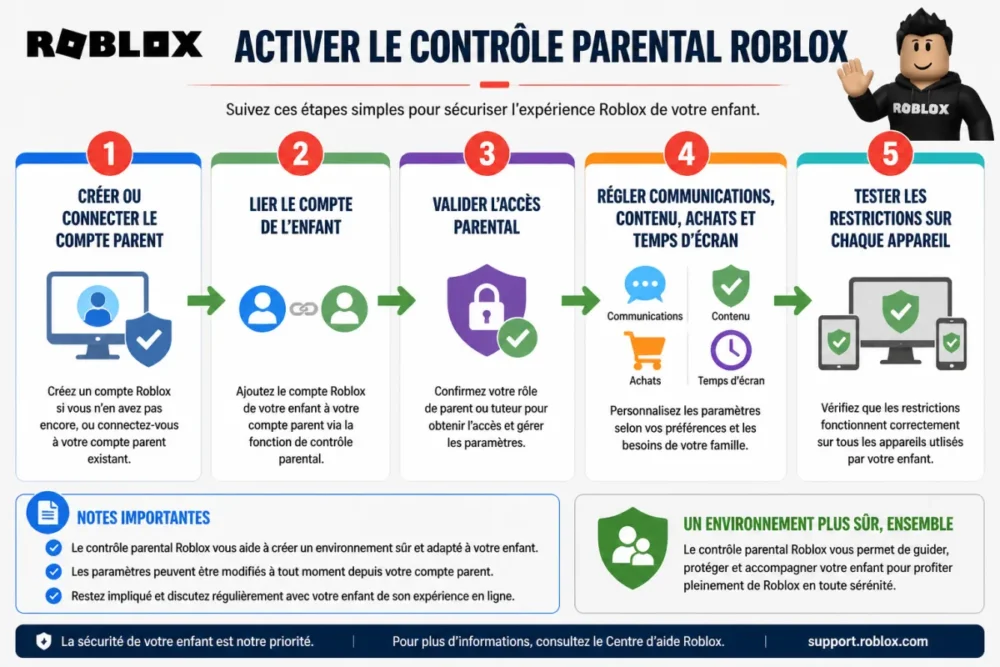
Prepare the parent account and the child account
Before manually handling the settings, check the basics. The child’s account must be identifiable, with a consistent birth date and up-to-date login information. The parent account must be accessible, secured by a strong password, and used by an adult who can receive notifications and validate important changes.
Roblox states that access to parental controls may require verifying the parent’s age, for example via an official ID or a credit card. This point sometimes surprises, but it serves to prevent a child from declaring themselves as the parent of the account. In other words, supervision starts with proof that the adult is indeed the adult.
- Log into the Roblox parent account or create one if necessary.
- Verify that the child account is indeed the one you want to supervise.
- Link the two accounts from the options provided by Roblox.
- Validate parental access if the platform requests it.
- Note the devices used by the child: phone, tablet, computer, or console.
Activate supervision settings
Once the accounts are linked, enter the parental control settings and proceed by priority. Start with privacy and communications, as this is often where the most sensitive interactions occur. Continue with the content maturity level, then move on to spending and screen time. The cherry on top: then lock sensitive settings to prevent unauthorized changes.
To protect a child on Roblox, the proper order of settings looks like this:
- Define allowed communication: chat, messages, invitations, friends, and connections.
- Choose the maturity level: adapt accessible experiences to the child’s age and sensitivity.
- Limit Roblox purchases: set a monthly limit and enable spending notifications.
- Set Roblox screen time: establish a limit consistent with family rules.
- Block specific experiences: useful if a game poses a problem despite general filters.
- Check history: review games and purchases when this option is available.
In practice, parents often set content controls before discussions. However, for a sociable child or one heavily solicited by peers, managing contacts and chat can be the first real safety lever.
Don’t forget purchases and Robux
In-app purchases are a topic in their own right. Roblox allows parents to set monthly spending limits and receive notifications related to the child’s expenses. The e-Enfance association also reminds that parental controls can be used to restrict in-game purchases on Roblox, in its guide dedicated to Roblox parental control.
In practice, do not leave a payment method registered without a clear limit. Even with a well-intentioned child, the mechanics of virtual items, game passes, and internal currency can blur the perception of actual spending. In other words, “it’s just Robux” can quickly become a real line on the bank statement.
Which settings to prioritize according to the child’s age?
For a young child, prioritize strong restrictions on chat, contacts, content, and purchases. For a preteen, maintain clear limits but discuss autonomy rules more: allowed friends, playtime duration, possible expenses, and behaviors to report.
There is no perfect setting for all families. An 8-year-old who only plays known experiences with a brother or sister does not have the same needs as a preteen who joins classmates on private servers. Roblox parental control should therefore be thought of as a slider, not a switch.
For a younger child: limit exchanges first
For younger children, the priority is generally to reduce interactions with strangers and strictly supervise accessible experiences. Approving a trusted friend for a child under 13 can be useful in families where the child plays with a cousin, brother, sister, or clearly identified peer. Again, the goal is not to isolate the child but to make their exchanges understandable and manageable.
Purchases should also be strictly regulated. A young child rarely understands the full chain between Robux, virtual item, parental payment, and real money. It is better to set a low limit or even block purchases if you see no use for them. Cherry on top: explain the rule before a purchase is refused, otherwise frustration may become the real issue.
For a preteen: grant autonomy under conditions
For a preteen, a total lock can be counterproductive if the child mainly plays with identified friends. However, autonomy must be conditional: chat rules, verified friends list, controlled spending, immediate reporting in case of strange messages, and screen time negotiated in advance. The settings then become a discussion support rather than a simple blocking tool.
The best protection is not the strictest setting, but the one the child understands and the parent truly verifies.
How to verify that parental control really works?
To verify Roblox parental control, test restrictions from the child account, check settings from the parent account, try a limited action like chat or purchase, then repeat the check on each device used. The PIN code must prevent any unauthorized modification.
This is the step that many parents skip, and it’s a shame. Activating a setting without testing it is a bit like closing a door without checking if it is properly locked. In Roblox, some protections may depend on the account, the device, the declared age, or the parent-child association status. It is therefore always advisable to carry out a mini home audit.
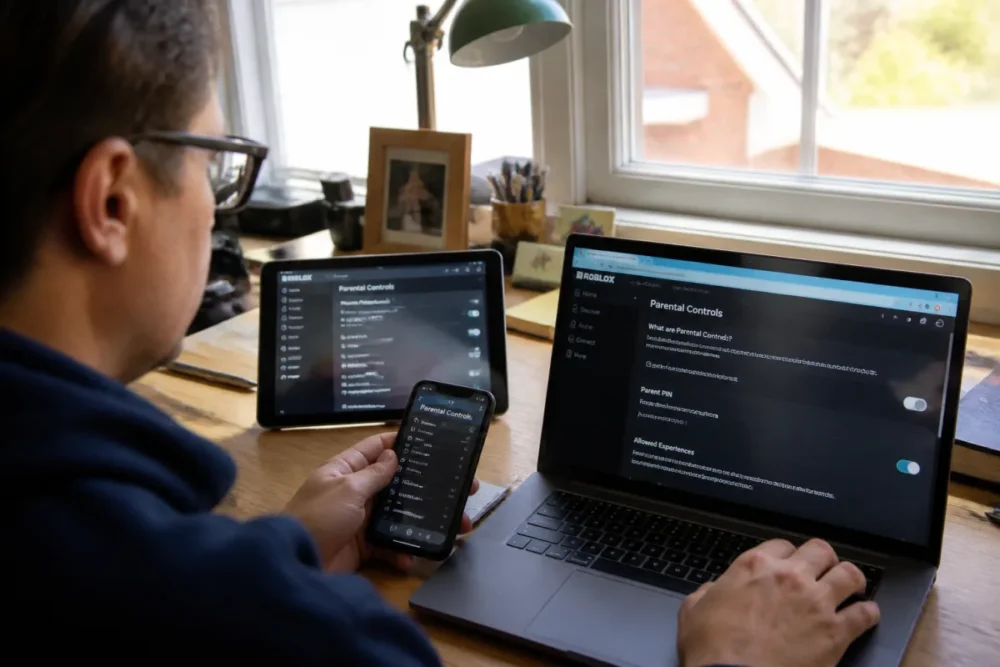
The final verification checklist
This check does not take forever, but it prevents unpleasant surprises. Do it once after activation, then at every important change: new phone, replaced family tablet, changed password, or child starting to play with a new group of friends.
- Log into the parent account and confirm that the child account is properly linked.
- Check the maturity level of accessible content.
- Test chat options, messages, invitations, and friend additions.
- Control purchase limits and spending notifications.
- Try to change a sensitive setting from the child account to verify the lock.
- Repeat the tests on the devices actually used by the child.
If something does not work as expected, don’t panic. Log out and log back in, check that the app is up to date, and return to the parental settings. Interfaces evolve, and some menus may be moved. What matters is to find the logic: parent account, child account, restrictions, then real test.
What common mistakes can leave the account exposed?
The most frequent mistakes are setting up Roblox parental controls only once, forgetting in-app purchases, not checking secondary devices, and believing that a filter is enough. A secure account requires activation, verification, and regular dialogue with the child.
The first mistake is believing the problem is solved forever. However, usage changes quickly: a child discovers new experiences, joins new friends, switches to another device, or better understands the settings. Joking aside, children learn very fast where the buttons are, especially when a setting prevents them from doing something.
The second mistake is underestimating expenses. Parents often think about chat, less about purchases. Yet, limiting Roblox purchases is one of the settings to activate early, even if you think your child “never clicks on that kind of thing.” Game interfaces are designed to be attractive, and virtual purchases sometimes seem less serious than physical purchases.
The third mistake is not protecting the parent account itself. If the password is weak, shared, saved everywhere, or accessible on a family tablet, supervision loses part of its purpose. In short: securing Roblox also starts by securing adult access.
- Mistake #1: activating settings without testing them from the child account.
- Mistake #2: forgetting monthly spending limits and notifications.
- Mistake #3: letting the child know or guess the parent password.
- Mistake #4: not reviewing settings after a new device.
- Mistake #5: confusing technical control with education on online behavior.
Should Roblox be supplemented with other digital security tools?
Yes, in some cases. Roblox parental control protects the experience on the platform, but the phone, tablet, or console tools can complement the protection: usage schedules, app installation, system purchases, overall screen time, and browser-related restrictions.
The Roblox parental control acts inside Roblox. This is its strength, but also its limit. If your child plays on an iPhone, an Android tablet, a family computer, or a console, system settings can add a useful layer: time slots, blocking installation, purchase validation, overall screen limits. This is not mandatory for all families, but it is relevant if Roblox takes up a lot of space in daily life.
To summarize simply: Roblox manages what happens within Roblox; the device manages the framework around it. The two approaches complement each other. For example, a parent can limit communications and purchases within Roblox, while also enforcing a shutdown time via the tablet’s system. This dual level avoids asking a single application to solve all issues.
It is also useful to maintain a very clear family rule: what to do in case of a strange message, a request for personal information, insistence from a player, or an unexplained purchase? Children need a simple scenario. “You close it, come to us, don’t respond” is sometimes better than a long abstract speech about digital risks.
Key Takeaways
- 🛡️ Roblox parental controls reduce risks but never replace parental guidance.
- 🔐 The parent account must be linked, verified, and protected by strong access.
- 💬 Priority settings concern chat, contacts, content, and purchases.
- ⏱️ Roblox screen time must be consistent with family rules outside the platform.
- ✅ Each restriction must be tested from the child’s account and on each device used.
FAQ
Can the Roblox chat be completely blocked?
Roblox allows managing communications and strongly limiting exchanges based on age and account settings. For a young child, it is advised to restrict chat as much as possible, then check from the child’s account what remains possible in the game.
Does Roblox parental control prevent all purchases?
It allows limiting monthly spending, restricting certain purchases, and receiving notifications. However, it is also necessary to check the payment methods registered on the device or the account used, as purchase security does not depend solely on Roblox.
What to do if my child plays on multiple devices?
First set supervision at the Roblox account level, then test restrictions on each device: mobile, tablet, computer, or console. A new login or an outdated app can create differences in display or behavior.
Should Roblox parent settings be reviewed regularly?
Yes, especially after a birthday, a device change, a new gaming habit, or adding friends. A quick monthly check is often enough to spot a forgotten setting or a rule that has become too strict or too lenient.
Can a child bypass Roblox parental control?
No parental control is foolproof. The risk is greatly reduced if the parent account is well protected, if the code or password is not shared, and if the child knows they can talk about a problem without being immediately punished.









