Focus Mode on iPhone: The Simplest Way to Block Notifications Without Disconnecting
Focus mode on iPhone addresses a very simple problem: notifications arrive too often, at the wrong time, and end up nibbling away at your attention without you really noticing. The real issue is therefore not to disappear from the world, but to take back control over what truly deserves to interrupt you.
Since iOS 15, Apple has transformed the old reflex of “putting my phone on silent” into a smarter system: filtering iPhone notifications according to your context. Work, sleep, driving, studying, meetings, rest… the interest of Focus mode is not just technical. It’s a small digital hygiene, provided you set the exceptions correctly.
In Brief
🔕 The iPhone Focus mode allows you to block or silence notifications without completely disabling your phone.
✅ The simplest method is to open the Control Center, tap Focus, then choose a mode like Work, Do Not Disturb, or Sleep.
⚙️ To avoid missing the essentials, you need to set the allowed people, the allowed apps, and any automations.
🚗 Driving mode goes further: according to Apple, incoming calls are limited if the iPhone is not connected to CarPlay, car Bluetooth, or a hands-free accessory.
Why has Focus mode become the most useful tool on iPhone?
Focus mode on iPhone is used to reduce interruptions by filtering notifications according to your activity. It doesn’t necessarily cut everything off: you choose the contacts, apps, and calls that remain allowed. That’s why it’s more flexible than a simple silent mode.
The strength of iPhone focus mode notifications is that it doesn’t treat all alerts the same way. An urgent family message, a repeated call, or a banking notification don’t carry the same weight as a promotion, a social network, or an app that nudges you to “see what you missed.” Joking aside, it’s often this mix that tires you out: the brain has to sort it out for you.
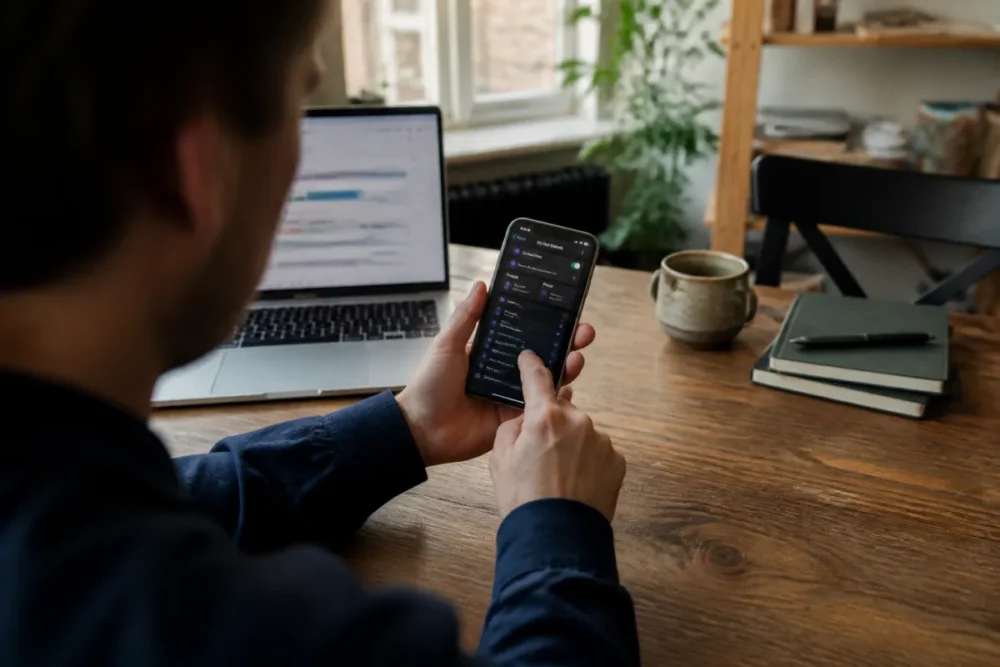
Silent mode cuts the sound, but often lets the screen light up, banners appear, and vibrations break the rhythm. Conversely, a well-set Focus mode acts like a contextual filter. In meetings, you can allow only your manager and your calendar. In the evening, you can keep close family. During studies, you can let Notes, Reminders, or a course app through, but block TikTok, Instagram, or chat groups.
In practice, users often set a Focus mode once and then forget about it. The real breakthrough comes when they create two distinct profiles: one for work, one for rest. Notifications then become more predictable, and therefore less intrusive.
The right setting is not the one that cuts everything off, but the one that lets through only what truly deserves your attention.
According to the official Apple iPhone guide documentation, Focus modes allow filtering notifications and calls according to context. The logic is therefore clear: instead of enduring all alerts, you create rules. And overall, it’s more sustainable than a phone constantly on silent.
How to activate Focus mode on iPhone?
To activate Focus mode on iPhone, open the Control Center, tap Focus, then choose an available mode. You can also go through Settings > Focus to create, customize, or schedule a more precise mode.
The fastest method is through the Control Center. On most recent iPhones with Face ID, swipe down from the top right corner of the screen. On some models with a Home button, instead swipe up from the bottom of the screen. Then tap Focus, and select the desired mode: Do Not Disturb, Work, Sleep, Personal, or a custom mode.
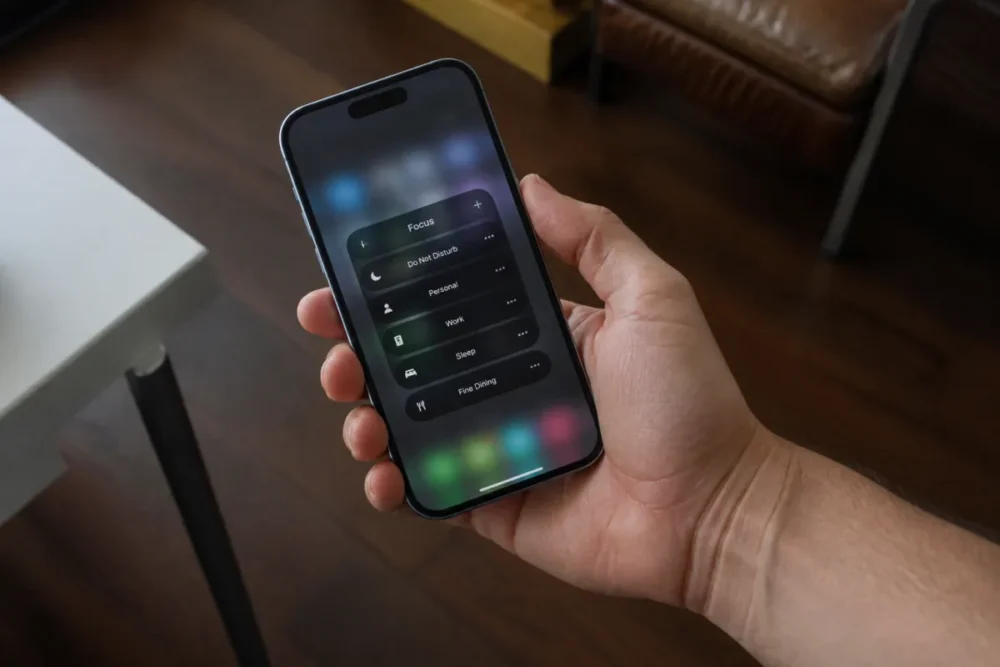
For a cleaner setup, go through Settings > Focus. This is where you will choose who can contact you, which apps can send alerts, and whether the mode should activate automatically. The icing on the cake: you can create multiple modes, each with its own rules, instead of tinkering with a single profile meant to do everything.
- Open Settings on your iPhone.
- Tap Focus.
- Select an existing mode or tap the add button to create one.
- Choose the allowed people and the allowed apps.
- Activate the mode immediately or schedule it according to your usage.
When a mode is active, iOS generally displays an icon related to Focus in the status bar or on the lock screen. Apple also specifies that the status can appear in Messages to indicate to your contacts that notifications are disabled, depending on your sharing settings. In other words, the iPhone doesn’t just hide alerts: it can also signal that you are unavailable.
How to block iPhone notifications without turning everything off?
Blocking iPhone notifications without disconnecting requires a two-step setup: define what should remain allowed, then cut off the rest. In other words, you don’t start from “everyone can disturb me,” but from “only a few people and apps pass the filter.” It’s healthier, and above all, more reliable.
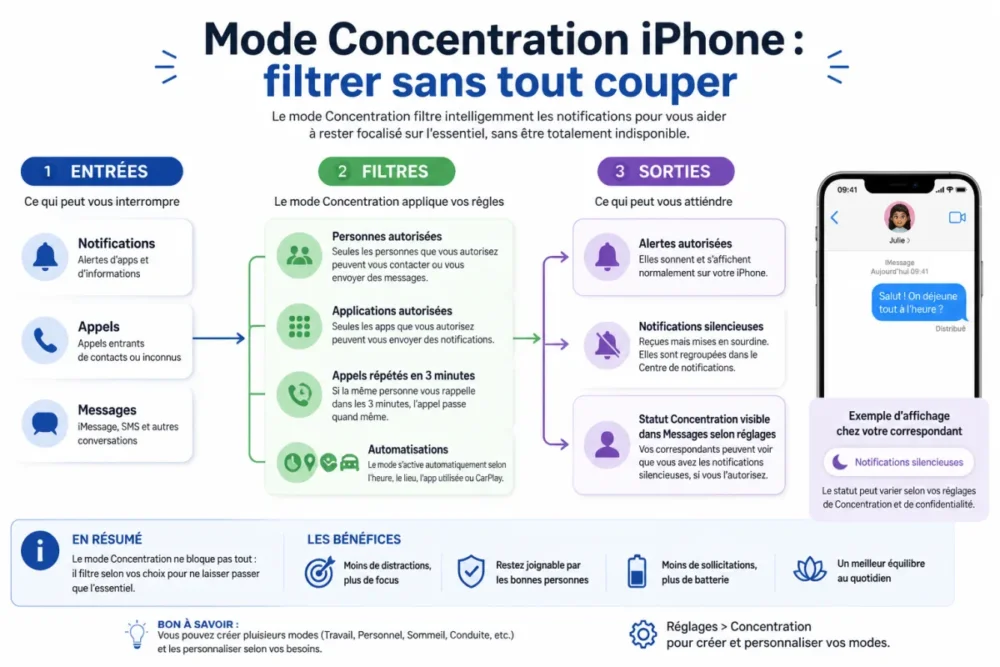
In a Focus mode, start with contacts. You can allow certain people, for example household members, a caregiver, your school, or some key colleagues. Good to know: Apple considers repeated calls as renewed attempts within a 3-minute window when this option is enabled in Focus settings. This is useful for real emergencies, but should be handled with nuance.
- Allowed people: ideal for family, spouse, children, direct supervisors, or emergency contacts.
- Allowed apps: useful for Calendar, Reminders, Maps, work Mail, banking, or team messaging.
- Repeated calls: helpful in emergencies, but less relevant if you receive many persistent calls.
- Urgent notifications: some apps can request a special status, to be checked in iOS settings.
Next, set up the apps. This is often where everything is decided. Many users allow too many apps “just in case,” then wonder why Focus mode hardly changes anything. In practice, it’s better to start strict: two or three truly useful apps, then add what’s missing as you go. This way, you avoid recreating chaos, but with a nice “Focus” label on it.
| Mode | Recommended use | Notifications to keep | To avoid |
|---|---|---|---|
| Do Not Disturb | Meeting, break, quiet evening | Close contacts, repeated calls | Social networks, newsletters |
| Work | Office hours, remote work | Calendar, professional messaging, team tools | Games, shopping, personal groups |
| Sleep | Night, recovery | Close family, alarm, health | All non-urgent alerts |
| Driving | Car trips | Calls via CarPlay, Bluetooth or hands-free | Reading messages while driving |
| Study | Review, classes, reading | Notes, books, course apps | Unnecessary instant messaging |
The Driving mode deserves a special mention. According to the Apple support page dedicated to Driving Focus mode, incoming calls are allowed only if the iPhone is connected to CarPlay, a car Bluetooth system, or a hands-free accessory. This is not a gimmick: it’s a way to reduce distractions in a context where attention is non-negotiable.
How to customize iPhone Focus for truly effective use?
Customizing iPhone Focus is not about filling in boxes to make it look nice. It’s about translating your days into simple rules. A good focus mode must correspond to a real situation: working, sleeping, driving, reading, studying, taking care of a child, exercising, or simply relaxing without being sucked into the screen.
For a Work mode, the trade-off is quite clear: keep what helps you produce, block what scatters you. For example, you can allow Calendar, Reminders, Slack, Teams, or Mail if these apps are central to your activity. On the other hand, leave aside social networks, shopping apps, news notifications, and non-urgent personal conversations. It’s always nice to keep a door open, but not a bay window.
For a Rest or Sleep mode, the logic changes. The goal is no longer productivity, but recovery. You can allow a few close contacts, alarms, Health or Home if you use connected accessories. The rest can wait. In this case, Focus mode becomes almost a buffer: it marks a boundary between available attention and protected attention.
A family reports having set up a Sleep mode with only two allowed contacts and repeated calls enabled. Result: ordinary messages wait until morning, but emergencies still have a chance to get through. This compromise is often more reassuring than a total block.
Automation is the icing on the cake, provided it’s not configured carelessly. Focus modes can be activated according to time, location, app opening, or, in some cases, automatically thanks to signals detected by iOS. For Driving, Apple documents several options: automatic activation based on detected movements, connection to built-in Bluetooth, manual activation, or via CarPlay.
- By time: perfect for a Work mode from 9 a.m. to 6 p.m. or a Sleep mode at night.
- By location: useful at the office, university, or in a library.
- By app: handy to activate Study when opening a reading or note-taking app.
- By CarPlay or Bluetooth: particularly relevant for Driving mode.
An effective Focus mode must be strict enough to reduce noise, but flexible enough not to become a source of stress.
Why do some notifications keep coming through?
If notifications keep coming through despite Focus mode, the cause almost always comes from an active exception. An authorized person, an app left on the whitelist, repeated calls, or another synced Apple device can give the impression that the mode “doesn’t work.” In reality, it often applies a forgotten rule.
First instinct: go back to Settings > Focus, open the concerned mode, then check people and apps separately. Don’t just look at the mode name. A profile called “Work” can very well allow fifteen useless apps if you created it quickly. And then, obviously, iPhone silent notifications become much less silent.
Second point: synchronization between Apple devices. If you use an iPad or a Mac with the same Apple ID, the Focus status can be shared according to your settings. This is very convenient when everything is consistent, but a bit confusing if you activate a mode on the iPhone and the Mac seems to react as well. So check the sharing option between devices if the behavior seems strange to you.
Finally, beware of critical or urgent notifications depending on the apps. Some alerts may be designed to get through more easily, especially when they concern security, health, or an important service. The idea is not to panic: just check app by app, then remove unnecessary permissions. To summarize, if the filter lets too many things through, it is rarely a bug; it is often a setting that is too generous.
What mistakes to avoid with iPhone Focus mode notifications?
The first mistake is to believe that Focus mode blocks everything automatically. No: it filters according to the choices you give it. If you allow Messages, WhatsApp, Mail, Instagram, and all your favorites, you have mainly just moved the problem. The mode exists, but so does the noise.
The second mistake is to confuse iPhone Do Not Disturb mode, silent mode, and Focus. Silent mode mainly acts on sound. Do Not Disturb is a restrictive but customizable Focus mode. Other modes allow you to adapt the rules to a more specific context. In other words: silent mode lowers the volume, Focus changes the rules of the game.
The third mistake is to automate too quickly. A mode that activates at the wrong place or time becomes annoying, and you will end up disabling it completely. It is better to test manually for a few days, observe what is missing, then only add schedules. It is less spectacular, but much more effective.
How to check that Focus mode really blocks notifications?
The final check is simple: activate the mode, observe the Focus icon, then test with a person or an unauthorized app. If the alert still appears, go back to the exceptions. If it is hidden or silent, your filter works. This check avoids discovering a bad setting in the middle of a meeting or at bedtime.
Here is a quick method, to do seriously once rather than tinkering ten times:
- Activate the mode from the Control Center.
- Check the icon in the status bar or on the lock screen.
- Ask an unauthorized contact to send a test message.
- Verify that an unauthorized app no longer triggers a visible banner.
- Check repeated calls if you have activated this option.
- See if the mode is shared with your other Apple devices.
The right method, in essence, is to start with a minimal setting, then progressively open the floodgates. First allow only essential people, two or three essential apps, then test. If all goes well, don’t touch anything else. If an important alert is missing, add it. This approach avoids the classic mistake: wanting to customize too finely from the start, then getting lost in the menus.
Key takeaways
- 🔕 Focus mode filters notifications instead of simply muting sound.
- ⚙️ Good settings start with contacts and apps that are truly essential.
- 🚗 Driving mode limits calls outside CarPlay, car Bluetooth, or hands-free.
- 🧭 Automations are useful after a few days of manual testing.
- ✅ If alerts still get through, first check exceptions and device sharing.
FAQ
Does Focus mode also block calls?
Yes, but only according to your settings. You can allow certain contacts, your favorites, or repeated calls. For Driving mode, Apple states that incoming calls are allowed only with CarPlay, car Bluetooth, or a hands-free accessory.
What is the difference between Do Not Disturb and Focus?
Do Not Disturb is a specific, rather restrictive Focus mode. The Focus system is broader: it allows you to create several profiles adapted to work, sleep, study, or driving, each with its own exceptions.
Why does my Focus mode activate by itself?
A schedule or automation is probably active. Check in Settings > Focus if the mode depends on a time, location, app, Bluetooth connection, or CarPlay. Disable the automation if it no longer matches your usage.
Can others see that my notifications are disabled?
In some cases, yes. iOS can display a status in Messages indicating that your notifications are disabled if Focus status sharing is enabled. You can adjust this behavior in the settings related to Focus and compatible apps.
Should I create a custom Focus mode?
Yes, if the default modes do not match your daily life. A custom mode is useful for studying, sports, reading, or teleworking. Keep it simple at first: a few contacts, a few apps, then adjust after a few days.









