.en-bref { max-width: 640px; margin: 2em auto; padding: 1.5em 1.8em; color: #3a2d0d; font-family: “Inter”, “Segoe UI”, sans-serif; text-align: left; position: relative; box-sizing: border-box; background: #f7f9f9; border: 1px solid #10b58b; border-left: 6px solid #10b58b; border-radius: 12px; box-shadow: 0 8px 24px rgba(251, 191, 36, 0.15); }
.en-bref h2, .en-bref .en-bref-header { font-size: 1.15em; font-weight: 700; margin-bottom: 0.6em; color: #d97706; }
.en-bref p, .en-bref li { font-size: 1em; line-height: 1.65; margin: 10px; }
.en-bref strong { color: #1c1917; }
.key-takeaways { max-width: 640px; margin: 2em auto; padding: 1.5em 1.8em; color: #3a2d0d; font-family: “Inter”, “Segoe UI”, sans-serif; text-align: left; position: relative; box-sizing: border-box; background: #f7f9f9; border: 1px solid #10b58b; border-left: 6px solid #10b58b; border-radius: 12px; box-shadow: 0 8px 24px rgba(251, 191, 36, 0.15); }
.key-takeaways h2, .key-takeaways .key-takeaways-header { font-size: 1.15em; font-weight: 700; margin-bottom: 0.6em; color: #d97706; }
.key-takeaways p, .key-takeaways li { font-size: 1em; line-height: 1.65; margin: 10px; }
.key-takeaways strong { color: #1c1917; }
.key-takeaways ul { list-style: none; padding-left: 0; }
.key-takeaways li { margin: 0.45em 0; padding-left: 0.2em; }
.magic-pdf-download{margin:2em 0;padding:1.25em 1.5em;border:1px solid #e3e6ea;border-left:4px solid #0ea5e9;border-radius:10px;background:#f8fafc;display:flex;align-items:center;gap:1.2em;flex-wrap:wrap}.magic-pdf-download .mpd-txt{flex:1;min-width:220px}.magic-pdf-download .mpd-txt strong{display:block;font-size:1.05em;color:#0f172a;margin-bottom:.15em}.magic-pdf-download .mpd-txt span{color:#64748b;font-size:.92em}.magic-pdf-download a.mpd-btn{display:inline-block;background:#0ea5e9;color:#fff;text-decoration:none;padding:.7em 1.5em;border-radius:8px;font-weight:600;white-space:nowrap}.magic-pdf-download a.mpd-btn:hover{background:#0284c7}
.magic-lb-overlay{position:fixed;inset:0;background:rgba(15,23,42,.92);display:none;align-items:center;justify-content:center;z-index:99999;cursor:zoom-out;padding:20px}
.magic-lb-overlay.open{display:flex}
.magic-lb-overlay img{max-width:95vw;max-height:95vh;object-fit:contain;border-radius:8px;box-shadow:0 8px 32px rgba(0,0,0,.5)}
.magic-lb-close{position:absolute;top:16px;right:20px;color:#fff;background:rgba(0,0,0,.5);border:none;width:40px;height:40px;border-radius:50%;font-size:24px;cursor:pointer;display:flex;align-items:center;justify-content:center}
.magic-lb-close:hover{background:rgba(0,0,0,.8)}
.wp-block-image img{cursor:zoom-in;transition:transform .15s ease}
.wp-block-image img:hover{transform:scale(1.01)}
.magic-img-link{display:inline-block;text-decoration:none}
(function(){
var ov=document.getElementById(‘magic-lb’);if(!ov)return;
var img=ov.querySelector(‘img’),btn=ov.querySelector(‘.magic-lb-close’);
function open(src){img.src=src;ov.classList.add(‘open’);document.body.style.overflow=’hidden’}
function close(){ov.classList.remove(‘open’);img.src=”;document.body.style.overflow=”}
document.addEventListener(‘click’,function(e){
var a=e.target.closest(‘a.magic-img-link’);
if(a){e.preventDefault();open(a.getAttribute(‘href’));return}
var i=e.target.closest(‘.wp-block-image img’);
if(i&&!e.target.closest(‘a’)){e.preventDefault();open(i.currentSrc||i.src)}
});
ov.addEventListener(‘click’,function(e){if(e.target===ov||e.target===btn)close()});
document.addEventListener(‘keydown’,function(e){if(e.key===’Escape’)close()});
})();
Enable Parental Controls on Roblox: Step-by-Step Guide to Protect Your Child’s Account
Enabling parental controls on Roblox allows you to limit chat, manage purchases, reduce exposure to content, and maintain control over the child’s account privacy settings. The basic process is simple: open settings, link the parent account, activate the necessary restrictions, then verify that everything is properly locked.
The difficulty does not come from the concept, but from menus that change depending on the account’s age, the app used, and Roblox interface updates. This guide follows the most straightforward logic to protect a child without unnecessary jargon, with checkpoints to redo if a setting disappears or does not apply.
In Brief
🛡️ The right reflex is to activate Roblox and then link a parent account. Without this link, settings often remain partial and hard to verify.
💬 The priorities are chat, relationships, content, and spending. These four levers cover the main risks for a young player.
🔐 Roblox reserves certain control functions for specific age groups. The official page indicates full management up to 12 years old in most regions, with some functions up to 15 years depending on the case.
✅ Useful parental control should be revalidated after each update. If a menu moves, redo the verification rather than assuming everything is still active.
Why Enable Parental Controls on Roblox?
Roblox is as much a social platform as a game, so the main risk does not come only from content but also from exchanges, purchases, and connections with other players. Parental controls are precisely meant to reduce these frictions without blocking all account usage.
On the official page, Roblox states it can manage content, chat and relationships, screen time, and spending, while video chat is not available in any country and text or voice chat can be disabled depending on the country. The goal is not to forbid everything but to cut the most exposing channels at the right level.
The right setting is not to block everything blindly, but to first reduce exchanges, purchases, and exposure to content.
If you are looking for a broader overview of the platform, our Roblox 2025 guide to understand everything helps put these settings into the real use of the game.
What to Prepare Before Starting
Before opening the menus, prepare access to the child’s Roblox account, the parent’s email address, and the app or website you actually use. This preparation avoids half of the common blocks, especially when Roblox requests additional validation or a return to the parent account.
- Check that the parent account can receive validation emails.
- Confirm that the child account is the one used daily.
- Keep at hand the device on which you really want to apply the restrictions.
- Look at the declared age on the account, as available options depend on this information.
The official Roblox page specifies that, in most regions, parents can manage all settings up to 12 years old, with some functions remaining accessible up to 15 years old. If a setting is missing, the account’s age or the parent-child link is often the first point to check.
How to enable parental controls on Roblox?
The shortest path is through Settings then Parental Controls, with a parent account association before adjusting restrictions. Once the link is made, you can lock content, chat, relationships, and purchases without starting from scratch at each visit.
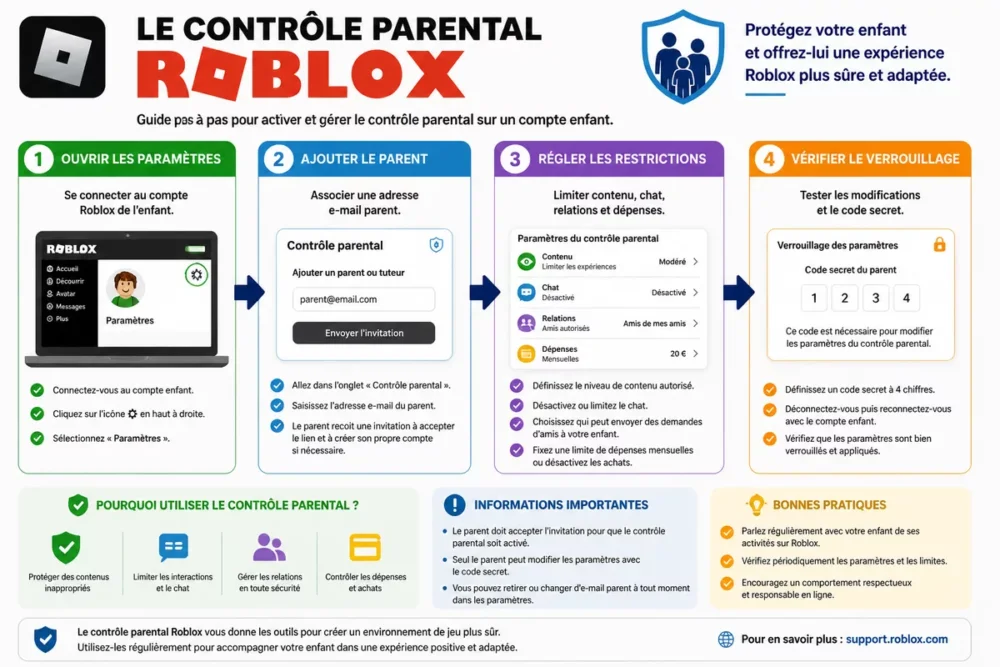
- Open the child’s Roblox account and enter the settings.
- Open the Parental Controls section.
- Add the parent by email and validate the link.
- Adjust content, chat, relationships, and purchases.
- Check the final lock and test actual access.
Step 1: open the account settings
Start by logging into the relevant Roblox account, then open the settings menu to reach the security and privacy area. Roblox and the associated help guides indicate the path Settings > Parental Controls, which remains the entry point to remember even if the display varies depending on the device.
On mobile, access is often found in the main menu of the app, while the web version may present slightly different labels. The right reflex is to look for the section related to security, not to memorize a unique visual location.
Step 2: link the parent account
Next, add the parent from the parental controls section by entering a valid email address, then follow the validation request. Roblox documentation states that this association is used to manage the child’s experience, and an official ID may be requested if the parent creates a Roblox account to verify their identity.
This link matters more than the rest because it determines who can modify the rules afterward. If the parent account is not linked, the system loses its practical value and settings become easy to bypass.
Step 3: set essential restrictions
Start with content, chat, relationships, and screen time, as these are the four areas that most quickly reduce a child’s exposure. Roblox and e-Enfance also mention managing profile visibility, friend requests, game and purchase history, as well as restricting in-game purchases.
For a younger child, first tighten chat and friend requests, then look at accessible experiences and exchanges with other players. For a teenager, allow more leeway but maintain oversight on spending and profile privacy.
Step 4: block or supervise purchases
Roblox allows managing spending from parental controls, and e-Enfance notes that restricting in-game purchases is one of the functions sought by parents. The most useful thing is also to check the payment methods already registered, to prevent purchases without clear authorization.
A simple example helps frame the rule: if 10 euros are allowed each month, set a clear limit and write it down before applying it. The amount itself depends on your family choice, but the logic must remain simple and verifiable.
Step 5: secure settings with a secret code
Once the settings are in place, protect access with a code or validation that the child cannot easily bypass. This lock prevents quick changes afterward, especially when the child has found the right menu but not the right permission to change.
Immediately test the lock by exiting and then returning to the settings. If a setting remains modifiable without control, the protection is not strong enough and deserves a second check.
Should Roblox be set up alone or also the phone?
The Roblox parental control protects inside the game, but phone or tablet settings remain useful to lock screen time, system purchases, and certain notifications. The best protection often comes from combining both levels, not from a single magic button.
| Solution | What it covers | Main limitation | Recommended use |
|---|---|---|---|
| Roblox Parental Control | Content, chat, relationships, spending, account privacy | Acts mainly within Roblox | First level of protection |
| iPhone / iPad Screen Time | Usage duration, app restrictions, system purchases | Does not control Roblox chat | Useful complement on Apple |
| Android Family Link | Screen time, parental approval, child account management | Does not replace Roblox settings | Useful complement on Android |
| Console Control | Machine access, playtime, system-related purchases | Varies depending on device | Useful if Roblox is played via console or TV |
If your goal is to block Roblox chat, you must set Roblox directly; if your goal is to reduce overall usage time, the phone or tablet must also be locked. To keep an overview of platform usage, you can also reread our Roblox 2025 review.
Roblox protects the perimeter of the game, but the phone protects the time and uses around the game.
How to check that restrictions are working?
Verification must be done through a concrete test: open the chat, look at friend requests, attempt a purchase, and check access to a sensitive game. An untested setting can give a false sense of security, while an interface change has sometimes disabled or moved the option.
- Test the text chat and verify that it does not open or remains limited.
- Check that friend adding and profile visibility correspond to the desired level.
- Control in-app purchases with a trial without confirming the expense.
- Return to settings after an update to confirm that nothing has disappeared.
Roblox indicates that text and/or voice chat can be disabled depending on the country, and that video chat is not available in any country. If an element does not behave as expected, the problem often comes from the country, the account age, or a forgotten additional setting.
Why does the option not appear?
When the menu is missing, the most frequent cause remains the account age, the absence of parent-child linking, or an outdated app version. The right reflex is to check these three points before looking for a rarer malfunction.
- The child account does not have the age that unlocks all control functions.
- The parent account is not yet linked to the child’s Roblox account.
- The app or browser does not display the latest version of the menus.
- The setting exists, but its wording changed after an update.
If the page still shows nothing, test the web version then return to the mobile app, because the display and menu order are not always identical. The e-Enfance fact sheet dated January 31, 2024 also reminds that Roblox can manage profile visibility, friend adding, and the history of games and purchases, which helps to find the right section.
When a setting disappears, the first hypothesis should be an access or age problem, not a rare bug.
Common Mistakes and Good Practices
The most costly mistakes are always the same: forgetting the parental link, setting only part of the options, or leaving purchases open because a menu already seems sufficiently protected. These oversights create incomplete protection, thus security that is mostly theoretical.
Here are the most useful traps to watch out for.
- Not checking the parent account after the validation email.
- Leaving the profile visible while the chat is already restricted.
- Forgetting the payment methods saved on the device.
- Changing a setting without performing a real test afterwards.
- Thinking that a single Roblox menu is enough while the phone remains unlocked.
The right rhythm is to review the settings after each major update and to perform a quick test as soon as a behavior changes. If the child grows up, you can relax some filters, but only after verifying their concrete effect on the account.
Useful Sources to Consult
Official sources should remain your main support as soon as a setting, age limit, or security feature evolves. For Roblox, prioritize the Parental Control page, the help FAQ, and the article on parent-child linking, then supplement with a recognized awareness source like e-Enfance.
- Roblox – Parental Control: the official page to find management sections.
- Roblox Support – FAQ on parental controls: useful for questions about the parent account and verification.
- Roblox Support – linking your account to your child’s: practical for parent-child linking.
- e-Enfance – Roblox parental control: useful for reviewing the functions highlighted for parents.
Activating parental control on Roblox takes a few minutes when the parent account is already ready and the goals are clear. The real work then consists of regularly checking the settings, especially after an update or a change in the account’s age.
Key Takeaways
- 🧩 First link the parent account, otherwise the settings remain incomplete.
- 🔒 Prioritize blocking chat, relationships, and purchases.
- 📱 Add phone controls to lock screen time.
- 🧪 Test restrictions after activation, not just in the menus.
- 🔄 Recheck settings after each update or profile change.
Frequently Asked Questions
Can the chat be completely blocked on Roblox?
Yes, Roblox allows reducing or disabling exchanges depending on the options available on the account and the country. The safest is to check both text chat, voice chat, and friend requests, as these controls are not always found in the same place.
How to limit Roblox purchases?
The most effective way is to manage spending from the Roblox parental control and also check the payment methods saved on the device. If a purchase remains possible, the problem often comes from a second payment channel or a partial setting.
Does Roblox parental control work on all devices?
The control mainly follows the account, but the menu display can change between mobile, browser, tablet, and console. When an option seems absent, test the web version then the app, and verify that the parent account is properly linked.
What to do if the secret code has been forgotten?
The proper procedure is to go through the official recovery process from the parent account or the associated email. Once access is regained, recheck all restrictions, as a reset can leave settings in a partially modified state.
From what age does Roblox allow full parental control?
The official page states that, in most regions, parents can manage all settings up to age 12, with some functions remaining available up to age 15. The exact age and scope of settings may vary depending on the country and the function concerned.









