Cross-platform Passwords: How to Keep Android, Windows, and iPhone Synchronized Without Switching Ecosystems
Keeping your cross-platform passwords accessible on Android, Windows, and iPhone, without giving up your favorite browser or fully switching to Apple, Google, or Microsoft, has become a real everyday challenge. The short answer: yes, it’s possible, but rarely perfectly with native tools alone. The right choice mainly depends on your tolerance for friction: autofill, passkeys, biometrics, account recovery, family sharing… and the degree of independence you want to maintain.
In Brief
🔐 Android iPhone Windows synchronization works best with an independent layer: a password manager like Bitwarden, 1Password, Dashlane, or Proton Pass, rather than a vault tied to a single ecosystem.
📱 Native solutions — iCloud Keychain, Google Password Manager, Edge, or the Microsoft account — are very comfortable within their own world but quickly become partial as soon as you mix iPhone, Windows PC, third-party browsers, and Android phones.
🧩 Passkeys simplify login, but they do not yet replace all passwords or all migration constraints. Their portability depends on the service, browser, system, and manager used.
✅ The best compromise often involves choosing a cross-platform digital vault, enabling 2FA, cleaning duplicates, then setting this manager as the autofill service on each device.
Can you synchronize your cross-platform passwords without switching ecosystems?
Yes, you can synchronize your passwords between Android, Windows, and iPhone without switching ecosystems, but the most reliable solution usually involves a third-party manager or a synchronized browser. Native tools remain convenient, but their limits appear as soon as you mix devices, browsers, and passkeys.
The core issue is not just to “see” your credentials everywhere. They must also autofill at the right time, in the right app, with reliable biometric validation, and without creating three conflicting copies of the same account. This is where the notion of cross-platform passwords truly makes sense: it is no longer just a digital notebook, but an identity layer usable everywhere.
In practice, a user equipped with a Windows PC at work, a personal iPhone, and an Android tablet at home can quickly end up with credentials saved in three places: in Chrome, in iCloud, and in Edge. Joking aside, this quiet mess is not immediately visible. It appears the day a password changed on the iPhone is not offered on Windows, or when a passkey created on one device does not appear on another.
The real challenge is not to store more passwords, but to choose a single source of truth.
According to the official documentation of Google Password Manager, Apple’s iCloud ecosystem, and specialized publishers like Bitwarden for personal use, synchronization always relies on three pillars: a central account, an encrypted vault, and a local validation method. The difference is the scope. Apple optimizes the Apple experience. Google optimizes the Google experience. A third-party manager tries to be cross-platform.
Why do Android, Windows, and iPhone complicate synchronization?
Android, Windows, and iPhone do not deliberately block cross-platform passwords, but each favors its own identity mechanism. Android naturally promotes the Google account, iOS relies heavily on iCloud Keychain, and Windows favors the Microsoft account, Edge, or Windows Hello. The result: everything can work… provided you choose carefully who really manages the vault.
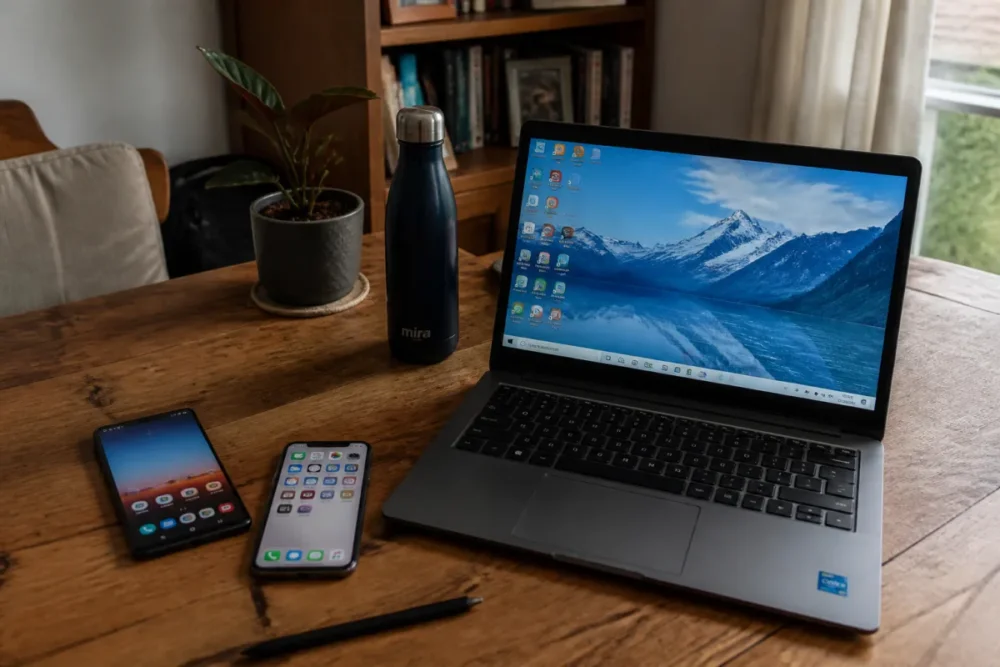
The first friction comes from autofill. On iPhone, you need to select the service authorized to fill in credentials in the settings. On Android, the chosen manager must be set as the autofill service. On Windows, the experience depends heavily on the browser: Chrome, Edge, Firefox, or Brave do not all rely on the same default vault. In other words, a password may be synced in the cloud but not appear in the expected login field. Frustrating, but quite common.
In practice, most blockages come less from encryption than from autofill settings. A family using an iPhone, a Windows PC, and an Android smartphone often reports having “lost” their passwords, when they are simply stored in another vault or offered by the wrong browser.
The second friction comes from duplicates. When Chrome saves a credential, iCloud keeps an older version, and a third-party manager imports both, you sometimes get three entries for the same service. In this case, synchronization becomes counterproductive: it spreads the error everywhere. Before talking about advanced security, digital hygiene must be addressed.
- A main vault: the one containing the reference version of your credentials.
- A single autofill service on each device, to avoid conflicting suggestions.
- A robust validation method: local biometrics, device code, 2FA, or physical key depending on the level of requirement.
- A recovery plan: essential if you lose your main phone or forget the master password.
The third, more recent topic concerns passkeys. They promise to replace traditional passwords with a pair of cryptographic keys, often validated by Face ID, Touch ID, Windows Hello, or Android fingerprint. It’s elegant, but not yet fully seamless across all environments. A passkey created in a given vault is not always portable like an exportable text password, and its behavior depends on the site, browser, and system.
What do Apple, Google, and Microsoft really offer?
Native solutions are excellent when you mostly stay within their environment. iCloud Keychain is very smooth between iPhone, iPad, and Mac; Google Password Manager naturally works with Chrome and Android; Microsoft makes it easy to use Edge, the Microsoft account, and Windows Hello. The problem arises when daily life doesn’t look like a manufacturer’s brochure.
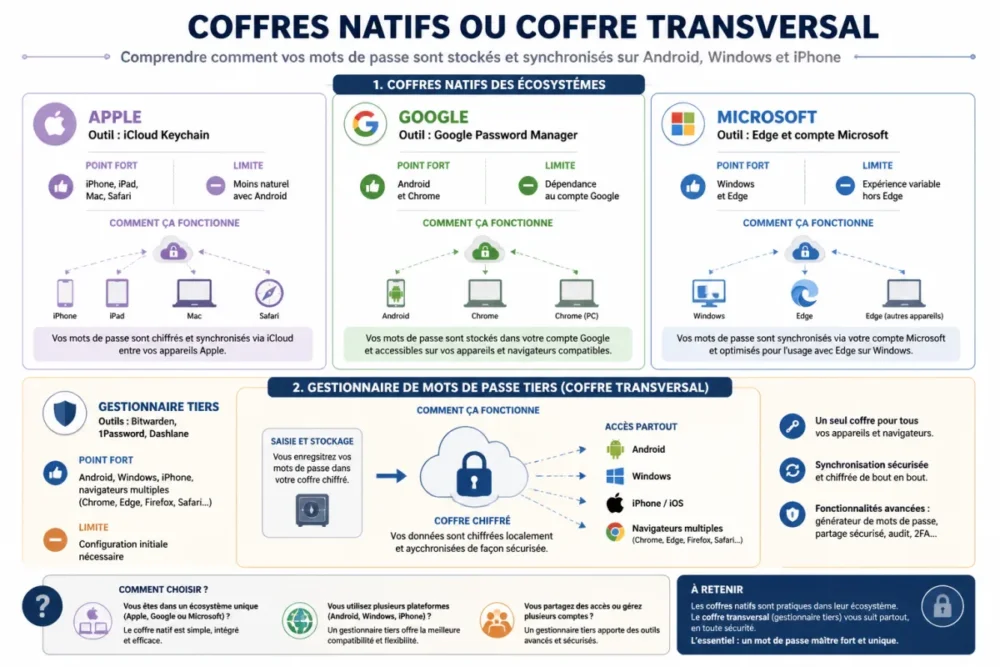
Apple bets on tight integration: iCloud Keychain, Safari, Face ID, Touch ID, and iOS settings work very well together. For someone using an iPhone, a Mac, and Safari, it’s hard to get more comfortable. But if the main workstation is a Windows PC, the daily browser is Chrome or Firefox, and the second phone is Android, the experience becomes less seamless. It’s not unusable, it’s just less natural.
Google adopts a more open logic via Chrome, Android, and the Google account. Password synchronization can follow the user on many devices, especially if Chrome is the main browser. On iPhone, Google Password Manager can be used, but you have to accept that Chrome or the Google app plays an important role in the experience. To sum up: it’s effective if your real backbone is the browser.
Microsoft, for its part, has made great progress with Edge, Windows Hello, and passwordless sign-in. On Windows, the integration is comfortable. However, for full synchronization with iPhone and Android, the process remains dependent on Microsoft applications, the Edge browser, and compatible services. Again, the promise is strong within the ecosystem, more nuanced outside of it.
| Solution | Very comfortable for | Main limitation | Suitable profile |
|---|---|---|---|
| iCloud Keychain | iPhone, iPad, Mac, Safari | Less natural with Android and some Windows uses | Mostly Apple user |
| Google Password Manager | Android, Chrome, Google account | Strong dependence on browser and Google account | Chrome user on multiple devices |
| Microsoft / Edge | Windows, Edge, Microsoft account | Variable experience outside Edge and Windows | PC user centered on Microsoft |
| Third-party manager | Android, Windows, iPhone, multiple browsers | Initial setup and choice of provider | Mixed user seeking independence |
Overall, the native choice has an obvious advantage: it requires little effort. It’s already there, often free, well integrated, and reassuring for a user who doesn’t want to deal with a manual migration. But this simplicity comes at a price: it brings you closer to a single player. That’s not necessarily a problem. You just need to be aware of it.
Which solutions really work without changing ecosystems?
The most sustainable solution is to use a third-party password manager as a central layer, then activate it on Android, Windows, iPhone, and in your browsers. Browser synchronization may be sufficient for simple use, but it handles mixed, family, or professional scenarios less well.
A third-party password manager works like an independent digital vault. You install the app on iPhone, Android, and Windows, add extensions in Chrome, Firefox, Edge, Safari, or Brave, then let the service synchronize the encrypted credentials. Bitwarden, for example, is presented as open source, available on mobile, desktop, and web, with a free offer and paid personal or family options. According to its documentation, it also allows generating, saving, and filling passwords on an unlimited number of devices.
The technical key is the zero-knowledge model. Simply put: the provider synchronizes an encrypted vault but must not be able to read your secrets. Modern managers generally rely on strong encryption, often AES-256 type or equivalent depending on the chosen architecture. Your master password is used to locally unlock the vault. That’s why it must be long, unique, and memorable. Not “Soleil2026!”, then. Rather a robust phrase, with 2FA enabled behind it.
A good password manager does not eliminate risk; it concentrates it in a better-protected place.
The browser can also act as a relay. Chrome synchronizes credentials with the Google account, Edge with Microsoft, Firefox with its own sync account. For simple personal use, this is often enough: a Windows PC, an Android phone, an iPhone with Chrome installed, and the job is almost done. But this method has two blind spots: secure sharing and independence. If you change browsers, or if you use several browsers depending on devices, the experience becomes fragmented.
Before choosing, check a few concrete points. These are what make the difference between “it works the first day” and “it remains usable two years later.”
- Compatibility: iOS, Android, Windows, macOS, Linux applications and extensions for your actual browsers.
- Autofill: reliable automatic filling in mobile apps, not just on websites.
- 2FA: two-factor authentication available to protect the main account.
- Export: ability to retrieve your data in a usable format if you change services.
- Sharing: family vaults, collections, access rights or secure links as needed.
- Recovery: clear procedure in case of device loss or partial forgetfulness.
Good to know: Bitwarden also allows self-hosting for advanced users who want to control their server. It’s appealing on paper, especially for technical profiles or certain small structures, but it’s not automatically “safer.” If the server is poorly maintained, poorly backed up, or exposed without precautions, independence can turn into mental load. Cherry on top: for most individuals, the cloud service of a recognized publisher will be easier to secure properly.
How to choose according to your user profile?
The right choice depends less on the “best” tool than on your actual usage. If you use Android, Windows, and iPhone every day, cross-platform password managers should be judged on three criteria: immediate comfort, lasting security, and freedom to switch. In other words, the best choice is the one you can maintain without constant tinkering.

If you are mainly looking for simplicity, start with your dominant browser. Do you live in Chrome? Google Password Manager can be coherent, including on iPhone if you agree to use Chrome as the entry point. Do you live in Safari and mostly own Apple devices? iCloud Keychain remains very pleasant. Are you on Windows and Edge all day? The Microsoft approach may suffice. This choice is defensible, provided you accept the dependency.
If you want to limit your dependency on one provider, rather choose a third-party manager. Bitwarden, 1Password, Dashlane, Proton Pass, or KeePass respond to different logics: open source, premium ergonomics, monitoring features, local storage, or controlled synchronization. Comparisons often cite Bitwarden as the free, open-source, cross-platform reference; 1Password for its comfort; Dashlane for its advanced features; KeePass for users who want to keep control, even if it means managing synchronization more themselves.
If you manage family or professional use, the subject changes again. It is no longer enough to fill in a password in a banking app or a client area. You need to share Netflix, insurance, school, administrative access, sometimes business tools, without sending a password in clear text by message. The family or professional plans of third-party managers then become interesting, as they allow revoking access, creating separate vaults, and avoiding everything relying on a single person.
An IT support agent observes that the most painful incidents do not always come from spectacular hacking. They often happen after a phone change, a death, a separation, or an employee leaving, when no one knows where the accesses are or how to recover them properly.
What points of caution before deciding?
Before migrating all your credentials to a new vault, take an hour to check the practical risks. It’s less exciting than testing a new app, but much more useful. A poorly configured manager can create a false sense of security: filled metadata, reassuring icon, active synchronization… but weak master password or no recovery.
The first rule is to protect the master account. Enable 2FA, save backup codes offline, and avoid relying solely on a phone that you could lose. Then, clean up duplicates: old accounts, reused passwords, credentials imported twice, notes containing plain text codes. Migration is the right time to tidy up.
- Export from the old vault only on a secure and up-to-date device.
- Import into the new manager, then check sensitive accounts one by one.
- Delete the export file immediately after the operation, especially if it is an unencrypted CSV.
- Disable old managers in the browser to avoid autofill duplicates.
- Test outside of an emergency situation: bank login, email, social network, Apple, Google or Microsoft account.
Passkeys also deserve special attention. They are more resistant to phishing than traditional passwords because the private key never leaves your device or compatible vault. But their portability still depends heavily on implementation. Some passkeys synchronize very well within a given ecosystem; others are trickier to transfer. It is therefore wise to keep a solid recovery method, at least during the transition phase.
Finally, do not neglect old devices. An old Windows PC, an iPhone no longer receiving the latest updates, or an entry-level Android can limit autofill, biometrics, or passkey support. This is not necessarily blocking, but it should factor into your choice. The best solution on paper is not always the best in your drawer.
Conclusion: the right compromise is not the same for everyone
To keep Android, Windows, and iPhone synchronized without changing ecosystems, the most robust path remains the cross-platform password manager. Native tools are excellent when staying within their own garden, and browser synchronization is sometimes enough for simple use. But as soon as you want to mix several devices, several browsers, passkeys, family sharing, and true portability, an independent vault becomes more coherent.
The verdict is therefore nuanced but clear: if you seek immediate convenience, stay close to the ecosystem you use the most. If you seek security and independence, install a transversal layer, enable 2FA, clean duplicates, and set this vault as the autofill service everywhere. It’s not spectacular. It’s just the method that avoids rebuilding your entire digital life every time you change phones.
Key Takeaways
- 🔐 A third-party vault often offers the best synchronization for Android, Windows, and iPhone.
- 📱 Native tools remain excellent, but mainly within their own ecosystem.
- 🧩 Passkeys are progressing quickly, without making passwords completely obsolete.
- 🛠️ Autofill settings matter as much as the choice of manager.
- 🚨 A successful migration involves cleaning duplicates and 2FA.
FAQ
Can iCloud Keychain be used on Android?
Not as smoothly as within the Apple ecosystem. iCloud Keychain is primarily designed for iPhone, iPad, Mac, and Safari; on Android, it’s better to use a third-party manager if you want true autofill and regular synchronization.
Does Google Password Manager work on iPhone?
Yes, especially if you use Chrome and your Google account as the synchronization base. However, the experience may be less integrated than on Android, as iOS requires explicitly choosing the authorized autofill service in settings.
Is a free manager enough to synchronize everything?
Often yes for simple personal use, especially if the service offers synchronization on an unlimited number of devices. Paid plans become interesting for family sharing, encrypted files, certain recovery options, or professional features.
Do passkeys permanently replace passwords?
Not yet. Passkeys significantly reduce certain risks, notably phishing, but not all sites support them and their portability remains variable. For several years, passwords, passkeys, and 2FA will likely coexist.
Should built-in browser managers be disabled?
If you choose a third-party manager as your main vault, yes, it is often preferable. This avoids duplicates, conflicting suggestions, and old passwords that continue to appear in Chrome, Edge, Safari, or Firefox.









