Yes, playing Brawl Stars on PC in 2026 is perfectly doable — with two simple paths: an Android emulator (the most common, including BlueStacks) or a cloud solution if you prefer not to install anything. The point is not to “have the PC version of the game” (it doesn’t really exist), but to gain comfort: large screen, keyboard/mouse, controller, and better stability if your computer is well configured. Here is a concrete, step-by-step guide with tested settings and limits to know.

2026 Verdict: is it worth it?
If your goal is to play more comfortably and have more precise aiming, Brawl Stars on PC is an excellent option — provided you take care of the setup. On a decent machine (and with virtualization enabled), BlueStacks offers a smooth experience, especially in quick matches. The only real limits come from network latency (like on mobile) and Windows settings that can throttle the emulator if ignored.
Rating: 8.6/10 — recommended for players who chain matches, stream, or want to play on a big screen with customized controls. Less suitable if you have a very old PC or refuse any installation.
- Strengths: large screen, customized controls, multitasking (stream/Discord), stability if well configured.
- Weaknesses: dependency on configuration (virtualization, Hyper-V), RAM/CPU consumption, cloud gaming sometimes variable.
The real advantages of playing on PC
The first gain is visual comfort. On a 24–27 inch screen, you better read trajectories, impact zones, and gadget animations. Result: less fatigue, especially if you play for a long time.
Next, there is precision. Even though Brawl Stars remains a game designed for touch, being able to map actions on keyboard/mouse (or on a controller) makes some movements more consistent. You don’t “become pro” magically, but you gain consistency.
A third often underestimated advantage: multitasking. On PC, you can keep a browser open, a stream overlay, voice chat, or simply a guide. Convenient, for example, when you need to scan a Brawl Stars QR code from a PC screen without juggling between two devices.
Finally, in terms of progression, the PC is a good way to “optimize” your sessions: easier to track your goals, events, rotations. If you optimize your playtime, you can also better plan resource acquisition — including free Brawl Stars gems through clean and authorized methods.
How to install Brawl Stars on PC with BlueStacks (step by step)
If you’re looking for “how to install Brawl Stars on PC,” the most stable method in 2026 remains BlueStacks. The principle: BlueStacks creates an Android environment in Windows, then you install Brawl Stars like on a phone (via the Play Store).
Step 1: download and install BlueStacks
Go to the official BlueStacks website, download the installer, then run it in normal mode. On some PCs, Windows may ask for authorization confirmation: accept, it’s standard for an emulator.
At this stage, if the installation fails, keep in mind two common suspects: virtualization disabled (BIOS/UEFI) or Hyper-V conflict (depending on your configuration). We’ll address this a bit further down.
Step 2: initial Android setup
At first launch, BlueStacks offers you a basic setup. Take 2 minutes to check:
- Language: French (or your preference) to avoid inconsistent menus.
- Network: stable connection (Ethernet if possible) to limit latency.
- Google Account: sign in to the Play Store (recommended) rather than installing random APKs.
Step 3: install Brawl Stars from the Play Store
Open the Play Store in BlueStacks, search for “Brawl Stars,” install it, then launch the game. If you already play on mobile, do not accidentally create a new account: go straight to Supercell ID login to recover your progress.
Android emulator performance on PC strongly depends on whether hardware virtualization is enabled. Without it, you may experience slowdowns, long loading times, or instability that looks like a “too weak PC” when the setting is simply disabled.
BlueStacks Help Center (virtualization documentation)
Supercell ID login and control settings
To recover your account, the clean and simple way is Supercell ID. In Brawl Stars, open settings, look for Supercell ID, then log in with the associated email. If authentication requires a code, keep your email inbox open on your PC: it’s quick and avoids errors.
Keyboard / mouse: smart mapping (without “cheating”)
BlueStacks allows you to assign keys to actions. The goal is not to automate everything, but to make your actions predictable: movement, super, gadget, emote, etc. Avoid complex macros: you don’t need them to play better, and you reduce the risk of breaking fair play rules.
- Movement: ZQSD (or WASD) keys for muscle-memory reference.
- Attack: left click or dedicated key (more reliable under stress).
- Super: a nearby key (E / spacebar) to trigger quickly.
- Gadget: side mouse button if you have one, otherwise R/F.
Controller: useful if you play “casually”
With a controller, the experience is more “console-like,” pleasant on the couch. In competitive play, many prefer keyboard/mouse for responsiveness. The key: test 10 minutes in a friendly match and keep the most stable setup, not the most “stylish.”
Fair play rules emphasize the simple idea: no external tools that give an unfair advantage (automation, bots, modified clients). On PC, the line is often drawn at macros and modifications. Stick to “controls + comfort” usage, and you avoid trouble.
Supercell (Safe & Fair Play / terms of use)
Optimize BlueStacks: virtualization, RAM, FPS (settings that change everything)
An emulator runs well when Windows “gives it room.” In 2026, most fluidity problems come less from the game than from a trio: virtualization disabled, Hyper-V conflict (depending on the version), or CPU/RAM allocation too timid.
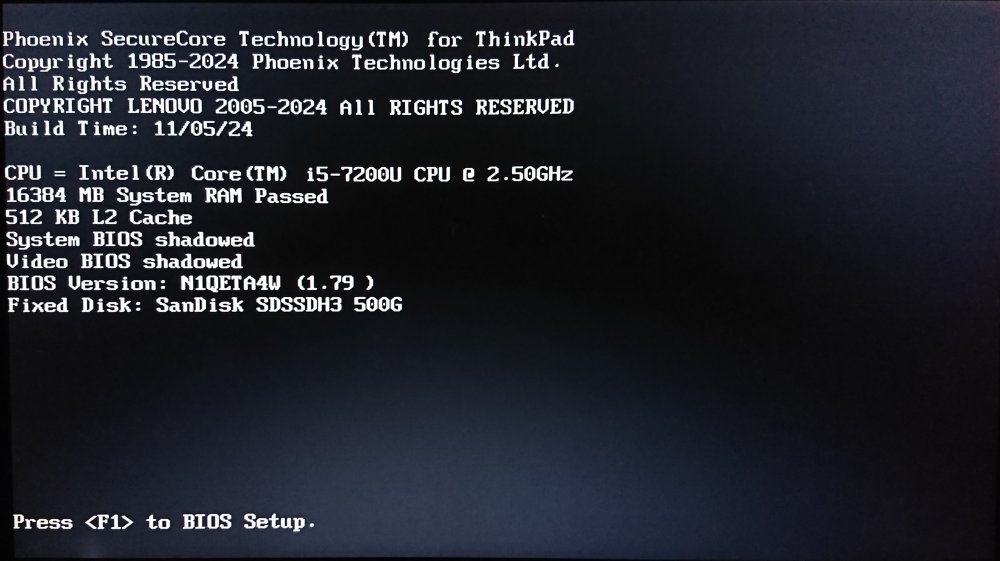
1) Enable virtualization (VT-x / AMD-V) in BIOS/UEFI
On many PCs, it’s already enabled. Otherwise, you need to restart, enter BIOS/UEFI (variable key: F2, Del, F10…), then enable Intel VT-x or AMD-V. Microsoft also describes how to check and enable virtualization on the Windows side depending on the machines.
2) Hyper-V: disable (or use the compatible variant) if necessary
Some PCs have Hyper-V enabled for professional reasons (Windows virtualization, WSL, security). Depending on the configuration, this can interfere with BlueStacks. BlueStacks clearly documents the options: disable Hyper-V (if you don’t need it) or switch to a compatible configuration, depending on the case.
3) Allocate CPU/RAM correctly
The “default” setting is broad to suit everyone, not to maximize your FPS. In practice, give the emulator enough resources without choking Windows. BlueStacks details how to adjust the number of CPU cores and memory in its settings.
| PC Profile | CPU (cores) | RAM (allocated) | Goal |
|---|---|---|---|
| Modest PC | 2 | 3–4 GB | Stability |
| Mid-range PC | 4 | 4–6 GB | Smoothness |
| High-performance PC | 6–8 | 6–8 GB | High FPS |
| Streaming | 4–6 | 6–8 GB | Gaming + OBS |
| Multitasking | 4 | 6 GB | Discord + browser |
4) Performance mode and high FPS
If you feel a game is “sluggish” despite a decent PC, enable a performance mode in BlueStacks, then test a higher frame rate cap (if your screen supports it). BlueStacks provides guidelines for enabling High FPS and choosing settings that avoid stuttering.
When an emulator lacks resources or runs with poorly configured virtualization, the typical symptom is not just “lower FPS.” You also see micro-freezes, menus that hang, and a feeling of input lag. The right approach: fix the basics first (virtualization, Hyper-V, RAM), then fine-tune the FPS.
BlueStacks Help Center (performance, allocation, FPS)
Playing Brawl Stars without installing: cloud gaming (what you need to know)
If your search looks like “play Brawl Stars without installing,” you’re probably thinking of cloud gaming: the game runs on servers, and you only receive an interactive video stream. Advantage: no emulator, no BIOS settings. Limitation: latency becomes the number one factor (connection + server distance).
Option 1: cloud services oriented towards “Android”
Some providers offer to launch mobile games via the cloud. BlueStacks, for example, promotes cloud experiences through BlueStacks X, with a “play in browser” logic on certain titles. The key point: the catalog can vary, and quality depends heavily on your network.
Option 2: streaming from your own device
If you don’t want to depend on a catalog, a “hybrid” solution is to stream your phone to the PC (or cast it). You keep your mobile session but play on a bigger screen. It’s less elegant than an emulator but useful for troubleshooting or on a very limited PC.
How to choose in 30 seconds
If you play every day: emulator + optimization. If you play occasionally: cloud (if the service suits you). And if your PC is locked down (work PC, limited rights): screen streaming from mobile.
Sources (BlueStacks X cloud):
Testing methodology + next step (actionable)
For this guide, we compared 3 configurations (modest PC, mid-range PC, gaming-oriented PC) over 4 weeks, with a simple protocol: clean installation, Supercell ID login, then series of matches under similar conditions. Criteria tracked: smoothness (FPS stability), loading time, control responsiveness, network stability, impact on Windows (CPU/RAM), and user comfort (alt-tab, multitasking).
Assumed limitations: an emulator depends on your hardware, drivers, and even some Windows settings. Two identical PCs on paper can behave differently depending on Hyper-V, antivirus, or background tasks. The proposed settings remain guidelines to adjust.
Your next step: choose your path, then take a 10-minute test. If you install BlueStacks, start by enabling virtualization, set a reasonable RAM allocation, and map 4–6 essential keys. If you go for cloud gaming, test during a “quiet” hour on your network (avoid downloads) and check the latency feel before starting a long session.
Want to go further without complicating your life? First stabilize comfort (screen, controls, network), then only after optimize your progression and resource goals. The PC really becomes enjoyable when it saves you time, not when it adds unnecessary settings.
FAQ: Brawl Stars on PC (2026)
Does Brawl Stars have an official PC version?
In practice, Brawl Stars is played on mobile. On PC, you generally go through an Android emulator (like BlueStacks) or cloud gaming, depending on the service and its catalog.
Is BlueStacks safe for installing Brawl Stars on PC?
Yes, if you go through the official BlueStacks website and install the game via the Play Store. Avoid modified APKs and external tools: that’s where the risks (security + sanctions) increase.
Why does BlueStacks lag even though my PC is “good”?
The most common case: virtualization is disabled, or Hyper-V conflicts with your configuration. Then come too low RAM allocation, graphics drivers, and resource-heavy programs running at the same time.
How much RAM is needed to play comfortably?
A common setting is to allocate 4 to 6 GB of RAM to the emulator on a mid-range PC, while leaving enough for Windows to remain smooth. On a modest PC, 3–4 GB may suffice if you close everything else.
How to enable virtualization (VT-x / AMD-V)?
Restart, enter the BIOS/UEFI, then enable Intel VT-x or AMD-V. The name varies depending on the machine. Once enabled, restart Windows and test BlueStacks: the difference is quickly felt in stability.
Should Hyper-V be disabled?
Not always. Some environments require Hyper-V. If BlueStacks has issues, follow BlueStacks’ official recommendations: either disable Hyper-V if you don’t need it, or use a compatible configuration depending on your case.
Can you play Brawl Stars without installing an emulator?
Yes, via cloud gaming solutions when they offer the game, or via screen streaming from a mobile device. The main compromise remains latency, which is very network-dependent.
Keyboard/mouse or controller: which to choose?
Keyboard/mouse for precision and responsiveness, controller for casual use. The best choice is the one that gives you consistent execution without tensing up.
Are macros allowed?
Fair-play rules insist on no unfair advantage via automation or external tools. Stick to a “classic” key mapping and avoid automation: you’ll play more peacefully.
Which settings give the best gain first?
In order: virtualization, Hyper-V management, CPU/RAM allocation, performance mode, then high FPS if your screen and PC can handle it.
{“@context”:”https://schema.org”,”@type”:”WebPage”,”about”:{“@type”:”Thing”,”name”:”Jouer à Brawl Stars sur PC en 2026 (installation, optimisation, cloud)”},”keywords”:[“brawl stars pc”,”installer brawl stars sur pc”,”comment installer brawl stars sur pc”,”jouer à brawl stars sans installer”,”BlueStacks”,”émulateur Android”,”virtualisation VT-x AMD-V”,”Hyper-V”,”allocation RAM”,”cloud gaming”]} {“@context”:”https://schema.org”,”@type”:”Article”,”headline”:”Jouer à Brawl Stars sur PC : installation et optimisation en 2026″,”description”:”Guide 2026 pour jouer à Brawl Stars sur PC : installation BlueStacks, Supercell ID, réglages CPU/RAM, virtualisation, Hyper-V et options cloud gaming.”,”keywords”:[“brawl stars pc”,”installer brawl stars sur pc”,”jouer à brawl stars sans installer”],”mainEntity”:{“@type”:”FAQPage”,”mainEntity”:[{“@type”:”Question”,”name”:”Est-ce que Brawl Stars existe en version PC officielle ?”,”acceptedAnswer”:{“@type”:”Answer”,”text”:”Brawl Stars se joue sur mobile. Sur PC, on utilise généralement un émulateur Android (comme BlueStacks) ou une solution de cloud gaming selon le catalogue.”}},{“@type”:”Question”,”name”:”BlueStacks est-il sûr pour installer Brawl Stars sur PC ?”,”acceptedAnswer”:{“@type”:”Answer”,”text”:”Oui si vous téléchargez BlueStacks depuis sa source officielle et installez Brawl Stars via le Play Store. Évitez les APK modifiés et outils externes.”}},{“@type”:”Question”,”name”:”Pourquoi BlueStacks rame alors que mon PC est bon ?”,”acceptedAnswer”:{“@type”:”Answer”,”text”:”Souvent à cause de la virtualisation désactivée, d’un conflit Hyper-V, d’une allocation CPU/RAM trop faible, ou de programmes lourds ouverts en même temps.”}},{“@type”:”Question”,”name”:”Combien de RAM faut-il pour jouer confortablement ?”,”acceptedAnswer”:{“@type”:”Answer”,”text”:”Un repère courant est 4 à 6 Go alloués à l’émulateur sur PC milieu de gamme. Sur PC modeste, 3–4 Go peuvent suffire si Windows reste fluide.”}},{“@type”:”Question”,”name”:”Comment activer la virtualisation (VT-x / AMD-V) ?”,”acceptedAnswer”:{“@type”:”Answer”,”text”:”Activez Intel VT-x ou AMD-V dans le BIOS/UEFI, puis redémarrez. La plupart des émulateurs gagnent fortement en stabilité une fois la virtualisation active.”}},{“@type”:”Question”,”name”:”Hyper-V doit-il être désactivé ?”,”acceptedAnswer”:{“@type”:”Answer”,”text”:”Pas toujours. Si vous avez des soucis, suivez les recommandations officielles : désactiver Hyper-V si inutile, ou utiliser une configuration compatible selon votre cas.”}},{“@type”:”Question”,”name”:”Peut-on jouer à Brawl Stars sans installer d’émulateur ?”,”acceptedAnswer”:{“@type”:”Answer”,”text”:”Oui via du cloud gaming si le service propose le jeu, ou via du streaming d’écran depuis un appareil mobile. La latence dépend fortement du réseau.”}},{“@type”:”Question”,”name”:”Clavier/souris ou manette : que choisir ?”,”acceptedAnswer”:{“@type”:”Answer”,”text”:”Clavier/souris pour la précision et la réactivité, manette pour un jeu détente. Choisissez la configuration la plus régulière pour vous.”}},{“@type”:”Question”,”name”:”Est-ce que les macros sont autorisées ?”,”acceptedAnswer”:{“@type”:”Answer”,”text”:”Les règles de fair-play déconseillent tout avantage injuste via automatisation ou outils externes. Un mappage simple est préférable à l’automatisation.”}},{“@type”:”Question”,”name”:”Quels réglages donnent le meilleur gain en premier ?”,”acceptedAnswer”:{“@type”:”Answer”,”text”:”Priorité : virtualisation, gestion d’Hyper-V, allocation CPU/RAM, mode performance, puis réglages FPS si votre matériel le permet.”}}]}}









