.en-bref { max-width: auto; margin: 2em auto; padding: 1.5em 1.8em; color: #78350f; font-family: “Inter”, “Segoe UI”, sans-serif; text-align: left; position: relative; box-sizing: border-box; background: #fff2d7; border: 0; border-left: 0px solid #b45309; border-radius: 0; box-shadow: none; }
.en-bref h2, .en-bref .en-bref-header { font-size: 1.15em; font-weight: 700; margin-bottom: 0.6em; color: #b45309; }
.en-bref p, .en-bref li { font-size: 1em; line-height: 1.65; margin: 10px; }
.en-bref strong { color: #451a03; }
.mg-callout{margin:1.5em 0;padding:.9em 1.1em;border:1px solid;border-left-width:4px;border-radius:10px;font-size:.97em;line-height:1.65}.mg-callout>:first-child{margin-top:0}.mg-callout>:last-child{margin-bottom:0}.mg-callout__label{display:block;margin:0 0 .35em;font-weight:700;font-size:.82em;letter-spacing:.03em;text-transform:uppercase}.mg-callout__label::before{margin-right:.45em;font-size:1.05em;vertical-align:-.06em}.mg-callout–info{background:#eff6ff;border-color:#bfdbfe;color:#1e3a5f}.mg-callout–info .mg-callout__label{color:#2563eb}.mg-callout–info .mg-callout__label::before{content:”\2139\FE0F”}.mg-callout–tip{background:#f0fdf4;border-color:#bbf7d0;color:#14532d}.mg-callout–tip .mg-callout__label{color:#15803d}.mg-callout–tip .mg-callout__label::before{content:”\1F4A1″}.mg-callout–warning{background:#fffbeb;border-color:#fde68a;color:#7a4a10}.mg-callout–warning .mg-callout__label{color:#b45309}.mg-callout–warning .mg-callout__label::before{content:”\26A0\FE0F”}.mg-callout–danger{background:#fef2f2;border-color:#fecaca;color:#7f1d1d}.mg-callout–danger .mg-callout__label{color:#dc2626}.mg-callout–danger .mg-callout__label::before{content:”\1F6D1″}.mg-proscons{display:grid;grid-template-columns:1fr 1fr;gap:16px;margin:1.5em 0}@media(max-width:560px){.mg-proscons{grid-template-columns:1fr}}.mg-proscons__col{padding:.9em 1.1em;border:1px solid;border-radius:10px}.mg-proscons__title{display:flex;align-items:center;gap:.4em;margin:0 0 .5em;font-weight:700;font-size:.9em;letter-spacing:.02em}.mg-proscons__col ul{margin:.3em 0 0;padding-left:1.15em}.mg-proscons__col li{margin:.3em 0;line-height:1.55}.mg-proscons__col–pro{background:#f0fdf4;border-color:#bbf7d0;color:#14532d}.mg-proscons__col–pro .mg-proscons__title{color:#15803d}.mg-proscons__col–pro .mg-proscons__title::before{content:”\2705″}.mg-proscons__col–con{background:#fef2f2;border-color:#fecaca;color:#7f1d1d}.mg-proscons__col–con .mg-proscons__title{color:#dc2626}.mg-proscons__col–con .mg-proscons__title::before{content:”\274C”}ol.mg-steps{list-style:none!important;counter-reset:mgstep;margin:1.6em 0;padding-left:0!important}ol.mg-steps>li.mg-steps__item{counter-increment:mgstep;list-style:none!important;padding-left:0!important;padding-bottom:1.4em}ol.mg-steps>li.mg-steps__item:last-child{padding-bottom:0}ol.mg-steps>li.mg-steps__item>:last-child{margin-bottom:0}ol.mg-steps>li.mg-steps__item>.mg-steps__title{margin:0 0 .25em;font-weight:600}ol.mg-steps>li.mg-steps__item>.mg-steps__title::before{content:counter(mgstep) “. “;opacity:.45;font-weight:500;font-variant-numeric:tabular-nums}ol.mg-steps>li.mg-steps__item:not(:has(.mg-steps__title))::before{content:counter(mgstep) “. “;opacity:.45;font-weight:500;font-variant-numeric:tabular-nums}.mg-kpis{display:grid;grid-template-columns:repeat(auto-fit,minmax(140px,1fr));gap:14px;margin:1.5em 0}.mg-kpi{padding:1em .9em;border:1px solid #e5e7eb;border-radius:12px;background:#f9fafb;text-align:center}.mg-kpi__value{display:block;font-size:1.7em;font-weight:800;line-height:1.15;color:#111827}.mg-kpi__label{display:block;margin-top:.35em;font-size:.85em;color:#6b7280;line-height:1.35}
.wp-block-image,.ai-image{margin-bottom:1.75em}.wp-block-image>figcaption,.ai-image>figcaption{margin-top:.5em}
.magic-lb-overlay{position:fixed;inset:0;background:rgba(15,23,42,.92);display:none;align-items:center;justify-content:center;z-index:99999;cursor:zoom-out;padding:20px}
.magic-lb-overlay.open{display:flex}
.magic-lb-overlay img{max-width:95vw;max-height:95vh;object-fit:contain;border-radius:8px;box-shadow:0 8px 32px rgba(0,0,0,.5)}
.magic-lb-close{position:absolute;top:16px;right:20px;color:#fff;background:rgba(0,0,0,.5);border:none;width:40px;height:40px;border-radius:50%;font-size:24px;cursor:pointer;display:flex;align-items:center;justify-content:center}
.magic-lb-close:hover{background:rgba(0,0,0,.8)}
.wp-block-image img{cursor:zoom-in;transition:transform .15s ease}
.wp-block-image img:hover{transform:scale(1.01)}
.magic-img-link{display:inline-block;text-decoration:none}
(function(){
var ov=document.getElementById(‘magic-lb’);if(!ov)return;
var img=ov.querySelector(‘img’),btn=ov.querySelector(‘.magic-lb-close’);
function open(src){img.src=src;ov.classList.add(‘open’);document.body.style.overflow=’hidden’}
function close(){ov.classList.remove(‘open’);img.src=”;document.body.style.overflow=”}
document.addEventListener(‘click’,function(e){
var a=e.target.closest(‘a.magic-img-link’);
if(a){e.preventDefault();open(a.getAttribute(‘href’));return}
var i=e.target.closest(‘.wp-block-image img’);
if(i&&!e.target.closest(‘a’)){e.preventDefault();open(i.currentSrc||i.src)}
});
ov.addEventListener(‘click’,function(e){if(e.target===ov||e.target===btn)close()});
document.addEventListener(‘keydown’,function(e){if(e.key===’Escape’)close()});
})();
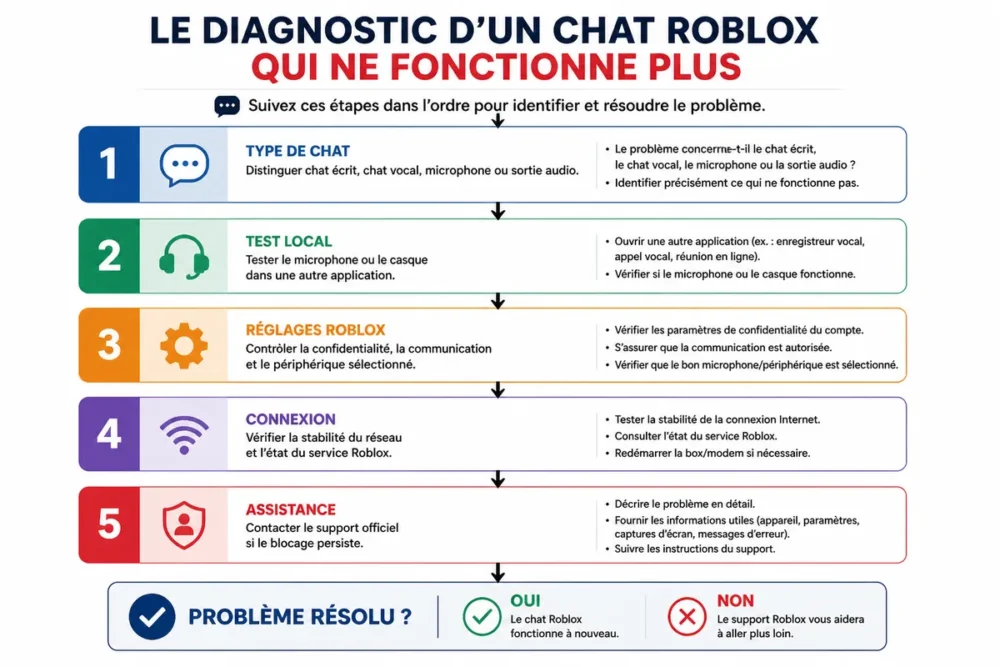
The Roblox chat is no longer working, but the cause is not always the same. The problem may concern only the voice chat, the microphone, the speakers, or more broadly, the display of written chats in an experience.
Start by identifying the symptom, then check the Roblox settings, privacy permissions, audio devices, and connection. Do not change a parental control or try to bypass an account restriction: these elements must be managed from the official settings or through Roblox support.
In brief
🔎 Voice chat or text chat: the diagnosis changes depending on the function that has disappeared. A microphone problem does not necessarily block text messages.
🎙️ For voice: check the microphone permission, input device, headset or speakers, then test the microphone in another application.
🔄 For a temporary incident: close and restart Roblox, check the connection, and consult the official service status page before modifying the account.
🛡️ If the chat remains disabled: check the account eligibility, restrictions, and parental control without attempting to bypass them.
Identify the chat problem on Roblox
Before adjusting settings, observe what has actually disappeared. If written messages no longer appear, the microphone is probably not the cause; if the voice icon appears but no one hears you, the diagnosis is more likely related to permissions or audio hardware.
The text chat no longer appears
An absent text chat may be related to the experience used, the account communication settings, or a restriction. Test another Roblox experience before concluding a general outage.
If the chat works in one experience but not in another, the problem is probably limited to that experience or its configuration. Note the name of the experience concerned and check if other online functions respond there.
The voice chat does not work
The Roblox voice chat does not always work for the same reasons: microphone not authorized, wrong device selected, headset unplugged, incorrect audio output, or unstable connection. The microphone button may also not appear if the account does not meet the current access conditions set by Roblox.
Age, verification, and availability requirements may evolve according to Roblox rules, country, and account. Consult the official voice chat activation page before considering the absence of the option as a bug.
Possible causes of a blocked Roblox chat
The symptom often provides an initial direction. A muted microphone points to permissions or audio input, while a chat absent everywhere may require checking the account or Roblox service.
| Symptom | Cause to examine | Priority action |
|---|---|---|
| The text chat has disappeared | Communication setting, experience concerned, or restriction | Test another experience and check account settings |
| The voice icon does not appear | Account eligibility, function availability, or Roblox setting | Consult official help and verify communication settings |
| The microphone remains muted | Permission denied or wrong input device | Allow the microphone and select the correct device |
| You hear no one | Headset, speakers, or incorrect output device | Check the system and Roblox audio output |
| The voice is cut off or distorted | Unstable connection, defective microphone, or audio setting | Test another device and another application |
How to perform quick checks?
The first actions must be reversible and should not modify the account or restrictions. They serve to eliminate a temporary bug, a bad connection, or a misrecognized device before examining more specific causes.
- Completely close Roblox, then restart the application.
- Unplug and replug the microphone or headset, ensuring it is properly recognized by the device.
- Test the microphone with another calling or recording application available on your device.
- Try another Roblox experience to distinguish a general problem from a malfunction limited to one game.
- Check the Internet connection by pausing downloads and moving closer to your router if necessary.
- Consult the official Roblox status page before resetting settings or reinstalling the application.
A test in another application quickly separates a Roblox problem from a system or microphone issue. If the microphone does not work anywhere, changing the Roblox chat settings will not be enough.
Check Roblox privacy settings
Privacy settings control the communication features available on the account. A disabled option or missing permission may explain a disabled Roblox chat, especially after an account, device, or family settings change.
Open account settings
Log into the relevant Roblox account, open settings, then look for sections related to privacy, communication, or chat. The labels and their location may vary depending on the interface and device used.
Verify that communication is not disabled at the account level. If the option is unavailable or locked, do not try to force it: this may indicate a restriction, an unmet access condition, or parental control.
Allow microphone access
For voice chat, Roblox must have permission to access the microphone. This permission is set in the device’s privacy settings, then can be supplemented by selecting the microphone within Roblox.
On a computer, check that the Roblox application is allowed to use the microphone in the system privacy settings. On a phone or tablet, find Roblox in the app permissions and enable the microphone only if you want to use voice.
Check the account age and parental controls
A blocked Roblox chat may stem from the account rather than the device. Communication features are subject to rules and access conditions defined by Roblox, which may change; the official help remains the reference to know the applicable requirements at the time of verification.
Check voice chat eligibility
If the voice chat option does not appear, check the indications displayed in the Roblox settings and on the help page dedicated to voice chat. Do not apply an age or verification requirement found in an old tutorial without comparing it with the current official documentation.
An unmet access condition cannot be fixed by an audio adjustment. In this case, the proper approach is to consult Roblox rules and use the procedures provided for the account.
Review parental controls
Parental control may limit communications or lock certain settings. If the account is managed by a parent, the modification must be made by the authorized person using the official tools.
To understand the available settings, consult this Roblox parental control guide. Do not disable protection solely to restore chat.
Resolve the technical problem on the device
When the account is authorized and Roblox voice chat does not work, the audio system becomes the main focus. The input microphone, headset, or output speakers must be checked separately, as a device may be detected without being the one used by Roblox.
Testing the Microphone and Audio Output
Speak into another recording or calling application. If the sound level does not respond, select the correct microphone in the system settings and check that it is not muted by a physical or software button.
If you hear other players but they cannot hear you, check the audio input. If your microphone works but you do not hear any voices, instead check the audio output, the headset, and the device volume.
Unplugging and Replugging Devices
Unplug the microphone or headset, close Roblox, reconnect the device, then restart the application. This sequence helps verify if the device was not properly recognized at startup.
Avoid installing multiple third-party audio software before confirming that the microphone and headset work correctly. An additional tool can complicate identifying the device actually in use.
Testing the Internet Connection
An unstable connection can disrupt voice transmission and give the impression that the microphone is disabled. Pause large downloads, try another connection if available, and compare the behavior in another experience.
However, the connection does not explain a chat option missing from the account settings. In this case, return to privacy settings and eligibility rather than router settings.
Specifics According to the Device Used
The same malfunction is not fixed the same way on a computer, mobile, or console. The common factor remains the separation between permission, audio device, Roblox application, and account.
Computer and Browser
- Check the microphone permission in the system privacy settings.
- Verify the microphone and speakers set as default devices.
- Close applications that may be exclusively using the microphone.
- Restart Roblox after plugging in or selecting the headset.
If Roblox shows an access error rather than a chat problem, also consult the explanations dedicated to the Roblox error 403. A permission error and an audio malfunction are not handled with the same settings.
Phone and Tablet
Open the device settings, find Roblox in the list of applications, then check the microphone permission. Then close the app from the task selector and restart it.
If text chat works but voice remains silent, test a compatible headset and compare the result with the built-in microphone. Do not post screenshots showing your username, email address, or other personal data.
Console
Check the headset, controller, and output device selected in the console settings. The exact menus depend on the model and system version; use the official console help if the microphone permission is not clearly visible.
Changing the device may require restarting Roblox. If chat works on another device with the same account, a local hardware or software issue becomes more likely.
Which Solution to Choose According to the Communication Need?
Text chat and voice chat do not serve the same purpose. Temporarily choosing another function can help play with friends, but it does not fix a stuck setting and does not replace account verification.
| Option | To prioritize if | Limit |
|---|---|---|
| Text chat | The microphone or headset is problematic | It may be unavailable in certain experiences or depending on account settings |
| Voice chat | The account is eligible and the microphone works | It depends on permissions, devices, and Roblox access conditions |
| Roblox support | Local settings and tests have not changed anything | Precise information must be provided without sharing passwords |
For immediate communication, use text chat if only voice is not working. For a missing setting, a restriction, or persistent blocking on multiple devices, go directly through official support rather than installing third-party software.
Common mistakes to avoid
Some habits delay diagnosis or can weaken the account. Avoiding them helps to more quickly distinguish a local problem from a Roblox restriction.
- Testing only voice chat: if the problem concerns text chat, microphone checks are useless. Try another experience and observe which function is actually missing.
- Changing several settings at once: you will no longer know which modification had an effect. Proceed in order: permission, device, connection, restart.
- Reinstalling without checking permissions: a new installation does not necessarily restore a microphone permission denied by the system.
- Bypassing parental control or a restriction: this method is neither a reliable solution nor a recommended approach. Use the parent account or official support.
- Sharing sensitive information: legitimate support does not require your password. Hide usernames, email addresses, and recovery codes in screenshots.
What to do if Roblox chat remains blocked?
If the chat does not work in any experience, on multiple devices, after audio tests and permission checks, the problem may be related to the account or the Roblox service. Official support then becomes the appropriate contact.
Check the service status
Check the official Roblox service status page. An ongoing outage or degradation may prevent communications from working for multiple users; in this case, changing your microphone will not solve anything.
Prepare a support request
Describe the type of chat concerned, the device used, the experience tested, and the actions already taken. Add the approximate time of the problem and the error message displayed, but never your password, security code, or unnecessary personal data.
The official Roblox support is recommended if checks and restarts do not restore communication. If the problem is an access error to an experience, the diagnosis may also be different from a simple disabled Roblox chat.
Useful sources to consult
Roblox settings and access conditions for voice chat may evolve. To avoid following an outdated tutorial, prioritize official pages corresponding to the function concerned.
| Source | Useful Data | Practical Use |
|---|---|---|
| Roblox Help on Voice Chat | Activation and conditions displayed by Roblox | Check eligibility and activation |
| Official Voice Chat FAQ | Functioning and settings of voice chat | Compare observed behavior with Roblox help |
| Roblox Service Status | Reported incidents and outages | Distinguish a general outage from a local problem |
| Roblox Support | Assistance request channel | Have an account block or persistent malfunction handled |
Your Questions About Roblox Chat
Why has the chat button disappeared on Roblox?
The button may be missing due to communication settings, the experience used, account eligibility, or a restriction. Try another experience and check the official Roblox settings before changing the device.
How to reactivate Roblox chat?
Check the account’s privacy settings and communication permissions. If a restriction or parental control locks the option, only the authorized person or Roblox support can confirm the procedure.
Why is Roblox voice chat not working?
Check microphone permission, input device, headset, or speakers. Test the microphone in another application, then restart Roblox and check the connection.
How to know if the problem comes from Roblox or my device?
Test the microphone in another application and try another Roblox experience. If the microphone fails everywhere, the cause is probably local; if the problem affects multiple devices or functions, check the service status and Roblox support.
What to do if chat works everywhere except in one game?
The problem may be limited to that experience or its configuration. Note its name, try another experience, and report the malfunction via the appropriate Roblox channels if the behavior persists.
The Right Verdict
To fix a Roblox chat that no longer works, start with the exact symptom: text chat, voice chat, microphone, or audio output. Then check permissions, account, connection, and service status, in that order.
If no test changes the result, stop random manipulations and contact Roblox with a precise description. A microphone setting cannot lift an account restriction, and a restart cannot fix a general service outage.









