To fix a game that uses the wrong graphics processor, first check the actually active GPU in the Task Manager, then assign the game’s executable to the “High Performance” profile in Windows graphics settings. Then completely restart the game and monitor the dedicated GPU activity during gameplay.
A laptop may include a graphics processor integrated into the central processor and also have a dedicated NVIDIA, AMD, or Intel graphics card. The system sometimes chooses the integrated circuit to reduce power consumption, but a power profile, a driver, or a launcher misconfiguration can direct a demanding game to the wrong component.
In brief
🔎 The Task Manager is the primary control: the name displayed in the game’s graphics menu is not always sufficient to identify the rendering GPU.
⚙️ Assign the game’s executable file to “High Performance” in Windows Graphics settings, then close and restart the game.
🔌 The dedicated GPU consumes more power and heats up more. It is relevant for a demanding game, not necessarily for a light application or battery use.
🛑 Do not disable the integrated GPU, do not modify the registry, and do not touch the BIOS without a precise diagnosis and prior backup.
Why a game might use the graphics chipset instead of the dedicated card
An integrated graphics processor generally shares platform resources and targets energy efficiency, while a dedicated GPU has its own video memory and targets heavier graphics loads. The central processor executes the general game logic, but image rendering mainly depends on the selected graphics processor.
The central processor and the two types of GPUs contribute to performance, but they do not fulfill the same function. On a hybrid laptop, a graphics switching technology can activate the dedicated GPU only for certain applications, then revert to the integrated circuit on the desktop or during video playback.
Windows may favor the integrated GPU when the power profile is set to power saving. The dedicated card may also not be detected as expected because the driver is outdated, the game has not been added to the graphics profiles, or the launcher starts a different executable file than the one configured.
| Component or setting | Typical use | Possible consequence |
|---|---|---|
| Integrated GPU | Desktop, video, light games, battery life | Lower consumption, sometimes limited graphics performance |
| Dedicated GPU | Demanding games, 3D rendering, advanced graphic effects | More power, heat, and consumption |
| Automatic switching | GPU choice based on application and power | Result depends on Windows, driver, and manufacturer |
How to check which graphics card is actually used by the game
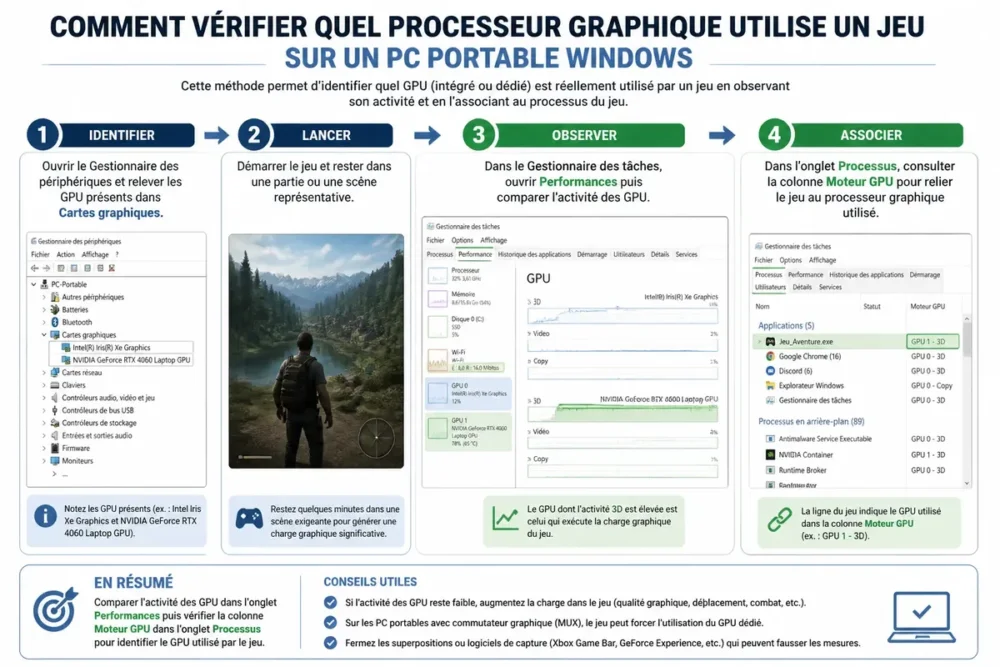
The most reliable check is to observe the active GPU while the game is running. Windows Task Manager shows the activity of each graphics processor and can associate a process with a “GPU Engine,” which allows distinguishing the integrated GPU from the dedicated card.
-
Identify the GPUs present
Open the Start menu, search for “Device Manager,” then expand “Display adapters.” Note the name of the integrated chip and the dedicated GPU when both appear.
-
Launch the game
Start the game and load a game or scene that actually demands 3D rendering. A menu screen may produce too little activity to allow a useful comparison.
-
Observe the performance
With the game open, use the shortcut Ctrl + Shift + Esc to open the Task Manager. In “Performance,” select each GPU and observe which one increases during rendering.
-
Check the process
In the “Processes” tab, enable the “GPU Engine” column if it is not visible. This column indicates the engine associated with the game process; it is more useful than simply reading the overall CPU load.
A lightly loaded dedicated GPU alone does not prove that the game is using the integrated chip. The game may be limited by the CPU, temperatures, RAM, a frame rate cap, or settings that are too high. The Task Manager thus allows cross-referencing the GPU name, its activity, and the overall state of the laptop.
How to choose the game graphics processor in Windows settings
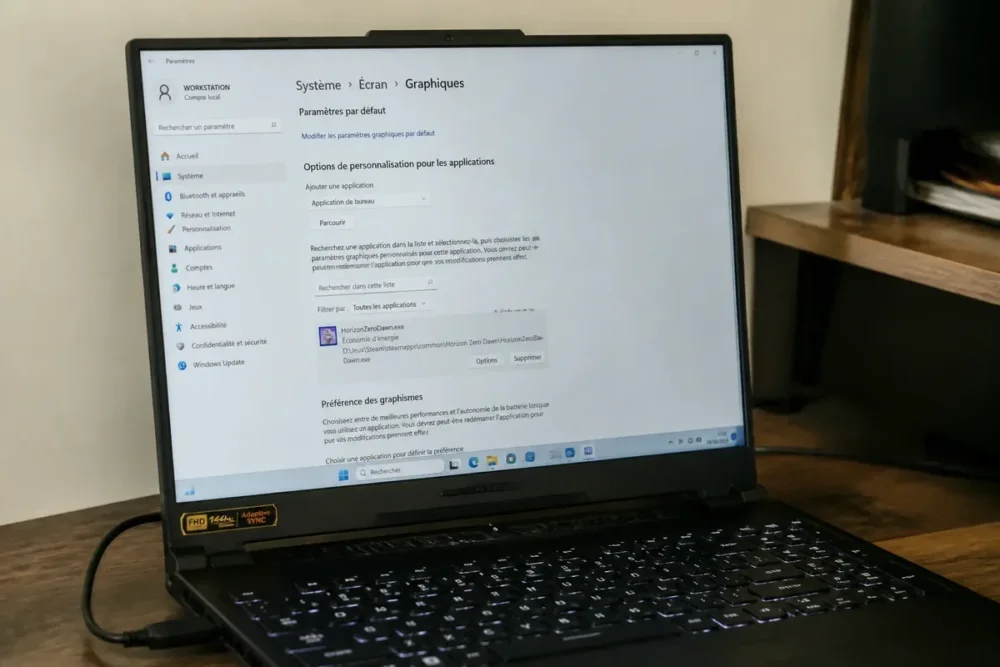
Windows allows assigning a graphics preference to an application. The “High performance” setting asks the system to prioritize the dedicated GPU when available, while “Power saving” generally favors the integrated chip. The labels may vary slightly depending on the Windows version and the laptop manufacturer.
-
Open graphics settings
Open “Settings,” then search for “Graphics” in the display or system section. The Windows 11 interface may evolve; use the integrated search if the exact path differs.
-
Add the correct executable
Add the desktop application, then browse the files to the program that actually launches the game. A launcher and the game may use two separate executables: configuring only the launcher is not always sufficient.
-
Select the preference
Open the options for the added application and choose “High performance” to prioritize the dedicated card. Select “Power saving” for a light game when battery life and temperature are priorities.
-
Restart completely
Close the game and its launcher, then start them again. The setting is reversible and does not modify personal files or game saves.
How to adjust NVIDIA, AMD, or Intel settings if Windows is not enough
The manufacturer’s software becomes useful when Windows does not apply the preference, when an old game uses an unexpected profile, or when the laptop has a particular hybrid graphics configuration. Menu names differ depending on the driver version; look for a per-program setting, not a global override.
On an NVIDIA laptop
In the NVIDIA Control Panel or NVIDIA application, open the 3D settings and look for per-program management. Add the game executable file, then select the high-performance graphics processor when this option is offered.
Do not modify all programs if only one game is problematic. A localized profile makes it easier to revert and avoids unnecessarily increasing consumption on ordinary applications. Surround and PhysX settings alone do not guarantee the rendering GPU used by each game.
On an AMD Laptop
In AMD Software: Adrenalin Edition, look for the game profile and options related to switchable performance or graphics. The laptop manufacturer may add their own profiles; the model documentation and drivers provided by the manufacturer take precedence when the computer uses hardware customization.
On an Intel Laptop
Check the Intel graphics settings and the possible presence of a dedicated GPU managed jointly with Intel. Some lightweight games are deliberately adapted to the integrated GPU: switching these applications to the dedicated card does not necessarily provide a visible gain.
Plug the laptop into power before testing a demanding game and verify that silent mode or power saving does not impose a performance limit. Download drivers only from Windows Update, the PC manufacturer, or the official NVIDIA, AMD, and Intel websites.
How to Confirm the Change and Resolve Cases Where the Wrong GPU Remains Selected
After the modification, the result must be verified during a game scene, then compared with the state observed before the change. A full restart of the game, and sometimes the launcher, is necessary for Windows or the driver to reload the graphics profile.
-
Restart the Game
Close the game, its launcher, and associated processes visible in Task Manager. Then restart the game, or the laptop if the profile remains unchanged.
-
Retake the Measurement
Compare the activity of the integrated GPU and the dedicated GPU under “Performance,” then check the “GPU Engine” column. Measure in a comparable scene to avoid confusing a load difference with a component change.
-
Rule Out Simple Limits
Check the power connection, power mode, temperatures, available memory, and background applications. A processor can run at 100% usage without this value automatically indicating a failure; Intel documents this behavior as possible under certain loads.
When the executable is not found, browse the installation folder from the game shortcut or launcher properties. For a Java game, the visible process may be Java rather than a game name: the actually launched executable must be identified before creating a profile. An individual observation regarding Minecraft or an alternative launcher does not allow concluding that a given configuration will solve all cases.
| Symptom | Cause to Check | Prudent Action |
|---|---|---|
| The Dedicated GPU Remains Inactive | Windows profile, driver, or wrong executable | Reassign by application and restart the game |
| The Setting Resets to Zero | Manufacturer profile or vendor software | Check the profile in the NVIDIA, AMD, or Intel tool |
| The Dedicated GPU Is Active but the Game Remains Slow | CPU, temperature, power, memory, or settings | Compare loads and reduce a demanding setting to test |
| The Dedicated GPU No Longer Appears | Driver, hardware disablement, or manufacturer issue | Update from an official source then contact support |
Common Mistakes to Avoid
- Relying solely on the game’s graphics menu: a menu may display information different from the engine actually used. Check the process in Task Manager.
- Configuring the launcher instead of the game: some services start a second executable. Add the actually launched rendering program.
- Disabling the integrated GPU immediately: this action can disrupt display or graphics switching. It is not a standard step.
- Installing a driver from a third-party site: the file may be incompatible or undesirable. Use Windows Update, the laptop manufacturer, or the GPU vendor.
- Forcing the dedicated GPU on battery: the laptop may heat up more and reduce its battery life. Plug in the charger for a consistent performance test.
Frequently Asked Questions
How to check which graphics card is used by a game?
Open the Task Manager during a game, go to “Performance” then check the “GPU Engine” column in the “Processes” tab. This combination allows you to link the game to the active GPU rather than relying solely on its graphics menu.
How to force a dedicated graphics card on Windows 11?
Open Windows Graphics settings, add the game’s executable file, and choose “High performance”. Close and then fully restart the game to reload this preference.
Why does my game use the integrated graphics processor even though I have an NVIDIA or AMD card?
Power saving mode, an application-specific profile, a driver, or a wrong executable can explain this selection. The integrated GPU can also be deliberately chosen to reduce consumption in a less demanding game.
Should I always use the dedicated graphics card on a laptop?
No. The dedicated card is suitable for high graphics loads, but it consumes more and heats up more. The integrated GPU remains suitable for desktop use, video, and some light games.
Why does the graphics card setting not apply to my game?
The profile may target the launcher rather than the game’s executable, be overridden by the manufacturer’s software, or require a full restart. Also check the power supply, drivers, and the actual presence of the dedicated GPU in Device Manager.
The correct approach is to assign the appropriate GPU to the game, then verify its real use during a session. The dedicated GPU is the consistent choice for a demanding graphics load; it should not be imposed everywhere at the cost of higher consumption and temperature.









