A black screen when launching a Steam game on Windows often comes from the display mode, a defective game file, or a graphics driver issue. Start by checking if Steam remains visible and if the game produces sound, then try launching in windowed mode before modifying drivers or configuration files.
The first distinction avoids incorrect handling: a black screen of the Steam client is not treated the same as a game stuck at startup. A black display only when switching to full screen points to resolution or driver issues; a black screen accompanied by a PC reboot, on the other hand, requires checking the cable, monitor, and hardware stability.
In brief
- 🖥️ Game black but sound audible: first test -windowed in Steam launch options.
- 🔧 Game that closes immediately: check local files and the official game documentation.
- 🎮 Black screen after an update: restart Windows, then check the graphics card driver from the official manufacturer.
- ⚠️ Black screen on the entire PC: do not limit diagnosis to Steam; test the cable, monitor, and other 3D applications.
Is the game black, or Steam itself?
A black screen of the game appears after clicking “Play,” while a black screen of the client affects menus, the library, or the Steam window itself. This difference determines the next steps: launch options concern the game, not the general Steam interface.
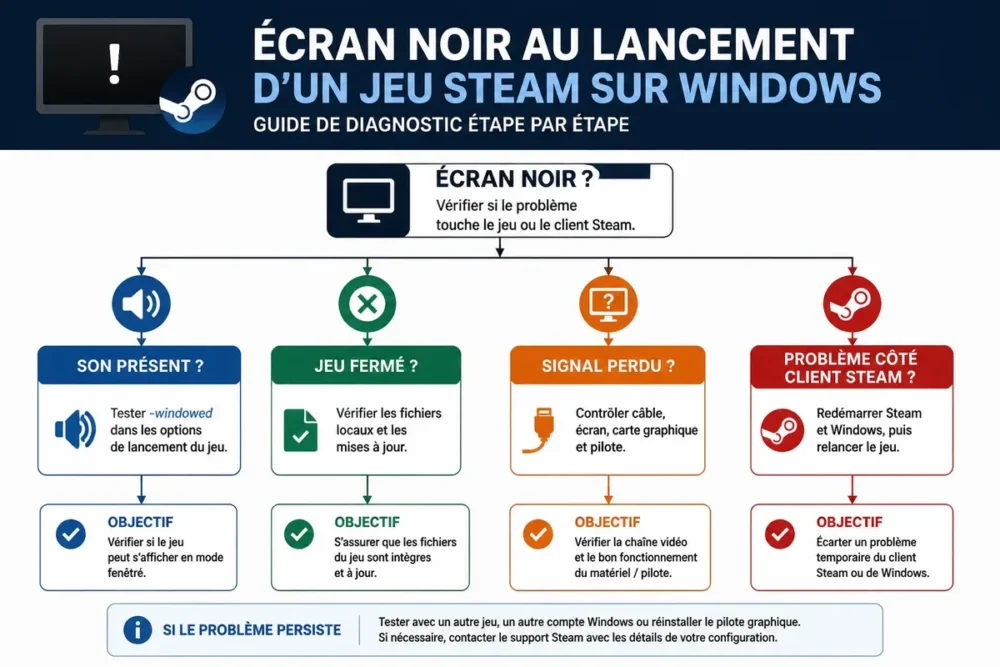
If Steam menus remain usable and the game emits sound, the program probably works but does not display its window correctly. If the Windows desktop goes black, if the monitor shows “no signal,” or if the PC restarts, the problem goes beyond the game alone.
| Observed symptom | Priority test | Result to interpret |
|---|---|---|
| Game sound, black screen | Launch in windowed mode | Full screen or resolution may be the cause |
| Game closes immediately | Check game files | A missing or corrupted file is possible |
| Black screen of the Steam client | Compare classic window and Big Picture | The problem may concern the Steam interface |
| No more video signal | Test cable, monitor, and other 3D applications | Diagnosis must include Windows and hardware |
How to launch a Steam game in windowed mode: the steps
Windowed mode is the most reversible test when the game displays a black screen after launching. The -windowed option requests the game to start in a window, but its support depends on the engine and the specific title.
Start by forcing a window before touching the drivers. The following procedure concerns the current Steam interface in principle; the name or location of a field may change with client updates.
- Open Steam and display the Library.
- Right-click on the concerned game, then open Properties.
- Stay in the general section and locate the field dedicated to launch options.
- Enter
-windowed, without adding quotes. - Close the window, launch the game, and check if a window appears on the desktop.
If the game displays in a window, then open its video settings and choose a resolution suitable for the screen. Remove -windowed after the test if the game menu allows selecting a stable mode.
The option -noborder can be added with -windowed to attempt a borderless display. None of these parameters work with all games: if the title ignores the option or refuses to start, remove it before moving on to another test.
Verify game files before reinstalling
Steam offers a local file verification from the game properties. This operation compares the available installation with the elements expected by Steam and can fix a blocked launch without automatically deleting the entire game.
In Properties, open the section related to installed files, then choose the verification action offered by Steam. The exact wording may vary depending on the interface version. Wait for the check to finish before relaunching the game.
File verification does not necessarily fix an incompatible video configuration, a faulty driver, or an unsupported mod. Back up save folders before any manual deletion: their location depends on the game and may be found in the Steam folders, Documents, AppData, or in the game’s online storage.
Graphics card and driver: what to check under Windows?
An outdated, poorly installed, or incompatible graphics driver after an update can cause a black screen when launching a game. Windows may use an integrated graphics card while the game expects the dedicated graphics processor, especially on a laptop.
Open the Windows Device Manager and expand the graphics cards section. Note the displayed model, then consult only the official website of the manufacturer concerned, such as NVIDIA, AMD, or Intel, to find the driver corresponding to your model and Windows version.
Do not download drivers from a collection site or an unknown cleaning tool. After installing an official driver, restart Windows before relaunching the game. If the black screen appeared immediately after an update, use the rollback driver function only if Windows offers it and if the problem is clearly linked to this change.
The special case of hybrid graphics cards
On a laptop, Windows may assign the game to the integrated graphics circuit instead of the dedicated card. The setting can be checked in Windows graphics settings or in the official manufacturer’s panel, but the exact path varies depending on the model and driver version.
Assign the game to the desired card, restart the title, and compare the result. This change should not be applied to all applications without reason: it can increase the power consumption of a laptop.
Procedures found for Linux, Ubuntu, Nouveau, Bumblebee, or Prime should not be transposed to Windows. Drivers and graphics selection mechanisms differ; a command from an old Linux forum is not a current Windows solution.
If the black screen concerns the Steam interface
When the Steam menus themselves turn black, the game launch options do not target the correct component. Compare the classic interface with Big Picture mode as a diagnostic clue, but do not consider this mode as a definitive fix for the client.
Close Steam from its menu, check that the process does not remain active in the Task Manager, then restart the client. If only the Steam interface remains black, consult the official Steam help before deleting files or reinstalling the software.
Complete reinstallation is not the first choice. It may leave configuration data behind and does not fix a graphics driver or a game-specific problem.
Errors that worsen a Steam black screen
Several actions may seem quick but complicate diagnosis. Each change must remain reversible and be followed by a single new test.
- Randomly adding multiple options: incompatible settings make the result impossible to interpret. First test
-windowedalone. - Permanently disabling antivirus: this measure reduces security and does not prove that protection software is responsible. Prefer the official game documentation if a file is blocked.
- Deleting a configuration folder without backup: video resolution and controls may be lost. Copy the folder before any deletion and precisely identify its location.
- Reinstalling drivers with an unknown tool: an unofficial cleaner adds unnecessary risk. Use the program provided by the graphics card manufacturer.
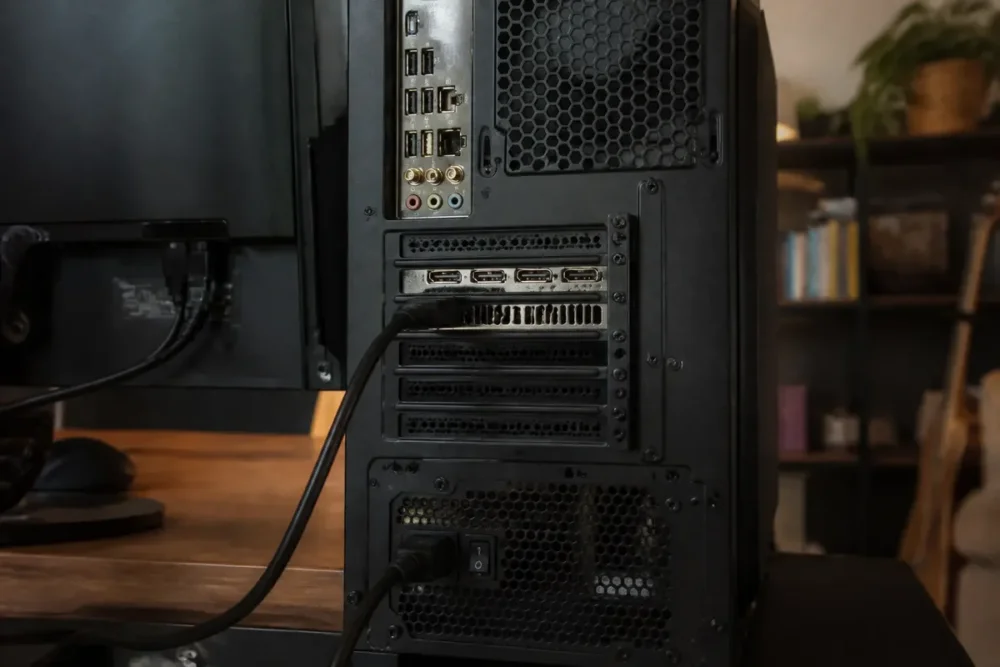
- Confusing black screen and signal loss: if the monitor displays “no signal,” test another cable or video output before modifying Steam.
When to revert to normal settings or ask for help
If windowed mode works, remove launch options one by one and keep the resolution validated by the game. The option -fullscreen can force fullscreen on compatible titles, but it should not be added at the same time as the windowed test.
If no display returns after verifying files and the driver, consult the game’s support page. Prepare the graphics card model, Windows version, time of problem occurrence, possible presence of sound, and the result of each test.
To deepen hardware diagnosis, also consult this guide on causes of a PC game black screen. If the screen goes black in several games or 3D applications, stop trying Steam settings and direct the investigation towards the driver, cable, power supply, or hardware.
Frequently Asked Questions
Can windowed mode fix a black screen on all Steam games?
No. The option -windowed depends on how the game interprets launch parameters. It is mainly used to check if fullscreen or resolution blocks the display.
What to do if the game produces sound but remains black?
Add -windowed in the game launch options, then restart it. If a window appears, correct the resolution and display mode from the game’s video settings.
Should Steam be reinstalled after a black screen at startup?
Not as a first step. First check if the problem concerns only the game, verify its files, and test the graphics driver. Reinstallation does not automatically fix a video incompatibility.
How to know if the graphics driver is responsible?
The driver becomes a serious lead if several games show the same defect, if the black screen appeared after an update, or if Windows loses the video signal. Check the card model and use the official NVIDIA, AMD, or Intel page.
Do Ubuntu or Linux solutions apply to Windows?
No. Drivers, commands, and graphics card management differ between Linux and Windows. Use Windows settings and the manufacturer’s documentation for a Windows computer.
Useful sources to consult
- Official Steam help on launch options → access to launch settings and game-compatible methods → check the procedure according to the current interface.
- NVIDIA, AMD and Intel → download graphics drivers → select the exact model and avoid third-party sites.
- Official game documentation → graphics settings, engine used, and recognized launch options → verify compatibility of
-windowed,-noborderor-fullscreenbefore keeping them.









