.synthesis { max-width: 640px; margin: 2em auto; padding: 1.5em 1.8em; color: #05243e; font-family: “Inter”, “Segoe UI”, sans-serif; text-align: left; position: relative; box-sizing: border-box; background: #dfebf5; border: 1px solid #1069b5; border-left: 6px solid #1069b5; border-radius: 12px; box-shadow: 0 8px 24px rgba(251, 191, 36, 0.15); }
.synthesis h2, .synthesis .synthesis-header { font-size: 1.15em; font-weight: 700; margin-bottom: 0.6em; background: linear-gradient(90deg, #1069b5, #101cb5); -webkit-background-clip: text; background-clip: text; color: transparent; }
.synthesis p, .synthesis li { font-size: 1em; line-height: 1.65; margin: 10px; }
.synthesis strong { color: #031524; }
.synthesis::before { content: “\201C”; position: absolute; top: 0.05em; left: 0.25em; font-size: 3.2em; line-height: 1; color: rgba(16, 105, 181, 0.22); font-family: Georgia, serif; pointer-events: none; }
.synthesis { padding-left: 2.2em; }
.synthesis > p:first-of-type::first-letter { font-size: 2.4em; float: left; line-height: 0.9; margin: 0.05em 0.12em 0 0; color: #1069b5; font-weight: 700; }
.synthesis table { width: 100%; border-collapse: collapse; }
.synthesis th { background: rgba(16, 105, 181, 0.12); color: #0c528d; text-align: left; }
.synthesis td, .synthesis th { padding: 8px 12px; border-bottom: 1px solid rgba(16, 105, 181, 0.18); vertical-align: top; }
.synthesis tbody tr:nth-child(even) { background: rgba(16, 105, 181, 0.05); }
.magic-lb-overlay{position:fixed;inset:0;background:rgba(15,23,42,.92);display:none;align-items:center;justify-content:center;z-index:99999;cursor:zoom-out;padding:20px}
.magic-lb-overlay.open{display:flex}
.magic-lb-overlay img{max-width:95vw;max-height:95vh;object-fit:contain;border-radius:8px;box-shadow:0 8px 32px rgba(0,0,0,.5)}
.magic-lb-close{position:absolute;top:16px;right:20px;color:#fff;background:rgba(0,0,0,.5);border:none;width:40px;height:40px;border-radius:50%;font-size:24px;cursor:pointer;display:flex;align-items:center;justify-content:center}
.magic-lb-close:hover{background:rgba(0,0,0,.8)}
.wp-block-image img{cursor:zoom-in;transition:transform .15s ease}
.wp-block-image img:hover{transform:scale(1.01)}
.magic-img-link{display:inline-block;text-decoration:none}
(function(){
var ov=document.getElementById(‘magic-lb’);if(!ov)return;
var img=ov.querySelector(‘img’),btn=ov.querySelector(‘.magic-lb-close’);
function open(src){img.src=src;ov.classList.add(‘open’);document.body.style.overflow=’hidden’}
function close(){ov.classList.remove(‘open’);img.src=”;document.body.style.overflow=”}
document.addEventListener(‘click’,function(e){
var a=e.target.closest(‘a.magic-img-link’);
if(a){e.preventDefault();open(a.getAttribute(‘href’));return}
var i=e.target.closest(‘.wp-block-image img’);
if(i&&!e.target.closest(‘a’)){e.preventDefault();open(i.currentSrc||i.src)}
});
ov.addEventListener(‘click’,function(e){if(e.target===ov||e.target===btn)close()});
document.addEventListener(‘keydown’,function(e){if(e.key===’Escape’)close()});
})();
How to Print, Export, or Share a Mappy Route
| 🧭 Action | Printing or sharing a Mappy route means opening the itinerary, checking the route, then choosing print, PDF, or link. |
| 🖥️ Computer | The most convenient way to neatly print or save a route as a PDF with a print preview. |
| 📱 Mobile | The fastest way to send a link via SMS, email, or messaging, especially from the phone’s share menu. |
| The most stable format to keep a readable copy, send it to someone, or print it later. | |
| ⚠️ Caution | Print cutoffs often come from incorrect orientation, too large a scale, or an incomplete itinerary. |
| ✅ Good practice | Always check the preview before printing or exporting: distance, duration, steps, and destination must be visible. |
To print, share a Mappy route or export it as a PDF, the most important thing is not to look for a magic button: it is first to display the correct itinerary. Once the route is open, Mappy generally allows you to use the browser’s print function, save as PDF, or share the link depending on the device used. In short, you can keep a paper copy, send the route to someone close, or prepare a trip without connection, provided you check a few settings before confirming.
Before you start: display your Mappy itinerary
Before printing or sharing anything, you need to start with a complete route, not just a roughly displayed map around an address. On Mappy, the itinerary gathers useful elements: starting point, destination, estimated duration, distance, intermediate stops, and sometimes route options. This view should serve as the basis.
In practice, many errors come from opening a route too quickly: wrong city selected, approximate address, starting point automatically set in the wrong place, or a missed stop. Good to know: for a route between Paris and Lyon, for example, a few kilometers difference at the start can change highway access, estimated time, and even the cost of the trip if tolls are displayed.
It is observed in the field that users often print a map that is too zoomed in instead of the complete itinerary. Result: the destination appears clearly, but direction changes are missing. The good practice is to open the route details before any printing.
From a computer
On a computer, open the Mappy site, enter the starting location then the destination, and start the route search. If several routes are proposed, take the time to choose the one that really fits your need: fastest route, shortest, with or without tolls, or with stops. To deepen the preparation of a complete Mappy itinerary, it is better to compare variants before printing.
Once the route is chosen, check the information visible on the screen. A standard A4 sheet measures 21 × 29.7 cm: if the itinerary contains many instructions, it can quickly extend over 2 to 5 pages depending on the level of detail and map size. That’s why the print preview is your best friend. Joking aside, it is what prevents discovering afterward that half the route has disappeared.
From a smartphone or tablet
On mobile, the operation depends more on the browser, system, and application used. Open the itinerary in the Mappy app or in Chrome, Safari, Firefox, or Edge, then make sure the complete route is displayed. If the share or print button is not obvious, go through the browser menu or the phone’s system menu.
For a trip with multiple stops, such as Lille → Reims → Dijon, it is best to check the stages one by one before sending. If you regularly build this type of route, the tutorial for creating a Mappy itinerary avoids quite a few risky maneuvers, especially when adding breaks or meeting points.
How to print a Mappy itinerary?
To print a Mappy itinerary, open the complete roadmap, click on the print option if it appears, then check the browser preview. Adjust the orientation, margins, and scale before confirming. If the result is poor, first save the route as a PDF.
Printing a Mappy itinerary remains very useful for a driver who wants a paper copy, for someone not comfortable with GPS, or for a trip where the mobile connection might be unstable. Not very modern? Maybe. But when the network drops on a country road, the printed sheet suddenly gains a lot of value.
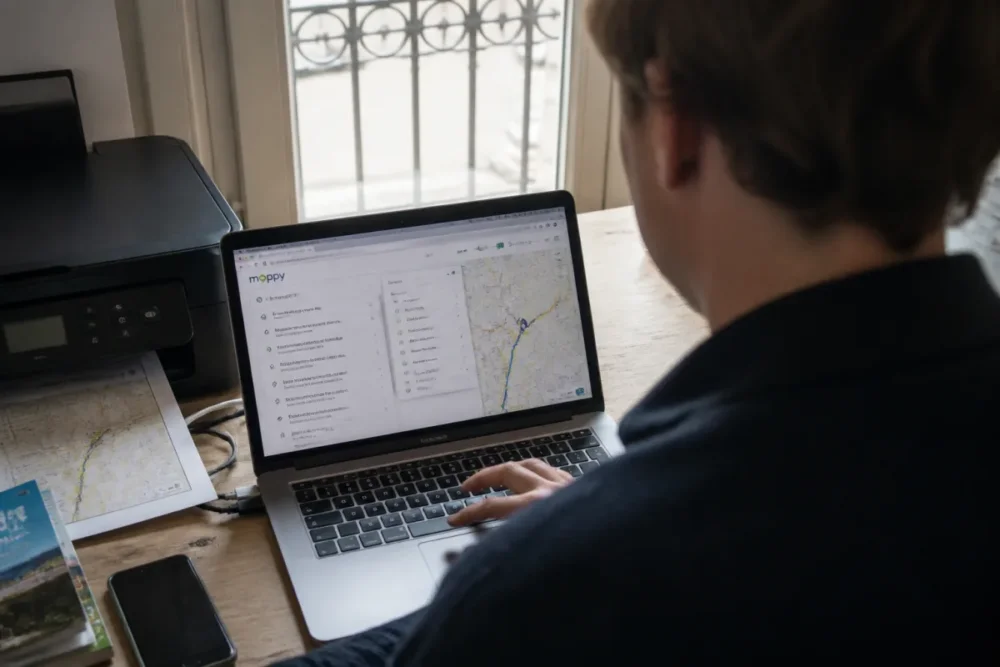
How to do it: steps to print from a computer
- Open Mappy in your browser and search for your itinerary with the exact departure and destination.
- Select the right route among the proposals, especially if Mappy shows several durations or options.
- Display the complete roadmap, with direction changes and route stages.
- Click Print if the button is visible, or use the keyboard shortcut Ctrl + P on Windows, Cmd + P on Mac.
- Check the preview: number of pages, portrait or landscape orientation, text size, and presence of the map.
- Confirm the print only if the key information fits properly on the page.
In many cases, a landscape orientation gives a better result if the map takes up a lot of space. For a primarily textual roadmap, portrait often suffices. Regarding margins, a value around 10 to 15 mm generally avoids cutoffs, although the exact setting depends on your printer.
From a mobile browser
From a smartphone, direct printing can be less convenient. On iPhone, sharing often goes through the Safari or app share icon; on Android, you usually need to open the browser menu then select a print or save option. If the printer does not appear, the simplest is often to produce a PDF, then print it from a computer.
It should be noted that some Wi-Fi printers require being connected to the same local network as the phone. In this case, generally allow less than a minute to send a simple document to print, but longer if the connection is unstable or if the file contains multiple pages with a map.
How to export a Mappy itinerary as PDF?
To export a Mappy itinerary as PDF, start printing the roadmap, then choose a virtual printer like “Save as PDF”. Give the file a clear name, check its readability after saving, and keep it in an easy-to-find folder.
Exporting a Mappy itinerary as PDF is often the cleanest solution. The PDF keeps the layout, transfers easily by email, and can be printed later without reopening Mappy. Cherry on top: it limits the risk of links not opening correctly for the recipient.
On Windows, macOS, Android, and iOS, the PDF option is usually found in the print window or in the sharing menu. The terminology varies: “Save as PDF,” “Microsoft Print to PDF,” “Export,” “Create a PDF,” or “Print to file.” The principle remains the same: instead of sending the sheet to a physical printer, you create a file.
Properly saving the PDF
A good file name prevents having to do a tedious search by hand two days later. Prefer an explicit name, for example itineraire-mappy-paris-nantes-12-aout.pdf, rather than a vague “document.pdf.” If you are preparing a family trip, an association outing, or a professional appointment, this little discipline makes all the difference.
- Add the destination in the file name to identify the route at a glance.
- Include the date if the itinerary corresponds to a specific event or appointment.
- Reopen the PDF after saving to check that the map and steps are readable.
- Keep a copy in a shared folder if several people need to consult the route.
For a simple route, a PDF often weighs a few hundred kilobytes to a few megabytes, depending on the presence of maps, images, and the number of pages. It is generally light enough to be sent by email or messaging, but sending via cloud can be more convenient if several documents accompany the journey.
Plan a backup alternative
The PDF is reliable, but it does not always replace dynamic access to the route. If traffic changes, if a road closes, or if the departure changes, the fixed document will not update. In other words, it serves very well as a backup copy, but it does not guarantee the actual conditions at departure time.
For a sensitive route, also keep the Mappy link as a favorite and, if needed, a screenshot of essential information: destination, departure time, estimated duration, and major steps. According to the CNIL on geolocation, location data must be handled with caution: avoid publicly sending a link or a screenshot revealing a personal address if it is not necessary.
How to share a Mappy itinerary with someone?
To share a Mappy itinerary, copy the route sheet link or use the sharing menu of your browser or smartphone. Send it by SMS, email, or messaging, then add a short message with the date, meeting point, and any useful instructions.
Sharing a Mappy itinerary by link is the quickest reflex when the recipient wants to consult the route on their own device. It is convenient for carpooling, a delivery, a medical appointment, an urban hike, or a vacation departure. However, if the person needs to print the route, the PDF often remains more comfortable.
A reception manager in a small associative structure often observes the same scenario: people receive a link but do not always know if the exact address, parking, or building entrance are the ones planned. That is why a link alone is not always sufficient. Add a simple message: “Departure 8:30 AM, meeting in front of the main entrance, parking recommended on Victor-Hugo street.”
By link
To send a link, copy the URL of the page displaying the Mappy route sheet, then paste it into your messaging app. On mobile, the share icon often allows you to directly choose SMS, WhatsApp, email, or another installed application. Before sending it to several people, test the link in a new tab or on another device if the route is important.
- For one person: an SMS or instant messaging is sufficient in most cases.
- For a group: an email with some instructions avoids misunderstandings.
- For a professional route: an attached PDF is often cleaner and more archivable.
- For a person not comfortable with digital tools: a paper printout sometimes remains the best option.
By email or messaging
If you send a PDF, attach it like any other document. The advantage is that the recipient sees exactly the same itinerary as you, without relying on their browser’s display. For people who mainly use their phone on the go, the guide dedicated to Mappy on mobile can also help to follow the route once the link is received.
Be careful with personal information. A home address, a private meeting place, or a travel schedule should not be shared in too large a group. The Service-Public.fr portal on personal data reminds us that certain information allowing identification of a person must be protected, especially when it circulates online.
Computer, mobile browser or app: which method to choose?
The best choice depends on what you want to do: print, export, or simply send the route. On a computer, printing and PDF are generally easier because the preview is larger and the settings more visible. On mobile, sharing is more natural, but printing sometimes requires a few detours.
| Support | Most practical for | Common limitation | Useful tip |
|---|---|---|---|
| Computer | Printing or exporting to PDF | Sometimes too long output over several pages | Check the preview and scale before confirming |
| Mobile browser | Quickly sharing a link | Less visible printing options | Use the browser menu if Mappy does not display the button |
| Mobile app | Viewing or following the route | PDF export sometimes less direct | Share the link or take a backup screenshot |
| Saved PDF | Archiving or transmitting a stable route | Does not update with traffic | Also keep the link if the departure time may change |
Overall, the computer wins for serious preparation: clean printing, file naming, page verification. Mobile wins for quick sending. As for the app, it remains very practical for following the route on the spot, but not always for producing a perfect paper version.
Mappy versus Google Maps, Waze, and ViaMichelin: which to choose?
Mappy is not alone in the route planning market. Google Maps, Waze, and ViaMichelin are also widely used, but not necessarily for the same needs. It is therefore useful to compare according to the use case, especially if your priority is to print, share a Mappy itinerary or keep a detailed roadmap.
| Service | Strength | To favor if… |
|---|---|---|
| Mappy | Clear roadmap, route options, simple web use | You want to prepare, print, or send a readable route |
| Google Maps | Place search, reviews, schedules, versatile navigation | You mainly look for a place, a business, or a multimodal route |
| Waze | Community traffic and real-time alerts | You are driving now and want to avoid slowdowns |
| ViaMichelin | Estimated cost, tolls, fuel, detailed road approach | You are preparing a long car trip with budget anticipation |
To summarize, Mappy remains relevant when the goal is to produce a usable roadmap, especially for a departure prepared in advance. Waze will often be better for real-time driving. Google Maps shines for local searches. ViaMichelin maintains strong interest when the cost of the trip matters as much as the duration.
Common mistakes when you want to print or share a Mappy itinerary
Most problems do not come from Mappy itself, but from a bad display, a forgotten print setting, or a link sent too quickly. Nothing dramatic, but these little details can waste time at the worst moment, for example just before departure.
- Print only the visible map: this gives a nice image, but not necessarily the instructions. You need to open the detailed itinerary sheet before printing.
- Forget to check the exact address: two towns can have a street with the same name. Add the postal code or check the point on the map.
- Send a link without context: the recipient does not always know what time, which entrance, or which parking to choose. Add a short message with useful instructions.
- Confirm printing without preview: this is the best way to get a truncated page. Reduce the scale or switch to landscape if necessary.
- Rely only on the PDF: convenient, yes, but fixed. For a trip subject to traffic, also keep the link accessible online.
For example, a family recounts having printed a route to a rural cottage, but without the last detailed kilometers after the main exit. The document seemed correct at first, except that the preview had cut off the second page. Since then, their method is simple: PDF first, open the file next, print only at the end. It’s less fast, but much safer.
What to do if printing or sharing does not work?
If printing or sharing a Mappy route gets stuck, start by reloading the page, checking that the itinerary sheet is complete, then try the browser’s print command. If the link does not work for the recipient, resend the full URL or use a PDF as an attachment.
The most frequent blockages come from the browser, pop-up windows, an unstable connection, or incomplete mobile display. On a computer, Ctrl + P or Cmd + P often bypasses a missing print button. On mobile, switching from the browser to the app, or vice versa, can also unlock the situation.
When the printed itinerary is truncated
If the route comes out cut off, reduce the print scale, change the orientation, or simplify the view. A scale between 80% and 90% can sometimes be enough to fit the information on the page, but you must check that the text remains readable. Provided the steps are clearly visible, a slightly more compact sheet is better than a truncated route.
When the link does not open
Resend the full address without modifying it, avoid shortcuts copied from a mail preview, and test the link in another browser. If the problem persists, switch to a PDF. It is less dynamic, but much more stable for transmitting a precise route.
In short, to print, export, or share a Mappy itinerary without hassle, remember this logic: complete itinerary sheet, preview before confirmation, PDF if you want a stable record, link if you want quick sharing. The cherry on top: with a clean file name and a short accompanying message, your recipient knows exactly where to go, when to leave, and what to open.









