500 Error on Your Website: Identify the Cause and Restore Access Quickly
The 500 website error, also called Internal Server Error, indicates that an unexpected problem is blocking the server when processing a request. The important point is that the message remains deliberately vague: it signals a server-side failure but does not immediately say where the real cause is hidden.
Short answer: if your site shows a 500 error, start by checking if the entire site is affected or just one page, consult the error logs, then go back to the last known change. In most cases, the solution lies in a plugin, a theme, a .htaccess file, a PHP memory limit, or a server configuration issue.
In Brief
🔎 500 Error = generic server failure, not a browser or content-only problem.
🧩 The most common lead is often found in the last change: update, plugin, theme, or config file.
🧪 The right reflex is to test one element at a time and check the logs after each action.
🚨 If the blockage affects the entire site, consider hosting, database, or server resources.
Understanding the 500 Error
A 500 error does not refer to a page not found like a 404. It means the server received the request but could not complete it properly. In other words, the site is theoretically accessible, but a processing step fails before display. This is what makes diagnosis a bit trickier than it seems.
What an Internal Server Error Means
Overall, a 500 error means that a script, a configuration rule, or a server resource has failed. The browser is generally not responsible. That’s why clearing your cache or switching browsers can help verify a symptom, but rarely solve the root problem.
A 500 error does not say where to look, but it almost always indicates that a server element went wrong just before display.
Difference from Other HTTP Errors
To avoid going in the wrong direction, it is important to distinguish the 500 error from other common codes. This saves a huge amount of time, especially when the site is in production and every minute counts.
| Code | Meaning | Practical Hint |
|---|---|---|
| 404 | Page Not Found | The URL is incorrect or no longer exists |
| 403 | Access Denied | Permissions or access rules block the request |
| 500 | Internal Server Problem | The site fails during server-side processing |
| 502 | Bad Gateway | An intermediate server does not receive a valid response |
| 503 | Service Unavailable | The server is temporarily out of service or overloaded |
How to Know if the 500 Error Comes from the Server or a Specific Page?
The right method is to compare what still works. If only one page shows a 500 website error, the lead of a script, dynamic content, or plugin related to that page becomes very likely. If the entire site goes down, the cause is often broader: configuration, server cache, database, or hosting resources.
Here are the most useful checks right from the start:
- Only one page crashes: suspect a specific module, template, or script.
- The entire site is affected: look rather for a configuration or server issue.
- The back office still works: the failure may be localized on the front end.
- The back office also shows an error: the server or CMS lead becomes a priority.
What are the most common causes?
Most often, the cause of error 500 is found in a small number of well-known categories. The idea is not to dismantle everything at random, but to start with what breaks most often after a recent modification. This is where the diagnosis becomes effective.
- Corrupted or misconfigured .htaccess file: common after a manually added rule, a migration, or a URL rewrite.
- Plugin / theme conflict: very common on WordPress after an update or the installation of an incompatible extension.
- PHP memory too low: a heavy script can exceed the allowed limit and crash the page.
- Inappropriate file permissions: the server can no longer read, write, or execute what it needs to.
- Database inaccessible: incorrect credentials, unavailable service, or a failing query.
- Bug in the code: a PHP, Python, Node.js, or Java error can trigger a 500 server error.
Change only one element at a time. Otherwise, you may fix the right symptom but lose the real cause along the way.
Quick diagnostic method
The most reliable method is to start from the visible symptom, then trace back to the technical layer that breaks. This is not the time to multiply random attempts. A clean diagnosis, even if quick, prevents you from creating a second failure while fixing the first.
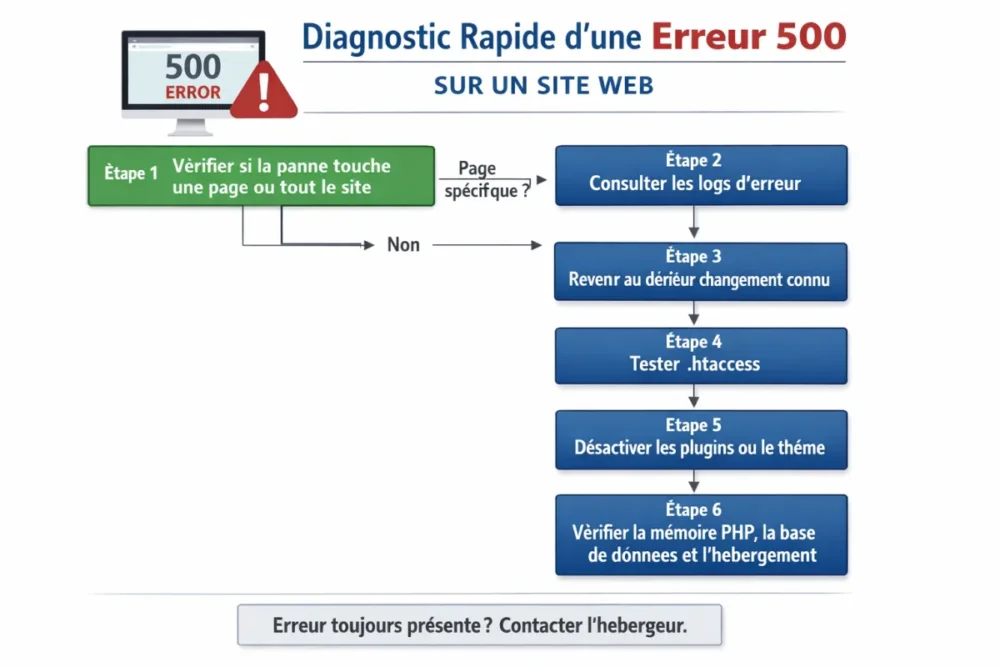
- Check the extent of the problem: single page, entire front-office, back-office, or whole site.
- Control the time of occurrence: did the failure occur after an update, migration, or server setting?
- Open the error logs: they often indicate the file, script, or line that triggered the failure.
- Test rollback: undo the last known change before touching the rest.
- Validate after each test: only one modification at a time, then refresh and check the result.
Depending on the hosting, logs may be accessible in the control panel, in a file error_log or via the support interface. On Apache, Nginx, or IIS, the logic remains the same: find the message just before the error, then trace back the chain. It is often there that the solution jumps out at you.
Which solutions to test in the right order?
The golden rule is simple: start with the least risky fixes, then move on to more technical modifications if necessary. The goal is to restore access quickly without breaking the existing configuration. In practice, order matters almost as much as the solution itself.
1. Restore or recreate the configuration file
If the 500 website error appeared after a rule modification, temporarily rename the .htaccess file to see if the site comes back. If so, the problem most likely comes from this file. On WordPress, you can then regenerate it properly from the permalink settings.
2. Disable extensions or the theme
If the site runs on a CMS, disable the extensions one by one, or temporarily all at once if the back office is inaccessible. If the error disappears, you have found a conflict. Retest with the theme active: a faulty theme can also cause a 500 server error.
3. Increase resources if necessary
When a script consumes too much memory or execution time, the server cuts off. Check the PHP memory, execution limits, and hosting parameters. This fix should not be used to mask a real bug, but it can temporarily unblock an overloaded site.
4. Clear caches and test again
An outdated cache can maintain an error already fixed. Clear the CMS cache, the server cache, the browser cache, and if you use a CDN, purge that level as well. It is a simple step, but it avoids very annoying false positives.
5. Check Hosting and Database
If nothing changes, check the server status, any ongoing incidents, quotas, and then the database connection. Incorrect login information or an unavailable service can be enough to bring down the entire site. In some environments, especially IIS, an HTTP 500.0 error can also come from an unsupported ISAPI filter or denied access to the root directory.
What to do if your WordPress site shows a 500 error?
On WordPress, the 500 error very often comes from a conflict between plugins, a broken theme, a damaged .htaccess file, or a memory limit that is too low. The right approach is to return to a stable state without reinstalling or deleting everything blindly. It’s faster and, above all, much cleaner.
- Rename the plugins folder if you no longer have access to the admin area.
- Reactivate plugins one by one to isolate the responsible plugin.
- Test a default theme if the site returns to normal on the plugin side.
- Re-save the permalinks after checking the configuration file.
- Check the PHP memory if the interface crashes when loading heavy pages.
If the error appears just after an update of the CMS, a plugin, or a theme, it is likely that the installed version is not compatible with your current environment. In this case, a rollback, even temporary, can save the situation while applying a proper fix.
How to prevent a 500 error from recurring?
Prevention mainly relies on maintenance discipline. A 500 error does not always happen by chance: it often follows a poorly prepared update, an untested change, or a gradual overload. By keeping a simple routine, you greatly reduce the risk of recurring failure.
- Backup before each major change.
- Test updates in a staging environment when possible.
- Monitor logs to spot alerts before failure.
- Document every technical change.
- Update CMS, plugins, and themes regularly to limit conflicts.
It is also useful to take care of the user experience during the incident. If the outage lasts, a clear waiting page, even very simple, reassures more than a cold or empty message. Conversely, leaving a site in a 500 error for hours damages trust, click rates, and SEO.
A prolonged 500 error is not just a technical failure: it is a sign of fragility that is also visible in SEO and conversion.
When to contact the host or a developer?
If the error persists after basic checks, do not insist at the risk of worsening the situation. As soon as the problem affects the entire site, logs point to a server component, or a database no longer responds, escalation becomes the right decision. It’s better to hand over early than waste time on a false lead.
Prepare this information to speed up support:
- the exact time the error appeared;
- actions performed just before the failure;
- messages displayed on the screen;
- useful log excerpts or screenshots;
- the affected page and the extent of the problem.
With this context, the host or developer can get straight to the point. And frankly, it’s much more effective than a vague exchange like “the site is not working anymore.”
Key Takeaways
- 🔧 The 500 error indicates a generic server problem, not a simple missing page.
- 🧭 The best diagnosis always follows the last known change.
- 📄 Error logs remain the most useful clue to find the exact cause.
- 🧱 The trio .htaccess, plugins, and PHP memory explains a large part of failures.
- 🛟 If the error persists, you need to escalate to the host or developer with precise information.
FAQ
Why does the 500 error only appear on certain pages?
When only one page crashes, the cause is often local: a plugin related to that page, a template, a shortcode, a specific script, or an overly heavy request. If the rest of the site works, you already have an excellent lead. The diagnosis then becomes much simpler than with a global outage.
Should all plugins be disabled first?
Not necessarily, but it is a very effective method if you suspect WordPress. If the admin area remains accessible, disable them one by one to identify the culprit. If everything is blocked, a temporary deactivation of all plugins often quickly confirms a conflict.
How long does it take to fix a 500 error?
It all depends on the cause. A plugin conflict or a corrupted .htaccess can be fixed in a few minutes, whereas a hosting, database, or code problem sometimes requires real investigative work. The important thing is to test in the right order to avoid wasting time.
How to prevent this outage from happening again?
The best prevention relies on regular backups, tested updates, log monitoring, and a clear procedure before each change. The more your site is modified in a controlled way, the less likely you are to encounter a 500 server error at the wrong time.
Can cache hide or prolong a 500 error?
Yes, a cache can sometimes retain a faulty state even after correction. That’s why you need to clear the cache of the CMS, the server, the browser, and the CDN, if you use one. It’s not always the cause, but it’s a good verification reflex.