| Key points | Details to remember |
|---|---|
| 🛠️ Definition | Explanation of the error and its context |
| 🔍 Causes | Origins network, versions, firewall |
| ⚡ Quick solutions | Immediate actions to restore the connection |
| 🧩 Adjustments | Settings of Minecraft and the system |
| 🌐 Network | Tests and Wi-Fi/Ethernet optimizations |
| 🔄 Reinstallation | Reset or complete reinstallation |
The appearance of the message “Unable to connect to world” in Minecraft can leave you puzzled, especially when your solo game becomes inaccessible or your friends can no longer join you. Before panicking, there are quick ways to diagnose and fix this problem without reinstalling everything. Let’s dive into the possible causes and concrete solutions, drawn both from Mojang’s official documentation and feedback from experienced players.
Understanding the error and its origins
Unlike a simple graphical bug, this error message usually hides a malfunction in the network layer or a software incompatibility. At first glance, one might blame their Internet service provider. However, often, the root of the problem lies in a misconfigured setting, a missing update, or an overly zealous firewall.
Network causes
An unstable or saturated network can interrupt the connection between your machine and the virtual world. If you play on Wi-Fi, interference (microwaves, thick walls) reduces bandwidth. Even on Ethernet, a damaged cable or a defective port on the router is enough to crash the session. Sometimes DHCP IP address expiration is also observed, forcing Minecraft to disconnect because it cannot obtain a new assignment.
Versions and compatibilities
The variety of editions (Bedrock, Java, Windows 10) and the frequency of patches sometimes create disparities. Trying to launch a Java world with a Bedrock client or vice versa inevitably leads to this type of error. Similarly, if your friends have installed an experimental snapshot, their world will not open on a standard version.
Quick solutions to restore the connection
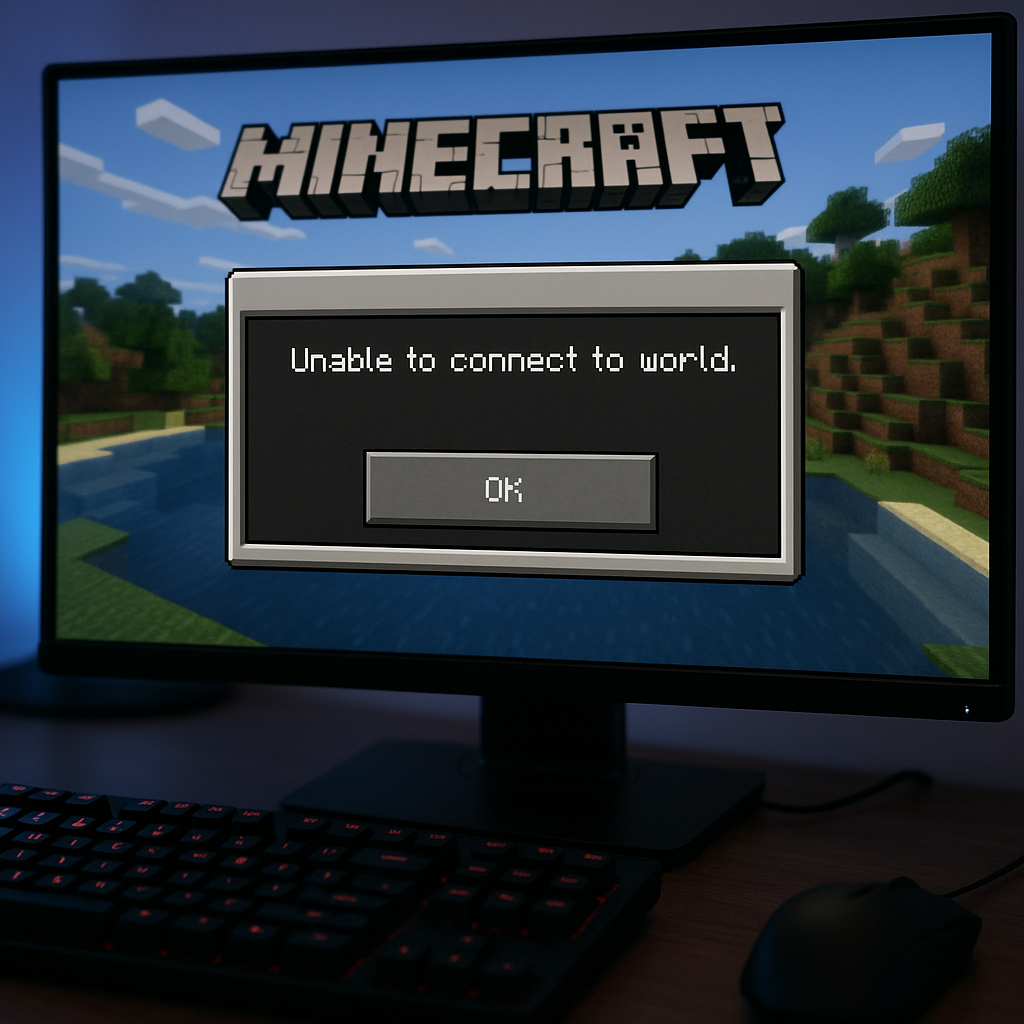
1. Restart Minecraft and the device
Resetting often remains the simplest method. Completely close the game then restart it. If the error persists, restarting the console, PC, or even the router can refresh the network settings (including DNS), sometimes corrupted by a long session or an automatic background update.
2. Check the network connection
- Test the speed: 20 Mbps is generally sufficient for multiplayer Minecraft.
- Change the Wi-Fi frequency (2.4 GHz ↔ 5 GHz).
- Temporarily switch to Ethernet to eliminate interference.
If your ping spikes, the game will automatically display this connection failure message. Using a short, certified RJ45 cable can make an astonishing difference.
3. Update Minecraft
The Mojang publisher releases a patch every few weeks to fix bugs and vulnerabilities. Access the Microsoft Store, the Java Launcher, or the Xbox app, then click “Update.” If no update is available, force a file verification (under Java: Repair installation).
4. Check the firewall and antivirus
An overly restrictive antivirus shield or a misconfigured Windows firewall sometimes blocks Minecraft ports (19132, 25565…). Go to Settings → Windows Security → Firewall → Allow an app and check Java and Minecraft for both public and private networks.
5. Reset game data
In case of a corrupted profile, sometimes simply deleting the local world folder (located in %appdata%/.minecraft/saves) after making a backup is enough. Then restart the game: a new blank world will be created without conflicts.
6. Switch to LAN or offline
If the error only occurs online, test LAN mode with a second device on the same network. This helps determine whether the problem originates from the Internet or the Minecraft client itself.
Advanced tips and diagnostic tools
For players comfortable with command lines, inspecting the logs (latest.log file in .minecraft/logs) provides precise information about the connection refusal. A “Connection reset” message indicates a network timeout, while a “Protocol mismatch” points to a version difference.
“A detailed log speeds up troubleshooting: it avoids blind guessing.” – Minecraft expert
If you are hosting a local server, also check port forwarding in your box’s interface. Utilities like TCPView or Wireshark allow in-depth traffic analysis. Finally, in multi-platform contexts, consider using a low-latency VPN to standardize routing.
FAQ
- Why does the error appear only after an update?
- An incompatibility between the client and the world can occur if one of them was not updated simultaneously. Reinstall or force the update on both sides to restore the connection.
- Can I play without using the Internet?
- Yes: by creating a LAN game on a local network, you will bypass any obstacles related to Internet access.
- Which ports need to be opened for Minecraft?
- UDP ports 19132-19133 (Bedrock) and TCP 25565 (Java) must be opened or forwarded on your router to allow incoming connections.
- How to recover a corrupted world?
- Use a recovery tool such as NBTExplorer to restore level.dat files from a backup.
{
“@context”: “https://schema.org”,
“@type”: “WebPage”,
“about”: {
“@type”: “Thing”,
“name”: “Erreur Unable to connect to world Minecraft : solutions rapides”
},
“keywords”: [“Minecraft”, “Unable to connect to world”, “connexion”, “mise à jour”, “pare-feu”]
}
{
“@context”: “https://schema.org”,
“@type”: “Article”,
“headline”: “Erreur “Unable to connect to world” Minecraft : solutions rapides”,
“description”: “Un guide complet pour corriger rapidement l’erreur ‘Unable to connect to world’ dans Minecraft, incluant diagnostics réseau, mises à jour et ajustements essentiels.”,
“keywords”: [“Minecraft”, “connexion réseau”, “mise à jour Minecraft”, “pare-feu”, “erreur unable to connect”],
“mainEntity”: {
“@type”: “FAQPage”,
“mainEntity”: [
{
“@type”: “Question”,
“name”: “Pourquoi l’erreur apparaît uniquement après une mise à jour ?”,
“acceptedAnswer”: {
“@type”: “Answer”,
“text”: “Une incompatibilité entre le client et le monde peut survenir si l’un des deux n’a pas été mis à jour simultanément. Réinstallez ou forcez la mise à jour des deux côtés pour retrouver la connexion.”
}
},
{
“@type”: “Question”,
“name”: “Puis-je jouer sans passer par Internet ?”,
“acceptedAnswer”: {
“@type”: “Answer”,
“text”: “Oui : en créant une partie en LAN sur un réseau local, vous contournerez tout obstacle lié à l’accès Internet.”
}
},
{
“@type”: “Question”,
“name”: “Quels ports faut-il ouvrir pour Minecraft ?”,
“acceptedAnswer”: {
“@type”: “Answer”,
“text”: “Les ports UDP 19132-19133 (Bedrock) et TCP 25565 (Java) doivent être ouverts ou redirigés sur votre routeur pour permettre les connexions entrantes.”
}
},
{
“@type”: “Question”,
“name”: “Comment retrouver un monde corrompu ?”,
“acceptedAnswer”: {
“@type”: “Answer”,
“text”: “Utilisez un outil de récupération tel que NBTExplorer pour restaurer les fichiers level.dat à partir d’une sauvegarde.”
}
}
]
}
}









