Zotero, the essential reference manager to organize, cite, and bibliography effortlessly
Zotero is a reference manager that centralizes your sources, retrieves their metadata when available, and inserts citations into a document. The real benefit lies in reducing copy-pasting and formatting errors, provided each imported record is checked before writing.
The term zotero reference manager mainly covers a simple use: collect, organize, cite, then produce a clean bibliography without rebuilding the list by hand. This guide shows how to get started, what to set up right after installation, how to avoid duplicates, and when human verification remains essential.
In brief
🧭 Zotero centralizes sources, notes, and PDFs in a single library. Organization stays readable when collections and keywords are consistent.
⚙️ The real gain comes from the duo automatic collection + citation in Word or Google Docs. Automation speeds up work but never replaces metadata checking.
🧪 Imported records must be checked immediately. An incomplete title, reversed author, or missing date then skews the entire bibliography.
🗂️ A simple routine often suffices: capture, correct, organize, cite, synchronize. A clean library avoids last-minute edits.
What is Zotero used for, concretely?
Zotero is a bibliographic reference manager that gathers articles, books, web pages, reports, and PDFs into a single library. The software becomes useful as soon as research exceeds a few sources because it avoids repetitive entry and allows finding a reference in seconds.
Zotero is mainly for students, researchers, journalists, and writers who need to cite properly. The strength is not the magic of automation, but the ability to keep a clean and verifiable database.
- Collect a source without retyping it.
- Associate a PDF, notes, and keywords.
- Insert a citation from the working document.
- Generate a bibliography conforming to the requested style.
The Zotero reference manager also helps avoid a common mistake: believing that a folder of PDFs is enough. A well-named file does not replace a structured reference with author, title, date, journal, or publisher.
How to install Zotero and start correctly?
Installing Zotero involves laying two bricks: the desktop application and the browser connector. The startup is quick, but an incomplete installation will cost later through missing imports, invisible styles, or poorly configured synchronization.
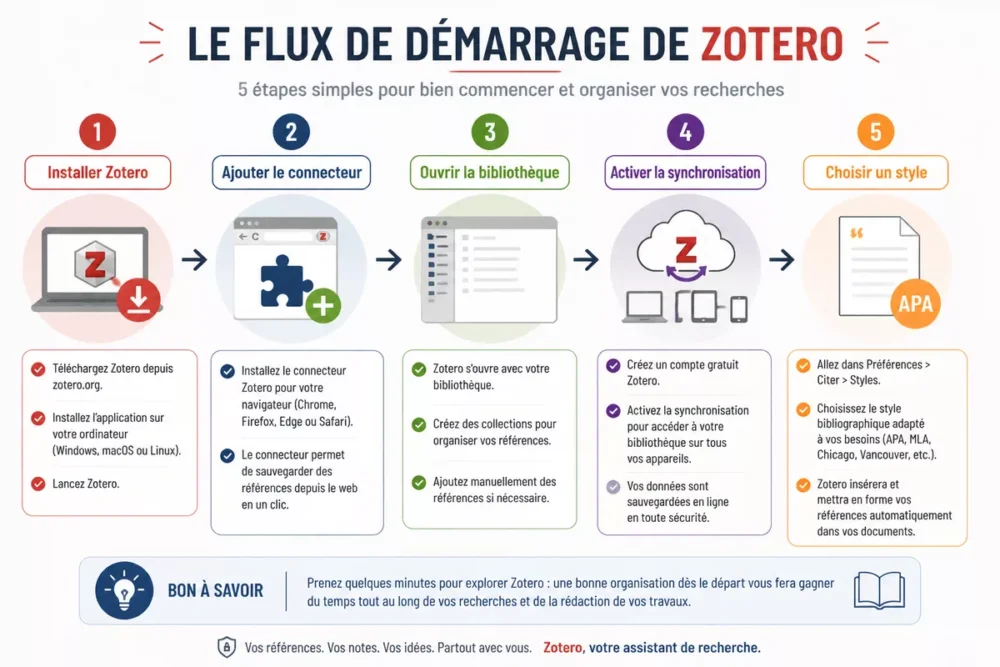
- Download the official Zotero application for your system.
- Install the browser connector used to capture references.
- Open Zotero and create or link your synchronization account.
- Check the default bibliographic style in the software settings.
- Perform an import test on a compatible page or catalog.
The basic logic remains the same in 2026, even if the interface evolves. The official Zotero documentation is the preferred source for menu paths, as labels change faster than the general functioning.
A good start avoids late cleanup. A forgotten connector or a poorly prepared synchronization account creates friction when writing speeds up.
How to collect your sources without wasting time?
Zotero captures a reference from a catalog, an academic database, an article, or a web page when the site is compatible. The real time saving appears when the imported record is corrected immediately, not after accumulating twenty approximate entries.

The quality of a Zotero library mainly depends on the retrieved metadata. A poorly recognized article may retain a truncated title, an inverted author, or a missing date; a quick check is often enough to clean up the record.
- Check the exact title and authors.
- Verify the date, journal, or publisher.
- Add the DOI, ISBN, or URL when missing.
- Associate the PDF with the correct entry.
- Correct the fields before citing.
Zotero speeds up collection, not verification. A correct record is better than a quick capture followed by a shaky bibliography.
Indicative example: importing 15 articles then correcting 3 incomplete records often takes less time than entering everything manually. This is not a timed test, but it shows where the real gain lies.
How to organize your reference library?
A well-maintained Zotero library relies on simple collections, consistent keywords, and short notes. The goal is not to multiply folders, but to be able to find a source by project, theme, or chapter without hesitation.
The most robust structure is often the simplest. One collection per thesis, article, or file is enough at the start; sub-collections only become useful when the volume of sources makes manual sorting tedious.
| Classification tool | Useful use | Limit | Good practice |
|---|---|---|---|
| Collections | Group sources by project or chapter | Can become too numerous | Create a simple hierarchy first |
| Keywords | Find a source by theme | Lose their usefulness if terms vary | Choose stable vocabulary |
| Notes | Summarize the interest of a source | Not very useful if they remain too long | Write short and usable notes |
| Duplicates | Avoid two records for the same source | Distort bibliographies and searches | Regularly merge repeated entries |
The Zotero library becomes really practical when duplicates are dealt with early. A repeated source is not just visual noise; it can also create hesitation when citing the correct record.
A clean library is worth more than a vast library. One less duplicate avoids one more error in the bibliography.
How to automatically cite in a document?
Automatic citation with Zotero relies on the word processing module and a pre-selected bibliographic style. The benefit is clear for theses, articles, and long reports, but a poorly imported citation remains incorrect until corrected.
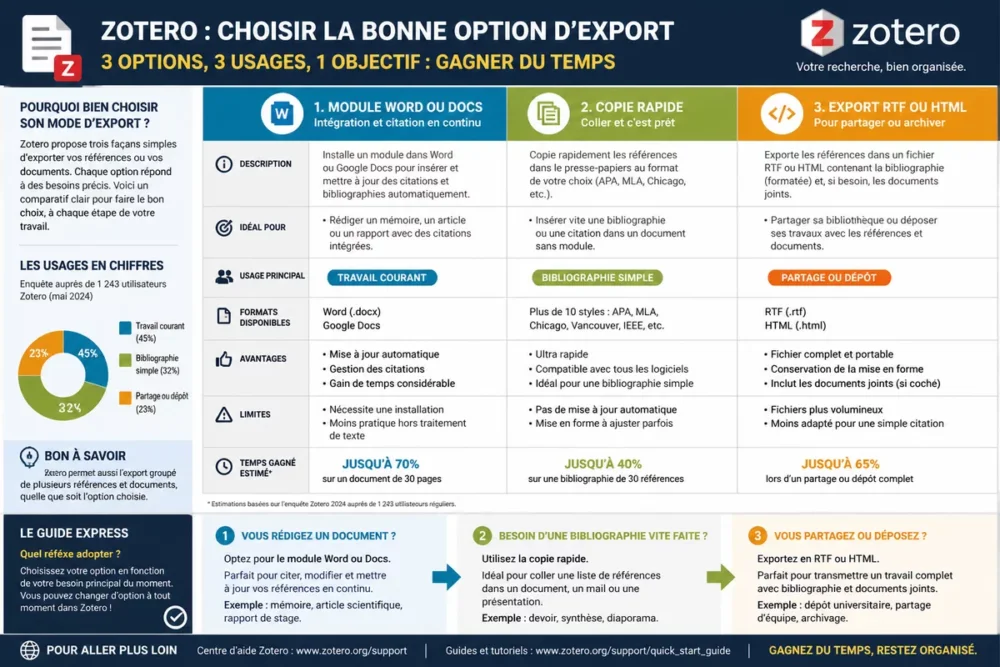
The simplest approach is to write first, then insert the source in the right place from the Zotero library. The document thus remains linked to a live reference database, which makes corrections more reliable than a manually typed citation.
- Open the document in Word or Google Docs.
- Launch the Zotero tool associated with the word processor.
- Choose the reference from the library.
- Select the required bibliographic style.
- Update the document before the final submission.
Bibliographic styles vary according to journals, departments, or schools. Best practice is to set the style from the start, because a late change can alter the entire formatting of the document.
How to generate a clear and compliant bibliography?
Zotero produces the bibliography from the citations present in the document and the chosen style. Consistency mainly depends on well-filled fields, so a clean record is better than a manually tweaked layout.
The final bibliography deserves a brief but systematic check. A misspelled first name, a missing publisher, or inconsistent capitalization is enough to give an impression of inaccuracy, even if the document’s content is solid.
- Check authors’ names and the order of first names.
- Verify titles, subtitles, and capitalization.
- Confirm the presence of dates, journals, volumes, or pages.
- Proofread the punctuation produced by the chosen style.
- Compare the Zotero output with the thesis or journal guidelines.
A compliant bibliography is not necessarily a perfect bibliography. A homogeneous, stable, and verifiable presentation is better than a last-minute hand-crafted aesthetic.
How to synchronize, back up, and retrieve your data?
Zotero synchronization is used to access the same library on multiple devices, with the same collections and notes if the setting is enabled. Backup remains necessary because an online service is never a complete substitute for a local copy.
Synchronization and storage options evolve; always check the official Zotero website to know the included volume and any possible paid plans. The useful principle, however, remains stable: a synchronized library does not exempt you from exporting or making a backup copy.
- Activate synchronization on the Zotero account.
- Verify that collections appear on the second device.
- Regularly export a copy of the library.
- Keep a local backup of the working folder.
A simple backup routine avoids discovering a problem on the night before submission. The cost of prevention remains low if the local copy is part of the normal work cycle.
Zotero versus Word, Mendeley, and EndNote: Which to Choose?
Zotero is especially suitable for those who want a centralized library, quick imports, and flexible citation flow in a free entry-level tool. Word alone is sufficient for a few sources, while Mendeley and EndNote remain well-known alternatives when the ecosystem or institutional habits already guide the choice.
| Solution | Main Advantage | Limitation | Most Logical Use |
|---|---|---|---|
| Zotero | Central library, fast collection, integrated citation | A bit of setup at the start | Studies, research, regular writing |
| Word alone | Simple for a small number of sources | Poorer bibliographic management | Short documents, occasional needs |
| Mendeley | Known alternative for managing references and PDFs | Different ecosystem, habits to rebuild | User already comfortable with the tool |
| EndNote | Robust solution in certain academic environments | Heavier configuration, higher cost | Institution that mandates or oversees it |
The right choice depends less on the tool’s prestige than on the volume of references, the level of collaboration, and the time available for setup. For everyday use, Zotero often offers the best compromise between simplicity and control.
What Common Mistakes Should Be Avoided?
Errors with Zotero are rarely spectacular; they accumulate silently and become costly at submission time. The right method is to check essential fields early, purge duplicates, and not change the bibliographic style at the last minute.
- Importing without checking: truncated titles, reversed authors, or missing dates then propagate everywhere.
- Letting duplicates settle: repeated references complicate searches and distort the bibliography.
- Changing style too late: the entire formatting can shift at the last minute.
- Forgetting attachments: a PDF not linked to the correct record quickly gets lost.
- Relying on sync alone: a local backup remains essential to limit damage.
The logic of early control resembles that applied in pitfalls to avoid at launch: correcting early costs less than fixing late.
Which Methods and Best Practices Really Save Time?
The best Zotero routine remains short, regular, and almost mechanical. Capturing the source, correcting the record, filing the entry, citing in the document, then syncing everything avoids the big final cleanup, which always costs more than a two-minute check.
- Import the reference as soon as it is found.
- Check the metadata before moving on to the next source.
- File the entry in the correct collection.
- Add a brief note if the content deserves to be recalled.
- Insert the citation in the document without waiting until the end of the project.
- Sync then export a backup copy at regular intervals.
A short routine is better than a big sort the night before submission. Consistency reduces errors and keeps the library usable throughout the project.
The best use of Zotero often comes from discreet discipline, not complicated settings. A well-maintained source base saves time on research, citation, and final proofreading.
Useful Sources to Consult
- Official Zotero Site → entry point to download the software and follow developments → useful for checking the version and current options.
- Official Zotero Documentation → installation, connector, bibliographies, synchronization, and troubleshooting → useful for finding a menu path or a function that has changed.
- Your word processor’s documentation → Word or Google Docs integration → useful for automatic citation and document updating → watch out for the installed version.
Key Takeaways
- 🧩 Zotero centralizes sources and avoids repetitive entry.
- 🔍 Each import must be checked before being cited.
- 🗂️ A simple library is better than an overly complex hierarchy.
- 🧰 Automatic citation saves time only if the style is set early.
- 💾 Synchronization does not replace a local backup.
Frequently Asked Questions about Zotero
Is Zotero free?
Zotero offers free software that is largely sufficient to get started. Storage options and some associated services may change, so checking the official website remains the best practice.
Can it be used without a permanent connection?
Zotero works locally on the computer, allowing offline work. Synchronization then occurs to retrieve the same library on other devices.
How to import a missing reference?
The simplest solution is to start from a reliable identifier such as a DOI or ISBN, then manually correct the record if necessary. Clean entry is better than a partial import left as is.
How to change citation style?
The style can be changed from Zotero’s settings or from the integration in the word processor used. A change at the end of a project can move many elements, so it’s better to set the style from the start.
How to find a source already saved?
Internal search, keywords, and collections are the three most effective entry points. Duplicates and approximate file names complicate the search, hence the interest of regular organization.









