Game Server Connection Error: Understanding the Real Causes and Effectively Fixing the Problem
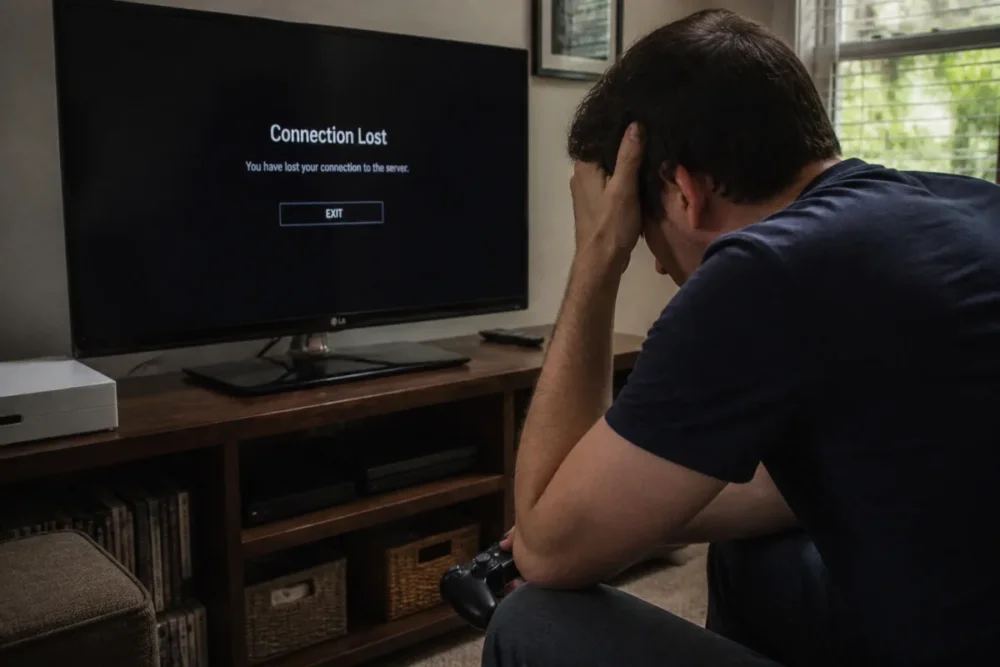
A game server connection error rarely happens at a good time: ranked match start, daily login, planned raid with friends… and then, frozen screen, message “unable to connect to server,” “connection lost,” or “authentication failed.” The trap is to immediately assume that “the servers are down” when the issue could also come from Wi-Fi, DNS, firewall, a VPN, or corrupted cache.
The most effective method is to diagnose in the right order: server status, local connection, network settings, then game files and data. By proceeding this way, you avoid uninstalling a game for nothing, randomly fiddling with your box, or losing an evening over a failure that simply depends on the publisher.
In brief
🎮 A game server connection error can come from the server, but also from your local network, DNS, firewall, a VPN, or damaged cache.
🧪 The right reflex: first check if other players are affected, then test your connection, restart the device, and reboot the box for 30 seconds.
🛠️ On Android, clearing the game cache can fix a stuck session; on iOS, reinstalling is often the practical equivalent when the app does not offer this option.
🚦 If the error affects only one account, one device, or one server region, the diagnosis should focus on authentication, configuration, or temporary restrictions.
Why does this error appear?
A game server connection error appears when the device can no longer maintain communication with the game servers. The cause can be remote, such as maintenance or overload, or local, such as unstable Wi-Fi, poorly resolved DNS, too strict firewall, or corrupted cache.
An online game does not just “have Internet.” It must communicate with several services: account authentication, profile retrieval, matchmaking, inventory, store, voice chat, cloud save, game server… If one of these links responds poorly, the game can display a very general, sometimes frustrating message: game server unavailable, connection lost, timeout, or unable to join session.
This is why two players can see the same error while the causes are different. One suffers a global outage on the publisher’s side, another has a router that poorly resolves DNS, and a third is blocked by their VPN. Overall, the message does not always say “where” it is stuck; it only signals that the network conversation between the game and the server is not completing properly.
The official FAQ of Idle Sports Tycoon on the “Unable to connect to servers” error explains, for example, that the message generally appears when the connection between the game and the device is lost. It also recommends restarting the device, reconnecting to Wi-Fi, then relaunching the game. Simple, yes. But not foolish: these actions often reset a stuck network session.
How to know if the problem comes from the server or your setup?
To distinguish server outage from local problem, compare three signals: are other players encountering the same error, does the issue affect multiple devices, and does the game work on another connection? If everyone is blocked, it is probably on the publisher’s side. If only you are affected, look on the network, device, or account side.
The diagnosis should start with a simple question: is the problem collective or isolated? If similar messages appear massively on social networks, Discord, Reddit, official forums, or status pages, there is a good chance the incident is not from your side. Conversely, if your connection works everywhere except on one game, or only on one device, the issue becomes much more local.
Official status pages remain the best starting point. For consoles, you can check the PlayStation Network status or the Xbox network status. On PC, launchers and publishers often publish their own alerts, especially during major updates or scheduled maintenance. Good to know: a store or friends list may work even if the game’s matchmaking is down.
Signs of an outage on the publisher’s side
An outage on the publisher’s side usually has a fairly clear signature. Several players report the same error at the same time, sometimes in multiple countries or on a specific platform. The message may appear right after an update, a season launch, a limited event, or announced maintenance. In this case, restarting your box ten times won’t change much. Joking aside, this is often where the most time is lost.
- Identical messages from multiple players: same error code, same frozen screen, same approximate time.
- Official announcement: maintenance, incident, overload, or deployment in progress.
- Unable to connect on multiple devices: console, PC, or mobile all show the same blockage.
- Partial functions: store accessible, but multiplayer matches or authentication unavailable.
Signs of a local problem
A local problem often leaves more scattered clues: the game starts on 4G but not on Wi-Fi, works on a console but not on a PC, or only blocks when the VPN is active. In practice, advanced players quickly test another connection, while beginners restart everything in disorder. The first reflex is simple though: isolate one variable at a time.
In practice, a player who temporarily switches from home Wi-Fi to mobile hotspot often gets a useful answer: if the game connects immediately, the local cause becomes a priority. This does not prove the box is “broken,” but it points to Wi-Fi, the router, DNS, or network filtering.
| Observed symptom | Most likely cause | Quick test | Recommended action |
|---|---|---|---|
| Error on multiple players | Server incident or maintenance | Official status page | Wait for recovery |
| Error on a single device | Cache, files, or local configuration | Test another device | Clear cache or repair the game |
| Error only on Wi-Fi | Unstable signal or saturated router | Switch to Ethernet or 4G/5G | Restart the box, move the device closer |
| Error with VPN active | Routing or blocked region | Disable the VPN | Restart the game without proxy |
| Authentication failed | Account, session, or identification service | Log out/log back in | Check account and publisher support |
What are the most common causes of a game server connection error?
The most common causes fall into three categories: network, software, and account. Network concerns Wi-Fi, the box, DNS, and latency. Software includes firewall, antivirus, VPN, cache, and game files. Account covers authentication, server region, or temporary restrictions.
The most important thing is not to treat all causes with the same probability. Weak Wi-Fi, a device left on for a long time, or a stuck cache are more common than an exotic network port problem. Conversely, if the error appears right after a major update, server overload or a publisher-side incident becomes very plausible again.
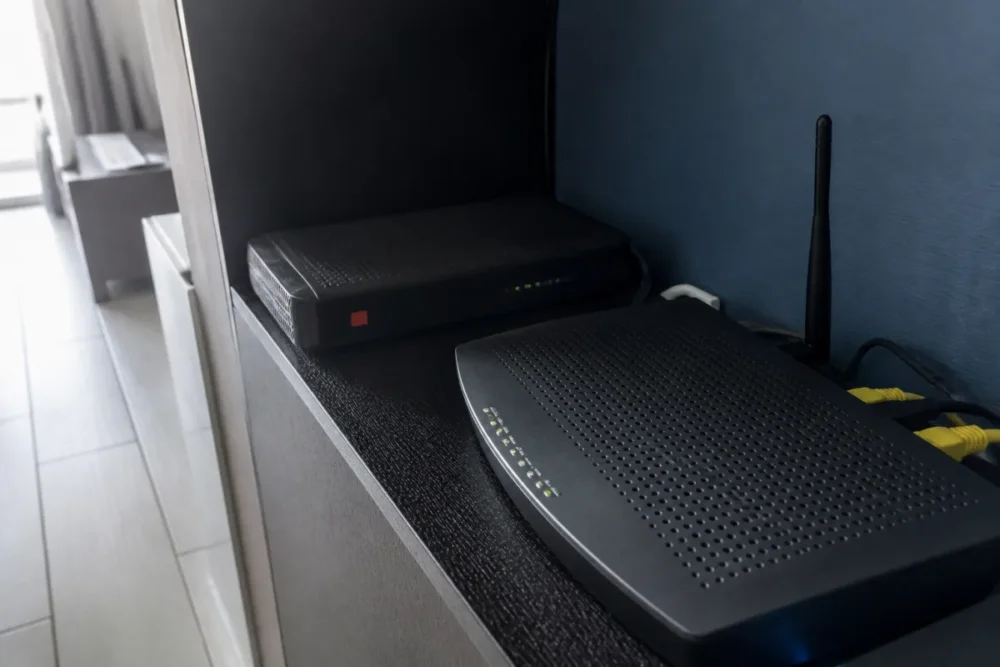
Network and Internet connection: Wi-Fi, DNS, latency
A connection may seem fine for watching a video but insufficient for gaming. Why? Because an online game poorly tolerates brief disconnections, irregular latency, and packet loss. A video buffers; a multiplayer game must continuously exchange information. In other words, “Internet works” does not mean “the multiplayer connection is stable.”
DNS can also cause trouble. If your device poorly resolves a server address, the game may never reach the correct service. This is a case mentioned in support discussions, especially when general Internet access works but only certain games fail. Microsoft community documentation mentions this type of issue in cases of lost connection with certain game servers, as seen on Microsoft Learn Answers about connection problems with certain games.
Software and security: firewall, antivirus, VPN, cache
The firewall and antivirus are not your enemies, but they can block a game after an update, an executable change, or a new security rule. The same logic applies with a VPN: it changes your network route, your apparent region, and sometimes how the server authenticates you. As a result, the game may refuse the session, display a network error, or send you to an inappropriate server region.
Good troubleshooting is not about randomly disabling everything, but temporarily testing each layer that can interrupt the dialogue between the game and the server.
The cache also deserves real attention. Especially on mobile, temporary data can retain an old session, an expired token, or an inconsistent state. The official procedure mentioned above recommends, on Android, going to settings, then Apps, selecting the game, opening Storage and cache, then choosing clear cache. On iOS, uninstalling and reinstalling the game is often used when the app does not allow clearing this cache directly.
Account and settings: region, session, restrictions
Failed authentication does not always mean the password is wrong. The identification service may be temporarily unavailable, the session may have expired, or the account may require validation. Some games also apply regional, parental, or temporary restrictions. Again, the displayed message sometimes remains very vague, giving the impression of a network bug when the block concerns account access.
What solutions should be tested in the right order?
The best sequence is progressive: check server status, restart the game, restart the device for 30 seconds, reconnect the Wi-Fi, then restart the box for 30 seconds. Only then test DNS, VPN, firewall, cache, game files, and updates.
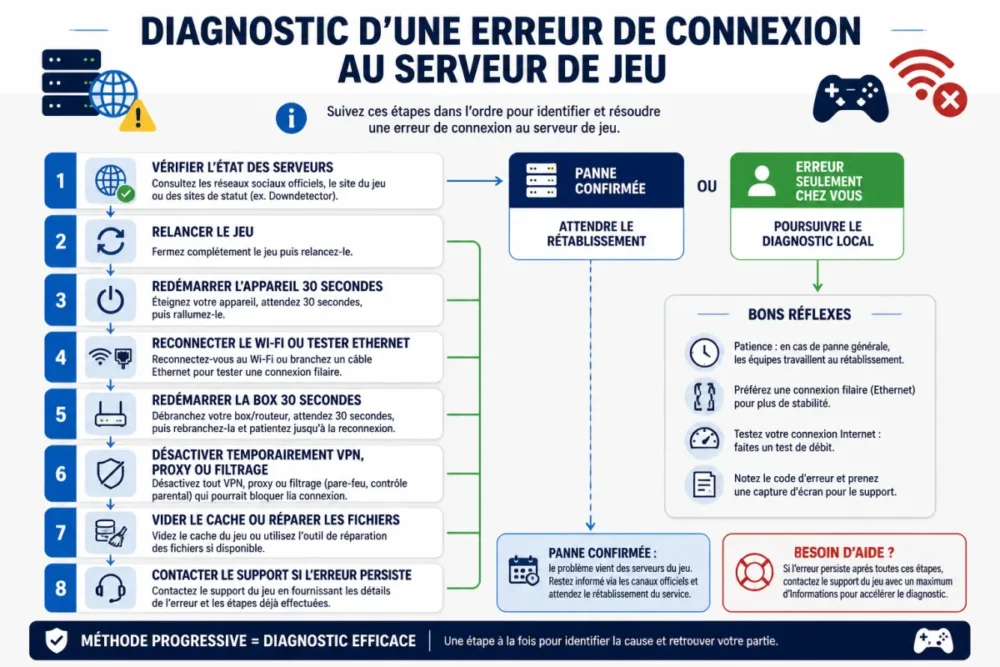
Step 1: check what does not depend on you
Before touching your settings, check the server status. It’s quick, reversible, and avoids manually performing unnecessary actions. Consult the platform’s status page, the official game account, the launcher, the official Discord, or community forums. If the incident is confirmed, the best solution is mainly to wait and avoid changing your configuration during a global outage.
- Check the official status page of the game or platform.
- See if other players are reporting the same error at the same time.
- Restart the game once, but avoid repeated login loops.
- Note the exact message, especially if it contains an error code.
Step 2: properly restart device, Wi-Fi, and router
If no outage is visible, move on to simple actions. Completely close the game, not just in the background. Turn off the device for 30 seconds, turn it back on, reconnect to Wi-Fi, and restart the game. If the error persists, restart the Internet router: unplug it for 30 seconds, plug it back in, wait for the network to stabilize, then reconnect the device.
This restart is not magic; it simply forces a new network negotiation. The device obtains a clean connection, the router resets some internal tables, and the game starts a fresh session. In many common cases, this is enough to fix a game server connection problem related to a weak Wi-Fi link or an unstable network session.
Step 3: test another connection
The most telling test is to change networks. If you are playing on mobile, try Wi-Fi then mobile data. On PC or console, test an Ethernet cable if possible, or a temporary connection sharing. If the game works on another network, your account and the servers are probably not at fault. The diagnosis then narrows down to the router, the DNS, network filtering, or Wi-Fi quality.
Step 4: temporarily disable VPN, proxy, and filters
A VPN can improve privacy, but it can also lengthen the network path, change the perceived region, or trigger server-side protection. Temporarily disable it, as well as proxies, custom DNS filters, or overly strict parental controls. Warning: the idea is not to play without protection permanently, but to check if one of these intermediaries is cutting off access to the server.
Step 5: clear cache or repair files
If the problem concerns only one game, especially after an update, move on to local data. On Android, clear the cache from system settings: Settings > Apps > the game > Storage and cache > Clear cache. On iOS, uninstalling and reinstalling may be necessary depending on the app. On PC, use the verification or repair option of the launcher when available.
- Completely close the game and its launcher.
- Clear the cache or start file repair.
- Update the client, platform, and network drivers if necessary.
- Restart the device before trying to connect again.
When is the problem not coming from you?
The problem is probably not coming from you if several players encounter the same error, if the status page reports an incident, or if the failure appears just after maintenance, a major update, or a very busy event. In this case, local actions have little effect: you need to monitor the recovery.
It is always nice to have an immediate solution, but some outages cannot be fixed on the player side. Servers may be under maintenance, saturated by a content launch, or partially unavailable. Sometimes, only a specific service fails: authentication, matchmaking, inventory, or online chat. That is why a game can open, display your profile, then freeze when joining a match.
If the error is collective, the best technical action is often to do nothing: monitoring the official status is better than misconfiguring a healthy setup.
Contact support when the error persists after thorough checks, especially if it affects only one account, one character, or one platform. Prepare useful information: exact message, approximate time, platform, type of connection, presence or absence of a VPN, tests already performed. As a bonus, a screenshot of the message avoids many back-and-forths with support.
How to prevent the error from recurring?
You cannot prevent maintenance or server outages, but you can greatly reduce local causes. A stable connection, an up-to-date device, maintained cache, and well-configured network software reduce the chances of encountering a game network error at the worst moment. The goal is not to optimize like a network engineer, but to keep a clean and predictable environment.
- Prefer Ethernet for competitive games or long multiplayer sessions.
- Avoid unnecessary VPNs during gameplay, especially if the server enforces a specific region.
- Update the game, launcher, console, or network drivers.
- Periodically restart the router if it has been on for several weeks without interruption.
- Check official announcements before major events or season launches.
A family reported that the error mostly returned in the evening when several devices used Wi-Fi simultaneously. Switching the console to Ethernet cable eliminated disconnections during matches without changing the Internet subscription. In this case, raw bandwidth mattered less than the stability of the local connection.
Conclusion: the most effective method to resolve the error
A game server connection error is rarely resolved by randomly trying multiple fixes. The real method is to proceed by elimination: first the servers, then the local network, then software layers, and finally the account. It’s less spectacular than a “miracle trick,” but much more reliable.
To summarize, check the server status, properly restart the device and router, test another connection, temporarily disable VPN or proxy, then clear the cache or repair game files. If the error remains limited to your account despite all this, the game publisher’s support is the most relevant contact.
Key takeaways
- 🎯 A server error can come from the game, network, DNS, cache, or account.
- 🧭 Always check the server status before changing your local configuration.
- 🔌 Restarting the device and router for 30 seconds fixes many stuck sessions.
- 🛡️ VPN, firewall, and antivirus should be tested temporarily, never disabled at random.
- 📱 On Android, clearing the game cache is often cleaner than a full reinstall.
FAQ
Why does my game say “unable to connect to server” even though the Internet works?
Because an online game needs a stable connection to specific services, not just general Internet access. The web or video may work while DNS, matchmaking, authentication, or certain game ports fail.
Can changing DNS fix a game server connection error?
Yes, in some cases, especially if only a few games or services do not respond. A poorly resolved DNS can prevent the game from properly reaching its servers, but it’s not the first step if a global outage is already confirmed.
Should I uninstall the game to fix the problem?
Not immediately. Start by restarting the device, reconnecting Wi-Fi, restarting the router, and clearing the cache if the option exists. Reinstallation becomes relevant if the cache or local files seem corrupted, especially on iOS or after a failed update.
Can a VPN cause authentication failure?
Yes. A VPN can change your apparent region, add latency, or route your connection through an already filtered address. To test properly, temporarily disable it, restart the game, then compare the result.
When should I contact game support?
Contact support if the error persists after network and cache checks, or if it affects only your account. Provide the exact message, platform, time of the problem, your connection type, and tests already performed.









