Create a Keyboard Shortcut on Windows 11: The Simple Method to Automate Your Repetitive Tasks
A Windows 11 keyboard shortcut well chosen can replace a handful of clicks that you repeat ten, twenty, or fifty times a day: opening your business software, launching a work folder, displaying a script, turning off Wi-Fi, preparing your meeting environment… The good news is that Windows 11 already knows how to do part of the work without installing complicated tools.
The real issue is therefore not just creating a key combination. It’s about choosing the right level of automation: simple native shortcut, remapping with PowerToys, PowerShell script, or more advanced automation with AutoHotkey. In short, you save time when the method remains simpler than the problem it solves.
In Brief
⚡ The native method consists of creating a shortcut to a program, a file, or a folder, then associating a shortcut key to it from its properties.
🧩 PowerToys is mainly used to remap keys or adapt the keyboard to your way of working, without necessarily automating a complete sequence of actions.
🤖 AutoHotkey becomes interesting when a repetitive action requires several steps: opening an application, typing text, chaining commands, or simulating keystrokes.
🔐 PowerShell is powerful for running scripts, but it requires attention to administrator rights, execution policy, and the source of files.
Why Creating a Windows 11 Keyboard Shortcut Really Changes Daily Life?
Creating a Windows 11 keyboard shortcut serves to trigger a repetitive action faster: opening a tool, accessing a folder, launching a command, or starting a script. The gain mainly comes from reducing micro-frictions, those small repeated clicks that slow down work without us realizing it.
Windows 11 already offers many ready-to-use shortcuts. According to Microsoft’s documentation on keyboard shortcuts in Windows, Windows + E opens File Explorer, Windows + I opens Settings, Windows + L locks the PC, and Windows + Shift + S launches the snipping tool. In other words, Microsoft has already integrated a productivity logic into the system. Creating your own shortcuts means extending this logic with your real uses.

In practice, it is observed in the field that the best shortcuts are not the most spectacular. They are the ones you use every day. A graphic designer who constantly opens the same project folder, an IT support who often launches the same diagnostic tool, or a student who activates a work setup before each session: these are the cases where a shortcut really hits the mark.
- Fewer clicks: a combination replaces searching in the Start menu or Explorer.
- Fewer interruptions: the action becomes almost reflexive, without breaking the flow of concentration.
- Fewer errors: you always launch the same target instead of navigating manually.
- More consistency: your essential tools remain accessible in the same way, regardless of the open desktop.
A good keyboard shortcut is not the one that impresses, but the one you use without thinking after three days.
On a Windows 11 workstation used in customer support, a technician observes that the most profitable shortcuts are often very simple: opening Explorer with Windows + E, locking the session with Windows + L, then launching two internal tools via custom shortcuts. Jokes aside, it’s rarely glamorous, but it’s damn effective.
How to create a Windows 11 keyboard shortcut using the native method?
The simplest method is to create a desktop shortcut to an application, file, or folder, then open its properties. In the Shortcut tab, click in the Shortcut key field, enter a combination, confirm, then test it from another window.
This native solution is perfect for launching a program or opening a specific target. It doesn’t turn Windows 11 into a domestic robot, but it already covers a large part of everyday needs. The icing on the cake: it remains stable, understandable, and easy to remove if you change your mind.
Step 1: create a shortcut to the right target
Start by locating the item you want to launch: an application, a document, a folder, or a script file. Right-click, choose the shortcut creation option if offered, or use Send to > Desktop when the menu is available. The goal is to get a classic shortcut, with a small arrow on the icon, which Windows can call from a key combination.
For an application installed from the Microsoft Store or pinned to the Start menu, it may be more practical to search for the program, open its file location when the option exists, then create the shortcut from there. Note that some modern applications do not all behave like old Win32 executables. That’s why it’s better to test the target before wasting time configuring the key.
Step 2: assign a shortcut key
Right-click on the shortcut, open Properties, then look for the Shortcut key field. Click inside and press the desired key. Windows usually automatically adds a combination like Ctrl + Alt + key. For example, if you type the letter N, the combination may become Ctrl + Alt + N.
- Create or select the desktop shortcut.
- Open Properties with a right-click.
- Place the cursor in Shortcut key.
- Enter the desired key, then check the displayed combination.
- Click Apply, then OK.
- Test from an active window, not just from the desktop.
Step 3: test without fooling yourself
A Windows 11 keyboard shortcut must work in your real context. Test it when an application is open, when the desktop is not visible, then after a restart if the target is important. If nothing happens, check that the shortcut still exists, that the target file has not been moved, and that the combination is not already used by an active software.
What does Windows 11 allow natively, and where are its limits?
Windows 11 knows very well how to launch a specific target, but it does not natively know how to chain a long sequence of customized actions with conditions, pauses, text input, and business logic. This is the boundary to understand: a shortcut key calls something, while advanced automation decides what to do step by step.
To frame things, here is a simple table. It does not list the “100 keyboard shortcuts” like many competing pages, but it contrasts the truly useful uses when you want to create your own Windows 11 keyboard shortcut.
| Need | Suitable method | Concrete example | Main limitation |
|---|---|---|---|
| Open a program | Native Windows 11 shortcut | Ctrl + Alt + N to open Notepad | Only opens a target |
| Access a folder | Shortcut to folder | Open a “Invoices 2026” folder | Depends on the folder location |
| Modify the behavior of a key | PowerToys Keyboard Manager | Remap a rarely used key | Does not always create a complete macro |
| Automate multiple steps | AutoHotkey | Open a tool, write a text, validate | Requires a reliable script |
| Run a system command | PowerShell script | Open multiple files or folders | Beware of rights and security |
This distinction avoids a common frustration. If you simply want to open Explorer, there is no need to create anything: Windows + E already exists. If you want to display quick settings, Windows + A opens the Wi-Fi, Bluetooth, airplane mode, brightness, and volume panel. And if your goal is to manage an already registered network, a dedicated guide can help you retrieve a Wi-Fi key directly in Windows 11.
Built-in shortcuts can also serve as landmarks to avoid overwriting an important combination. Windows + V opens the clipboard history, Windows + N displays notifications and the calendar, Windows + Z opens snap layouts, while Alt + Tab allows switching between windows. In other words: before inventing, look at what already exists.
When should you switch to PowerToys, AutoHotkey, or PowerShell?
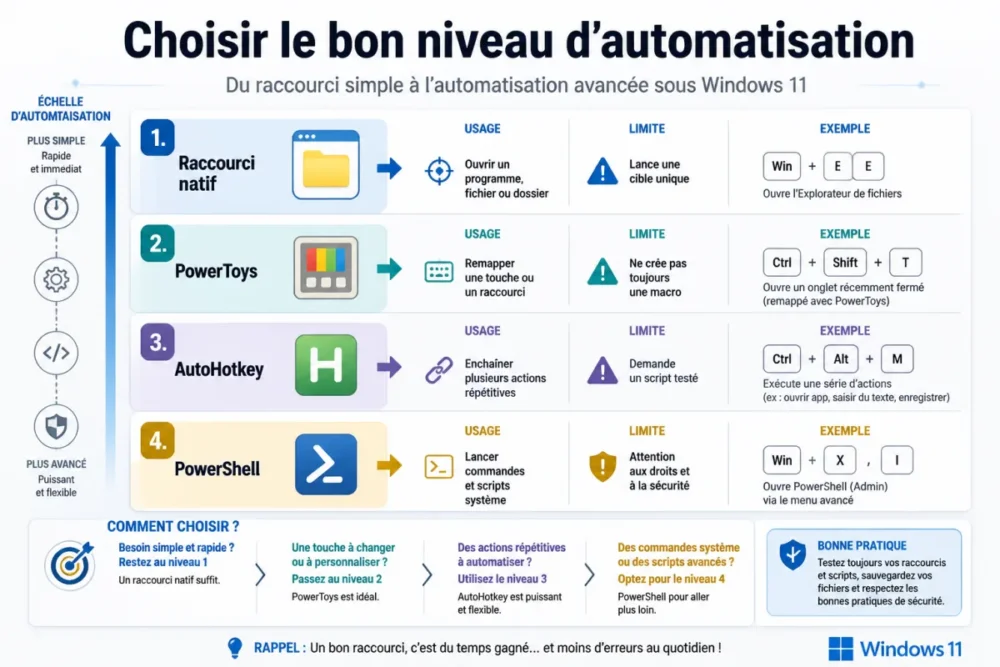
You should switch to a complementary tool as soon as the shortcut needs to do more than launch a target. PowerToys is suitable for remapping and keyboard adjustments, AutoHotkey for chaining actions, and PowerShell for system commands or maintainable scripts. The right choice depends on the level of control expected.
PowerToys: the right compromise to adapt the keyboard
Microsoft PowerToys is an official toolbox intended for users who want to go beyond standard settings. Its Keyboard Manager module notably allows remapping keys and shortcuts. The Microsoft Learn documentation dedicated to PowerToys for Windows presents the tool as a set of utilities to improve and customize the Windows experience.
PowerToys is interesting if a key bothers you, if you want to harmonize two different keyboards, or if you prefer to transform an inconvenient combination into a more natural gesture. However, be careful: remapping a key is not exactly the same as automating a task. You change the trigger, not necessarily the logic that follows.
AutoHotkey: for smarter repetitive actions
AutoHotkey comes into play when you want to chain multiple actions: open a window, wait a moment, enter text, send a key combination, move the cursor, or trigger a different behavior depending on the context. It’s powerful, highly appreciated by advanced users, but it requires serious testing of each script.
Good to know: automation by simulating keystrokes can be fragile if the interface changes, if a window takes longer to open, or if the focus is not in the right place. Overall, AutoHotkey is excellent for personal routines but less ideal for critical processes that must work 100% under all conditions.
PowerShell: clean, maintainable, but to be handled with care
A PowerShell script is often the right option to launch multiple items in one command: open a folder, start an application, copy a file, check a system status, or prepare a work environment. You can then create a shortcut to this script and assign it a key. It’s straightforward, but you need to understand what the script executes.
Microsoft documents the rules related to PowerShell execution policies on its about_Execution_Policies page. In short, Windows can block certain scripts depending on their origin and the workstation configuration. This is not a bug: it is a security barrier. Never run a script obtained randomly without having read or verified it.
Good automation is the one you still understand six months later, when it needs fixing.
Which method to choose according to your real need?
The choice depends on the complexity of the repetitive action. To open a program, the native method is sufficient. To change the behavior of a key, PowerToys is more suitable. To chain actions, AutoHotkey or PowerShell become more relevant, provided you test and document what you create.
Case 1: open a program in one gesture
This is the simplest case, and frankly, the most satisfying to start with. Create a shortcut to the application, assign a combination like Ctrl + Alt + letter, then test it. To avoid conflicts, choose a letter related to the tool’s name but not too obvious. For example, Ctrl + Alt + N for Notepad can work if no other software intercepts it.
If the application requires administrator rights, the shortcut may not respond as expected depending on the context. In this case, open the advanced properties of the shortcut and check the execution options. Provided the workstation belongs to you or you have the necessary rights, you can adjust the behavior. On a company computer, it’s better to avoid tinkering secretly.
Case 2: launch a script to automate a task
To launch a PowerShell script, create a shortcut whose target calls PowerShell with the file path. The principle is simple, but the syntax must be clean. A command can look like opening PowerShell followed by running a .ps1 file. Then, you assign a shortcut key to this shortcut, just like for a regular application.
Before assigning a key, test the script manually. Verify that it does exactly what you expect, that it does not write to a sensitive folder, that it does not depend on a temporary path, and that it displays a comprehensible error if a file is missing. It’s less fun than pressing the combination directly, but it avoids blind troubleshooting.
Case 3: trigger a more complex repetitive action
When your need looks like a mini-procedure — open an application, wait for it to load, select an area, paste text, validate — the native method quickly reaches its limits. In this case, AutoHotkey can serve as an automation layer. You need to break down the task into steps, test each step, then only link the whole to a keyboard combination.
- Single action: native Windows 11 shortcut.
- Key remapping: PowerToys Keyboard Manager.
- Sequence of visual actions: AutoHotkey with careful testing.
- System commands or files: PowerShell, ideally documented.
- Critical professional use: validation by the IT team before deployment.
What mistakes to avoid with a Windows 11 keyboard shortcut?
The most frequent mistakes come from key conflicts, moved shortcuts, blocked scripts, and confusion between quick launch and full automation. To avoid unpleasant surprises, you must choose a rarely used combination, keep the target stable, and test the shortcut in the real context.
Key conflicts: the classic time-waster
Windows 11 and applications already use many combinations. Ctrl + C, Ctrl + V, Ctrl + X, Ctrl + Z, and Ctrl + A are essential for copying, pasting, cutting, undoing, and selecting all. Ctrl + Shift + Esc opens the Task Manager. Windows + R opens Run, and Windows + S launches Windows Search. If you try to reuse a combination already captured by the system or software, your custom shortcut may never respond.
The best strategy is to favor combinations like Ctrl + Alt + letter for native shortcuts, avoiding letters already associated with your main software. It’s true that this requires some discipline, but it’s always simpler than resolving an invisible conflict between Windows, your browser, Teams, Excel, and a background utility.
Shortcut moved or broken target
A native Windows 11 keyboard shortcut depends on the shortcut itself. If you delete the icon, move the target file, or rename a folder, the combination may stop working. For important uses, place your shortcuts in a stable folder rather than letting them wander on the desktop like digital sticky notes.
Administrator rights and unverified scripts
Some scripts require elevated rights. Others are blocked by the execution policy. Still others only work if a network drive is connected. Before blaming Windows 11, check the rights, path, dependencies, and error message. That’s why it’s often useful to add a comment in your scripts or keep a small note indicating what each shortcut does.
A family equipped with two Windows 11 PCs reported having created several shortcuts for homework, bills, and photos. The most reliable shortcut was not the most complex: it was simply opening the shared family folder, placed in a location that never changed.
Which method to choose in the end to automate without complicating?
The best approach is to start with the native solution, then scale up only if the need justifies it. A shortcut to a program or folder already solves many cases. PowerToys, AutoHotkey, and PowerShell are useful, but they add a layer of maintenance that must be managed.
To summarize, the question to ask is not “what is the most powerful tool?”, but “what is the simplest method that cleanly meets my need?”. If you need to open an application, create a shortcut. If you need to change a key, look at PowerToys. If you need to automate a routine, write or have written a readable, testable, and reversible script.
Key takeaways
- ⚡ A native shortcut is enough to quickly launch an application, file, or folder.
- 🧠 PowerToys is mainly used to adapt the keyboard, not to replace a real macro.
- 🤖 AutoHotkey becomes relevant to chain several repetitive actions under Windows 11.
- 🔐 PowerShell is powerful but requires checking rights, security, and execution policy.
- 🧹 A useful shortcut must remain simple, documented, and easy to modify later.
FAQ
Can you create a Windows 11 keyboard shortcut without software?
Yes. The native method allows associating a key combination with a desktop shortcut to an application, file, or folder. It suffices for simple needs but does not allow automating a long sequence of actions.
Why doesn’t my keyboard shortcut work?
Most often, the combination is already used, the shortcut has been moved, or the target no longer exists at the same location. Try another combination, check the shortcut properties, and try from a different window to confirm the behavior.
Does PowerToys replace AutoHotkey?
Not really. PowerToys is excellent for remapping keys or adjusting the keyboard, while AutoHotkey is more for automating sequences of actions. Both tools can coexist, provided shortcut conflicts are avoided.
Can you launch a PowerShell script with a keyboard shortcut?
Yes, by creating a shortcut that calls PowerShell with the script path, then assigning a shortcut key to that shortcut. However, you should check the execution policy, necessary permissions, and the script’s source before using it.
Which combination should you choose to avoid conflicts?
Combinations like Ctrl + Alt + letter are often convenient for custom shortcuts. Avoid well-known shortcuts such as Ctrl + C, Alt + Tab, Windows + E, or Windows + Shift + S, which are already used by Windows or applications.









