Android App Won’t Open: Solutions That Really Work to Relaunch the App
An Android app won’t open, closes immediately, shows a black screen, or gets stuck loading? No need to reset everything in a panic. In most cases, the blockage comes from corrupted cache, a frozen process, a faulty update, lack of space, or a system component like Android System WebView. The right reflex is to proceed in order: first quick actions, then targeted fixes, and only then more radical options.
In Brief
✅ Start simple: restart the phone, force stop the app, check storage and connection. These actions often fix temporary blockages without affecting data.
🧹 Clearing the Android cache is generally the first real step to try if an app crashes on launch, shows a black screen, or loops on loading.
⚠️ Clearing app data goes beyond cache: it can log out the account, delete local settings or offline content. Do this with caution.
🔧 If multiple Android apps won’t open at the same time, consider system updates, Android System WebView, Google Play Services, or an outage on the publisher’s side.
Why Won’t an Android App Open?
When an Android app won’t open, the cause is often simple: corrupted cache, full memory, update bug, conflict with Android, or account problem. The most effective approach is to identify the symptom, then apply solutions progressively.
The classic trap is to believe the app is necessarily “broken.” In reality, Android works with several layers: the app itself, its temporary files, local data, Google services, permissions, network connection, and the system. If one of these bricks fails, the app may refuse to start.
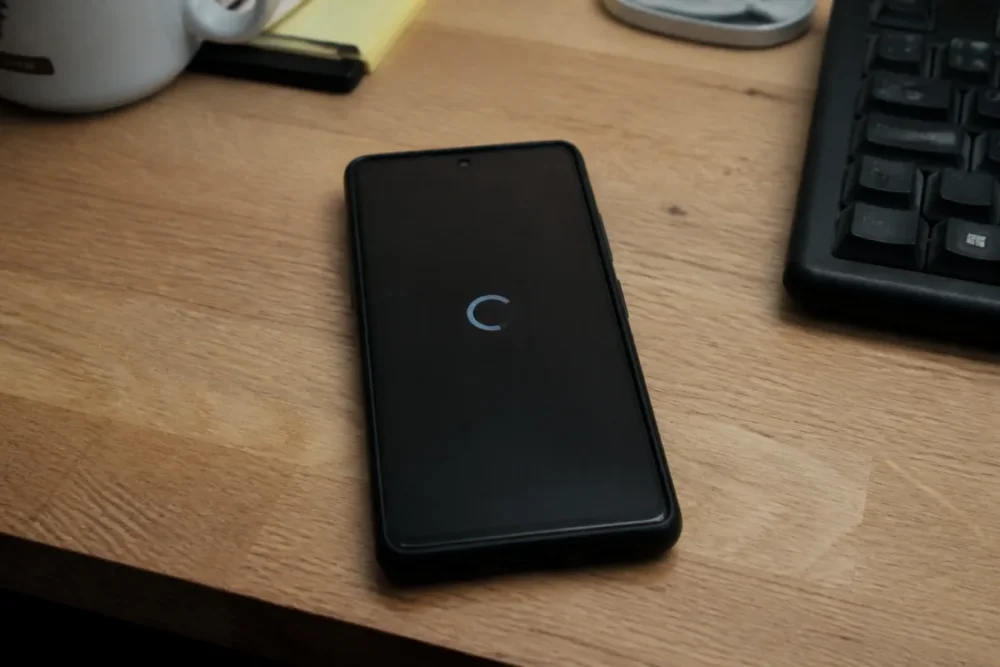
In practice, the symptoms already provide a good clue. An app that closes immediately often points to a software crash. An app stuck on a loading screen may depend on a connection, an account, or a remote server. Several apps affected at once? Then look more towards Android, storage, or system services.
In the field, the same scenario is often observed: the user tries to open the app ten times, then uninstalls everything too quickly. Yet a simple force stop followed by clearing the cache often fixes the issue, especially after a recent update.
The Most Common Symptoms
- The app doesn’t open at all: the icon reacts, but nothing happens.
- The app closes immediately: it appears for a second, then returns to the home screen.
- Android app black screen: the app starts but remains blank or frozen.
- Infinite loading: logo, loading wheel, endless synchronization.
- Multiple apps crash: Gmail, banking, social networks, or payment apps are affected simultaneously.
The right diagnosis avoids bad handling: don’t reinstall an app before checking the cache, storage, and updates.
What Each Symptom Reveals
An app that closes immediately often signals an internal bug, incompatibility with the Android version, or corrupted local files. A black screen can come from a graphic cache, an integrated web component, or a user session that no longer loads properly.
If the problem appears after an app update, the most likely cause is a version bug. If the entire phone slows down, heats up, or displays storage alerts, the problem probably goes beyond the app. Joking aside, Android doesn’t like working with storage that’s completely full: apps need space to create temporary files, sync, and load their modules.
What to do first when the app refuses to launch?
If an app refuses to launch, start by restarting the phone, checking available space, testing the connection, then force stopping the app. These steps are quick, reversible, and pose no major risk to your data. They help rule out temporary blockages before going further.
Before manually adjusting all Android settings, basic causes must be eliminated. These are often the least spectacular but also the most effective. Google actually recommends, in its Android help, to restart the device, check for updates, and test apps one by one when they don’t work properly (solve Android app problems according to Google).
Restart the phone
Restarting closes stuck processes, frees up RAM, and restarts system services. It’s not magic, but it’s often enough when an Android app crashes on launch after several successive openings, a long sleep mode, or an update installed in the background.
Completely turn off the phone, wait a few seconds, then turn it back on. Avoid simply locking the screen: that does not restart Android. Once the smartphone has restarted, open only the concerned app, without launching five other apps at the same time. Yes, it’s basic. But that’s precisely why it often works.
Check storage space and memory
An app may refuse to open if internal storage is almost full. Android must be able to write temporary files, update local databases, download resources, or rebuild a cache. When space is lacking, the app sometimes launches… then immediately crashes.
- Delete unnecessary downloads in the Downloads folder.
- Erase large videos already saved in the cloud.
- Uninstall apps never used.
- Empty the trash in Google Photos or the Gallery app if it exists.
- Then restart the phone before retesting the app.
Good to know: some Samsung, Xiaomi, Oppo, or Pixel phones display a “Device Maintenance,” “Security,” or “Storage” module that helps spot large files. Use it, but avoid aggressive cleaning apps that promise to “boost” Android. They can sometimes disrupt background processes.
Check the connection and account status
Some apps don’t open properly if they need to sync an account at startup. This is common with banking, messaging, streaming, delivery, or collaborative work apps. If the network is unstable, the screen may remain stuck on the logo or display an endless loading.
Test opening on Wi-Fi, then on mobile data. Also check that your Google account is properly synced, that the phone’s date and time are set to automatic, and that the app hasn’t been denied network access by an overly strict power-saving mode.
Which Android solutions work most often?
The most reliable solutions are, in order: force stop, clear cache, update the app, then clear data if the problem persists. This logic limits risks: start with what deletes nothing, then move to deeper actions.
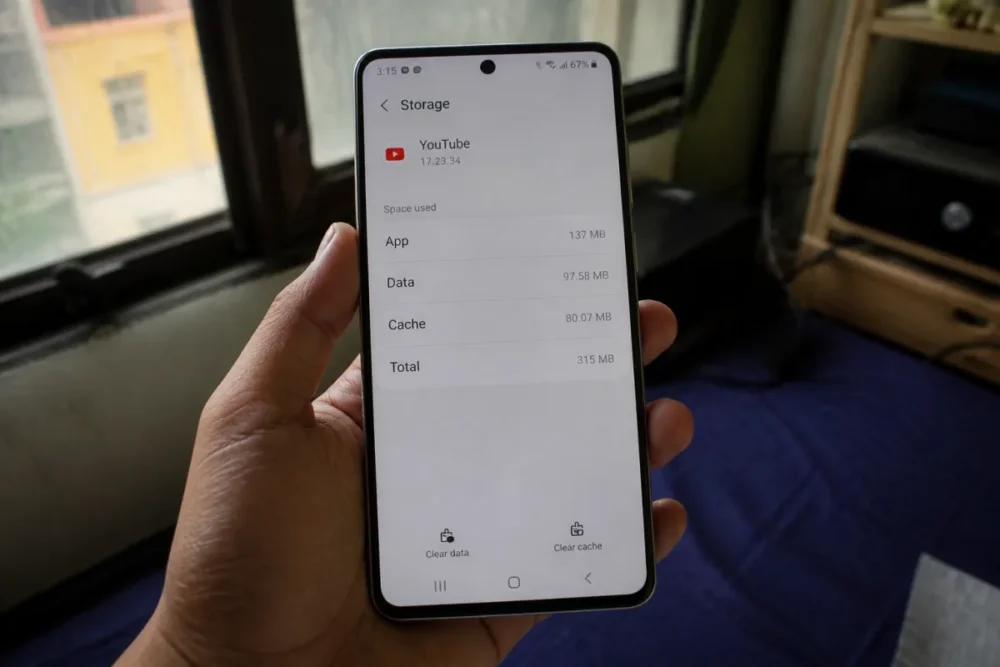
This is where troubleshooting becomes really effective. The idea is not to press everywhere randomly, but to restore the app to a clean state. On Android, menus vary by brand, but the path remains close: Settings > Apps > App name.
Force Stop and Then Relaunch the App
Force stopping cuts off the app and its active processes. This is useful when it is running in the background in an unstable state: frozen screen, blocked session, endless loading animation. The standard procedure is to go to Settings > Apps > [App Name] > Force Stop, then relaunch the app from its icon.
This action does not delete your data. It simply forces Android to start fresh. Wait a few seconds before reopening the app, especially if the phone is slow or if several apps have just crashed.
Clear the App’s Cache
The cache contains temporary files: images, interface elements, page fragments, loading data. When this cache becomes inconsistent or corrupted, the app may crash at startup. Clearing the cache asks the app to rebuild these files cleanly.
- Open Settings.
- Go to Apps, then select the relevant app.
- Tap on Storage or Storage & Cache.
- Choose Clear Cache.
- Relaunch the app.
The good news: clearing the cache normally does not delete your account, messages, or main files. This is why this option should be tried before clearing data. According to Google Play help, keeping apps up to date is also one of the recommended habits to fix malfunctions (update Android apps with Google Play).
Clear App Data if Cache Is Not Enough
Be careful, this is a different level. Clearing app data deletes local information used by the app: settings, session, offline downloaded content, preferences, sometimes local progress if it’s not synchronized. In other words, it’s more powerful but less harmless.
This option becomes relevant if the app remains unusable despite force stopping, restarting, and clearing the cache. It is also useful when a bad local configuration prevents the app from starting. Before confirming, make sure your important data is linked to an account or backed up.
A support technician often observes that streaming and browsing apps become stable again after deleting local data. However, for games, note-taking apps, or professional apps, caution is advised: anything not synchronized may disappear.
Update the App and Android
An outdated version may malfunction with a recent version of Android. Conversely, a freshly updated app may contain a bug that the developer will fix in the next version. That’s why you need to check both sides: the app in the Play Store, and the system in the phone settings.
- App: open Google Play Store, search for the app, then tap “Update” if the button appears.
- Android System: go to Settings > System > System Update, depending on your model.
- Google Services: also check Google Play Services and Android System WebView if several apps crash.
An update is not only used to add features: it also fixes invisible incompatibilities that can prevent an Android application from opening.
When does the problem come from the Android system?
The problem probably comes from the Android system if several applications crash at the same time, especially after an update. In this case, you need to look at Android System WebView, Google Play Services, overall storage, permissions, and third-party applications that modify the phone’s behavior.
A single application crashing is often a local bug. Several applications closing immediately is a different story. Android relies on shared components. If one of them malfunctions, the effects can spread to very different applications.
Android System WebView and Google Play Services
Android System WebView allows applications to display web content without opening Chrome. Many apps use it to display a login page, help, a map, a payment page, or a news feed. If WebView crashes, the application using it may also crash.
The incident of March 2021 demonstrated this very concretely: many Android applications, including Gmail and Google Pay, were closing on different smartphones due to a problematic update of Android System WebView. Google then deployed a fix via the Play Store. The episode remains a good diagnostic reflex: if several apps crash at once, check Google components before blaming each application.
In this case, open the Play Store and search for Android System WebView, then Google Play Services. If an update is available, install it. If a known bug has just appeared, it may be better to wait for the official fix rather than multiplying risky manipulations.
Safe mode and third-party applications
Safe mode launches Android with third-party applications disabled. It allows you to know if another application is disturbing the phone’s operation. This is useful if the problem started after installing an antivirus, an ad blocker, a cleaning app, a VPN, or a battery-saving tool.
The method varies depending on the brand, but it often consists of holding down the power button, then long-pressing “Power off” until the option to restart in safe mode appears. If the application works better in this mode, a third-party app is probably responsible. You will then need to uninstall recent additions one by one.
Permissions and background restrictions
An application can also block at startup if it no longer has access to an essential permission: storage, camera, location, notifications, phone, or files. This is especially true after an Android update that resets certain permissions, or after a long period without use.
Go to Settings > Applications > [App Name] > Permissions. Also check battery restrictions. Some overlays, like MIUI on Xiaomi or One UI on Samsung, can strongly limit background activity. Convenient for saving energy, less nice when the application needs to sync at launch.
When should you uninstall and then reinstall the application?
Uninstalling and then reinstalling an application becomes relevant when clearing the cache, force stopping, updates, and data deletion have changed nothing. This method restores the app to a clean state, but it requires checking accounts, backups, offline content, and important settings beforehand.
Reinstallation is often presented as a miracle solution. In reality, it is mainly a complete reset of the application files. It can remove corrupted elements that the cache or data failed to repair. But it can also waste your time if the application depends on a server outage or a general bug at the publisher.
The Right Time to Reinstall
Reinstall if the app remains unstable after the previous steps, if it was poorly updated, if its icon appears but nothing starts, or if Android settings indicate abnormal behavior. It is also a logical option if the app takes up an unusual amount of space or if its local storage seems bloated for no reason.
The proper sequence: uninstall, restart the phone, reinstall from the Play Store, then log back in. Avoid downloading a random APK file found on the web to “fix” the problem. You risk adding a security issue to a simple launch bug.
What to Back Up Beforehand
- User account: username, password, two-factor authentication.
- Offline content: music, movies, maps, downloaded documents.
- Local progress: games, exercises, notebooks, unsynchronized histories.
- Specific settings: preferences, filters, workspaces, profiles.
For banking, health, or professional apps, also anticipate a possible reactivation delay. Some apps require validation via SMS, email, biometrics, or customer support after reinstallation. It’s not dramatic, but better to know before deleting the app five minutes before you need it.
How to React According to the Observed Symptom?
The best reflex is to associate the symptom with the probable cause. An immediate closure calls for a forced stop and cache clearing. A black screen points to cache, WebView, or an update. Multiple affected apps require checking Android, Google Play Services, and system updates.
Here is a simple grid to avoid going in all directions. It does not replace a complete technical diagnosis, but it helps prioritize actions that are most likely to work.
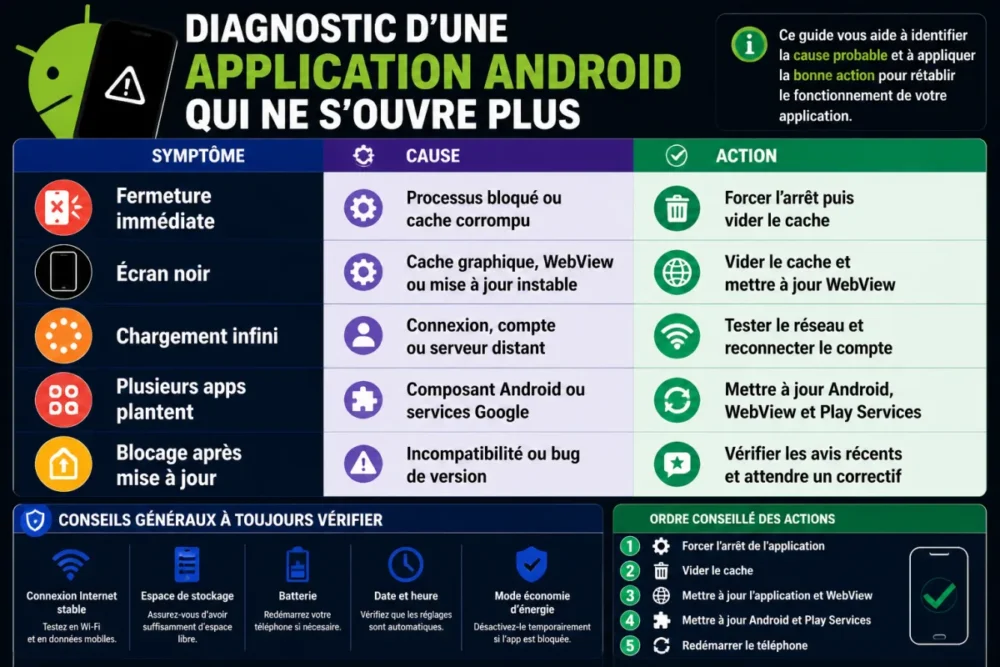
| Symptom | Probable Cause | Priority Action | Risk to Data |
|---|---|---|---|
| The app closes immediately | Blocked process, software bug, corrupted cache | Force stop, then clear cache | Low |
| Black screen at launch | Graphic cache, WebView, unstable update | Clear cache, update WebView | Low |
| Infinite loading | Connection, account, remote server | Test Wi-Fi/mobile data, reconnect the account | Low to medium |
| Multiple apps crash | Android component, Google Play Services, full storage | Update Android, WebView, and Play Services | Low |
| Freezing after update | Incompatibility or version bug | Check recent reviews, wait for a fix | Low |
Only One Application Is Affected
If only one app refuses to open, the most likely cause remains a bug specific to that application. Check its Google Play page: recent reviews sometimes report a wave of crashes that appeared after an update. It’s not absolute proof, but it’s a useful signal.
Also check the official website or social networks of the publisher if the app depends on an online service. A banking, messaging, or delivery app may remain stuck if its servers are experiencing an incident. In this case, clearing the cache may help, but it will not fix a server-side outage.
Several Applications No Longer Open
If several Android apps no longer open, don’t waste time reinstalling them one by one. Instead, look for a common factor: recent Android update, WebView, Google Play Services, full storage, power saving mode, or a recently installed third-party app.
This is also the time to restart the phone, then update the components via the Play Store. Android developers document the role of WebView as a web display component integrated into applications (Android Developers documentation on WebView), which explains why an issue at this level can produce cascading effects.
Old phone or too recent application
Sometimes, the blockage is structural. A recent application may no longer properly support an old version of Android, or require components that the phone no longer handles well. In this case, the usual manipulations can improve stability, but cannot make compatible what no longer is.
Look at the Play Store page of the application, the minimum required Android version, and the comments from users with the same model. On an old phone, disabling animations, freeing up storage, and limiting background apps can help, but you must accept a limit: some applications evolve faster than the hardware.
What to do if nothing works?
If nothing works, you must distinguish a temporary bug from a lasting failure. Wait for a fix if many users report the same problem. Otherwise, contact the application’s or manufacturer’s support, then consider only as a last resort resetting certain settings.
At this stage, continuing to repeat the same actions is no longer very useful. You need to document the problem: phone model, Android version, application name and version, time of bug appearance, any error message, manipulations already tested. These elements allow support to respond differently than with a generic copy-paste.
Sorting out temporary bug from lasting failure
A temporary bug often appears after an update and affects many users at the same time. Recent Play Store reviews, official help pages, and the publisher’s networks can confirm the trend. In this case, the most reasonable is sometimes to wait for the fix rather than erase all your data.
A lasting failure, on the other hand, remains limited to your phone or your account. It may come from a local configuration, an Android restriction, a corrupted user profile, or hardware incompatibility. Here, contacting support becomes relevant, especially for a paid, professional, banking, or sensitive data-related application.
The last reasonable recourses
- Reset application preferences: useful if permissions or default applications have been changed.
- Delete then recreate the account in the application: relevant if the blockage occurs during synchronization.
- Test another profile or another device: allows you to know if the problem comes from the account or the phone.
- Restore the phone: only as a last resort, after complete backup.
Complete phone restoration should remain the ultimate option. It takes time, requires backing up photos, messages, authentications, and settings, and does not guarantee solving a bug that comes from the application publisher. Cherry on top: if you restore then reinstall the same buggy version, the problem can return immediately.
The most effective method to restart the application
The most reliable method is progressive: restart, force stop, clear cache, check storage and connection, update, then erase data or reinstall only if necessary. This approach avoids unnecessary losses and first targets the most frequent causes.
To summarize, an Android application that no longer opens rarely does so “without reason.” It reacts to a context: damaged temporary files, memory pressure, imperfect update, unstable system service, battery restriction, or server-side failure. The more you respect the diagnostic order, the fewer risks you take.
Overall, the right strategy is summed up in one sentence: do not start with the heaviest solution. A forced stop and cleared cache take little time and delete almost nothing. A reinstallation, however, can be very effective, but it must come at the right time, with the proper backups.
Key Takeaways
- ✅ Start by restarting, force stopping, and clearing the cache before any reinstallation.
- 🧹 Corrupted cache often explains an Android app crashing on launch.
- ⚠️ Clearing data can help, but may delete settings or local content.
- 🔄 Multiple affected apps usually indicate an Android, WebView, or Google Play Services issue.
- 💾 Always back up before uninstalling an app containing important data.
FAQ
Why does my Android app close immediately upon opening?
An app that closes immediately upon opening often crashes at launch: corrupted cache, version bug, inconsistent local data, or Android incompatibility. Start by force stopping, clearing the cache, then check for app and system updates.
Should I clear the cache or the data?
You should clear the cache first, as this action mainly removes temporary files and carries little risk. Clearing data goes further: it can log out the account, delete settings, or remove offline content. Use it only if clearing the cache is not enough.
How can I tell if the problem comes from the app or the phone?
If only one Android app no longer opens, the problem probably comes from that app or its local data. If multiple apps crash at the same time, look instead at Android System WebView, Google Play Services, system updates, storage, and battery restrictions.
Can an Android update break an app?
Yes, an Android update can change permissions, system components, or compatibility rules. An app not yet adapted may then crash at launch. In this case, check if an app update is available, then monitor the publisher’s fixes.
What should I do if the app only shows a black screen?
A black screen can come from a stuck loading, corrupted graphics cache, a WebView problem, or an unstable connection. First try restarting, clearing the cache, updating WebView, and opening on Wi-Fi then on mobile data.









