PC Keyboard Not Detected at Startup: The Fastest Method to Identify the Fault and Fix It
A PC keyboard not detected at startup is not just annoying: it can prevent you from entering the BIOS, typing a Windows password, or even selecting a boot drive. The right approach is to understand at what point the keyboard disappears. If it works in the BIOS/UEFI but not in Windows, a software issue becomes plausible. If it never responds, you should first suspect the USB port, the cable, the wireless receiver, the docking station, or a startup setting.
The most effective method is therefore not to click around randomly. It relies on a short diagnosis, in the correct order: remove intermediaries, change the port, test another keyboard, check the response before Windows, then only look at drivers or advanced settings. Joking aside, this hierarchy avoids an unnecessary reinstallation when a simple poorly recognized USB dongle is blocking everything.
In Brief
⚡ First useful test: plug the keyboard directly into a rear USB port of the PC, without a hub, extension cable, or docking station. This is often the quickest way to distinguish a peripheral issue from an intermediary problem.
🧭 Tipping point: if the keyboard responds in the BIOS/UEFI, the hardware is probably detected before Windows. The diagnosis can then focus on the Windows keyboard driver, the session, or system settings.
🔌 Wireless keyboard: check the USB receiver, batteries, pairing, and any reset button. A Bluetooth keyboard may be recognized too late to access pre-boot.
🛑 Last resort: CMOS reset should only be attempted after testing another keyboard, multiple ports, and USB startup settings. Before any advanced manipulation, it’s better to back up important data.
How to Know if the Keyboard Disappears Before Windows?
To know if a PC keyboard not detected disappears before Windows, try entering the BIOS/UEFI with Delete, F2, F10, or Escape right at power on. If the keyboard responds on this screen, the problem is more likely with Windows. If it does not respond at all, the cause is probably hardware-related or linked to USB startup.
The moment when the keyboard stops responding completely changes the diagnosis. Before Windows, no classic Windows driver is supposed to control the device yet: it is the motherboard firmware, often called BIOS or UEFI, that initializes USB ports and basic peripherals. In other words, talking about a Windows driver too early can waste time.
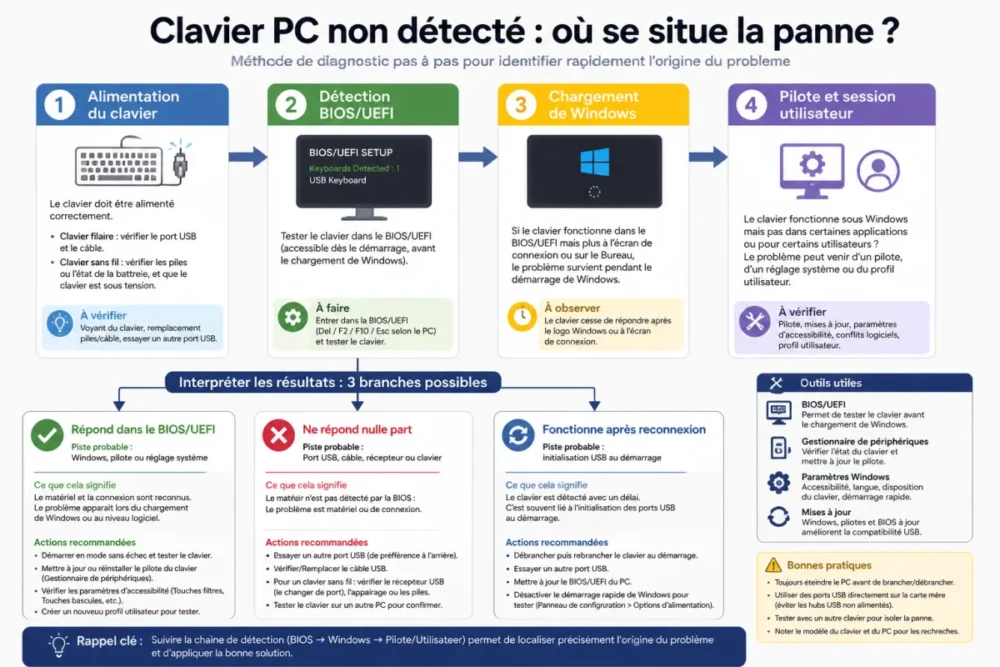
In practice, it is observed in the field that the most confusing cases are those where the keyboard lights up briefly, then seems to disappear when entering the password. This behavior may indicate partial initialization: the port supplies power, but USB communication is unstable, or Windows takes over with a faulty driver.
Here are simple markers to observe:
- Light on as soon as the Power button is pressed: the keyboard probably receives power, but this is not proof of complete detection.
- Caps Lock or Num Lock keys reactive in UEFI: the keyboard is recognized before Windows.
- No reaction before and after Windows: the cable, USB port, dongle, or faulty keyboard hypothesis becomes a priority.
- Works only after unplugging/replugging: the USB port at startup or legacy USB support may be the cause.
A keyboard that works in UEFI but not in Windows does not have the same problem as a keyboard invisible from power on.
Why does a non-detected PC keyboard sometimes block the BIOS at startup?
A keyboard can block access to the BIOS when the firmware does not properly initialize the USB port, wireless receiver, or docking station. The issue mainly occurs with certain hubs, docks, front ports, Bluetooth keyboards, or settings like Fast Boot, which speed up startup by limiting certain peripheral checks.
The BIOS/UEFI operates before Windows. Its role is to check essential components, initialize necessary peripherals, and launch the system. If the keyboard is connected through a path that is too indirect — unpowered hub, monitor with USB ports, USB-C docking station, worn extension cable — it may be powered without being properly ready at the moment the UEFI expects a key press.
The case of Fast Boot keyboard deserves a pause. This option, present on many motherboards or laptops, reduces certain checks to speed up power-on. It is convenient for daily use, but it can make the detection of a USB keyboard not recognized at the very first startup more finicky. The icing on the cake: some gaming keyboards with backlighting or internal memory take longer to initialize than a basic wired keyboard.
Support documentation first recommends simple steps. For example, Microsoft advises checking connections, trying another USB port, reconnecting the device after unplugging, and testing the keyboard on another PC when possible, on its page about mouse and keyboard problems in Windows. Although this resource mainly targets Windows, these steps remain excellent for isolating the fault.
In the field, a technician often observes the same scenario on desktop PCs: the keyboard is connected at the front or via a hub, does not respond at startup, then works after logging in. By plugging it directly into a rear USB port on the motherboard, the problem frequently disappears during testing.
Quick diagnosis: which tests to do in the right order?
The best diagnosis of a PC keyboard not detected follows a process of elimination. Start with what is risk-free, quick, and reversible. Then gradually move up to BIOS/UEFI settings, Windows drivers, and only at the end, more heavy-handed actions like CMOS reset.
The video can help if you need to see the direct connection, rear ports, BIOS/UEFI access, and the difference between a wired and a wireless keyboard.
Here is the recommended order, without unnecessary shortcuts:
- Restart the PC: simple but useful if the device initialization failed once.
- Unplug then reconnect the USB keyboard: wait a few moments before plugging it back in to force a new detection.
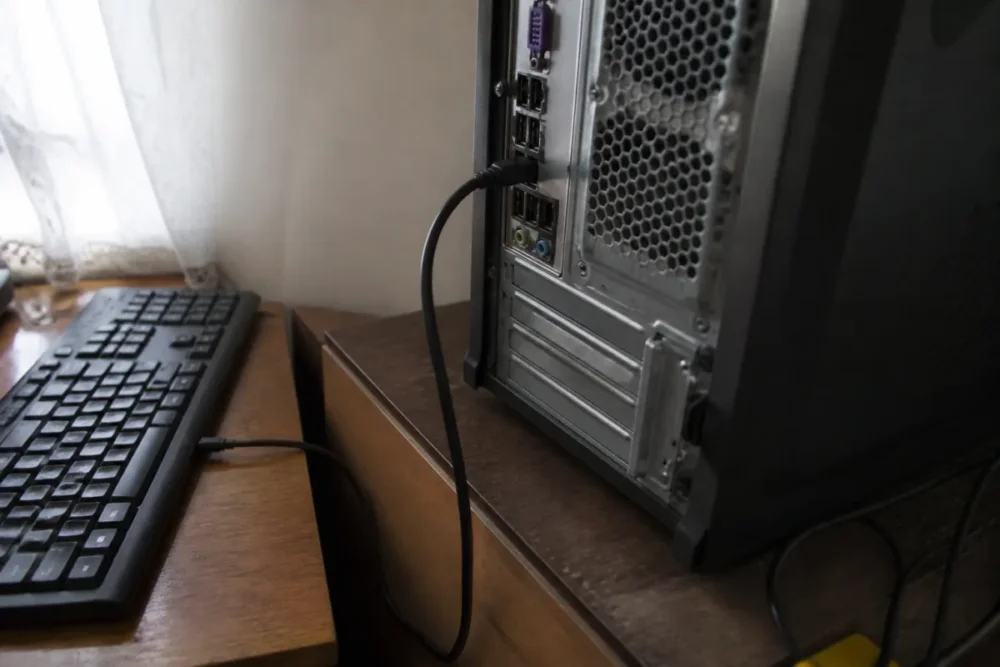
- Change the USB port: prefer a rear port on a desktop PC, directly connected to the motherboard.
- Remove intermediaries: no hub, no extension cable, no docking station during the test.
- Test another keyboard: ideally a simple wired model, without proprietary software.
- Test the suspect keyboard on another PC: if the fault follows the keyboard, the device is probably at fault.
- Try to access the BIOS/UEFI: if the keys respond, Windows or its settings become suspect.
Good to know: for a wireless keyboard, the test is not limited to the batteries. You also need to unplug then reconnect the keyboard USB receiver, check that it is not on a passive hub, and look for a possible reset button on the receiver or the keyboard. This procedure is also recommended in usual support steps to restore an unstable wireless connection.
What to do depending on the type of keyboard or machine?
A wired keyboard, a wireless keyboard, a laptop, and a docking station do not fail in the same way. That is why a sorting table is more useful than a long list of mixed tips. It allows linking a symptom to a probable cause, then to the least risky action.
| Situation | Probable cause | Priority test | Logical next step |
|---|---|---|---|
| Wired USB keyboard | Cable, port, hub, or USB initialization | Plug into a rear port without intermediaries | Test another USB keyboard |
| Wireless keyboard with dongle | Poorly detected receiver, weak battery, unstable pairing | Reconnect the dongle and change port | Reset pairing if the model allows |
| Bluetooth keyboard | Connection established too late for pre-boot | Use a wired USB keyboard to access BIOS | Troubleshoot Bluetooth within Windows afterwards |
| Laptop | Internal keyboard, ribbon cable, setting, or system issue | Connect an external keyboard | Compare behavior before and after Windows |
| Docking station | Dock initialized too late or insufficient power supply | Plug the keyboard directly into the PC | Update dock/firmware if available |
For a laptop, the external keyboard is an excellent indicator. If the external keyboard works while the built-in keyboard does not respond, the internal hardware issue becomes serious: ribbon cable, built-in keyboard, connector, or motherboard. Conversely, if no keyboard works, even external ones, you should check the ports, firmware, then Windows.
For an undetected wireless keyboard, avoid diagnosing it as a classic wired keyboard. The USB receiver may be powered but poorly initialized, especially on a front port or hub. If the keyboard is pure Bluetooth, it is normal that it is not always available early enough to press F2, Delete, or Escape before Windows. In other words, keep a basic wired keyboard for startup operations.
When should you suspect a hardware failure?
Hardware failure becomes likely when several simple tests point in the same direction. A keyboard that does not respond on any port, does not work on any other PC, has a damaged cable or intermittent disconnections is likely at the end of its life. The same applies to a lost, bent, or unrecognized wireless receiver.
The most telling signs are quite concrete:
- No light on a wired keyboard, even after changing ports and restarting.
- Random detection: the keyboard works one time out of two, often after moving the cable.
- Stuck or inactive keys despite careful cleaning of the affected keys.
- Works on another PC, but never on the concerned machine: the USB port, BIOS/UEFI, or motherboard should be examined.
- Several keyboards rejected before Windows: the problem probably goes beyond the device itself.
It should be noted that physical cleaning does not solve a detection problem at startup if the keyboard is not even electrically recognized. However, it can fix stuck keys, strange repetitions, or a Caps Lock key that no longer responds. In other words, useful but not magical.
When two different keyboards fail on the same PC, it is no longer the keyboard that should be blamed first, but the connection path.
Which BIOS/UEFI and Windows settings to check without breaking everything?
If the keyboard sometimes responds, or if it works after Windows but not right at the start, the startup settings deserve a look. The goal is not to change ten options blindly, but to check the parameters that can influence the initialization of USB ports before the system.
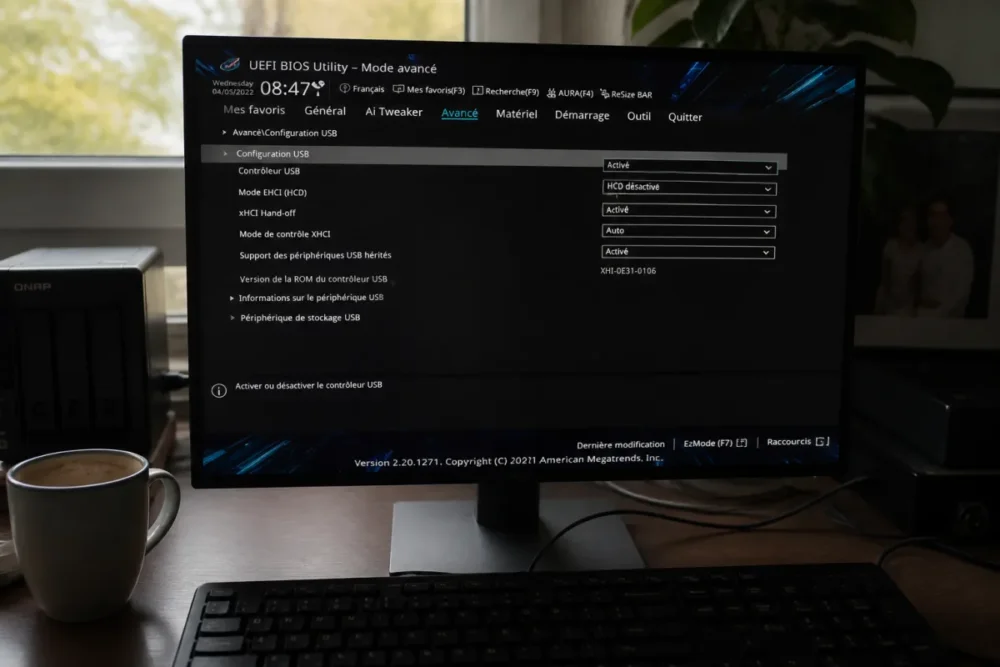
In the BIOS/UEFI, look for labels close to USB Legacy Support, Legacy USB, USB Keyboard Support, Fast Boot, or USB Initialization. The names vary depending on the manufacturers, but the logic remains the same: to allow the USB keyboard to be available before Windows. If you temporarily disable Fast Boot to test, note the initial setting before modification. This avoids cold sweats at the next reboot.
Under Windows, the reasoning changes. If the keyboard responds in the UEFI but not in the session, you can check the Windows keyboard driver, Device Manager, updates, and hidden devices. Microsoft also mentions, in its support and technical community exchanges, avenues such as uninstalling/reinstalling the keyboard device when the system no longer recognizes it properly, as seen in some responses on Microsoft Learn about an unrecognized keyboard.
To handle with care:
- Reset BIOS to default: useful if a setting blocks USB, but first note the startup and disk settings.
- Reset CMOS: last resort if multiple keyboards are rejected before Windows and if you know how to access the motherboard battery or jumper.
- Uninstall a keyboard device in Windows: acceptable if a backup keyboard works or if you can use the touchscreen/mouse.
- Update BIOS/UEFI: reserved for documented cases, with stable power supply and manufacturer procedure followed to the letter.
Overall, resetting the CMOS is not a magic wand. It resets certain firmware parameters to zero, which can fix a broken USB configuration, but it can also change the boot order, storage mode, or custom settings. Before touching it, back up your important data and take a photo of the current settings if you can access the UEFI.
How to prevent a PC keyboard not detected from returning at the next startup?
Once the problem is fixed, the goal is to avoid relapse. The simplest way is to keep a sober startup configuration: a simple wired keyboard, plugged in directly, without unnecessary adapters. Wireless, RGB, Bluetooth keyboards or those connected to a dock are very practical daily, but they add links in the initialization chain.
Some habits avoid many blockages:
- Keep a basic wired USB keyboard in a drawer, especially if you often modify the BIOS/UEFI.
- Identify a reliable USB port at startup, ideally at the back of the desktop PC.
- Avoid passive hubs for essential devices before Windows.
- Replace the batteries of a wireless keyboard before an important update.
- Note your machine’s BIOS access keys: Del, F2, F10, F12, or Esc depending on the models.
A family equipped with a laptop and a docking station typically recounts the same trap: everything works on the desktop, until the day a reboot after an update requires input before the dock is fully initialized. The keyboard plugged into the dock seems dead, whereas a USB keyboard plugged directly into the laptop is enough to regain control.
Key Takeaways
- ⚡ First test a direct USB port, without a hub, extension cable, or docking station.
- 🧩 If the keyboard responds in the UEFI, then check Windows or driver side.
- 🔋 For a wireless keyboard, check the dongle, batteries, and pairing.
- 🛠️ Fast Boot can delay or prevent certain USB detections at startup.
- 🛑 Resetting CMOS remains a last resort, after simple hardware tests.
FAQ
Can you access the BIOS without a functional keyboard?
Not always. On some recent PCs, Windows allows rebooting to UEFI options from recovery settings, but this assumes Windows is accessible. If the PC freezes before Windows and no keyboard is recognized, you generally need to test a direct wired USB keyboard.
Can a driver prevent the keyboard from working right from startup?
A Windows driver can block the keyboard after the system loads, but it usually does not explain a total absence in the BIOS/UEFI. If the keyboard does not respond before Windows, first check the USB port, cable, receiver, hub, or boot settings.
Should you reset CMOS for an undetected PC keyboard?
Only as a last resort. CMOS reset can help if the BIOS/UEFI ignores multiple keyboards and ports, but it can also change the boot order or other settings. Before attempting it, test a simple wired keyboard and note the existing settings.
Why does my keyboard work after Windows but not to enter the BIOS?
The keyboard is probably initialized too late. This happens with some wireless keyboards, front ports, hubs, USB-C docks, or Fast Boot settings. Plug a wired keyboard into a rear USB port, then check the USB options in the UEFI.
Can a Bluetooth keyboard be used before Windows?
In many setups, no or not reliably. Bluetooth often depends on a software layer loaded after system startup. To access BIOS/UEFI or enter a pre-boot password, a wired USB keyboard remains the safest choice.









