Speeding up a slow PC on Windows 11: the complete guide to regain speed
If you want to speed up a slow PC on Windows 11 without engaging in risky maneuvers, this guide gives you the exact order of actions to take. The goal is simple: to have a more responsive computer, reduce startup times, and eliminate the most common slowdowns, even if you’re not comfortable with technical details.
We start with the most effective steps, those that often yield quick results, then move on to deeper settings. In short: first declutter, then optimize, and only after that consider hardware if the PC is still lagging behind. Joking aside, this is often the method that prevents unnecessary upheaval.
In brief
🚀 Immediate gains often come from startup, disk space, and background applications.
🧹 Useful cleaning involves deleting temporary files, unnecessary software, and redundant tasks.
⚙️ System settings such as visual effects, updates, and power mode also affect smoothness.
Understanding why your PC slows down
Before trying to speed up a slow PC on Windows 11, you need to identify the main symptom. A computer can seem slow at startup, during everyday clicks, when launching applications, or when multiple programs run simultaneously. Depending on the case, the cause is not the same, so neither is the solution.
Signs of a truly slow computer
- Long startup, with a desktop that takes time to become usable.
- Windows opening with delay or freezing for a few seconds.
- Fan louder than usual, even without heavy tasks running.
- Low responsiveness when switching from one application to another.
Most common causes
- Too many programs launched automatically at startup.
- Lack of free space on the disk.
- Resource-hungry applications left open in the background.
- Visual effects and animations consuming resources.
- Pending system or driver updates.
- Unwanted software or malware consuming power invisibly.
| Observed symptom | Probable cause | Priority action |
|---|---|---|
| Too long startup | Programs at launch | Disable non-essential applications |
| Full disk | Too many temporary or useless files | Free up disk space |
| PC responsive then suddenly slow | Resource-heavy background applications | Close unnecessary processes |
| Persistent slowdowns | Updates, drivers, or software threats | Update and run an antivirus scan |
A slow PC does not always need to be replaced. In many cases, it mainly needs to be lightened.
What quick actions should be prioritized?
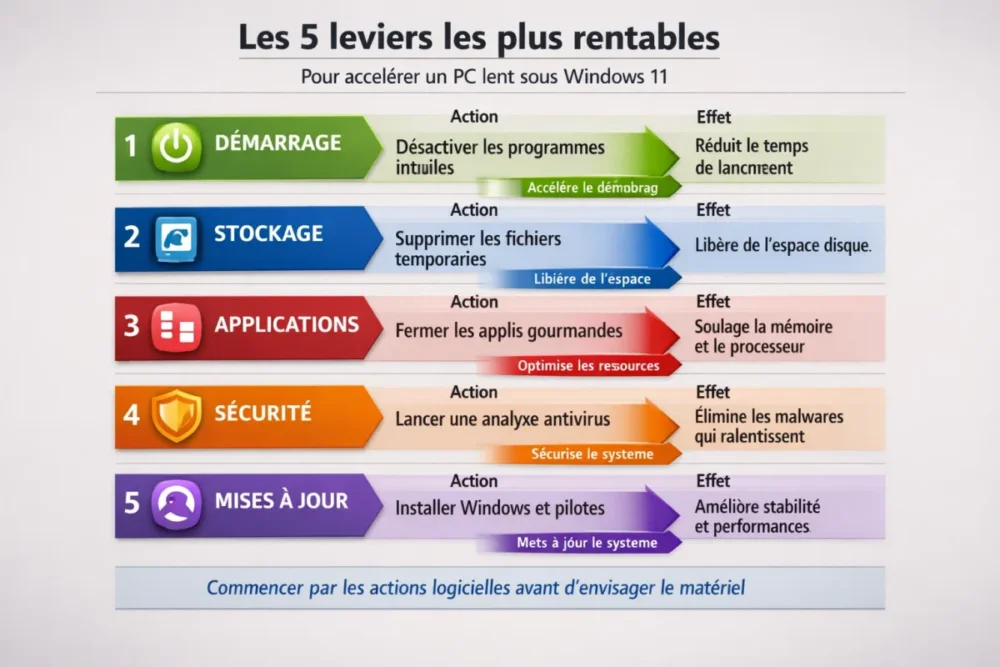
If you want a visible result without wasting time, start with actions that immediately reduce system load. Properly restarting, freeing up space, and closing resource-heavy applications are the three simplest levers to speed up a slow PC on Windows 11. It’s not spectacular, but often that’s where the fastest gain is.
- Properly restart the PC: this stops accumulated processes, clears part of the temporary memory, and starts fresh on a healthier basis. If the machine has been running for several days, a simple restart can already make a difference.
- Check available storage space: delete files you no longer need, empty the recycle bin, and identify folders that are too large. An overly full disk slows down Windows 11 and makes the whole system less responsive.
- Close resource-heavy applications: open the Task Manager, identify what is consuming a lot, then close what is not essential. The idea is not to close everything, but to remove what is unnecessarily straining the machine.
The right reflex is not to clean everything randomly, but to first delete what is running for no reason.
How to optimize the startup of Windows 11?
Startup is often the first sign of a slow Windows 11. When too many applications launch at the same time, the system takes longer to become usable and the computer already seems tired before you even open any software. The goal here is to keep only what is really needed daily.
Disable programs at startup
Open the list of startup applications in Windows 11 and disable non-essential items. Keep the utilities you really use, then cut off the rest without mercy. For example, a chat service, a print assistant, or an application launcher can wait a few more seconds.
- Keep only the security tools that are truly necessary.
- Disable software you don’t need at startup.
- Check again after restarting if the launch time decreases.
Lighten unnecessary automatic tasks
Beyond visible applications, some tasks trigger themselves automatically in the background. The goal is not to disable anything randomly, but to reduce the automatic load that slows down Windows 11. If you remove two or three unnecessary items, startup already becomes more manageable.
How to clean Windows 11 without taking risks?
Useful cleaning does not mean emptying the computer randomly. To clean a PC without damage, you need to act on what really clutters the system: temporary files, forgotten software, and potential threats. It’s a thorough maintenance, simple to do, that complements the quick actions mentioned earlier.
Delete temporary files
Temporary files accumulate over installations, updates, and daily use. Deleting them allows you to free up disk space and reduce overall clutter. Do this regularly, especially if your storage is almost full.
- Check the temporary files folder in storage settings.
- Delete what is no longer useful.
- Also empty the recycle bin, as it often holds forgotten items.
Uninstall unnecessary software
Installed applications that are never used can remain active in the background, take up space, and complicate maintenance. Sort through them methodically: keep what you really use, remove the rest. This is one of the clearest ways to improve PC performance.
Check the PC’s security status
An antivirus scan is useful when the PC’s behavior changes without a clear reason: fan spinning up, sudden slowdowns, windows slow to open. Malware consumes resources and can slow down an entire system. If there is any doubt, security verification should come before any finer optimization.
How to adjust settings to gain smoothness?
When basic actions are not enough, you need to look for settings that directly influence responsiveness. Here, we are not talking about magic tricks, but options that lighten Windows 11, limit visual load, and improve daily responsiveness. It’s the right balance between simple cleaning and hardware intervention.
Reduce visual effects
Animations, shadows, and transparency effects provide a more pleasant appearance, but they also consume resources. On a slow PC, reducing them can make the interface more responsive. The change is not visually spectacular, but it often helps on modest or already tired machines.
Change the power mode
On a laptop or a PC configured too conservatively, the power mode can limit responsiveness. A more performance-oriented profile helps better respond to everyday tasks. This is especially useful when you feel the machine is “holding back” its power when it should be more responsive.
Update Windows and essential drivers
Windows 11 updates and driver updates fix bugs, improve stability, and can also fix annoying slowdowns. Don’t let patches accumulate for too long. On a slowing machine, updating is often a simple, useful, and underestimated step.
When Windows 11 is up to date, the system often manages its resources, peripherals, and overall stability better.
When should you consider a hardware solution?
If you have already cleaned, disabled unnecessary startups, and updated the system, but the computer remains slow, the problem may come from the hardware. At this stage, speeding up a slow PC under Windows 11 depends less on settings and more on the state of the disk or the amount of available memory. In other words, software has its limits.
Knowing when the problem comes from the disk
A very slow or too full disk blocks the overall system responsiveness. If Windows 11 takes a long time to load folders, apps, or updates, storage may be the bottleneck. This is when upgrading to an SSD becomes relevant, especially if the PC still runs on a traditional hard drive.
Identifying a lack of RAM
When you open several tabs, an office suite, and some software at the same time, insufficient RAM quickly becomes noticeable. The PC then compensates by slowing down. If the machine becomes sluggish as soon as you multitask, adding memory can change the game more reliably than yet another software cleanup.
Understanding the limits of an old PC
An old computer can be perfectly usable but not necessarily fast with Windows 11. If the hardware remains very modest, software optimizations improve the experience without completely transforming it. At that point, you have to choose between continuing with light use or investing in a targeted upgrade.
What mistakes should be avoided?
When a PC is slow, the temptation is strong to uninstall everything or install a miracle tool. Bad idea. To speed up a slow PC under Windows 11, you need to stay methodical, otherwise you sometimes gain a bit of speed… while creating bugs or stability problems. The most costly mistakes are often the quickest to make.
- Do not download dubious tools that promise a miracle with one click.
- Do not randomly delete system files or Windows folders.
- Do not disable an important service without knowing what it is for.
- Do not pile up “optimizers”: they often make more noise than good.
Example of a bad reflex
A classic case: the user installs three programs supposed to boost the PC, then the system becomes even slower because these tools themselves run in the background. As a result, you want to gain speed and add load. This is precisely what to avoid.
In practice, how to keep a PC fast over time?
The right rhythm is small regular maintenance rather than a big cleanup every six months. If you keep a simple logic — light startup, monitored disk space, installed updates, and checked security — Windows 11 remains much more pleasant to use. The real gain comes from consistency, not from a one-time big scrub.
In short, to speed up a slow Windows 11 PC, start with actions that affect startup and storage, then move on to visual settings and updates. If despite this the machine remains sluggish, the problem is probably hardware and deserves a more decisive decision.
Key Takeaways
- 🚀 First, disable startup programs to save time immediately.
- 🧽 Free up disk space and regularly delete temporary files.
- 🛡️ Run an antivirus scan if the slowdown appears suddenly.
- ⚙️ Reduce visual effects if your PC feels sluggish.
- 💾 If the problem persists, check the SSD and RAM.
FAQ
Why does Windows 11 become slow over time?
The system accumulates startup applications, temporary files, pending updates, and sometimes unnecessary software. When all this adds up, the computer responds more slowly. Regular maintenance prevents the situation from worsening too much.
What is the first thing to do on a slow PC?
Start by restarting the computer, then check the startup applications and free disk space. These two points often yield the quickest results. It’s the best starting point to speed up a slow PC running Windows 11 without any risk.
Should all unnecessary programs be uninstalled?
Yes, but methodically. Keep the software you really use and remove those that are no longer needed or that you installed for one-time use. The goal is to reduce the load, not to break useful functionality.
Can an antivirus really improve speed?
Yes, if the PC is slowed down by unwanted software or malware. A scan helps detect what is consuming resources in the background. If nothing is detected, the slowdown probably comes from elsewhere, such as startup or storage.
When should you consider changing hardware?
When software optimizations are no longer enough and the PC remains slow in all common tasks. An SSD or added RAM can then bring a real change. If the machine is very old, the limit sometimes simply comes from its architecture.