Automate your tasks with cron: the scripts you need to save time and avoid forgetfulness
If your goal is to automate cron tasks without thinking about them every day, cron is the most straightforward tool: it executes a command or script at specific times, via a user’s crontab or through system configuration. In this guide, you will prepare a clean script, add it to cron, then verify that it really runs, with logs to prove it.
In brief
🕒 Cron schedules the execution of a command according to a fixed timetable, without an open session.
🧪 A shell script tested manually, with absolute paths, avoids most surprises.
📄 The commands crontab -e and crontab -l are used to write and then check your scheduled tasks.
🔎 Redirecting stdout and stderr to a log turns a silent failure into a visible error.
What result should you aim for before moving on to crontab?
Before opening the crontab editor, aim for a simple goal: a command that runs by itself, at the right time, with a readable script and a usable log file. If this base is clean, automation remains stable, understandable, and easy to troubleshoot later.
- a script that works manually in the terminal;
- a simple crontab line, easy to review;
- a log that keeps useful outputs;
- a quick check with crontab -l.
What do you need before starting?
To automate cron tasks without struggling with strange errors, prepare a Linux terminal, an account with permission to edit its crontab, and an executable script. If cron is not installed on Debian or Ubuntu, install it with sudo apt install cron, then enable it with sudo systemctl enable cron.
- a Unix or Linux type system;
- a shell script or command ready to be scheduled;
- sufficient rights to edit the crontab of the concerned user;
- a few minutes to test before going into production.
How to prepare an executable script for cron?
Cron doesn’t invent anything: it runs what you give it. In other words, a poorly prepared script quickly becomes a source of trouble. The right approach is to write a minimal script, test it outside cron, then secure its execution with the right permissions and paths.
Step 1 — Write a simple shell script
Start with a short, readable script, with a shebang on the first line. Avoid relative paths and prefer a file easy to review six months later. Here is a basic example to drop a trace into a log:
#!/bin/sh
date >> /home/utilisateur/logs/mon_script.log
Expected result: the script writes a dated line into the log file at each execution.
Step 2 — Test it manually before scheduling
Run the script in the terminal with the same user who will execute it in cron. This simple test allows you to immediately spot a syntax error, a missing path, or a misconfigured permission. If the script fails here, it will also fail in crontab.
Expected result: the command returns without error and produces the expected file or action.
Step 3 — Make it executable
Apply execution rights with chmod +x. Without this, cron will call the file, but the system will refuse to execute it. This step may seem trivial, but it remains a common cause of failure.
chmod +x /home/utilisateur/scripts/mon_script.shExpected result: the script can be launched directly from the terminal and by cron.
With cron, the real trap is almost never “the task does not exist”: it is often “the task runs in an environment too poor for your script”.
How to understand the syntax of a crontab line?
A crontab line is read from left to right: minute, hour, day of the month, month, day of the week, then the command to execute. This five-field structure allows triggering a script to the minute, without needing an external program.
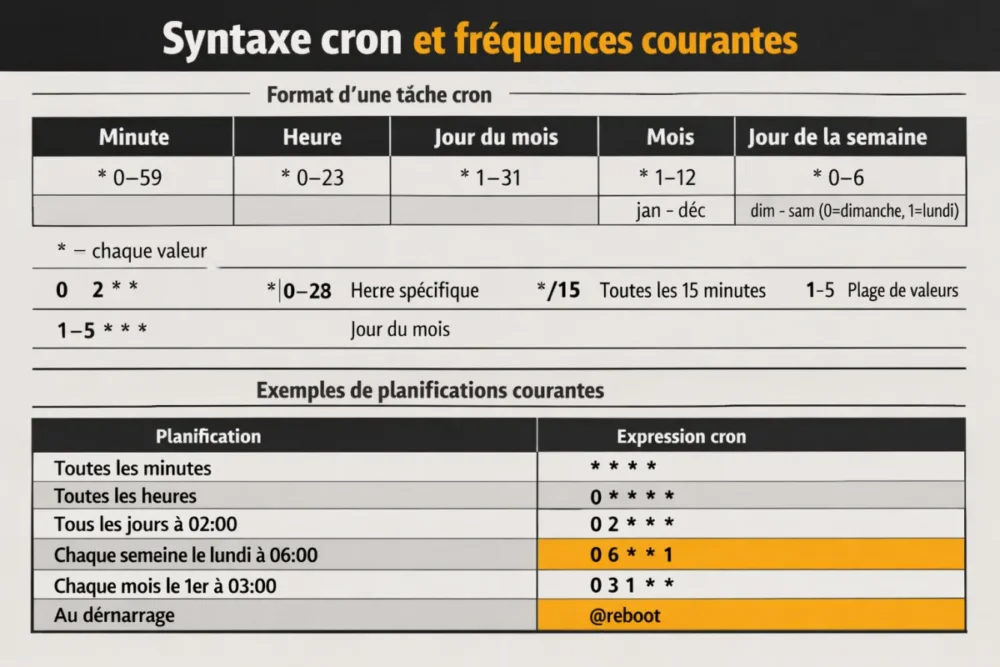
| Frequency | Cron expression | Concrete example |
|---|---|---|
| Every minute | * * * * * | Light monitoring or repeated checking |
| Every hour | 0 * * * * | Periodic processing on the hour |
| Every day at 02:00 | 0 2 * * * | Nightly backup |
| Every week on Monday at 06:00 | 0 6 * * 1 | Weekly report |
| Every month on the 1st at 03:00 | 0 3 1 * * | Monthly archiving |
- /etc/crontab is used for global system tasks;
- /etc/cron.hourly, /etc/cron.daily, /etc/cron.weekly, and /etc/cron.monthly allow organizing common tasks;
- the user crontab remains the simplest choice to automate a personal task.
Shortcuts like @reboot are used when the logic does not depend on a specific time, but on a reboot. This is convenient for restarting an initialization script, provided it remains simple and logs the output.
How to add and check a task in crontab?
The cleanest method is to open the editor with crontab -e, paste a clear line, then immediately check the list with crontab -l. If you need to clean up an entry that is no longer needed, crontab -r deletes the user’s crontab, so use it with caution.
Here are ready-to-adapt examples, with output redirected to a log to avoid losing errors:
0 2 * * * /home/utilisateur/scripts/sauvegarde.sh >> /home/utilisateur/logs/sauvegarde.log 2>&1
*/15 * * * * /home/utilisateur/scripts/verif_temp.sh >> /home/utilisateur/logs/verif_temp.log 2>&1
0 6 * * 1 /home/utilisateur/scripts/rapport_hebdo.sh >> /home/utilisateur/logs/rapport.log 2>&1
@reboot /home/utilisateur/scripts/initialisation.sh >> /home/utilisateur/logs/reboot.log 2>&1
The first example runs a backup every night at 02:00. The second performs a check every 15 minutes. The third generates a report every Monday morning. The last starts at boot, which remains useful for some light initializations.
- crontab -e: edit the schedule;
- crontab -l: reread what is actually recorded;
- crontab -r: delete the current user’s crontab.
Why does a cron task not start?
When cron “does nothing,” the problem often comes down to a very down-to-earth detail: a relative path, a missing permission, an absent environment variable, or an inactive service. The right reflex is to diagnose in this order, without assuming the script is at fault from the start.
A scheduled script that writes nothing to a log often ends up costing more time than it saves.
Common Errors to Check First
- Incorrect path: the script works in the terminal, but the cron job points to the wrong location.
- Relative paths: cron does not use your current session directory.
- Insufficient permissions: the file is not executable or the user does not have access to the targeted folder.
- Missing environment variables: cron does not load your full interactive environment.
- Cron service missing or inactive: if the daemon is not installed or enabled, no jobs will run.
- Execution conflict: two instances of the same script overlap and interfere with each other.
Quick Diagnostic Method
- Run exactly the command in the terminal, with the same user.
- Redirect standard output and errors to a readable log.
- Reduce the script to the minimum to isolate the step that breaks.
- Check access rules if your system uses /etc/cron.allow or /etc/cron.deny.
- Check the actual schedule and server timezone if the job seems “missing.”
What Best Practices Prevent Omissions and Duplicates?
Clean automation does not rely solely on good syntax. It mainly depends on solid habits: clearly naming scripts, logging executions, limiting side effects, and blocking double launches when a task can last longer than expected.
- use absolute paths in scripts and in crontab;
- keep a log per task, with a clear name;
- add error checks in the script, not just in cron;
- plan a lock with flock if the script can overlap;
- document each scheduled task to avoid forgotten scripts after a few months.
In practice, flock becomes useful as soon as a script can still be running when the next execution arrives. It’s the kind of detail that seems trivial on the first day but prevents a big mess when processes pile up.
When Is Cron Enough, and When Do You Need Something Else?
Cron is more than enough for a simple, repetitive, and local task: backup, cleanup, report, periodic check. However, as soon as you need to centralize, finely supervise, or integrate automation into a containerized or cloud-native architecture, solutions like Kubernetes CronJobs or AWS EventBridge become more suitable.
In short, cron remains perfect for a classic Linux server. As soon as the need goes beyond this scope, it’s better to use a solution designed for orchestration, auditability, or multi-environment supervision. It’s less glamorous than a quietly launched script but much more robust.
In Practice, What Should You Remember?
To automate without stress, always start from the script itself: manual test, absolute paths, correct permissions, then only the cron line. Then, check execution with crontab -l and a clean log. This simple trio already avoids a huge part of omissions and “it works on my machine” issues.
If the task becomes critical, slow, or sensitive to duplicates, add a lock, real logging, and a regular review of scheduled tasks. Cron does the job, but it’s your discipline that makes it reliable over time.
Key Takeaways
🧩 Cron runs a scheduled command, but it brings neither context nor magic.
🛠️ A script tested in the terminal greatly reduces errors when moving to crontab.
📍 Absolute paths and logs prevent most silent failures.
🔐 If two executions can overlap, add a lock like flock.
FAQ
How do I know if my cron job ran?
The easiest way is to check the log you planned in the cron line, then reread the crontab with crontab -l. If nothing shows up, test the command manually and check the actual execution time.
What to do if my script works in the terminal but not in cron?
First compare the paths used: cron does not inherit your current directory or your session aliases. Then, redirect the output to a log to see the exact error, and check permissions and environment variables.
What is @reboot for?
@reboot runs a command at system startup. It is useful for light initialization or a simple service, provided the script is fast and well logged.
Can access rights to cron be managed per user?
Yes, some systems use /etc/cron.allow and /etc/cron.deny to control who can use crontab. If you don’t see your tasks appearing, also check these permission files.
When should you consider an alternative to cron?
As soon as you need centralized supervision, multi-server deployment, or a cloud-native context, another solution may be more suitable. Kubernetes CronJobs or AWS EventBridge then become more logical than a local crontab.