| Key Points | Details to Remember |
|---|---|
| 📌 Definition | Understand the nature of error 0x80070005 which indicates an access denial. |
| 🛑 Common Causes | Identify permission conflicts or interference from third-party applications. |
| 🔧 Quick Solutions | Test updates and restarting OneDrive for a quick fix. |
| 🔒 Permissions | Check the rights on the OneDrive folder in Windows Explorer. |
| ⚙️ Advanced Settings | Modify the Registry or run OneDrive in administrator mode if necessary. |
| 🕒 Prevention | Implement regular backups and monitor synchronization logs. |
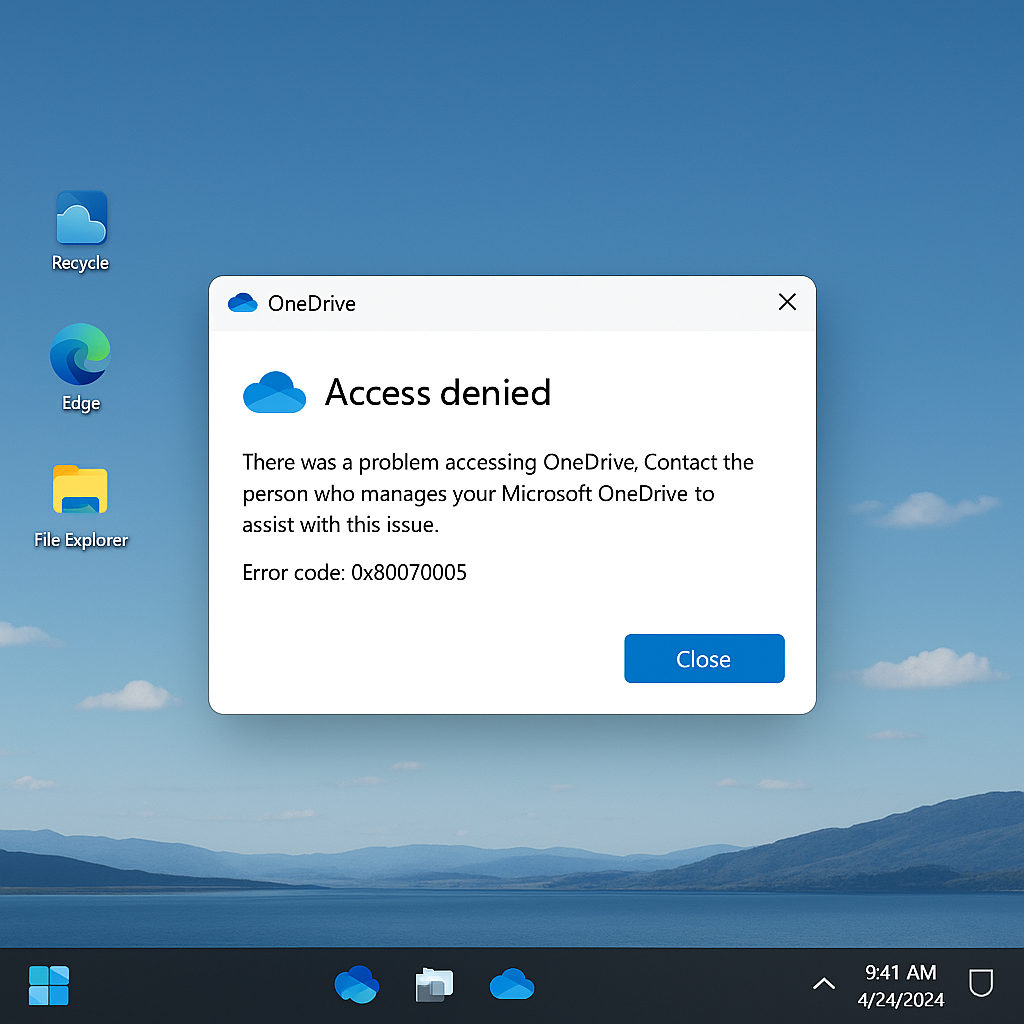
The error 0x80070005 sometimes appears unexpectedly in OneDrive, blocking synchronization and leaving the user facing an “Access Denied” message. Rather than panic, it is often enough to bypass a few settings or correct a small adjustment to restore smooth service. This article offers an insight into the mechanisms of this anomaly, proven techniques to quickly fix it, and simple steps to avoid it in the future.
What is error 0x80070005 in OneDrive?
When OneDrive displays this code, Windows signals a lack of rights on a file or folder. One might think of an internal cloud failure, but behind this alert usually lies a story of misconfigured permissions, an overzealous antivirus, or a conflict with another service.
Like a lock that won’t open without the right key, the OneDrive client stumbles on access it believed authorized. The system rejects any attempt to read or write, interrupting the synchronization flow and marking the file with an error status.
Technical Origins
Several Windows modules intervene when a program requests a folder: the security API, identity control services, and sometimes an antivirus that scans in real time. If any of these considers the request suspicious, the denial is immediate.
More precisely, using standard user accounts without administrator privileges or an incomplete Windows update can desynchronize NTFS rights, causing this infamous code 0x80070005.
Steps to resolve the access denied error
Before diving into advanced settings, adopt a progressive method: from the simplest to the most technical. This avoids multiplying unnecessary actions and introducing other malfunctions.
- Restart OneDrive: close the process via the task manager, then relaunch the application. An automatic update may fix the anomaly.
- Check Windows Update: installing security patches often restores corrupted rights.
- Run as administrator: right-click on the OneDrive icon and choose “Run as administrator” to force higher privileges.
- Check the antivirus: temporarily disable real-time protection to diagnose a possible interference.
- Reset OneDrive: open the Run console (Win+R) and type %localappdata%MicrosoftOneDriveonedrive.exe /reset. The procedure restores the client to its initial state.
Reinstall or update manually
If resetting was not enough, download the latest version of the OneDrive client from the Microsoft website. The installer often offers a fix where the automatic update fails.
During installation, watch the console: a message about user rights or a blockage on a system file indicates that the Windows session requires adjustments before proceeding.
Grant the correct NTFS permissions
A trivial setting in Windows Explorer is sometimes enough to lock access. To fix it:
- Right-click on the affected OneDrive folder, then Properties → Security.
- Check that your account is listed in the authorized groups and has read and write permissions.
- If necessary, click Modify and explicitly add your user or the “Users” group with all rights checked.
Upon closer inspection, a blocked permission inheritance (box “Remove unnecessary permissions” checked) can interrupt the transmission of rights from the parent folder to the child folder.
Advanced solutions: Registry and group policy
When access denied persists in a professional environment, a misconfigured group policy may be the cause. To handle with care, here are two leads:
Registry modification
- Open the Registry Editor (regedit).
- Go to HKEY_CURRENT_USERSoftwareMicrosoftOneDrive.
- Create or modify the EnableHardLinks (DWORD) key and set the value to 1. This trick sometimes fixes blockages due to the creation of symbolic links.
Group Policy Editor (Pro and Enterprise)
- Via gpedit.msc, navigate to User Configuration → Administrative Templates → Windows Components → OneDrive.
- Make sure the policy “Prevent the usage of OneDrive for file storage” is disabled.
Preventive measures to avoid the 0x80070005 error
Rather than suffering the error, some habits significantly reduce the risk of encountering it:
- Regularly update Windows and OneDrive to benefit from security patches.
- Monitor synchronization reports and Windows event logs.
- Back up your OneDrive folder using a third-party tool to prevent any corruption.
- Check antivirus and firewall settings after each major update.
FAQ
Why does OneDrive return the 0x80070005 error?
Because Windows denies access to a folder or file, often due to an NTFS permissions issue, antivirus conflicts, or an incomplete update.
Does resetting OneDrive delete my files?
No: the /reset command does not affect your data stored online or locally; it only reinstalls the client. Your files remain intact.
Can I automate the correction of this error?
There are PowerShell scripts that check and repair NTFS permissions. In a business environment, a GPO can also be deployed to automatically distribute the correct Registry keys.
What should I do if the error persists despite all these steps?
As a last resort, completely uninstall OneDrive, delete the related Registry keys, then reinstall the client. If the problem continues, contact Microsoft support for in-depth assistance.









