| Key points | Details to remember |
|---|---|
| 🔍 Code definition | Network error preventing Windows Update from contacting servers |
| ⚠️ Common causes | DNS, firewall, corrupted services |
| 🛠️ Check DNS | FlushDNS and correct DNS client configuration |
| 🔄 Reset components | Windows Update services and update agents |
| 📋 Use utility | Troubleshooter integrated for automated diagnostics |
| 🔒 Check firewall | Open ports and appropriate network rules |
| 🔧 Manual update | Installation via Microsoft Update Catalog |
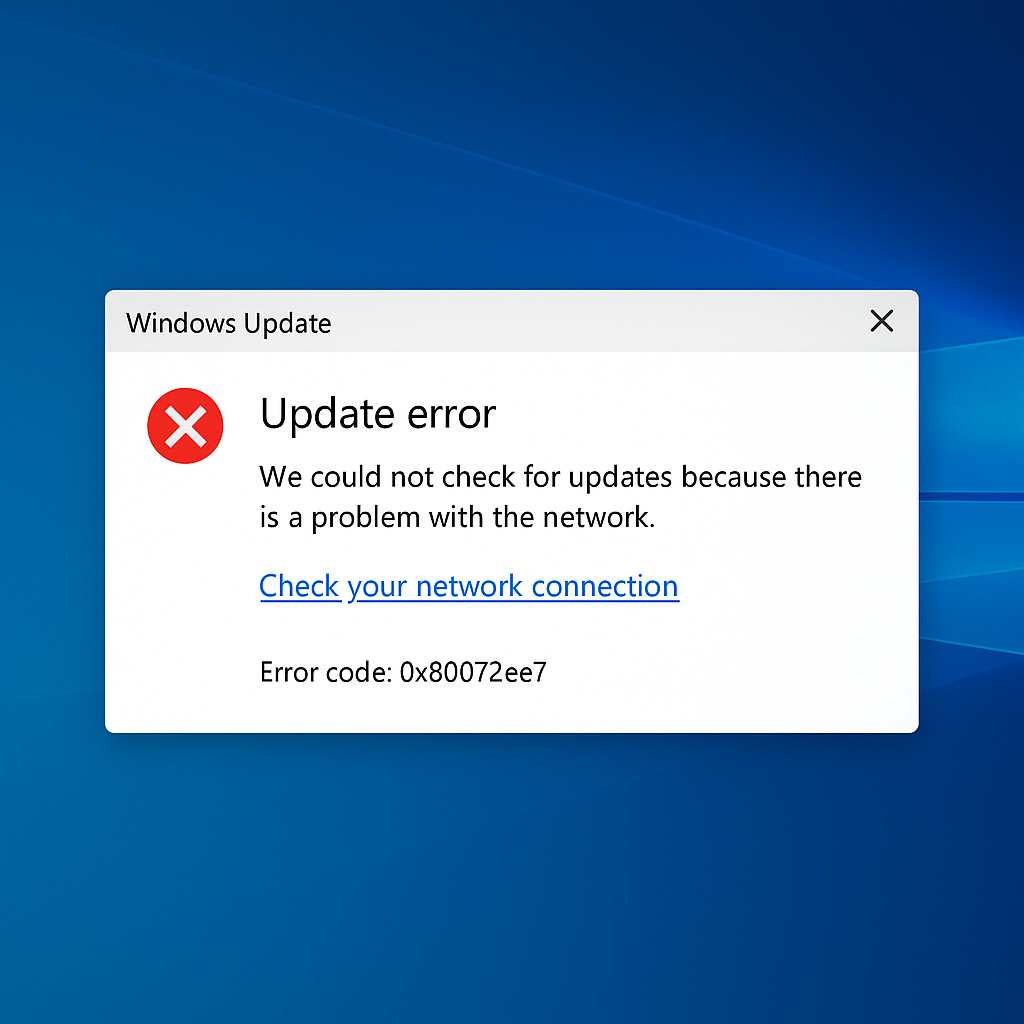
The infamous error 0x80072ee7 can suddenly appear when Windows Update refuses to establish a connection with Microsoft servers. At first glance, one might think it is a simple network glitch, but this code can encompass several issues — from misconfigured DNS to a corrupted service, or an overly zealous firewall. The idea here is to go through each lead, from basic checks to advanced manipulations, to make you fully autonomous in facing this blockage. Ready to resume updating? Follow the step-by-step guide.
What is error 0x80072ee7 ?
In technical terms, 0x80072ee7 often translates to « WSAETIMEDOUT », a network timeout. Specifically, Windows tries to access Microsoft servers to download patches and, failing to get a response within the allotted time, gives up. This can happen if the domain name update.microsoft.com does not resolve correctly, if the gateway is saturated, or simply if security software filters outgoing connections too aggressively.
The same symptom is sometimes observed behind a message mentioning an « unreachable server », but the code 0x80072ee7 retains this specificity linked to DNS or erroneous network settings. This is precisely what makes the diagnosis more complex than other Windows Update errors, hence the importance of systematically testing each resolution path.
Main causes and context
DNS issues
DNS, or name resolution service, bridges readable addresses (update.microsoft.com) and real IPs. If your local DNS cache is corrupted, Windows can no longer find the correct address. Some antivirus or VPNs also intercept these requests, creating a kind of « fake DNS » that leads directly to a timeout.
Proxy or firewall settings
In a professional environment, a misconfigured proxy can refuse the request. Similarly, the Windows or third-party firewall can block ports 80 and 443, essential for HTTPS exchanges with update servers. Sometimes, the rule is there, but it does not apply to Windows Update system services, causing a silent blockage.
Corrupted Windows Update Components
Each update goes through a series of services and agents that can gradually become corrupted: wuauserv (Windows Update), bits (Background Intelligent Transfer Service), cryptsvc, etc. If any of these elements no longer respond or refuse to start, communication abruptly stops, generating the infamous code 0x80072ee7.
Step-by-step resolution methods
1. Check the network connection
First of all, start by opening a browser and testing a secure site (https://www.microsoft.com). If the connection is instantaneous, a purely physical line problem can be ruled out. However, slowness or occasional failures suggest contacting your operator or examining your box logs.
2. Reset the DNS cache
A corrupted DNS cache is often fixed with a single command line. Open a terminal in administrator mode and execute:
ipconfig /flushdns
Then restart the DNS client:
net stop dnscache
net start dnscache
This refresh often restores normal domain name resolution.
3. Re-register Windows Update services
Immediately after, reset the related agents and services:
| Command | Description |
|---|---|
| net stop wuauserv | Stops the Windows Update service |
| net start wuauserv | Restarts the service |
| net stop bits | Stops BITS (transfer) |
| net start bits | Restarts BITS |
| sc config wuauserv start= auto | Sets automatic startup |
Wait a few seconds between each line so that Windows properly applies the changes.
4. Run the Windows Update troubleshooter
Windows includes a specific troubleshooter: search for « Troubleshoot » in the Start menu, then choose « Windows Update ». The tool will analyze your configuration, detect a possible misconfigured proxy, stopped services, or missing registry keys, and offer automated repairs.
5. Modify proxy settings
If you are behind a proxy, check in Settings > Network & Internet > Proxy that the address and port are correct, and that the box « Use a proxy server » is not checked if you do not use one. Note that VPN software can also interfere here, so consider temporarily disabling it.
6. Verify the network DNS settings
To go further, manually specify a public DNS (Google 8.8.8.8 / 8.8.4.4 or Cloudflare 1.1.1.1). Go to Control Panel > Network and Sharing Center > Change adapter settings, select your adapter, then Properties > Internet Protocol Version 4 (TCP/IPv4). Replace automatic IP assignment with a fixed DNS and test the update.
Advanced solutions
Edit the hosts file
As a last resort, make sure no entry redirects update.microsoft.com to a local IP. Open C:WindowsSystem32driversetchosts with Notepad as administrator, then comment out any line pointing to Microsoft by adding a « # » at the beginning.
Manually install updates
If your attempts remain unsuccessful, go to the Microsoft Update Catalog, search for the KB corresponding to your Windows version and download the .msu file. A double-click is enough to launch the installation outside of Windows Update, bypassing the error code.
Prevention and Best Practices
- Keep your DNS client up to date and choose a reliable service (Cloudflare, Google).
- Regularly check the status of Windows Update services via the Services.msc console.
- Consider enabling automatic scheduling of cleanup tasks (flushdns, BITS restart).
- Limit third-party software that intercepts HTTPS traffic without a compelling reason.
FAQ
- What is error 0x80072ee7?
- It is a code indicating that Windows Update failed to contact Microsoft servers, often related to a DNS or network issue.
- How to reset the DNS cache?
- By running `ipconfig /flushdns` then `net stop dnscache` and `net start dnscache` in an administrator command prompt.
- Is the Windows Update troubleshooter effective?
- It automatically detects and fixes the most common issues concerning services and network settings.









