.en-bref { max-width: auto; margin: 2em auto; padding: 1.5em 1.8em; color: #78350f; font-family: “Inter”, “Segoe UI”, sans-serif; text-align: left; position: relative; box-sizing: border-box; background: #fff2d7; border: 0; border-left: 0px solid #b45309; border-radius: 0; box-shadow: none; }
.en-bref h2, .en-bref .en-bref-header { font-size: 1.15em; font-weight: 700; margin-bottom: 0.6em; color: #b45309; }
.en-bref p, .en-bref li { font-size: 1em; line-height: 1.65; margin: 10px; }
.en-bref strong { color: #451a03; }
.mg-callout{margin:1.5em 0;padding:.9em 1.1em;border:1px solid;border-left-width:4px;border-radius:10px;font-size:.97em;line-height:1.65}.mg-callout>:first-child{margin-top:0}.mg-callout>:last-child{margin-bottom:0}.mg-callout__label{display:block;margin:0 0 .35em;font-weight:700;font-size:.82em;letter-spacing:.03em;text-transform:uppercase}.mg-callout__label::before{margin-right:.45em;font-size:1.05em;vertical-align:-.06em}.mg-callout–info{background:#eff6ff;border-color:#bfdbfe;color:#1e3a5f}.mg-callout–info .mg-callout__label{color:#2563eb}.mg-callout–info .mg-callout__label::before{content:”\2139\FE0F”}.mg-callout–tip{background:#f0fdf4;border-color:#bbf7d0;color:#14532d}.mg-callout–tip .mg-callout__label{color:#15803d}.mg-callout–tip .mg-callout__label::before{content:”\1F4A1″}.mg-callout–warning{background:#fffbeb;border-color:#fde68a;color:#7a4a10}.mg-callout–warning .mg-callout__label{color:#b45309}.mg-callout–warning .mg-callout__label::before{content:”\26A0\FE0F”}.mg-callout–danger{background:#fef2f2;border-color:#fecaca;color:#7f1d1d}.mg-callout–danger .mg-callout__label{color:#dc2626}.mg-callout–danger .mg-callout__label::before{content:”\1F6D1″}.mg-proscons{display:grid;grid-template-columns:1fr 1fr;gap:16px;margin:1.5em 0}@media(max-width:560px){.mg-proscons{grid-template-columns:1fr}}.mg-proscons__col{padding:.9em 1.1em;border:1px solid;border-radius:10px}.mg-proscons__title{display:flex;align-items:center;gap:.4em;margin:0 0 .5em;font-weight:700;font-size:.9em;letter-spacing:.02em}.mg-proscons__col ul{margin:.3em 0 0;padding-left:1.15em}.mg-proscons__col li{margin:.3em 0;line-height:1.55}.mg-proscons__col–pro{background:#f0fdf4;border-color:#bbf7d0;color:#14532d}.mg-proscons__col–pro .mg-proscons__title{color:#15803d}.mg-proscons__col–pro .mg-proscons__title::before{content:”\2705″}.mg-proscons__col–con{background:#fef2f2;border-color:#fecaca;color:#7f1d1d}.mg-proscons__col–con .mg-proscons__title{color:#dc2626}.mg-proscons__col–con .mg-proscons__title::before{content:”\274C”}ol.mg-steps{list-style:none!important;counter-reset:mgstep;margin:1.6em 0;padding-left:0!important}ol.mg-steps>li.mg-steps__item{counter-increment:mgstep;list-style:none!important;padding-left:0!important;padding-bottom:1.4em}ol.mg-steps>li.mg-steps__item:last-child{padding-bottom:0}ol.mg-steps>li.mg-steps__item>:last-child{margin-bottom:0}ol.mg-steps>li.mg-steps__item>.mg-steps__title{margin:0 0 .25em;font-weight:600}ol.mg-steps>li.mg-steps__item>.mg-steps__title::before{content:counter(mgstep) “. “;opacity:.45;font-weight:500;font-variant-numeric:tabular-nums}ol.mg-steps>li.mg-steps__item:not(:has(.mg-steps__title))::before{content:counter(mgstep) “. “;opacity:.45;font-weight:500;font-variant-numeric:tabular-nums}.mg-kpis{display:grid;grid-template-columns:repeat(auto-fit,minmax(140px,1fr));gap:14px;margin:1.5em 0}.mg-kpi{padding:1em .9em;border:1px solid #e5e7eb;border-radius:12px;background:#f9fafb;text-align:center}.mg-kpi__value{display:block;font-size:1.7em;font-weight:800;line-height:1.15;color:#111827}.mg-kpi__label{display:block;margin-top:.35em;font-size:.85em;color:#6b7280;line-height:1.35}
.wp-block-image,.ai-image{margin-bottom:1.75em}.wp-block-image>figcaption,.ai-image>figcaption{margin-top:.5em}
.magic-lb-overlay{position:fixed;inset:0;background:rgba(15,23,42,.92);display:none;align-items:center;justify-content:center;z-index:99999;cursor:zoom-out;padding:20px}
.magic-lb-overlay.open{display:flex}
.magic-lb-overlay img{max-width:95vw;max-height:95vh;object-fit:contain;border-radius:8px;box-shadow:0 8px 32px rgba(0,0,0,.5)}
.magic-lb-close{position:absolute;top:16px;right:20px;color:#fff;background:rgba(0,0,0,.5);border:none;width:40px;height:40px;border-radius:50%;font-size:24px;cursor:pointer;display:flex;align-items:center;justify-content:center}
.magic-lb-close:hover{background:rgba(0,0,0,.8)}
.wp-block-image img{cursor:zoom-in;transition:transform .15s ease}
.wp-block-image img:hover{transform:scale(1.01)}
.magic-img-link{display:inline-block;text-decoration:none}
(function(){
var ov=document.getElementById(‘magic-lb’);if(!ov)return;
var img=ov.querySelector(‘img’),btn=ov.querySelector(‘.magic-lb-close’);
function open(src){img.src=src;ov.classList.add(‘open’);document.body.style.overflow=’hidden’}
function close(){ov.classList.remove(‘open’);img.src=”;document.body.style.overflow=”}
document.addEventListener(‘click’,function(e){
var a=e.target.closest(‘a.magic-img-link’);
if(a){e.preventDefault();open(a.getAttribute(‘href’));return}
var i=e.target.closest(‘.wp-block-image img’);
if(i&&!e.target.closest(‘a’)){e.preventDefault();open(i.currentSrc||i.src)}
});
ov.addEventListener(‘click’,function(e){if(e.target===ov||e.target===btn)close()});
document.addEventListener(‘keydown’,function(e){if(e.key===’Escape’)close()});
})();
When sound is missing in a game while Windows is working, first check the selected audio output, the game’s own volume, and the volume mixer. Then test the headset and speakers separately. In most cases, the problem comes from audio routing, an internal game setting, or software intercepting the sound.
A game can be silent while a video, music, or system sounds work normally. The safest method is to isolate the symptom before modifying drivers or reinstalling the game.
In brief
🔊 Start with the Windows volume mixer: the game may be muted or associated with a different output than the one used by the system.
🎧 Test the headset, speakers, and the screen’s audio output separately to distinguish a hardware failure from incorrect routing.
⚙️ Close capture, chat, and audio processing software before touching the driver or game files.
🧩 Reinstalling the game is a last resort, after checking settings and files.
Diagnose the problem in two minutes before any action
The first diagnosis is to determine if the sound is missing in only one game, in all games, or on a single audio output. This distinction immediately reduces the number of possible causes: an isolated game points more to its settings or the mixer, while a failure across several games concerns the device, the driver, or an audio service.
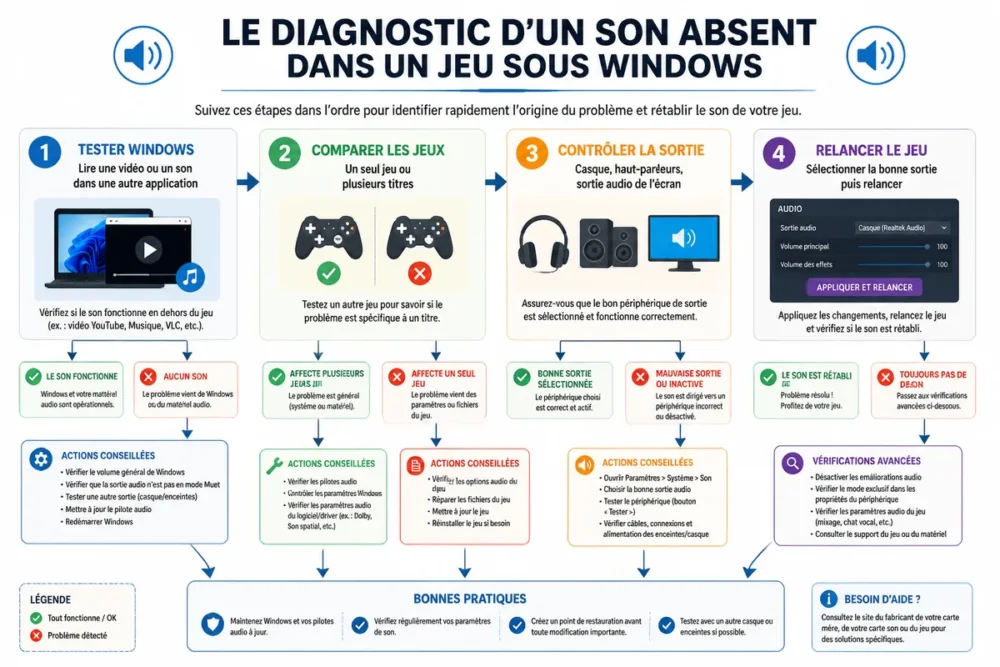
Start with the mixer and audio output.
Check the overall volume, the mute button on the headset or speakers, the cable, and for a wireless device, the charge and reconnection. Completely exit the game before changing devices, then restart it: some titles only detect the new output at startup.
| Symptom | Cause to test first | Immediate action |
|---|---|---|
| Only one game is muted | Game or Windows mixer setting | Check the application volume and its audio options |
| All games are muted | Output, driver, or audio software | Test another output and close audio tools |
| Headset audible, speakers muted | Output or external device | Select the speakers as the active output |
The result of these tests guides the next steps
Only one muted game first points to the Windows mixer, the title’s settings, or its files. All games muted while Windows is working points more towards the device, audio services, the driver, or processing software; the result is not definitive proof but sets the order of checks.
Check that Windows has not muted or redirected the game’s sound
Windows can assign an application an audio output different from the system’s default output. The game appears in the mixer only when it is running: so you need to open its audio settings during execution, check its individual level, and confirm that the sound is not sent to an HDMI screen, a Bluetooth headset, or a virtual output.
-
Launch the game
Open the concerned title and let it normally produce sound, even if no signal is audible.
-
Open the mixer
In Windows sound settings, display the volume mixer so that the current application appears in the list.
-
Check the volume
Check the game’s level and the absence of individual mute. A normal overall volume does not reactivate an application muted separately.
-
Choose the output
Assign the headset or speakers actually used to the game, then exit and restart the title.
The default Windows output does not guarantee the output used by each application. An old Bluetooth, HDMI, USB, or virtual output can remain associated with the game after a hardware change.
Explicitly choose the right output for the application
The default device concerns Windows’ general behavior, while an application can retain a particular assignment. If the game’s sound is sent to the built-in speakers of a screen that has no audio playback, the game will remain muted despite other applications working normally.
Correct audio settings saved in the game
Games often separate the main volume, music, effects, dialogues, and cinematics. A dedicated slider set to zero can thus give the impression of a general failure while only one track is disabled. Also check the device and output mode offered in the audio options before modifying files.
Examine each slider, then choose a common mode like stereo if a surround or spatial configuration seems incompatible. Reset only the game’s audio settings when this option exists: this action is more reversible than deleting configuration or a complete reinstall.
Distinguishing a complete absence of sound from a missing audio track
Music audible without dialogue or effects usually indicates a dedicated slider, a missing track, or an improperly configured multichannel mode. Voice chat settings do not necessarily correct game sounds: the microphone and main audio output are controlled separately.
Check settings related to the profile or game mode
Compare another session, another profile, or the default settings when the game allows it. A failure limited to a specific scene, mode, or configuration does not immediately justify changing the system.
Stabilize the audio device used for playing
A computer may have multiple competing outputs: screen speakers, USB or Bluetooth headset, controller, dock, and virtual device. The proper test is to select a known output, start the game, then compare with a second output. Sound present in the headset but absent on the speakers alone does not prove that the speakers are defective.
Set the headset or speakers actually used as the default Windows output. Temporarily disable audio enhancements, spatial sound, and equalizer while noting the initial settings; the goal is to reduce processing, not to permanently change the configuration.
Case of a screen connected via HDMI or DisplayPort
Windows may switch to the screen’s audio output after an HDMI or DisplayPort connection. Check the active device in Windows and in the game, then confirm that the screen actually has speakers or a usable audio output.
Case of a Bluetooth or wireless headset
Check the reconnection, battery, and audio profile used by the headset. Remove then re-pair the device only after checking volume and output; this operation should not mask an incorrect assignment in the mixer.
Rule out conflicts with software running in the background
Communication, capture, streaming, virtual sound software, and overlays can modify routing or apply audio processing. Close them temporarily, restart the game, and check the sound without immediately uninstalling these tools.
Then reactivate the applications one by one. If the failure returns after activating an equalizer, manufacturer suite, or overlay, the correlation provides a useful lead; it does not yet prove that the software is the sole cause.
Do not first look for an obscure system variable or a setting published on a forum. A test without overlays or audio processing is easier to undo and provides more reliable information.
Intervene on services, updates, and drivers only if necessary
Restarting the PC is relevant after sleep, a crash, or an update, because an audio service may remain in an abnormal state. If the problem persists, install game and Windows patches from their official channels, then search for the driver on the PC, motherboard, or device manufacturer’s website.
Do not reinstall the driver before checking the mixer, output, and game settings. Reinstallation can change the configuration without addressing an application muted or redirected to the wrong device.
If sound disappeared after an update
Note if the failure followed an update of the game, Windows, the driver, or audio software. Consult release notes and official support before any rollback; for a Steam game, the official sound troubleshooting page can serve as an additional checkpoint.
If only one game remains silent after all tests
Use the platform’s official tool to verify or repair game files. Reinstallation is only justified after this verification and consulting the publisher’s support; a problem appearing after an update may require a game patch rather than a local change.
Driver manipulations downloaded from a third-party site should be avoided. For a general in-game sound problem, first consult the manufacturer’s documentation and, if the title is published by Ubisoft, check their official page dedicated to audio issues on PC.
When to reinstall the game or request targeted support
Reinstall the game only after verifying the files, audio options, Windows mixer, outputs, and background software. A reinstallation sometimes fixes a corrupted installation, but it does not repair a silent headset, an HDMI output selected by mistake, or a muted application.
Prepare a precise description before contacting support: Windows version, game name and version, device used, date of occurrence, and test results. Indicate whether the issue affects all games, a single title, a particular headset, or the screen speakers.
Elements that help obtain a useful response from support
Describe cross-tests between several applications and several audio outputs. Add recent changes, such as an update, a new headset, a connected screen, capture software, or an installed driver.
- Error to avoid: reinstalling the game before checking the mixer.
- Error to avoid: confusing a microphone problem with the absence of game sounds.
- Error to avoid: installing a driver from a non-official site.
- Error to avoid: changing several settings at once, which prevents identifying the cause.
For a game that crashes in addition to losing its audio, the diagnosis should remain separate: also consult this guide on games that crash at startup on Windows. A black screen, a sudden closure, and a misassigned audio output are not fixed with the same actions.
FAQ: No sound in a game on Windows
The following answers follow the most useful verification order before reinstalling: mixer, Windows output, game settings, software conflicts, then driver.
Why does sound work in Windows but not in a game?
The game may be muted in the mixer or use a different output than Windows. Check its individual volume, assigned device, and its own audio options.
How to restore sound for a single game on Windows?
Launch the game, open the volume mixer, and check its level as well as its output. Then completely close the game and restart it after selecting the correct device.
Why does my game use the speakers instead of my headset?
An application-specific assignment or an old HDMI, Bluetooth, or USB output may take priority. Explicitly select the headset in Windows and in the game’s options.
Should I reinstall the audio driver if a game has no sound?
No, not as a first step. First check the mixer, output, game settings, and audio software; then use the official manufacturer driver if the issue affects multiple games.
What to do if game sound disappeared after an update?
Identify the relevant update, restart the PC, and consult the release notes or the game’s official support. Also verify the game’s files before reinstalling it.
Why are dialogues or effects missing while the music works?
A separate slider may mute dialogues or effects. A poorly configured surround or multichannel mode can also send certain tracks to unavailable channels; test stereo and default audio settings.
The correct order remains simple: volume and routing, internal settings, device, software conflicts, then driver. This progression avoids unnecessary reinstalls and isolates the real cause of absent game sound while Windows functions.









