Why In-Game Latency Remains High and How to Reduce It Without Changing Your Entire PC
In-game latency has this frustrating aspect: it feels like your PC is betraying you at the worst moment, even though the FPS counter seems fine and your connection shows a decent speed. However, reducing in-game latency doesn't necessarily mean buying a new graphics card, a newer processor, or an expensive monitor. The delay can come from the network, Wi-Fi, the game server, background tasks, vertical sync, or a simple poorly adapted graphic setting.
The right approach is to diagnose before optimizing. In other words: identify whether you are experiencing real online lag, network jitter, packet loss, input lag, or system instability. Only then can you act in the right order. In-game latency does not depend solely on PC power: by targeting the right settings, you can often improve responsiveness without changing hardware.
In brief
🎮 Game latency is not a single problem: it often mixes ping, network jitter, input lag, system load, and display delay.
🌐 To reduce game latency, the first lever is often the stability of the connection: Ethernet cable, better placed Wi-Fi, less saturated home network.
🧠 A good bandwidth does not guarantee good responsiveness: a download, an update, a saturated box, or a distant server can be enough to create delay.
⚙️ Useful settings are reversible: close heavy applications, adjust vertical synchronization, limit FPS if necessary, and compare before/after.
What does game latency really mean?
Game latency refers to the delay between an action and its visible or useful recognition in the game. In an online game, this delay notably includes the communication time between your device and the server, usually expressed in milliseconds. But the feeling of delay does not always come from the network: it can also come from the image rendering time, your screen, a peripheral, or an overburdened system.

In other words, two players can say “I have latency” and talk about two different realities. The first sees his character teleport or his shots validated late: this is probably network lag. The second feels his mouse responding sluggishly while the ping is low: this is more about input lag or display delay. It is precisely this confusion that leads many players to change components when the main problem lies elsewhere.
| Observed symptom | Likely cause | What to check first |
|---|---|---|
| Actions registered late online | High ping or distant server | Server region, connection stability, time of play |
| Sudden stutters despite correct FPS | Network jitter or system tasks | Background applications, updates, network saturation |
| “Heavy” mouse or controller | Input lag or too slow rendering | Vertical synchronization, FPS limit, fullscreen mode, graphic settings |
| Disconnections or returns to menu | Unstable connection or unavailable server | Packet loss, Wi-Fi, service status, box reboot |
The classic trap is to confuse poor bandwidth with poor latency: for gaming, stability often matters more than displayed speed.
Why is good bandwidth not enough to reduce game latency?
Good bandwidth allows fast downloads, but it does not guarantee that each network packet arrives quickly, regularly, and without loss. To reduce game latency, you especially need a stable, uncongested connection capable of maintaining a regular delay. High bandwidth with strong variations can therefore provide a worse experience than a more modest but stable connection.
Imagine a very wide highway, but with unpredictable traffic jams every two minutes. On paper, it can absorb a lot of traffic; in practice, your trip becomes irregular. In gaming, it’s the same: if someone is watching a video in very high quality, if a cloud synchronizes files, or if a console downloads an update, your ping can fluctuate. This is not necessarily visible in a simple bandwidth test, but it is very noticeable in an FPS, racing game, or competitive game.
Fiber optic is generally favorable to low latency, notably because it offers a more stable link than many alternative connections. But it does not solve everything. If your PC is on Wi-Fi behind two load-bearing walls, if the box is saturated, or if the game server is geographically far away, the feeling of delay can remain very present. In other words, bandwidth is one part of the issue; the regularity of the network path is another.
- Throughput: amount of data transferred over a given period.
- Ping: round-trip time between your machine and a server.
- Network jitter: variation in ping, often responsible for an irregular feeling.
- Packet loss: data that does not arrive correctly, with visible effects in-game.
- Bufferbloat: increased latency when the connection or the box poorly manages the traffic queue.
How to know if the problem comes from the network, the game, or the PC?
Start by observing the exact context of the problem: does it only happen online, only on one game, at certain times, or even in solo? If the lag appears mainly in multiplayer with ping variations, first check the network. If the mouse feels slow even offline, rather examine the graphics settings, display, and system load.
The diagnosis should remain simple. Launch the game under comparable conditions, note the displayed ping if the game offers it, then change only one element at a time. For example: a session on Wi-Fi, a session on Ethernet cable, a session with applications closed, a session on another available server. If you change five settings at once, you will never know which one actually helped.
One point deserves particular attention: the difference between a local problem and a server problem. If you are the only player in the group experiencing lag, your setup deserves inspection. If all players in the session see delays or disconnections, the server may be at fault. In this case, no need to dismantle your configuration: it is better to check the service status, change region if possible, or wait for an improvement on the platform side.
For clearer cases of disconnection, server messages, or inability to join a game, you can supplement this diagnosis with a guide dedicated to server connection errors. It is useful to distinguish simple high latency from a service access problem.
Mini diagnostic checklist before optimization
- Test the same game at two different times of the day.
- Compare Wi-Fi and Ethernet cable if the setup allows.
- Close downloads, cloud syncs, and unnecessary launchers.
- Check if the ping varies greatly or just remains high.
- Try a closer game server when the option exists.
- Observe if the problem also exists in a solo or offline game.
What actions really reduce latency without new hardware?
The most effective actions are those that stabilize the existing chain: more reliable connection, less busy PC, smoother rendering, and better-chosen server. Before buying anything, switch to Ethernet cable if possible, reduce background tasks, adjust heavy graphics options, and disable settings that add display delay.
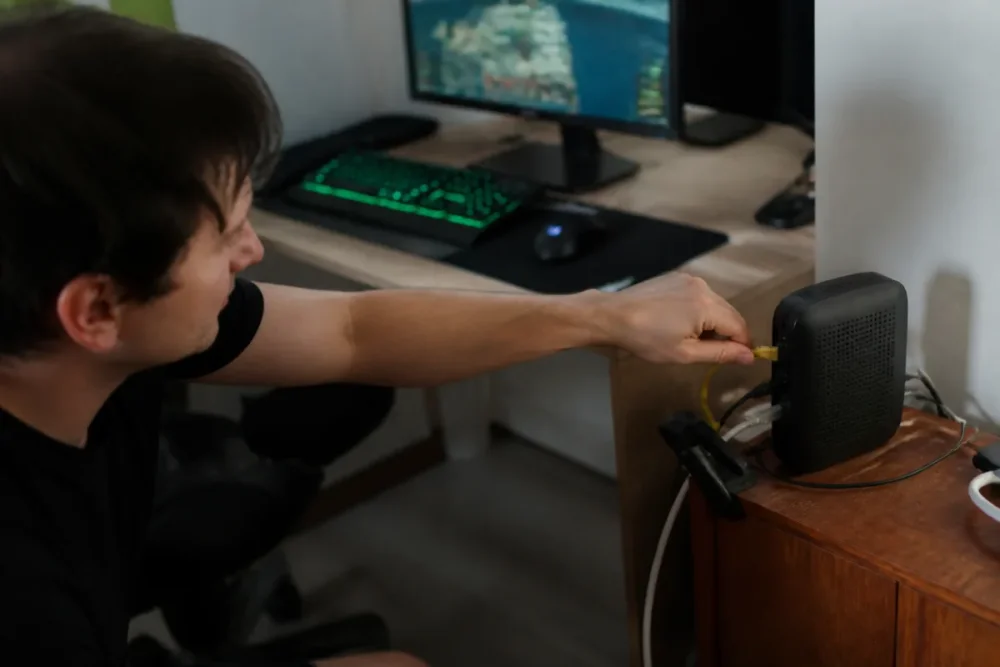
The Ethernet cable remains the most cost-effective reflex when possible. It does not magically make your connection faster, but it avoids many Wi-Fi hazards: interference, distance, walls, crowded channel, micro-cutouts. If you must stay on Wi-Fi, move the device closer to the box, avoid thick obstacles, favor a less saturated band when your router allows it, and limit bandwidth-heavy devices during your sessions.
On the system side, the priority is to remove what competes for the same resources as the game. Game launchers, browsers with many tabs, capture tools, voice chat software with overlays, cloud synchronizations, or updates can strain the processor, disk, memory, or bandwidth. The goal is not to blindly close all of Windows, but to reduce avoidable disruptions.
Finally, graphic settings influence the feeling of responsiveness. Vertical synchronization can smooth the image and limit tearing, but it can also add delay depending on the game, screen, and display mode. A well-chosen frame rate limit can sometimes stabilize the rendering, especially if your PC constantly oscillates between peaks and drops. For a competitive game, it is often better to aim for consistent smoothness rather than a maximum but unstable FPS count.
| Lever | Potential Impact | Limit to Know | Test First If… |
|---|---|---|---|
| Ethernet Cable | Very good for network stability | Depends on the quality of the external connection | Your ping varies or Wi-Fi drops out |
| Closing Background Tasks | Good on busy PC or saturated connection | Low gain if the system is already clean | The game stutters during updates |
| Server Choice | Strong if the current server is far away | Not always available depending on the games | Ping is stable but too high |
| Graphic Settings | Strong on input lag and perceived smoothness | Does not fix a pure network problem | The mouse feels slow even with good ping |
| Windows Game Mode | Variable, sometimes useful | Effect depends on configuration | Many applications are running simultaneously |
Which game settings influence response time the most?
The settings that affect response time the most are those that modify image rendering: vertical synchronization, FPS limit, fullscreen mode, quality of heavy effects, and latency reduction technologies offered by some drivers or games. Their impact depends on your screen, your graphics card, and the overall stability of the FPS.
Vertical synchronization deserves a separate test. When enabled, it can make the image cleaner by avoiding visual tearing. But in some cases, it increases the feeling of delay between mouse movement and the display of the action. If you play a fast-paced FPS, test a match with and without it, using identical settings, and observe not only the FPS but also the aiming feel.
The frame rate limit is often underestimated. Many players seek the absolute maximum, but a framerate that constantly jumps can provide a less responsive experience than a slightly lower and stable cap. This setting becomes interesting if your PC alternates between strong spikes and sudden drops. It can also reduce GPU load, which leaves a bit more headroom for the system to remain consistent.
The heaviest graphic settings — shadows, reflections, draw distance, volumetric effects, ray tracing when available — can degrade smoothness well before making the game unplayable. If you want to improve responsiveness, first lower the costly options rather than randomly reducing resolution. The right goal is not necessarily to get the most beautiful image, but the most consistent image.
Lower latency is not just about “more FPS”: what matters in-game is the consistency between action, calculation, and display.
What works less well than one might think
Some settings can help in specific cases, but quickly become false good ideas when applied without diagnosis. Changing DNS, installing multiple automatic optimizers, or modifying advanced network parameters does not always solve latency. Worse: it can complicate troubleshooting if you no longer know which change produced which effect.
Changing DNS, for example, can improve domain name resolution in certain situations, but it does not necessarily reduce the network path between your PC and the game server once the connection is established. If your problem is Wi-Fi jitter or a saturated box, DNS will not be the main lever. It can be tested, yes, but it should not become the miracle optimization.
Automatic optimization software poses another problem: they sometimes promise to “boost” the game by applying opaque changes. Yet good optimization must be measurable and reversible. If a tool closes services, changes priorities, or modifies system settings without clear explanation, you might gain a little today, but you risk creating a problem that is difficult to identify tomorrow.
Finally, replacing your PC only makes sense if the diagnosis clearly points to a hardware limit: saturated processor, constantly maxed-out graphics card, insufficient memory, storage causing freezes. If your ping spikes mainly in the evening on Wi-Fi, a new processor will not change much. If your game outright crashes instead of just lagging, the problem may also fall into another category of causes; in this case, a guide on games that close by themselves will be more relevant than a network optimization.
When is the problem not coming from your machine?
The problem probably does not come from your machine if several players notice the same delays, if latency varies depending on the servers, or if the ping remains high to a distant region despite a stable connection at your end. In these cases, the server, the network route, or the connection time may impose a limit that your PC will not fix.
Geographical distance remains a concrete factor. The farther the server, the more equipment and intermediate networks the signal must cross. Even with a good home connection, you cannot cancel this journey. That is why a server located in your region often provides better responsiveness than a server on another continent, all else being equal.
Peak hours can also change the experience. A very busy game, an online event, a massive update, or local saturation can cause variations. This type of problem is detected by comparing several sessions: if everything works well in the morning and becomes unstable in the evening, your PC is not necessarily responsible. You then need to check the load on the home network, but also accept that the remote service may have its own limits.
4G or 5G mobile networks can help, and sometimes offer a decent ping, but they remain sensitive to coverage, obstacles, antenna load, and local variations. For serious gaming, stability matters more than a good one-time result in a quick test. A mobile connection can therefore be acceptable for some games, but frustrating for competitive titles where every variation is felt.
How to reduce in-game latency with a simple method?
The most reliable method is to proceed in order of impact: secure the connection, eliminate system disturbances, adjust game settings, then compare results under identical conditions. This approach avoids piling up unnecessary tricks and helps you know what truly improves your responsiveness.
Start with the network, as it is often the most variable point. Switch to Ethernet cable if possible. Otherwise, improve the Wi-Fi: move closer to the router, change location, avoid obstacles, and reduce heavy usage during the game. Next, clean up the Windows session: close downloads, resource-heavy browsers, unnecessary overlays, and capture tools if you are not using them.
Once this base is stabilized, move on to the game itself. Test vertical synchronization, exclusive fullscreen mode if available, a consistent FPS limit, and targeted reduction of heavy graphical options. Make one change at a time and keep track of what you observe: average ping, variations, mouse feel, stutters, action delay.
- Establish a baseline: play for ten to fifteen minutes without changing anything and note the symptoms.
- Stabilize the connection: Ethernet if possible, optimized Wi-Fi otherwise, heavy usage suspended.
- Lighten the system: close updates, cloud services, browser, capture and unnecessary overlays.
- Adjust rendering: test V-Sync, FPS limit, fullscreen, and costly graphic options.
- Compare properly: redo a similar session on the same game, same server, same time if possible.
Ping benchmarks to interpret with caution
For many online games, a low ping is preferable. As a general guideline, latency around a few tens of milliseconds is often comfortable, while latency significantly exceeding one hundred milliseconds frequently becomes noticeable. These thresholds vary depending on the game, mode, netcode, server, and player sensitivity. These benchmarks do not replace real experience: a correct average ping with high jitter can be more unpleasant than a slightly higher but stable ping.
| Game type | Main priority | Useful latency benchmark | Setting to test first |
|---|---|---|---|
| Competitive FPS | Immediate responsiveness | Aim for as low as possible, ideally under 50 ms | Ethernet, nearby server, tested V-Sync, stable FPS |
| Racing game | Trajectory precision | Low and consistent ping strongly recommended | Stable connection, FPS limit, reduction of heavy effects |
| Cooperative MMO | Long-term stability | Wider tolerance outside intense PvP | Reduce jitter, close network tasks |
| Narrative co-op game | General comfort | A moderate ping can remain acceptable | Suitable server, stable Wi-Fi, reduced system load |
Useful sources to consult
| Source | Useful data | Use for the player | Warning |
|---|---|---|---|
| Intel - fixing input lag | Explanations on the delay between command and display | Understand the role of FPS, screen, and rendering | Advice varies depending on the hardware used |
| Microsoft - Windows Game Mode | How Game Mode works on Windows PC | Test a reversible system setting | The effect may be minimal on an already optimized machine |
| Cloudflare - definition of latency | Network definition of latency | Distinguish speed, delay, and network path | General network source, not specific to each game |
Key Takeaways
- 🎯 In-game latency mixes network, rendering, system, and display.
- 🌐 Ethernet cable often remains the most cost-effective test.
- ⚙️ Closing background tasks helps mainly if they consume network or resources.
- 🖥️ Vertical synchronization can smooth the image but add delay.
- 🧪 One setting at a time allows identifying the real gain.
FAQ
Should you always play with an Ethernet cable?
No, but it is often the most stable solution when possible. Wi-Fi can suffice if the signal is strong, minimally disturbed, and close to the router. However, to reduce in-game latency on a competitive title, Ethernet generally remains the priority test.
Does closing all applications really make a difference?
Yes, if some applications consume bandwidth, CPU, memory, or disk. A loaded browser, cloud synchronization, an update, or a capture tool can cause stutters. No need to close everything randomly: focus mainly on active and resource-hungry programs.
Does vertical synchronization reduce or increase latency?
It can improve visual comfort by reducing screen tearing, but it can also increase input lag depending on the game and the screen. The best is to test it enabled then disabled under the same conditions. In competitive games, aiming feel should weigh as much as image quality.
Can changing the server improve responsiveness?
Yes, especially if the current server is geographically distant or overloaded. A closer server often reduces network travel and can improve ping. However, this does not fix unstable Wi-Fi or an overloaded router at your place.
Is changing DNS useful for more comfortable gaming?
Sometimes, but it is not the first lever to test. A different DNS can speed up some address resolutions without necessarily reducing latency once connected to the game server. Before that, check network stability, background tasks, and server choice.









