Who is using your Wi‑Fi? The simple method to identify connected devices and lock down your network
Your connection slows down, the box blinks even though no one is watching Netflix, and a question eventually arises: who is using my Wi‑Fi? The reflex is healthy, but you must avoid the classic trap: confusing a misidentified device with an intruder. The right method is to start from the visible facts in the box or router, cross-check with your equipment, then lock the network without risky tinkering.
In brief
🔎 The best starting point remains the list of connected devices in the box interface, often accessible via a local address like 192.168.1.1 depending on the operator.
🧩 An unknown device is not always a hacker: random MAC address, forgotten connected object, Wi‑Fi repeater or renamed console can confuse the trail.
🔐 In case of serious doubt, the priorities are simple: change the Wi‑Fi password, disable WPS, check the WPA2/WPA3 encryption and update the box.
📱 Apps like Ma Livebox, Google Home, Google Wifi or certain network scanners can help, but they do not replace a clean router configuration.
Why suspect unauthorized access to your Wi‑Fi?
The question who is using my Wi‑Fi often arises after a sudden slowdown. However, a drop in speed does not necessarily prove that a neighbor is squatting on your network. A Windows update, a cloud backup, a connected camera or a console downloading can produce exactly the same effect. That is why the diagnosis must start with observation, not accusation.
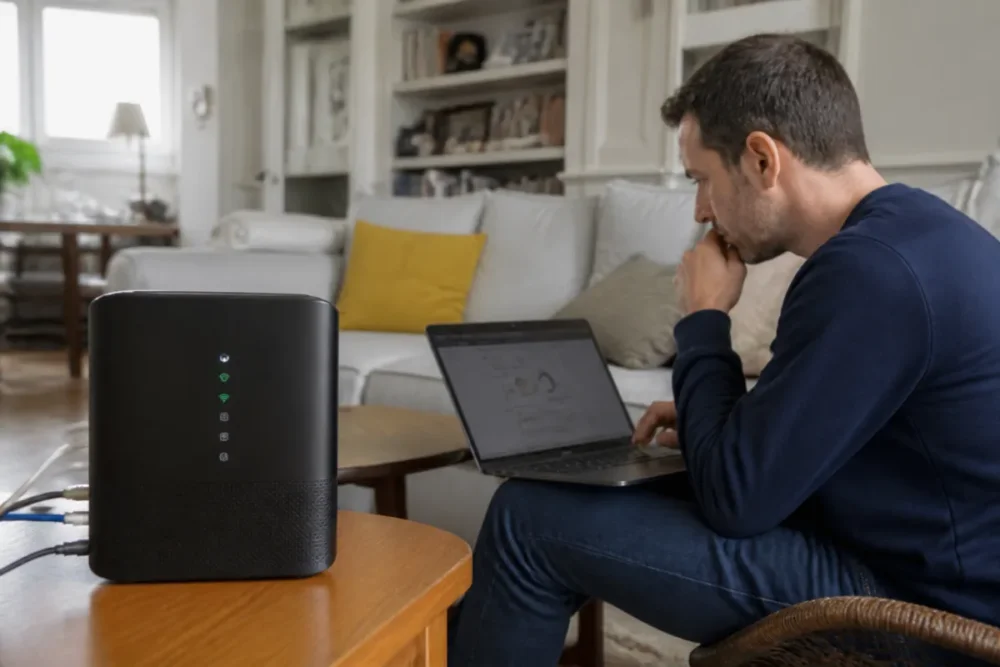
In practice, it is observed in the field that false positives are frequent in households equipped with many connected objects: bulbs, smart plugs, TV, printer, repeater, voice speaker, thermostat… These devices sometimes appear under an obscure name, with only an IP address or a MAC address. Not very clear, we agree.
- Unstable speed while few devices seem to be used;
- unknown equipment name in the administrator interface;
- recent connection displayed at an unusual hour;
- high data consumption on an unidentified device;
- repeated disconnections despite a usually stable box.
The real issue is therefore not only to know who is connected. It is to understand if this connection is legitimate, if it presents a risk, and which measures have the best efficiency/simplicity ratio for home use.
An unknown device in the box is a clue, not proof: the right reflex is to identify before blocking.
How to check who is connected to your Wi‑Fi network?
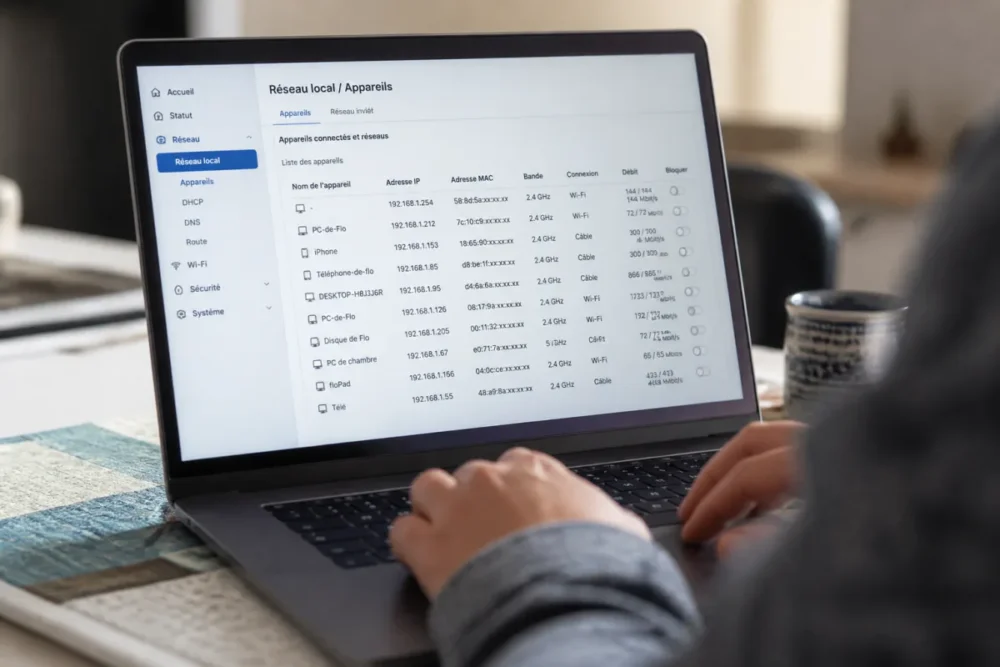
The most reliable method to answer “who is using my Wi‑Fi” is to consult the source: your Internet box or your router. It is the one that assigns private IP addresses to household devices, usually via DHCP, an automatic mechanism that gives a local address to each connected device.
From the box or router interface
According to Orange, the check can be done through the administration interface accessible via the local address 192.168.1.1 for a Livebox, then through the connected devices section. Other operators use different interfaces, but the logic remains similar: connect to the administration, open the network section, then check the active devices.
You should generally find several useful pieces of information there:
- device name: sometimes clear, sometimes generic like “Android,” “PC,” or “Unknown”;
- IP address: local address assigned by the box, for example within a home range;
- MAC address: network identifier composed of 12 hexadecimal characters, useful for distinguishing devices;
- connection type: Wi-Fi, Ethernet, sometimes 2.4 GHz or 5 GHz band;
- status: connected, recently connected, or offline depending on the interfaces.
A home network technician notes that many users first block their own printer or a Wi-Fi repeater because the displayed name does not match the brand visible on the device. In practice, checking the MAC address printed in the device settings avoids many false alarms.
With your operator’s or manufacturer’s app
Apps often simplify reading. Orange states that the Ma Livebox app allows you to see connected devices and block Internet access for a suspicious device. On the Google side, Google Nest help specifies that Google Home displays devices connected to Wi-Fi and their data usage over the last 30 days. Google Wifi can also show, in real time, the data downloaded and uploaded per device.
Some network scanning apps, like Who Uses My WiFi on Google Play, advertise a quick network scan in a few seconds, displaying the IP address, device type, and sometimes the provider identified via an address database. This is handy for taking stock, provided you don’t take every strange name as proof of intrusion.
| Method | What it shows | Main limitation |
|---|---|---|
| Box interface | Active devices, IP, MAC, connection type | Variable interface depending on operator and model |
| Operator app | Simplified list, blocking, sometimes alerts | Options missing on some older boxes |
| Google Home / Google Wifi | Devices, IP, MAC, 30-day usage | Reserved for Google-compatible networks |
| Mobile network scanner | Quick scan, probable provider, device type | Identification sometimes approximate |
When is an unknown device not necessarily an intruder?
This is the point that many guides rush through too quickly. Yes, an unknown device can be suspicious. But no, it should not automatically be treated as an intrusion. Recent systems deliberately blur certain traces to protect privacy, notably with random MAC addresses on smartphones or laptops.
The MAC address remains a useful technical identifier, composed of twelve hexadecimal characters. It allows distinguishing two network devices. But some devices may present a different address depending on the network used or their privacy settings. In other words, your own phone may appear to be “new” after an update or a network reset.
- Phone automatically renamed after a system update;
- forgotten connected object: camera, bulb, vacuum, thermostat;
- console or TV displayed under the network manufacturer’s name;
- Wi-Fi repeater or powerline adapter creating multiple entries;
- device of a relative already connected during a previous visit.
The right approach is to do a quick inventory. Temporarily turn off the Wi-Fi on a phone, tablet, or console, then see if a line disappears from the list. It’s not glamorous, certainly, but it’s often more reliable than an app that guesses a manufacturer from an address database.
What priority actions to secure your Wi-Fi?
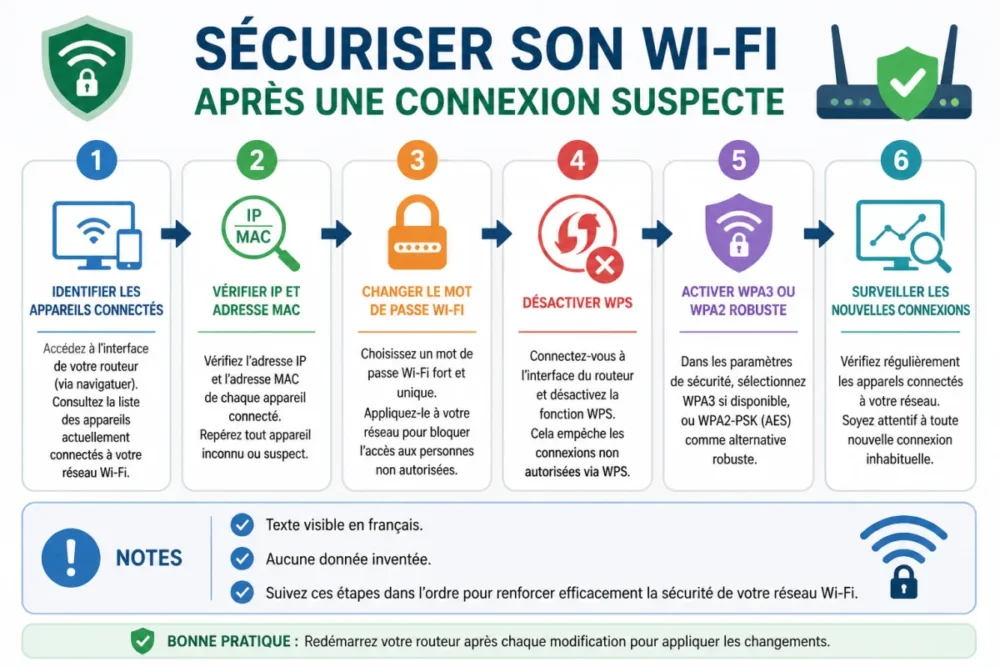
To secure your Wi-Fi after a suspicious connection, first change the network password and the administrator interface password. Then, enable WPA3 if available, otherwise WPA2 with a strong password, disable WPS, and update the box or router firmware.
Once doubt is established, you must move from diagnosis to action. And here, there is no need to look for a magic solution. Wi-Fi security relies on a combination of simple, consistent, and maintainable settings. Changing the password is essential, but it is not always enough if the box keeps an active WPS or a weak administrator password.
Change passwords in the right place
There are two passwords not to be confused. The first protects access to the Wi-Fi network: it is the one you give your devices to connect. The second protects the administrator interface of the box: it is the one that allows changing settings. If someone accesses this interface, they can sometimes change the configuration, view information, or reactivate access.
A strong Wi-Fi password must be long, unique, and hard to guess. Avoid first names, birth dates, pet names, addresses, or obvious sequences. Joking aside, “Maison2024!” seems stronger than it really is if your circle already knows your context.
Strengthen encryption: WPA2, WPA3 and compatibility
Encryption protects exchanges between your devices and the box. The WPA2 protocol has long been the standard, but it has known vulnerabilities like KRACK, which affects WPA2 and can expose some communications under specific attack conditions. WPA3, more recent, offers enhanced encryption and better protection against brute force attacks.
Wi-Fi 6, Wi-Fi 6E, and Wi-Fi 7 standards include WPA3 as the default security measure to improve protection for compatible networks. If your box offers WPA3, enable it when all your important devices support it. Otherwise, WPA2 with a strong password remains preferable to a weak or old compatibility mode.
Wi-Fi security does not rely on a miracle option: it depends on a strong password, modern encryption, and regularly checked settings.
Disable WPS and Create a Guest Network
WPS is used to quickly connect a device, sometimes with a button or a short code. Convenient, yes. But from a security standpoint, it adds an entry point that you don’t always need. If your devices are already configured, disabling WPS reduces the attack surface without changing your daily comfort.
The guest network is often underestimated. It allows you to provide Internet access to visitors without giving them access to your main network, where your computers, printers, NAS, or connected devices are located. It’s also a good way to isolate less reliable devices, for example an old camera or a connected device that is rarely updated.
How to Block a Suspicious Device and Regain Control?
To block a suspicious device, first identify its MAC address in the list of connected devices, then use the blocking option on the box or router if it exists. Then check that your Wi-Fi password has been changed; otherwise, the device could simply try to reconnect.
Blocking is useful, but it should be understood for what it is: a control measure, not an absolute guarantee. Some interfaces allow you to block a device directly from the list. Others require copying the MAC address into an access rule. Tools like NetSpot also indicate that you can spot names, IP addresses, MAC addresses, and vendors, then block the MAC address from the router’s administration.
Be careful though: blocking a MAC address before changing the password is sometimes like closing a window while leaving the door open. If someone still knows the Wi-Fi key, they can try to reconnect another device. The priority remains to change the credentials, then monitor the list after restarting the box.
- Note the MAC address and the displayed name of the suspicious device.
- Check that it is not a household device, a repeater, or a recent guest.
- Change the Wi-Fi password with a long and unique key.
- Disable WPS if the option is available.
- Block the device in the administrator interface if doubt persists.
- Restart the box and check the list of connected devices again.
In a home equipped with many connected devices, it is also observed that regular monitoring is better than a big annual operation. After purchasing a new TV, camera, or console, note its network name. This small discipline avoids having to manually redo the entire inventory the day the connection becomes strange.
What Are the Limits of Detecting Connected Devices?
The list of connected devices allows you to see peripherals, but not always to identify the person using them. Names can be vague, MAC addresses can change, and some boxes only show a partial view. So multiple clues must be cross-checked before concluding.
This is where analysis becomes important. The box sees devices, not intentions. It knows a device connected, that it has an IP address and a MAC address, sometimes that it consumed a lot of data. But it does not necessarily know if it is your tablet, a friend’s smartphone, or an unauthorized device behind the wall.
Third-party applications provide a more comfortable layer of reading, but they are not infallible. Identifying a device’s vendor via an address database can help, without guaranteeing the exact model. A network chip manufacturer may appear instead of the commercial brand. Cherry on top: some devices change their MAC address to limit tracking.
| Observed Indicator | Possible Interpretation | Reasonable Action |
|---|---|---|
| Name “Unknown” | Legitimate device misidentified | Compare with household equipment |
| High consumption | Streaming, cloud backup, or suspicious use | Check times and concerned device |
| New MAC address | New device or random address | Disable/reactivate Wi‑Fi on known devices |
| Unknown recurring connection | Possible intrusion | Change password, block, monitor |
The best protection remains preventive: strong password, modern encryption, up-to-date firmware, guest network, and WPS disabled. It’s less spectacular than an app that promises to “hunt intruders,” but much more solid in the long run.
Conclusion: reflexes to keep for truly safer Wi‑Fi
Asking who is using my Wi‑Fi is a good reflex, provided you don’t turn every unknown line into a disaster scenario. Real progress consists in knowing how to read the list of connected devices, distinguish credible anomalies from common confusions, then apply simple locking measures.
To summarize, regularly check the list of devices, change credentials as soon as serious doubt arises, disable unnecessary functions like WPS, and prioritize WPA3 when your hardware supports it. These are fairly simple steps, but they really make a difference for a home network.
Key Takeaways
- 🔎 First check the list of connected devices in the box or router app.
- 🧩 An unknown device may be legitimate: connected object, repeater, or random MAC address.
- 🔐 Change the Wi‑Fi password before relying solely on blocking.
- 🚫 Disable WPS and use WPA3 if your box and devices support it.
- 📱 Monitor new connections after each addition of equipment to the household.
FAQ
How do I know if someone is using my Wi‑Fi without authorization?
Check the list of connected devices in your box or router app, then compare the names, IP addresses, and MAC addresses with your equipment. If an unknown device regularly appears after verification, change the Wi‑Fi password and monitor the list after rebooting.
Can I precisely identify the person using my Wi‑Fi?
In most cases, no. You can identify a device, its MAC address, its local IP address, and sometimes its probable manufacturer, but not necessarily the person behind it. That’s why it’s better to secure access rather than seek a definite identity.
Should I use an app “who is using my Wi‑Fi”?
Yes, it can help for a quick scan, especially if your box interface is unclear. But an app does not replace essential settings: strong password, WPA2 or WPA3, WPS disabled, and up-to-date firmware.
Is MAC address filtering enough to secure my network?
No, MAC filtering can complement security, but it should not be your only defense. The most important remains a long and unique Wi‑Fi password, combined with modern encryption like WPA3 or, failing that, properly configured WPA2.
Should I create a guest network for my relatives?
Yes, it’s a very good practice if your box allows it. A guest network provides Internet access without exposing your main devices, like your computer, printer, or home network storage.









