| Key Points | Details to Remember |
|---|---|
| 📖 Definition of text functions | Understand each function |
| 🔍 Text extraction | Extract characters easily |
| 📊 Word location | Find the position of a text |
| 🛠️ Combining functions | Create complex formulas |
| 💼 Real use cases | Apply in a real context |
| 🚀 Optimization and tips | Gain productivity |
I remember my first quarterly report, sitting in front of a screen full of client lists, revenue shares, and product codes. With a colleague whispering tips over my shoulder, I understood the importance of mastering Excel’s text functions. Without them, you miss crucial subtleties: extracting an ID, separating a first name from a last name, or finding the right text segment in a data block. Here, we will dive into four essentials: LEFT, RIGHT, MID, and FIND.
1. Understanding the LEFT function
The LEFT function is used to extract the first characters of a text string, starting from the beginning. Its basic format is simple:
=GAUCHE(texte; nombre_de_caractères)
For example, =LEFT(“NEMCO”, 2) returns “NE”. You can use it to isolate a department code in a client ID (the first two digits), or to retrieve the prefix of a keyword.
Practical case: extracting a product code
- Suppose column A contains references like “PRD-45678”.
- The formula
=GAUCHE(A2; 7)returns “PRD-4567”. - Combine with
STXTto then cut out the “45678” part.
2. Deepening with the RIGHT function
Opposite to LEFT, RIGHT lets you grab characters at the end of a string. Here is its syntax:
=DROITE(texte; nombre_de_caractères)
Useful when you need to retrieve the extension of a file name (“.xlsx”), or any coded suffix segment. For example, =RIGHT(“report2023.xlsx”, 5) returns “.xlsx”.
Example: isolate the final year
- Cell B2 contains “Budget_2021”.
- Apply
=DROITE(B2;4)to get “2021”. - Convert to number if necessary for further calculation.
3. MID: extract any portion
The MID function (or STXT in French) is more flexible: it extracts a substring at any position. Format:
=STXT(texte; position_de_départ; nombre_de_caractères)
Ideal for cutting out a version number or isolating a part in the middle of an ID. Example: =MID(“ID-A123-B”, 4, 4) returns “A123”.
Tip: combine with FIND
To automatically extract what is before or after a certain separator, use CHERCHE to calculate the position. For example, for everything after the hyphen in “code-XYZ”, you can write:
=STXT(A2; CHERCHE("-"; A2) +1; 99)
The “99” (or a large number) ensures you take the entire remainder. You can then adjust with GAUCHE or DROITE if you want a precise number of characters.
4. Locate a string with SEARCH
The SEARCH function returns the position of a word or character within a string. Its syntax:
=CHERCHE(recherche_texte; texte; [no_départ])
For example, =SEARCH(“@” ; “[email protected]”) will return 6. Useful to validate that an email address contains an at symbol, or to combine with MID and separate name and domain.
Differences with FIND
- SEARCH is case-insensitive (A = a).
- FIND requires an exact case match.
5. Concrete examples and best practices
In daily use, these functions are often combined for tasks such as:
- Cleaning an email list: isolating the username (
=GAUCHE(A2; CHERCHE("@"; A2)-1)). - Analyzing product codes: retrieving the numeric part (
=STXT(A2;4;5)) after validation with SEARCH. - Comparing two strings: extracting the common prefix to group or filter.
And if you also work on financial dashboards, don’t hesitate to combine these functions with SUMIF to sum with precise conditions after extracting text segments.
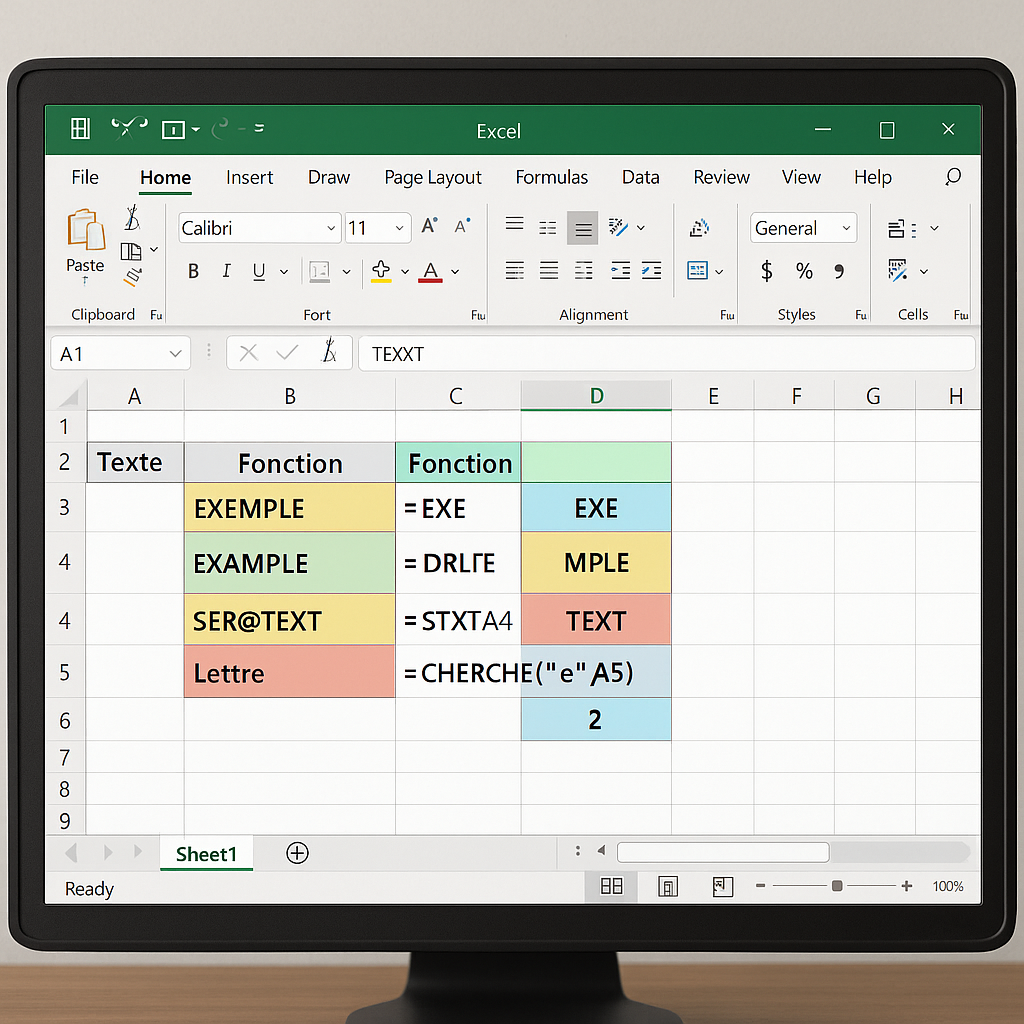
6. Summary table
| Function | Purpose | Basic syntax |
|---|---|---|
| LEFT | Extract start of string | =GAUCHE(texte; n) |
| RIGHT | Extract end of string | =DROITE(texte; n) |
| MID | Extract free substring | =STXT(texte; pos; n) |
| SEARCH | Locate text | =CHERCHE(mot; texte; [dép]) |
FAQ
- What are the differences between LEFT and MID?
- LEFT only takes the start of a string, MID allows starting anywhere.
- How to extract everything after a separator?
- Combine SEARCH to find the position, then MID with a sufficient number of characters.
- Can these functions be nested?
- Yes, mixing LEFT, RIGHT, MID and SEARCH allows building very precise formulas.









