Classic scenario: your Samsung Xpress printer has been working on Wi-Fi for months, visible from several PCs, then you change the Wi-Fi password… and, overnight, it refuses to reconnect. The router shows WPS enabled (LED/blinking), you restart everything, you try a reset, you restart the installation… nothing. On the Samsung Xpress M2070 series, the blockage almost always comes from a subtle detail: the WPS mode actually triggered on the printer side. As long as you don’t force the WPS PBC (Push Button Configuration), the negotiation of the new key can fail without a clear message.
Field verdict: “logical” failure, not hardware
When a Samsung M2070 Wi-Fi (or M2078) no longer connects after a key change, the most common cause is neither a dead Wi-Fi card, nor an “incompatible” router, nor a WPA2/WPA3 quirk. It is a wrong WPS mode triggered by the duration of pressing the Wi-Fi/WPS button. By forcing the WPS PBC (short press 2–4 s), you recreate the situation that “worked before,” and the printer cleanly recovers the new key.
Troubleshooting note: 9/10 — quick, reproducible solution, no driver or USB cable needed.
Recommended for: families/SMBs who changed the Wi-Fi key, replaced the Internet box, or kept the SSID unchanged but modified the security.
Strengths / weaknesses of this approach
What works very well
- No screen: ideal on M2070/M2078 which are almost “mute.”
- Fast: generally under 2 minutes if WPS is OK.
- Reliable: rewrites the Wi-Fi key, not a workaround.
- No driver: no need to reinstall Windows/macOS.
What can block
- WPS disabled: some boxes turn it off for security.
- 2-minute window: timing must be respected between router ↔ printer.
- PIN mode: triggered by pressing WPS too long.
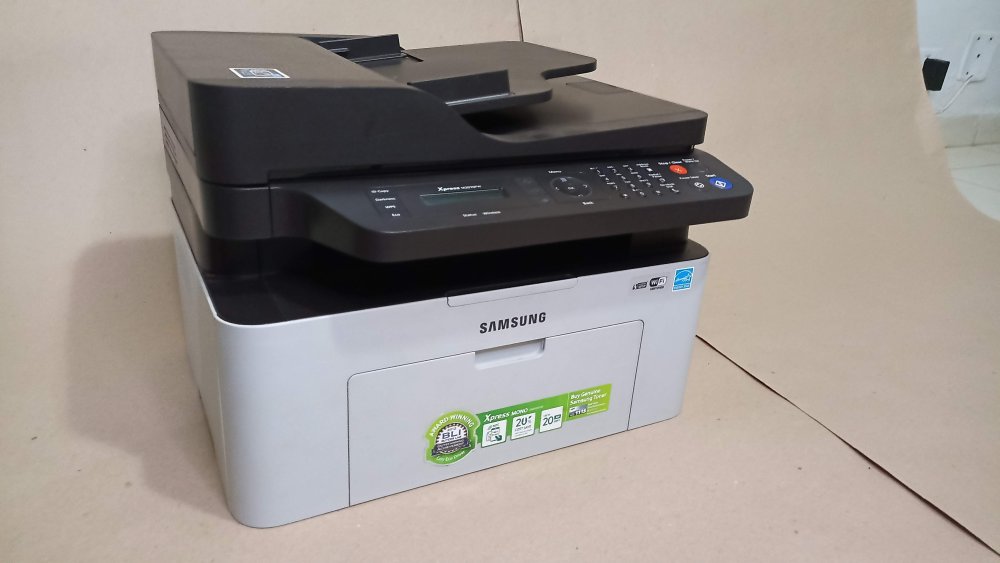
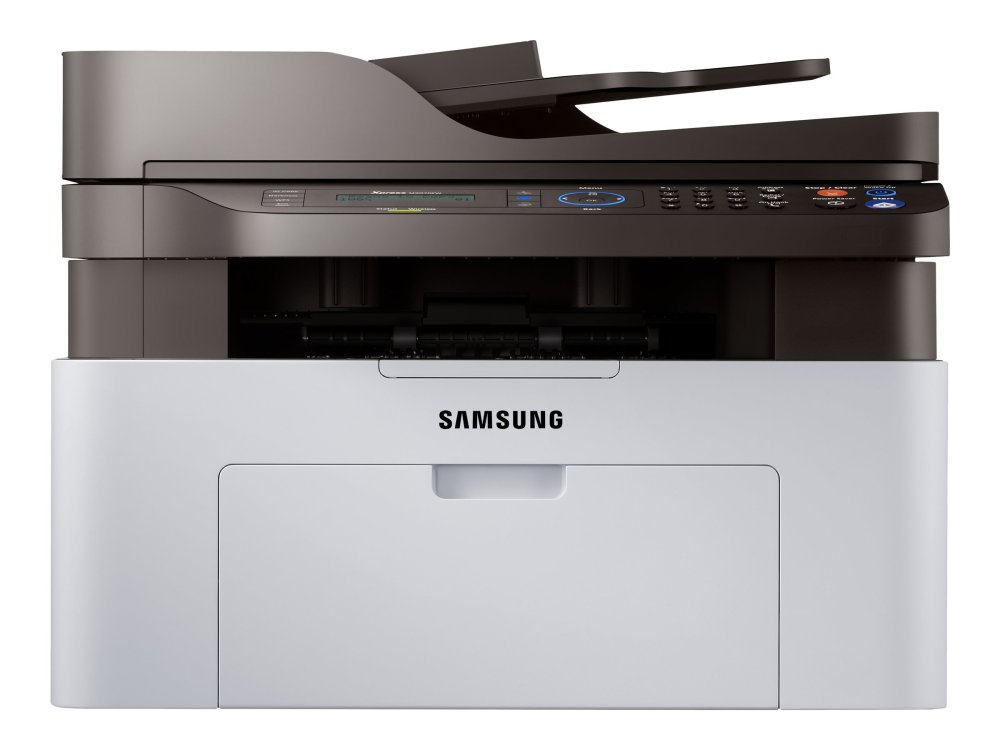
Models concerned: the entire Samsung Xpress M2070 Wi-Fi series
The solution explicitly applies to the following models:
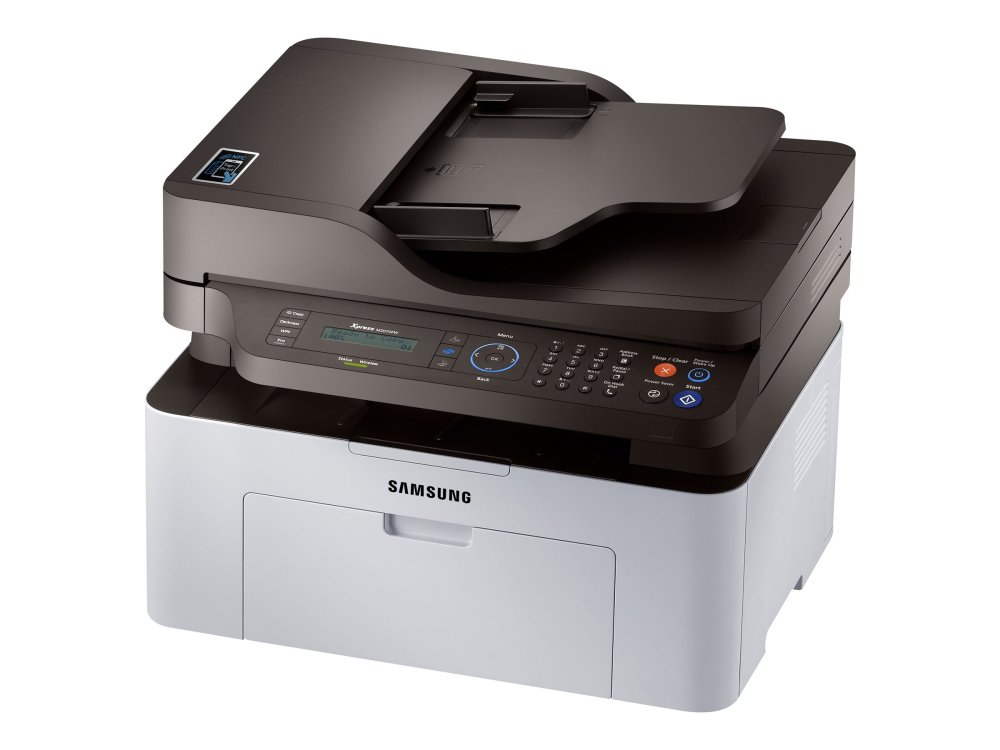
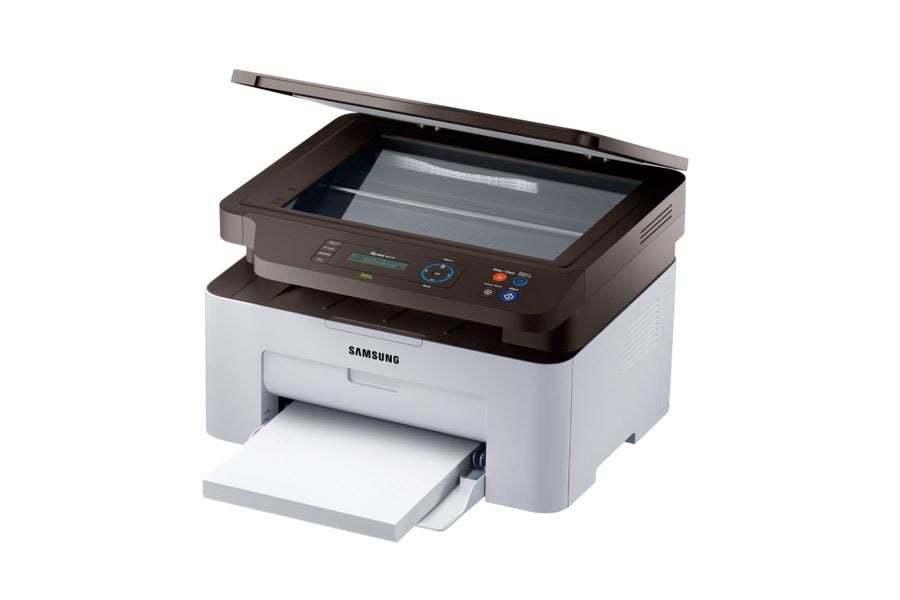
Samsung Xpress M2070W, Samsung Xpress M2070FW, Samsung Xpress M2078W, Samsung Xpress M2078FW, and more broadly the entire Samsung Xpress M2070 series equipped with Wi-Fi.
These printers share the same Wi-Fi/WPS button logic, have little or no screen interface, and the network configuration very often relies on WPS (with LED indicators as the only feedback). This is exactly what makes the “wrong WPS mode” error so frustrating: everything looks correct… except the essential.
Observed symptoms: the real case “it worked before”
On a Samsung Wi-Fi printer that no longer connects after a key change, you almost always find this sequence:
1) The printer was already connected via Wi-Fi (old, stable installation).
2) It was accessible from several computers (and sometimes smartphones).
3) The problem appears only after changing the Wi-Fi password (by choice or after box replacement).
4) WPS is enabled on the router side (often a WPS LED blinks).
5) Despite everything, reconnection fails: the printer becomes invisible again or remains “offline.”
And this is where the diagnosis often goes wrong: people think router, drivers, 2.4 GHz band, WPA2/WPA3… whereas the hard point is simpler: the printer does not switch to the correct WPS mode at the right time.
Why “classic” solutions fail (and waste time)
On the M2070 series, most standard attempts do not address the cause. You can restart 10 times, reinstall the driver, change the Wi-Fi channel: if the printer does not properly exchange the new key, it will remain disconnected.
What this problem is not
It’s worth emphasizing because it avoids unnecessary purchases: it is not a hardware failure, it is not a router compatibility issue, it is not just a WPA2/WPA3 story, and it is generally not solved by a “random reset.”
Common false leads
- Changing the router: useless if WPS PBC is not triggered.
- Forcing 2.4 GHz: sometimes useful, rarely the central cause here.
- Multiplying resets: you fall back into the same wrong mode.
- Reinstalling drivers: the PC is not the problem, the key is.
- Using WPS PIN: this is often precisely what traps you.
WPS explained simply (PBC vs PIN)
WPS (“Wi-Fi Protected Setup”) is a simplified connection method: instead of entering the Wi-Fi password on the device, you trigger a temporary pairing with the router. The idea is: you press WPS on the router side, then on the device side, and they automatically exchange security settings.
WPS is used to connect a device to Wi-Fi without entering the key, but the pairing remains time-limited and can be disabled on some boxes for security reasons. The important thing is to use the right method (push button) and respect the pairing window.
Source: WPS explanatory article, Orange Pro (2024)
Two WPS modes frequently exist:
• WPS PBC (Push Button Configuration): the “button mode” — the simplest, the most common, the one we want here.
• WPS PIN: the “8-digit code” mode — useful in some cases, but a source of confusion on the M2070s.
The real cause: the WPS mode triggered by press duration
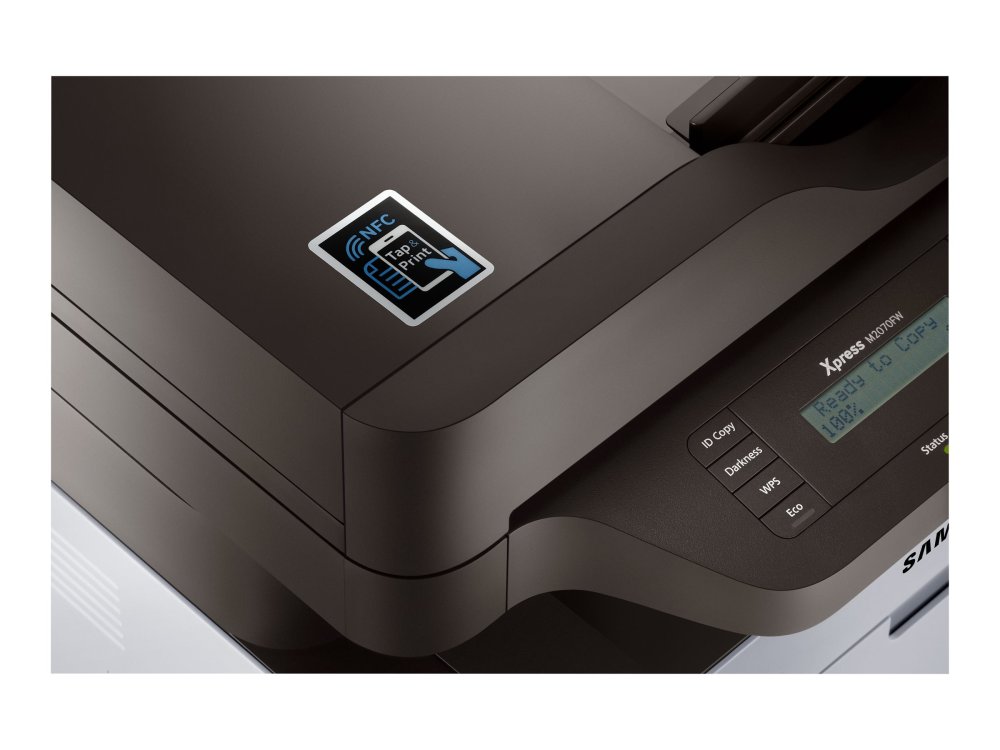
On the Samsung Xpress M2070 (M2070W/M2070FW/M2078W/M2078FW), the Wi-Fi/WPS button can trigger different behaviors depending on how long it is pressed. And this is poorly documented in “general public” explanations, even though it is written in the technical guides.
On the M2070 series, WPS “push button” pairing is done by holding the printer’s WPS button for about 2 to 4 seconds, until the status light flashes rapidly. This signal indicates that the machine is waiting for the exchange with the box/router.
Source: Samsung M2070 Series manual (Samsungsetup.com)
If you press too long, the printer may switch to another WPS mode (often PIN). Result: you think you have “done WPS,” the router blinks, but the negotiation silently fails or does not write the new key as expected. That’s why it worked before: the old key was saved, and the Wi-Fi remained stable. After changing the key, the exchange must be done properly — and on these models, that goes through WPS PBC.
Clear table: short press vs long press (WPS PBC essential)
| Action on the Wi-Fi/WPS button | Triggered mode | What you should see |
|---|---|---|
| Hold ~2 to 4 seconds | WPS PBC (push button) | Status LED blinking rapidly, waiting for pairing |
| Hold > 4 seconds | WPS PIN (or another mode depending on panel) | Different behavior, the “button” exchange does not happen as expected |
The exact solution (proven): WPS PBC on the printer side
Goal: recreate the “original” situation where the printer learned the Wi-Fi key automatically, but this time with the new key. The key is not “guessed”: it is transmitted by the router during the WPS PBC pairing.
Before starting: 3 quick checks
• Check that your box/router has WPS enabled (some models allow it to be completely turned off).
• Place the printer within proper range (avoid a load-bearing wall right next to it).
• Avoid launching a “Wi-Fi installation” from software in parallel: here you want a clean, simple pairing.
The correct sequence (the one that works)
Step 1 — Start WPS on the router side.
Press the WPS button on the box/router (or trigger it via the interface). A WPS LED often starts blinking: this is the pairing window (usually ~2 minutes).
Step 2 — Put the printer in WPS PBC (the key point).
On the Samsung Xpress M2070/M2078 panel, hold the Wi-Fi/WPS button for about 2 to 4 seconds, then release. Do not go for a “very long” press: that’s exactly what triggers the trapping modes.
Step 3 — Wait for the key exchange.
The printer attempts the connection. Depending on the model, you observe a “status” LED blinking, then stabilizing once connected. The idea: the router transmits the settings (including the new key), the printer saves them, and the connection is restored.
Step 4 — Confirm success.
When pairing succeeds, the indicator behavior becomes stable (no more “pairing” blinking) and the printer becomes reachable on the network again (Windows/macOS sees it again, printing possible).
Visual indicators worth their weight in gold
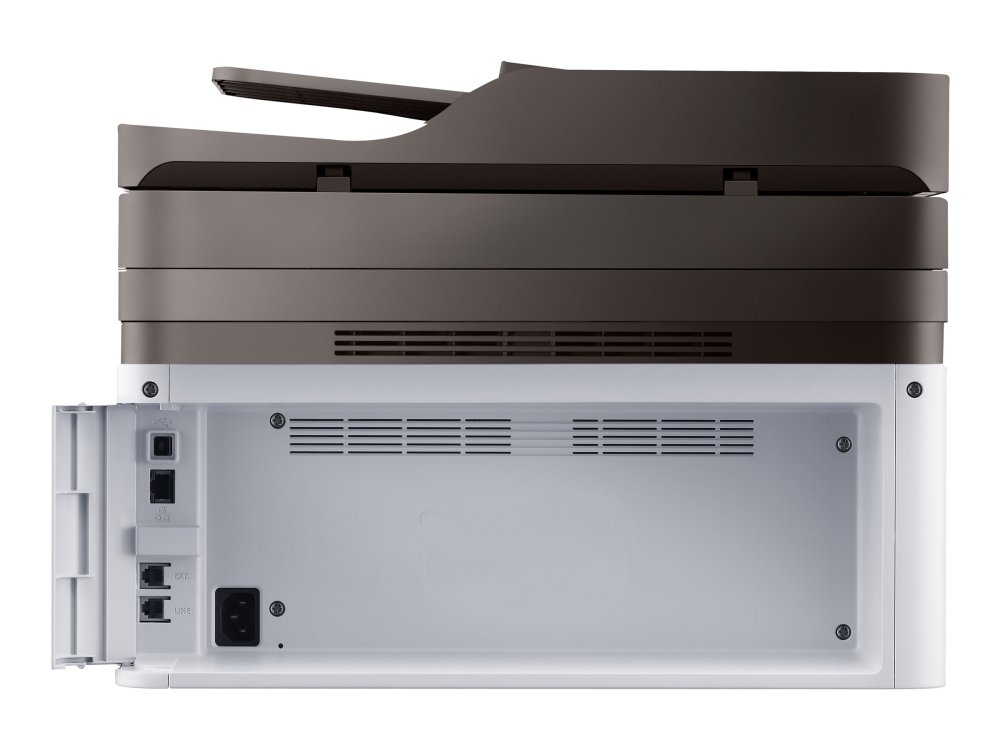
On these taciturn models, the LEDs are your “log.” The documentation typically indicates:
• during PBC pairing: rapid blinking on the WPS LED / status LED (depending on variant).
• once connected: stable LED (or return to “Ready” state).
If you see a state that does not look like a WPS PBC wait (no fast blinking, strange behavior, wait ending without result), you are very likely in PIN mode or on the “wrong branch” of the button.
Why this method “exactly recreates” the original functional situation
Before changing the password, the printer had consistent Wi-Fi settings: SSID + security method + key. After modification, it often keeps the old “security/key” pair in memory, which results in an immediate failure during pairing.
WPS PBC is the most direct way, on a M2070/M2078, to force a correct rewriting of the settings without going through a nonexistent screen interface. In other words: you do not “repair” the printer, you give it the correct key back via the intended channel.
If it still fails: what I check at the second level
If your Samsung M2070 Wi-Fi problem persists after several clean attempts of WPS PBC:
1) Confirm that the box’s WPS is indeed in button mode (not just PIN). 2) Avoid too rapid repetitions: let the box exit its WPS state, then restart properly. 3) Check that you have not enabled Wi-Fi client isolation (AP isolation) on some advanced routers. 4) If the box enforces WPA3-only (rare in “consumer boxes”, more common in custom routers), switch to mixed WPA2/WPA3 mode while pairing. 5) As a last resort: reconnect via the manufacturer’s utility (when available) or temporary USB connection to reconfigure, but this is not the fastest way in most cases.
Tips to avoid the problem in the future
• If you change the Wi-Fi key, note that “screenless” devices (printers, cameras, plugs) will often need to relearn the key: allow 5 minutes of WPS PBC. • Keep a simple rule: on M2070/M2078, short press 2–4 s = correct mode, long press = risk of switching to PIN. • If your box allows it, keep WPS activatable “on demand”: off by default, enabled for 2 minutes when needed. • To limit changes: you can keep the same network name (SSID) and only change the key, but the printer will still need to relearn the key.
What to remember (no fluff)
When a Samsung Wi-Fi printer no longer connects after changing the key, the Xpress M2070/M2078 series is rarely fixed with drivers or resets. The real lever is to trigger the correct WPS on the printer side: WPS PBC via a short press (2–4 s) on the Wi-Fi/WPS button, while WPS is active on the box. Once the new key is exchanged, the printer returns exactly to the “functional” state it had before.
FAQ — Samsung M2070/M2078 Wi-Fi: frequently asked questions
Why does my Samsung M2070 Wi-Fi no longer connect after changing the password?
Because it retains the old key in memory. Without a full screen interface, the most direct way to transmit the new key is a properly triggered WPS pairing (ideally WPS PBC).
WPS is enabled on my box, so why does it still fail?
Because “WPS enabled” is not enough: the printer must be in the correct WPS mode at the right time. On M2070/M2078, a too long press can trigger a different mode (often PIN) and the exchange does not happen as expected.
What is the exact duration to launch WPS PBC on a Samsung Xpress M2070?
The series documentation indicates holding for about 2 to 4 seconds until a rapid blinking of the status light, indicating the printer is waiting for pairing.
What does a successful WPS PBC look like on the LED indicators?
During pairing, you see an “active” blinking (often rapid). Once connected, the status becomes stable (returns to “Ready”, steady LED depending on the model). If the printer ends without stabilizing, restart respecting the 2–4 s press.
Is this a Wi-Fi hardware failure of the printer?
In most cases, no. If the printer connected before and the problem appears just after a Wi-Fi key change, it is primarily a parameter/key exchange issue, not a faulty radio card.
Should I force 2.4 GHz for the Samsung M2078W Wi-Fi to work?
Printers of this generation generally operate at 2.4 GHz. If your network is dual-band with a single name, it often still works. If you suspect a steering problem, temporarily test a 2.4 GHz SSID, but keep in mind that the central point often remains WPS PBC.
Does a factory reset fix the problem?
Not necessarily. A reset does not guarantee that the new key will be correctly registered. Without WPS PBC (or manual configuration via a tool), you can fall back into the same negotiation failure.
Why avoid WPS PIN on these models?
Because it adds a step (entering an 8-digit code) and it is easy to switch to it by mistake via a long press. In troubleshooting after a key change, PBC is more direct and simpler.
Is a USB cable absolutely necessary to reconnect the Samsung M2070W?
No. WPS PBC allows reconnection without a cable.
USB is mainly used as a last resort if you need to reconfigure via a utility on a PC.
Does this solution also work on the Samsung Xpress M2070FW and M2078FW?
Yes, the logic is the same on the W and FW versions of the series: same Wi-Fi/WPS button, same interface constraints, and the WPS PBC remains the most reliable method after a key change.









