| Key Points | Details to Remember |
|---|---|
| 🔍 Definition of a slicer | Visually filter a pivot table without formulas |
| ⚡ Main benefits | Speed up analysis and facilitate decision-making |
| 🛠️ Prerequisites | Excel 2010 or later version with pivot tables |
| 📋 Key steps | Insert, customize, and link |
| 📊 Practical applications | Sales dashboard, KPI tracking, HR report |
Slicers have become essential for anyone looking to energize their Excel reports. I discovered this feature during a stock tracking project with my colleague Laura, and since then, I swear by them. Rather than getting bogged down in ten dropdown menus, slicers offer a visual and quick way to filter a pivot table. In this article, I will walk you through how to insert, customize, and make the most of them to make your tables lively and accessible to everyone.
What is a slicer in Excel?
A slicer is a graphic object linked to a pivot table that displays a series of buttons corresponding to the values of a field. Clicking one of these buttons activates or deactivates the associated filter. Concretely, it is a filter placed separately, visible and manageable with the mouse, without going through the Excel ribbon. This way, you gain clarity and responsiveness: each click instantly refreshes your report.
Why use slicers with your pivot tables?
Adopting slicers in an Excel environment offers your colleagues or clients a real mini-dashboard. Instead of explaining how to choose a filter in a hidden menu, they can click directly on the desired option. Here are some concrete advantages:
- Visual clarity: you immediately see the available values.
- Ergonomics: a simple click replaces tedious selection.
- Interaction: ideal for display on a large screen or in meetings.
- Performance: without complex formulas, the pivot table immediately adjusts totals.
- Formula complement: they complement your pivot tables, just like SUMIFS in a classic report.
How to insert a slicer step by step
Step 1: Select your pivot table
Click anywhere in your pivot table to display the PivotTable Analyze tab (or Options depending on your Excel version). This ribbon now contains the Filter group where the Insert Slicer icon is hidden.
Step 2: Choose the field to slice
In the dialog box that appears, check the fields for which you want a visual filter. Each selected field will create a separate slicer. Confirm to see your first filter buttons appear, ready to use.
Step 3: Position and Resize
You can drag and drop the slicer wherever you like: next to your PivotTable, in a dedicated box, or even on another sheet for a clean dashboard. A resize corner allows you to adjust the height and width to display multiple columns of buttons if necessary.
Advanced Slicer Customization
One of the strengths of slicers is their graphical flexibility. Here are some tips to harmonize them with your branding:
- Quick Style: under the Slicer Options tab, choose from predefined styles (adapted colors, graphic borders).
- Custom Color: click on Slicer Styles > New Style to define your own shades and fonts.
- Layout: modify the number of button columns, adjust spacing and row height for a clear display.
- Title and Legend: make sure to rename your slicer to be explicit. You can adjust button names, for example by combining COUNTIF functions to count filtered values directly below the slicer image.
- Connection to Multiple PivotTables: the same slicer can control multiple pivot tables from the same data source, to maintain filter uniformity.
Integrating Slicers into an Interactive Dashboard
Rather than leaving your PivotTables isolated, create a dedicated dashboard sheet. Position your slicers, pivot charts, and some key indicators there. You can even display data from other tables via lookup formulas like VLOOKUP, to visually complement your pivotal data.
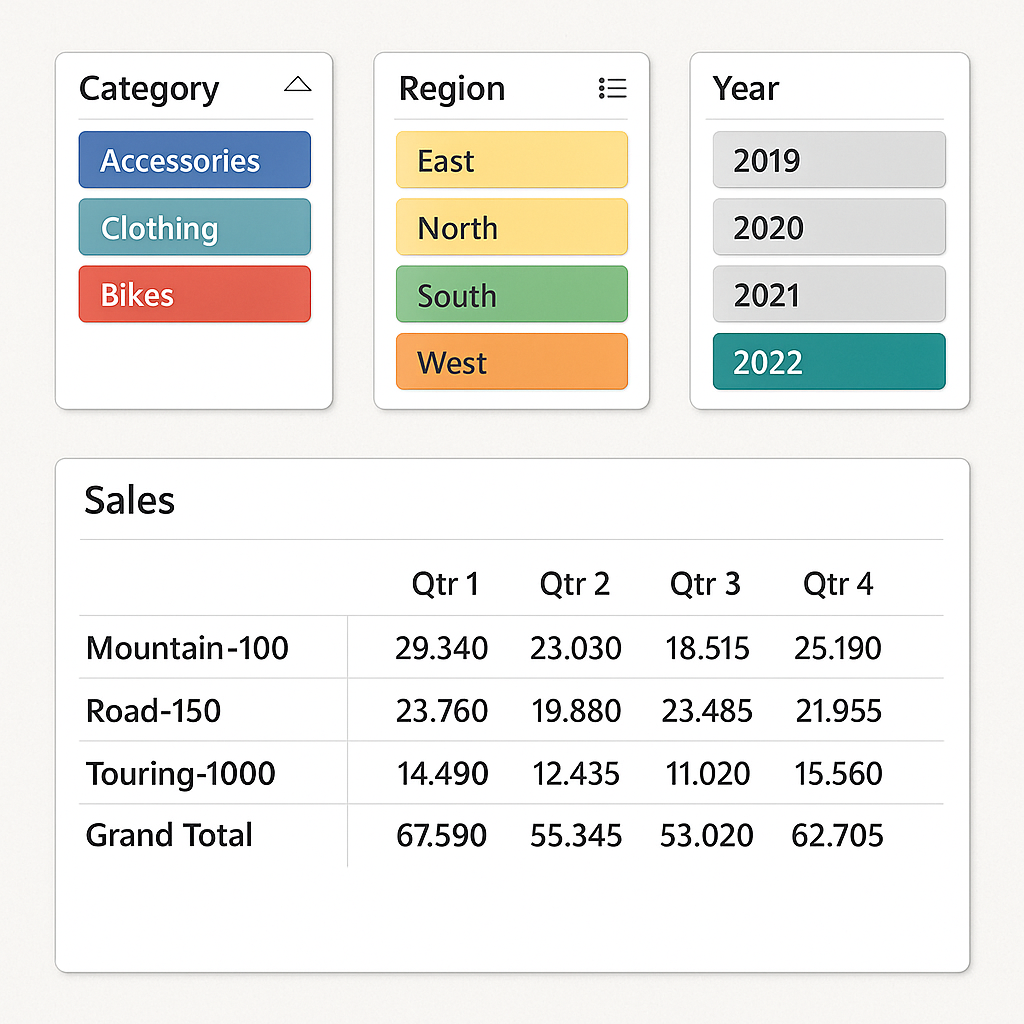
Linking Slicers to Calculated Fields
To push interactivity even further, create calculated fields that use the IF function to display a specific label or warning. For example, a “Critical Stock” field can return “Alert” if the quantity falls below a threshold chosen via a month or warehouse slicer.
FAQ
Do slicers slow down my file?
When controlling a large number of PivotTables or very large datasets, there may be a slight refresh delay. Generally, for a well-designed file, the impact remains minimal, and the ergonomic benefit more than compensates for this small delay.
Can I copy a slicer from one workbook to another?
Yes, simply copy/paste the slicer between two workbooks based on the same data source. However, remember to also copy the associated PivotTables, otherwise the slicer will lose its link.
How do I reset all filters at once?
Under the Slicer Options tab, click the Clear Filter button (icon of a funnel with a slash). You can also add an ActiveX or VBA button to trigger this reset automatically.
Do slicers work in Excel Online?
In Excel Web, slicers are supported but with reduced customization features compared to the desktop version. You can still click to filter, but formatting is limited.









