.en-bref { max-width: auto; margin: 2em auto; padding: 1.5em 1.8em; color: #78350f; font-family: “Inter”, “Segoe UI”, sans-serif; text-align: left; position: relative; box-sizing: border-box; background: #fff2d7; border: 0; border-left: 0px solid #b45309; border-radius: 0; box-shadow: none; }
.en-bref h2, .en-bref .en-bref-header { font-size: 1.15em; font-weight: 700; margin-bottom: 0.6em; color: #b45309; }
.en-bref p, .en-bref li { font-size: 1em; line-height: 1.65; margin: 10px; }
.en-bref strong { color: #451a03; }
.mg-callout{margin:1.5em 0;padding:.9em 1.1em;border:1px solid;border-left-width:4px;border-radius:10px;font-size:.97em;line-height:1.65}.mg-callout>:first-child{margin-top:0}.mg-callout>:last-child{margin-bottom:0}.mg-callout__label{display:block;margin:0 0 .35em;font-weight:700;font-size:.82em;letter-spacing:.03em;text-transform:uppercase}.mg-callout__label::before{margin-right:.45em;font-size:1.05em;vertical-align:-.06em}.mg-callout–info{background:#eff6ff;border-color:#bfdbfe;color:#1e3a5f}.mg-callout–info .mg-callout__label{color:#2563eb}.mg-callout–info .mg-callout__label::before{content:”\2139\FE0F”}.mg-callout–tip{background:#f0fdf4;border-color:#bbf7d0;color:#14532d}.mg-callout–tip .mg-callout__label{color:#15803d}.mg-callout–tip .mg-callout__label::before{content:”\1F4A1″}.mg-callout–warning{background:#fffbeb;border-color:#fde68a;color:#7a4a10}.mg-callout–warning .mg-callout__label{color:#b45309}.mg-callout–warning .mg-callout__label::before{content:”\26A0\FE0F”}.mg-callout–danger{background:#fef2f2;border-color:#fecaca;color:#7f1d1d}.mg-callout–danger .mg-callout__label{color:#dc2626}.mg-callout–danger .mg-callout__label::before{content:”\1F6D1″}.mg-proscons{display:grid;grid-template-columns:1fr 1fr;gap:16px;margin:1.5em 0}@media(max-width:560px){.mg-proscons{grid-template-columns:1fr}}.mg-proscons__col{padding:.9em 1.1em;border:1px solid;border-radius:10px}.mg-proscons__title{display:flex;align-items:center;gap:.4em;margin:0 0 .5em;font-weight:700;font-size:.9em;letter-spacing:.02em}.mg-proscons__col ul{margin:.3em 0 0;padding-left:1.15em}.mg-proscons__col li{margin:.3em 0;line-height:1.55}.mg-proscons__col–pro{background:#f0fdf4;border-color:#bbf7d0;color:#14532d}.mg-proscons__col–pro .mg-proscons__title{color:#15803d}.mg-proscons__col–pro .mg-proscons__title::before{content:”\2705″}.mg-proscons__col–con{background:#fef2f2;border-color:#fecaca;color:#7f1d1d}.mg-proscons__col–con .mg-proscons__title{color:#dc2626}.mg-proscons__col–con .mg-proscons__title::before{content:”\274C”}ol.mg-steps{list-style:none!important;counter-reset:mgstep;margin:1.6em 0;padding-left:0!important}ol.mg-steps>li.mg-steps__item{counter-increment:mgstep;list-style:none!important;padding-left:0!important;padding-bottom:1.4em}ol.mg-steps>li.mg-steps__item:last-child{padding-bottom:0}ol.mg-steps>li.mg-steps__item>:last-child{margin-bottom:0}ol.mg-steps>li.mg-steps__item>.mg-steps__title{margin:0 0 .25em;font-weight:600}ol.mg-steps>li.mg-steps__item>.mg-steps__title::before{content:counter(mgstep) “. “;opacity:.45;font-weight:500;font-variant-numeric:tabular-nums}ol.mg-steps>li.mg-steps__item:not(:has(.mg-steps__title))::before{content:counter(mgstep) “. “;opacity:.45;font-weight:500;font-variant-numeric:tabular-nums}.mg-kpis{display:grid;grid-template-columns:repeat(auto-fit,minmax(140px,1fr));gap:14px;margin:1.5em 0}.mg-kpi{padding:1em .9em;border:1px solid #e5e7eb;border-radius:12px;background:#f9fafb;text-align:center}.mg-kpi__value{display:block;font-size:1.7em;font-weight:800;line-height:1.15;color:#111827}.mg-kpi__label{display:block;margin-top:.35em;font-size:.85em;color:#6b7280;line-height:1.35}
.wp-block-image,.ai-image{margin-bottom:1.75em}.wp-block-image>figcaption,.ai-image>figcaption{margin-top:.5em}
.magic-lb-overlay{position:fixed;inset:0;background:rgba(15,23,42,.92);display:none;align-items:center;justify-content:center;z-index:99999;cursor:zoom-out;padding:20px}
.magic-lb-overlay.open{display:flex}
.magic-lb-overlay img{max-width:95vw;max-height:95vh;object-fit:contain;border-radius:8px;box-shadow:0 8px 32px rgba(0,0,0,.5)}
.magic-lb-close{position:absolute;top:16px;right:20px;color:#fff;background:rgba(0,0,0,.5);border:none;width:40px;height:40px;border-radius:50%;font-size:24px;cursor:pointer;display:flex;align-items:center;justify-content:center}
.magic-lb-close:hover{background:rgba(0,0,0,.8)}
.wp-block-image img{cursor:zoom-in;transition:transform .15s ease}
.wp-block-image img:hover{transform:scale(1.01)}
.magic-img-link{display:inline-block;text-decoration:none}
(function(){
var ov=document.getElementById(‘magic-lb’);if(!ov)return;
var img=ov.querySelector(‘img’),btn=ov.querySelector(‘.magic-lb-close’);
function open(src){img.src=src;ov.classList.add(‘open’);document.body.style.overflow=’hidden’}
function close(){ov.classList.remove(‘open’);img.src=”;document.body.style.overflow=”}
document.addEventListener(‘click’,function(e){
var a=e.target.closest(‘a.magic-img-link’);
if(a){e.preventDefault();open(a.getAttribute(‘href’));return}
var i=e.target.closest(‘.wp-block-image img’);
if(i&&!e.target.closest(‘a’)){e.preventDefault();open(i.currentSrc||i.src)}
});
ov.addEventListener(‘click’,function(e){if(e.target===ov||e.target===btn)close()});
document.addEventListener(‘keydown’,function(e){if(e.key===’Escape’)close()});
})();
To join a private Roblox server when the link does not work, first check the full address, the connected account, and the server status. If the private Roblox server link remains invalid, open the official game page, check the owner’s permissions, then try the official app or browser on your device.
A broken link may indicate a deleted invitation, a closed server, an unauthorized account, or a simple redirection issue. Reinstalling Roblox is therefore not the first reflex: it does not fix a wrong account or a denied permission.
In brief
- 🔗 An invalid link must be copied entirely and opened only from Roblox.
- 👤 The connected account must match the one that received the invitation.
- 🎮 The official game page can sometimes allow access to the server without using the link.
- 🛡️ A password, a cookie, or a verification code should never be shared to join a game.
Diagnose the blockage before multiplying attempts
An inaccessible private Roblox server does not always come from the app. The useful diagnosis consists of separating four cases: invalid link, access denied, server unavailable, or local problem on the device. Start with the link and the account before modifying Roblox or the phone settings.
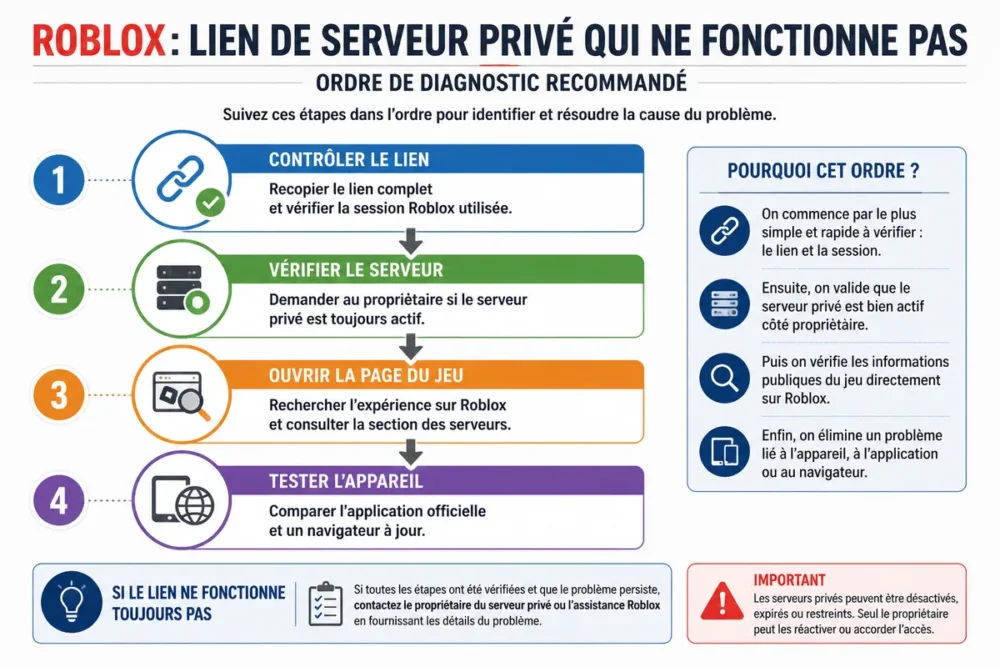
Roblox is a platform where access to an experience and access to a private server are two distinct permissions. A game page may open while entry to the server fails, especially if the owner has changed the list of authorized players.
Also check that Roblox is opened with the account that received the invitation. Another account registered in the browser or app may display the game without having private access.
The most effective verification order
-
Check the link and session
Copy the entire address, then verify the name of the account currently logged into Roblox.
-
Check the server status
Ask the owner if the private server still exists and if the invitation is still active.
-
Test the official page
Search for the game on Roblox before changing browser or phone settings.
Check the link, server, and Roblox account used
A Roblox invitation link must lead to the official site or app and retain all its characters. A truncated address, an added space, or a replaced invitation is enough to cause a page not found. The owner must also confirm that the private server has not been disabled.
Avoid shortened links and unknown redirects. Roblox does not ask for the password, session cookie, or verification code to join a game. If a page requests this information, close it.
Account verification is just as important. Log out of other open Roblox sessions in the browser, then log in again with the guest profile. This check is more relevant than a reinstallation when the message indicates lack of authorization.
When the Roblox private server link is invalid
An invalid Roblox private server link may be incomplete, deleted, or replaced by a new invitation. The owner may also have closed the server, changed the game settings, or removed access for certain players. Ask them to check the server status before requesting a new link.
When the correct account is not enough
The correct account does not automatically guarantee entry. Access may be limited to certain players, the owner’s friends, or a list defined in the server settings. Age restrictions, privacy settings, or parental controls may also prevent connection.
A full server is another distinct case. The account is then correctly identified, but no spot is available at the time of testing. Wait for a spot to free up or ask the owner to check the capacity and players present.
Join the private server from the game page, even without a link
The official experience page may offer another access route when the invitation does not open. Search for the exact name of the game on Roblox, open its page, then check the area dedicated to servers if the experience offers this feature. This method does not replace the owner’s authorization.
-
Search for the game
Use Roblox’s built-in search and check the name, image, and creator of the experience to avoid a copy.
-
Open the official page
Access the game’s profile from the Roblox site or official app.
-
Check the servers
Open the servers section and spot the owner’s private server when it is visible to your account.
-
Launch the game
Select the identified private server, without confusing it with a public game or a session reserved for friends.
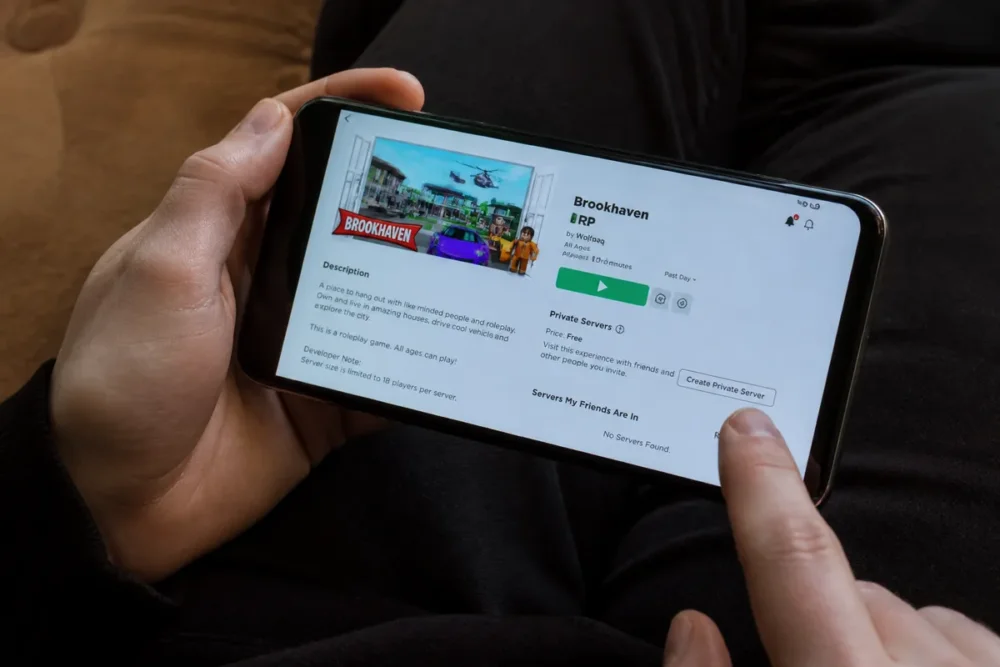
Accessing the game on computer
On a computer, use the official Roblox website or the application installed from an official source. Open the game page, check the available servers, then switch to the application if the browser does not launch the game properly.
Accessing the game on phone
On a phone, open the experience from the official Roblox app and check the active session. If the built-in opening fails, try the official mobile browser with the same account, without using an installation file from a third-party site.
Have the permissions verified by the server owner
The owner of the private server is the first person able to confirm the status of the invitation and the access list. Ask them to check the authorized players, privacy settings, and available capacity, then save any changes before trying again.
A new link is useless if the server is closed or if the account remains absent from the access list. In this case, do not request an additional link before confirming the permissions.
Settings that can prevent entry
| Verification | Possible blockage | Action to request |
|---|---|---|
| Player list | Account absent | Add the concerned account or apply the setting provided by the owner |
| Invitation | Access disabled or old invitation withdrawn | Reactivate access then create a new official link |
| Capacity | Server full | Free up a spot or wait for availability |
| Player account | Privacy, age restriction, or parental control | Check the applicable account settings without bypassing them |
Resolving a technical problem on computer or phone
A local problem becomes more likely when the link works for other authorized players and the owner confirms the server activity. Completely close Roblox, restart the application or browser, then check the internet connection, updates, and the device’s automatic time.
If the problem occurs on computer
Test another up-to-date browser and temporarily disable extensions that block redirects or Roblox windows. Cookies and browsing data from the official site can also be cleared if an old session prevents the link from opening.
Restarting the computer and connection can eliminate a local launch blockage. Reinstalling Roblox should remain a late step: it is not a guaranteed solution against a deleted link or denied permission.
If the problem occurs on phone
Update the Roblox app from the official store, close it from recent tasks, then open it again. Test Wi-Fi and mobile data when both connections are available to distinguish a network problem from an account problem.
Automatic date and time must be enabled. If the mobile browser opens the link poorly, try the official app, then vice versa. For more general connection problems, also consult this guide on Roblox error 279.
Understanding Roblox private server error messages
The displayed message provides guidance, but not always definitive proof. Associate the error with the most relevant check, then keep a screenshot if the blockage persists. An access denied message primarily points to the account or permissions, not the internet connection.
| Message or symptom | Likely cause | First action |
|---|---|---|
| “Invalid link” or page not found | Incomplete link, deleted or replaced invitation | Copy the link again and ask the owner to check the server |
| “You are not authorized to join this server” | Wrong account, absent account or active restriction | Check the session and access settings |
| Server unavailable | Server temporarily closed, game inaccessible or possible maintenance | Wait, restart Roblox and ask the owner for confirmation |
| Server full | Capacity reached | Wait for a spot or ask the owner to check the players present |
Headings may change with versions of the site and the app. The exact text, test time, device used, and game name provide Roblox support with more useful information than a simple mention of an inaccessible private server.
Avoid fake links and know when to ask for help
A real link must lead to Roblox or open the official app. Pages that promise Robux, request a download, or ask for a login code are not necessary to join a private server.
First send the exact error message and the concerned account name to the owner, without password or session data. If the server is confirmed active and checks fail, use the official Roblox support channel.
Information to provide to the owner or support
- The exact name of the game and the private server.
- The concerned Roblox account name, without secret identifier.
- The device used, Roblox version, and browser if necessary.
- The displayed error message and a screenshot free of sensitive data.
- Actions already taken and the exact moment the blockage appears.
A common misconception often arises: “a new link necessarily fixes the problem.” This is false when the account is not authorized, the server is full, or the platform blocks local opening. Verification must therefore follow the order: link, account, server, permissions, then device.
Frequently Asked Questions
Can you join a Roblox private server without a link?
Yes, when the private server is visible from the official game page for the concerned account. Open the servers section and check that the owner’s server appears. An absent visibility may indicate missing authorization or a closed server.
Why does the link work for a friend but not for me?
The friend’s account may be authorized while yours is not. Check the connected account, privacy settings, profile-related restrictions, and the list of players authorized by the owner.
How to know if a Roblox private server link has been deleted?
A page not found or invalid link message may correspond to a deleted, truncated, or replaced invitation. The owner must confirm the server status in Roblox and generate a new link only if the server is still active.
Can you join a Roblox private server on a phone?
Yes, access is possible from the official Roblox app if the account has the necessary permissions. Check the active session, update the app, and test the official mobile browser if integrated opening fails.
Should Roblox be reinstalled if the private server does not work?
No, reinstalling is not the first step. First check the link, account, permissions, server status, and connection. Reinstallation may be justified after these checks, but it does not fix a deleted invitation.
Is a Roblox private server the same as a friends-only server?
No. A private server is a distinct instance of an experience, with access rules defined by its owner. A friends-only server applies a restriction related to account relationships and should not be confused with a public server or a private invitation.
To join a Roblox private server when the link does not work, follow the shortest order: full link, correct account, active server, permissions, access from the game page, then technical troubleshooting. Never use unofficial methods and contact Roblox support when the blockage concerns the account or persists after these checks.
Useful sources to consult
- Official Roblox Support → information on private servers and their access → check the settings provided by the platform.
- Roblox Creator Documentation → private server access settings → understand the settings controlled by the experience creator.
- Roblox Parental Control Guide → settings that may limit account access → check restrictions without bypassing them.