To free up space on Roblox without deleting your games, start by clearing the cache from your device settings, then check temporary files and overall storage. The cache and local resources can disappear without deleting your account, favorites, or creations saved online.
The method depends on the device: Android generally offers a “Clear Cache” button, while iPhone and iPad typically require offloading or reinstalling the app. On Windows, Roblox Studio requires extra caution, as its project files and auto-recoveries are not just temporary data.
In brief
🧹 Clearing the cache is the first action to try: it mainly targets temporary files downloaded by Roblox.
🔐 Uninstalling Roblox does not delete the account, but erasing local data may log you out and reset settings to default.
📏 Measure the space before and after in storage settings to verify that Roblox is indeed responsible for the lack of space.
💾 Roblox Studio is a separate case: export places and recovery files before any manual deletion.
Before cleaning Roblox: what remains online and what can disappear
A Roblox account is an online profile that stores account information, inventory, and relationships with other players. Files on the device mostly correspond to cache, downloaded resources, log files, and some local settings. Deleting these files does not mean deleting the account.
Data generally retained with the account
The Roblox account, Robux, inventory, friends, favorites, and published creations are linked to the online service. Progress depends on each experience: a save designed by the creator may be synced with the account, while local data or a faulty save might not be recoverable after a reset.
Check your email address, password, and login method before any reinstallation. This check prevents being locked out after deleting the local session, especially if the account was created using a third-party login method.
Data that cleaning can delete
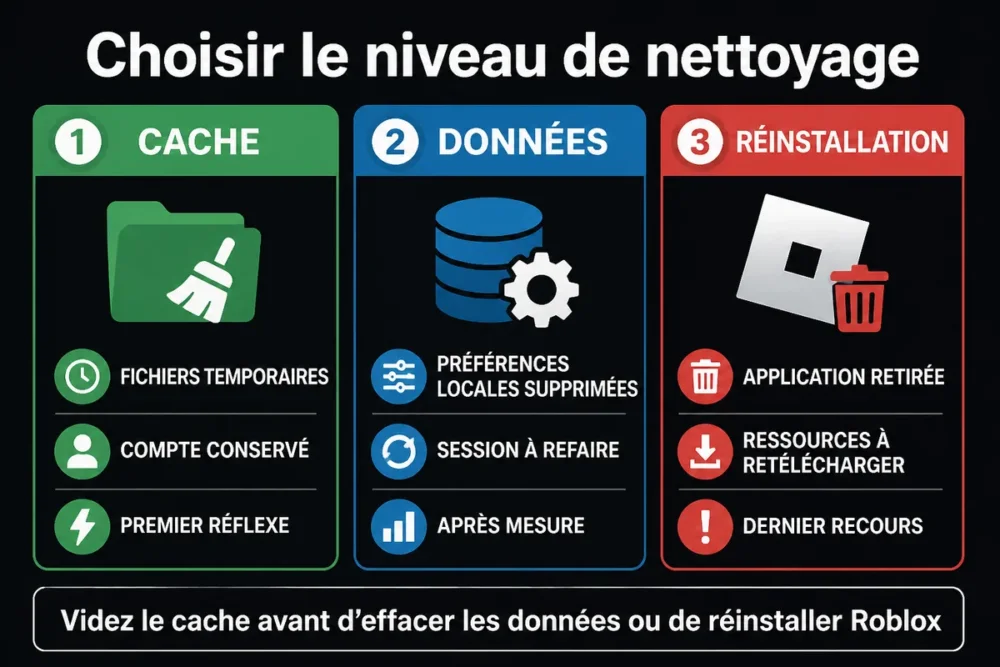
Clearing the cache mainly removes temporary files and resources that Roblox can download again. Erasing app data goes further: the session may be closed and local preferences may revert to their initial state.
Uninstalling removes the app installed on the device, not the Roblox account. Favorite games, friends, and published experiences should therefore not be deleted to recover local storage.
Choose the appropriate method depending on occupied space and your device
The best approach is to start with the least intrusive action, then increase the level of cleaning only if the recovered space remains insufficient. First check Roblox’s size in storage settings: deleting a cache of a few megabytes will not solve a disk filled by videos or apps.
| Device or case | First action | Last resort | Main risk |
|---|---|---|---|
| Android | Clear cache | Clear data | Logout and reset settings |
| iPhone or iPad | Offload the app | Delete then reinstall | Resources to download again |
| Windows | Repair or reset the application | Reinstall after verification | Deletion of local files |
| Roblox Studio | Export and clean the project | Delete identified files | Loss of a project or recovery |
Clearing the cache: the first reflex
The cache is the appropriate choice when Roblox takes up more space than expected or when the system explicitly offers this command. The operation targets temporary resources and does not require deleting favorites, experiences, or online creations.
Clearing data or reinstalling: last resort solutions
Clearing data is suitable when the cache is insufficient or when local files appear damaged. Reinstalling is appropriate when the application remains abnormally large or unstable after cleaning. In this case, do not delete Roblox before verifying your credentials.
Freeing up Roblox space on Windows
On Windows, start by measuring the size of Roblox in the list of installed applications and the free space on the main drive. Then close Roblox, Roblox Studio, and any still-open processes before any repair or deletion. Windows’ built-in cleanup can also free up space that does not directly belong to Roblox.
Check Roblox size in Windows settings
Open Windows settings, go to the list of installed applications, then search for Roblox. Compare the displayed size with the total free space on the drive: a volume occupied by downloads, videos, or games can be mistaken for a problem specific to Roblox.
-
Close Roblox
Exit Roblox and Roblox Studio. Open the task manager only to close any Roblox process that might still be active. The expected result is a completely stopped application before proceeding.
-
Measure storage
Check the size of Roblox in installed applications and note the free space on the main drive. This measurement serves as a reference before cleaning.
-
Clean Windows
Use Disk Cleanup to remove temporary files identified by Windows. Do not select any personal file whose role is unclear.
-
Check after cleaning
Restart Roblox, log in again if necessary, then check the free space again. Compare the new measurement with the initial value.
Repair, reset or carefully clean local files
When Windows offers repair or reset options for an application, read their effects before confirming. A repair attempts to fix the installation, while a reset may delete more local data. Cache paths vary depending on the Roblox version: only manually delete items clearly identified as cache or logs.
The AppData folders, Windows registry, Roblox Studio projects, and backups are not automatic cleaning areas. Deleting a registry key or a misidentified folder is not a safe method to free Roblox space.
Freeing up Roblox space on Android without losing your account
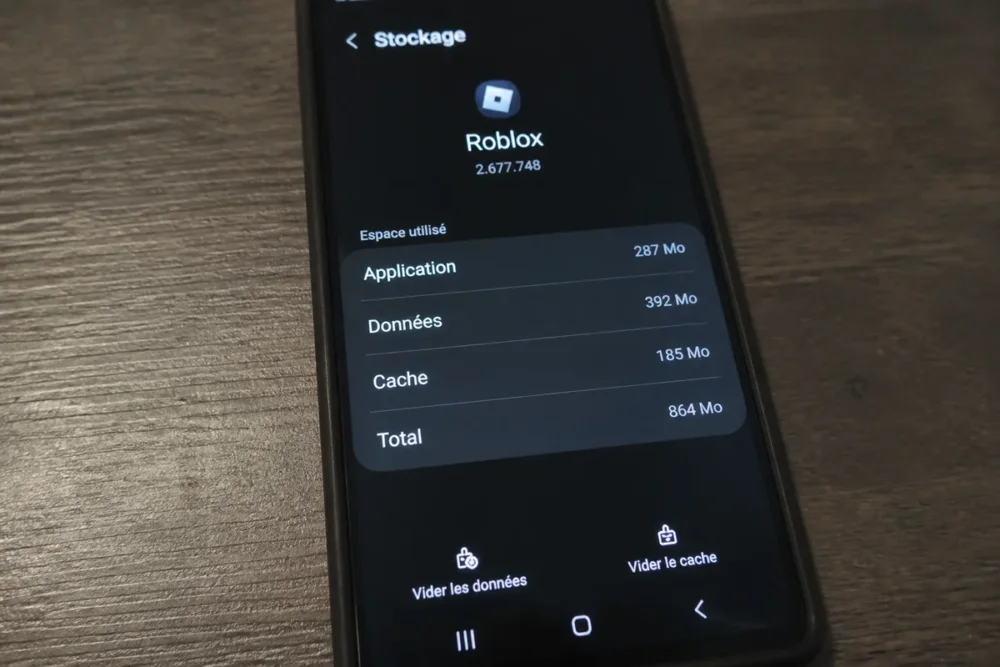
On Android, open the Roblox app page in settings, check its storage, then first use “Clear cache.” This action removes temporary files without deleting the Roblox account. The labels may vary depending on the phone brand and Android version.
Clearing the Roblox Cache
The general path is as follows: Settings > Apps > Roblox > Storage > Clear Cache. Confirm only this command, then return to the storage screen to measure the space recovered.
-
Open Roblox
In Android settings, open the list of apps and select Roblox. Verify that the app name is correct.
-
View Storage
Open the Storage or Storage and cache section. Note the size shown before any deletion.
-
Clear Cache
Tap “Clear Cache.” The deleted temporary files can be recreated when Roblox downloads the necessary resources again.
-
Measure the Gain
Check the new size of the app. Only proceed to data clearing if the gain is zero or insufficient.
Clear Data if Cache Is Not Enough
Clearing data may be relevant if Roblox still takes up too much space or behaves abnormally after clearing the cache. This command usually logs out the account and resets local preferences to zero, but it does not delete the Roblox account.
Recover Roblox Storage on iPhone and iPad
iOS and iPadOS do not always offer a separate button to clear only the Roblox cache. Offloading the app is an intermediate option, while complete deletion removes the app and its local resources. The account and online content remain separate from these installed files.
Offload Roblox from iPhone or iPad Storage
Open Settings > General > iPhone Storage or iPad Storage, select Roblox, then review the offload option offered by the system. Offloading removes the app while retaining, when iOS or iPadOS allows, the associated documents and data.
Offloading does not necessarily clean as thoroughly as a complete deletion. Measure the space recovered before choosing a more radical operation.
Properly Delete and Reinstall Roblox
Complete deletion is appropriate when Roblox remains abnormally large despite offloading. First verify account access, delete the app, reinstall it from the App Store, then log back in.
Local resources will need to be downloaded again after reinstallation. An experience whose progress has not been saved online may not restore all its data: this synchronization depends on the functionality planned by its creator.
Prevent Roblox from Quickly Taking Up Space Again
Roblox re-downloads resources as new experiences are launched. The cache can therefore grow after cleaning, without this necessarily indicating a malfunction. Roblox and system updates can also fix some storage management issues, but they do not replace measuring before and after.
When Reinstallation Becomes Relevant
Reinstallation is justified if Roblox remains abnormally large after the cleaning provided by the system or if the app behaves unstably. It is not the first reflex for a simple lack of space.
Also check downloads, videos, photos, and large apps. If Roblox represents only a small portion of used storage, deleting its files will yield only limited gain.
Start with the least intrusive method offered by your device: clear the cache on Android, repair or carefully clean on Windows, then offload the app on iPhone or iPad. Proceed to data clearing or reinstallation only after securing account access and verifying the expected progress backup.
Frequently Asked Questions
Does clearing the Roblox cache delete my games or favorites?
No, clearing the cache removes temporary local files. Games, favorites, and creations associated with the account remain online. However, progress depends on the save system provided by each experience.
Does uninstalling Roblox cause me to lose my progress?
Uninstalling removes the app from the device, not the Roblox account. Progress saved online should be recovered after logging back in, but local or unsynchronized data may be lost.
Can Roblox data be deleted without deleting the account?
Yes, clearing the app data normally does not delete the Roblox account. This operation may log you out and reset local settings. Check your credentials before confirming.
Why does Roblox take up space again after a few days?
Roblox re-downloads resources when you launch experiences. The cache can therefore increase again after multiple uses. Check the size in settings rather than assuming there is an issue with the account.
How can I tell if Roblox is really taking up too much space on my phone or computer?
Check the size of Roblox in the device’s storage settings and compare it with the total free space. Also check videos, downloads, and other apps, which may occupy more space than Roblox.
Useful sources to consult
The official Roblox documentation on place files details the .rbxl and .rbxlx formats, the 100 MB limit per place, and the location of autosave files. Use this information for Roblox Studio, without mistakenly applying it to the app’s overall storage.
The Roblox support on account deactivation concerns online account management. This procedure should not be confused with deleting the app or its local files.
For storage menus, check the labels displayed directly by Windows, Android, or iOS: options and their locations may change with system and app versions.