| Key Points | Details to Remember |
|---|---|
| 🔍 Definition | The “Device not migrated” error occurs when a device is not properly transferred after an update. |
| 💡 Causes | Incompatible drivers or registry changes can block the migration. |
| 🛠️ Quick Solutions | Update or reinstall drivers via Device Manager. |
| ⚙️ Advanced Methods | Run an SFC and DISM or restore a backup point. |
| 🔄 Prevention | Create a restore point before each major update. |
| 🔗 Resources | Tools like the System File Checker and DISM console. |
After a Windows update, you open Device Manager and come across a cryptic message: “Device not migrated.” Your heart sinks, wondering if the USB key or graphics card is permanently lost. However, this alert is not an irreversible sentence: it rather points to a mismatch between system information and the installed driver. Let’s dive into what’s happening under the hood and how to bring your components into the latest version of Windows without breaking a sweat.
What is the “Device not migrated” error?
In its simplest form, Windows tells you it failed to transfer your device’s profile from one version to another. Imagine a move without a plan: boxes go into a truck, but some remain on the sidewalk. Here, each device (network card, audio reader, etc.) carries a “profile” within the system and, if Windows doesn’t find it fully compatible, it discards it with a nice exclamation mark.
This message often appears just after applying a major update—a cumulative patch, a feature overhaul, or the switch to a new Windows iteration. Microsoft’s goal is to ensure hardware continuity, but sometimes the driver-registry duo gets upset. Result: a device operational the day before is listed as “not migrated” upon reboot.
Why does this error occur after an update?
Three key elements come into play.
- Outdated drivers: if the manufacturer hasn’t yet approved a compatible version, Windows may consider the driver obsolete.
- Corrupted registry: registry keys associated with the device may be partially erased or poorly rewritten.
- Hardware conflicts: a new service or integrated feature may clash with your existing card.
Like an orchestra, where each instrument must play in unison, the operating system expects drivers to be perfectly synchronized. If one violin misses a note, the whole melody stops… or turns into a screech.
Solutions to fix the “Device not migrated” error
1. Update or Reinstall Drivers
The first step and often the most effective: go back to the Device Manager. Right-click on the marked item, then Update driver. If Windows finds nothing more recent, manually download the driver from the manufacturer’s website. As a last resort, Uninstall the device, restart, and let Windows detect and install a basic driver.
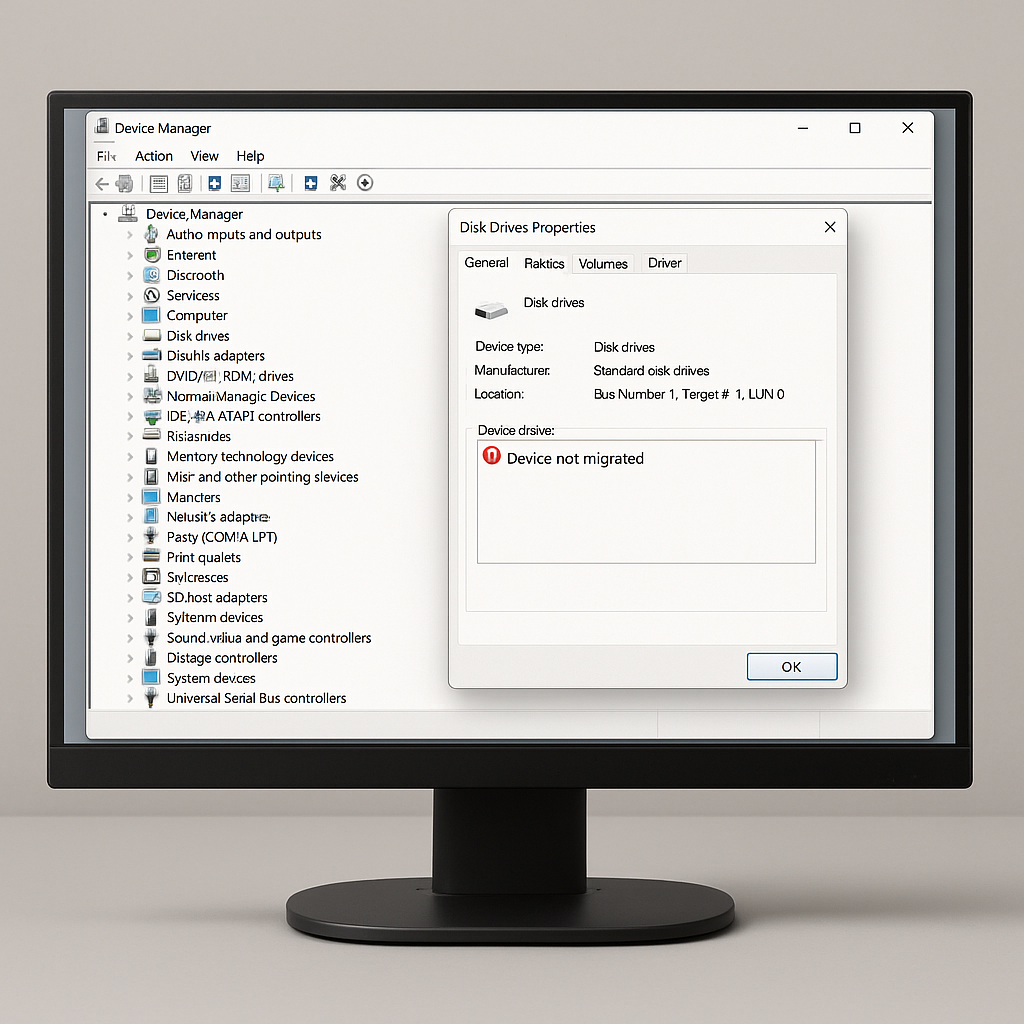
This screenshot shows the Device Manager where the alert is highlighted: a good starting point to quickly diagnose.
2. Check and Repair System Files
If the previous procedure is not enough, it is wise to ensure that Windows itself is not damaged. Open a command prompt as administrator and enter:
sfc /scannow
DISM /Online /Cleanup-Image /RestoreHealth
The System File Checker (SFC) replaces corrupted components, while DISM downloads a clean image to restore Windows integrity. Many users have reported that their devices finally migrate after these two commands.
3. Restore a Restore Point or Use Safe Mode
In some scenarios, your last system backup contains a previous state where everything worked. Launch the restoration to this point and try the update again; it may do the trick. Another tip: start in safe mode to uninstall old drivers without interference from third-party services.
Tips to Prevent the Error in the Future
Rather than suffer the surprise, it is better to anticipate:
- Create a restore point just before each major update.
- Back up your driver database regularly with a tool like DriverBackup!
- Test updates in a virtual environment if your setup is critical.
- Check the manufacturer’s site to verify compatibility before installation.
These habits often save long minutes — or even hours — of laborious troubleshooting.
FAQ
Which devices are affected by “Device not migrated”?
Any device managed by Windows: graphics cards, network, audio, USB, etc. The message appears as soon as the migration fails.
Can the error damage the hardware?
No, it is only a software problem. Your card remains intact, but Windows does not load its driver correctly.
Can I ignore this message?
In theory yes, if the device works, but you risk instability or degraded performance.
Which command most often fixes the error?
The pair SFC /scannow and DISM /RestoreHealth restores the system base and solves many migration issues.









