| Key Points | Details to Remember |
|---|---|
| 📝 Definition | Understand what merging and splitting are. |
| ⚙️ Main Tools | Use the ribbon and Convert commands. |
| 🚀 Benefits | Improve the readability and clarity of tables. |
| 🛠 Methods | Apply manually or via formulas/VBA. |
| 🎯 Practical Applications | Manage titles, labels, and separated data. |
Merging and splitting cells may seem basic, yet it is often a source of headaches. I experienced this when preparing a quarterly report: overflowing headers, poorly aligned data… In short, a real challenge. Thanks to a few tips, I managed to give my table a neat appearance while preserving the integrity of the data. If you have ever cursed those stubborn cells, you are in the right place.
Understanding Cell Merging
When and Why Merge?
Merging multiple cells is often to create a centered title above a range of data or to group several labels under the same header. It’s ideal when you want to present a table with a clean look. However, be careful: a merged cell generally keeps the content of its top-left cell, the others are erased.
Risks and Best Practices
The main drawback? You lose the ability to sort or filter granularly. And if you combine too many cells, formulas (like SUMIF or COUNTIF) may return #REF errors! As a general rule, favor merging only for display and avoid it in data ranges intended for calculation.
Methods to Merge Cells
Using the Merge Button
1. Select the cells to merge.
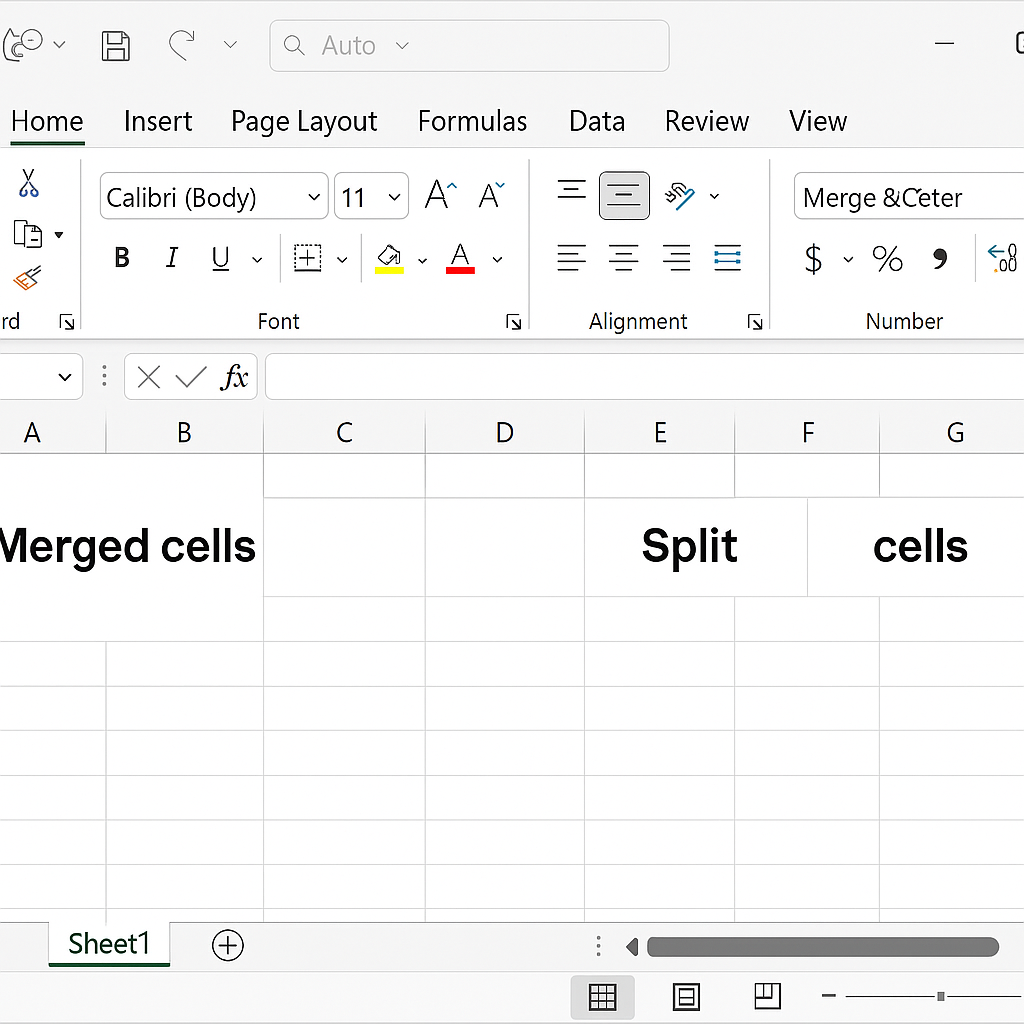
2. In the Home tab, click “Merge & Center” or the small arrow to choose “Merge Across,” “Merge & Center,” or “Merge Cells Only.”
3. Check the display: the text is centered or aligned according to your preferences.
Merge via VBA to Go Further
To automate merging across multiple ranges, a small VBA macro can be a game-changer. You define the range, apply the method Merge, customize the alignment… and voilà, all targeted cells become a single block with one click.
Splitting Cells
Manual Splitting
You can simply select a merged cell and click “Split Cells” in the Layout tab (under Table Tools). Excel will then propose the desired number of rows and columns. Handy if you need a precise structure, for example three columns for a schedule.
Splitting via Convert Text to Columns
When your data mixes text and separators (like a list “Last Name, First Name, City”), the Convert Text to Columns tool becomes essential. Simply select the range, go to Data > Convert, then choose “Delimited” or “Fixed width.” You can even use text functions to refine each field (LEFT, MID, FIND…).
Managing Merging and Splitting in Formulas and Pivot Tables
Impacts on Classic Formulas
When you split content into multiple cells, conditional functions retain their importance: tests SI, calculations with SUMIF, or dynamic totals via IF continue to work, but you will need to reference the correct range. With merged cells, beware of #VALUE or #REF! errors.
Pivot Tables and Limitations
A pivot table often refuses to “read” a range that contains merged cells. Before creating your pivot table, consider splitting any data range. Then, you can use slicers and even slicers to navigate your results smoothly.
Advanced Tips and Pitfalls to Avoid
- Never merge more than necessary: limit yourself to visible labels.
- Use cell styles to simulate merging (via borders or alignment).
- Before sorting or creating a pivot table, check that no merges remain in your data.
- For automated processing, integrate a VBA script that removes all merges at the end of manipulation.
- In case of error, the ribbon offers the “Clear Format” option which quickly restores individual cells.
FAQ
Q: My merged cells prevent sorting, what should I do?
A: Split first or use the centered alignment style across multiple cells without merging.
Q: I want to automatically split an address into street, postal code, and city. Which method?
A: The Convert Text to Columns tool (Data > Convert) with the Delimited option, or a small MID/LEFT formula if the separator is fixed.
Q: Can I merge non-contiguous cells?
A: Not directly via Excel, but a VBA script can do it by projecting each range before merging.









