If you are looking for a ready-to-play “retro console,” the choice mainly comes down to three factors: simplicity, hardware compatibility, and display fidelity. Batocera aims for “plug & play” on a huge range of machines (PC, mini-PC, certain handheld consoles, SBC). RetroPie remains the “workshop” route: highly customizable but takes longer to fine-tune. Recalbox, on the other hand, focuses on a guided experience, with a big advantage when it comes to CRT thanks to RGB Dual (and its analog outputs designed for real-life use).
Quick comparison Batocera, RetroPie, Recalbox
Comparison table (the important criteria)
| Criterion | Batocera | RetroPie | Recalbox |
|---|---|---|---|
| Installation | Image to flash, direct boot | Image or manual install (scripts) | Image to flash, clear assistant |
| Supported hardware | Very wide (PC/mini-PC/SBC…) | Strong on Raspberry Pi, PC possible | Wide, aimed at “general public” |
| Customization | High (centralized configs) | Very high (Linux + scripts) | High, but guided |
| Updates | Simple, but caution on builds | Depends on your base and packages | Regular, stable, guided |
| Scraper & media | Good out-of-the-box | To assemble (your choice) | Very good, assisted workflow |
| CRT / analog | Possible (depending on hardware/settings) | Possible (often “community”) | Excellent with RGB Dual |
Quick verdict (if you want to decide now)
Best “plug and play”: Recalbox (especially if you want a simple, family-friendly experience, and/or a CRT screen).
Best “recycle a PC / mini-PC”: Batocera, thanks to its “distribution copied to USB/SD” logic and its multi-device focus.
Best “I want to control everything”: RetroPie, when you like to choose your building blocks (packages, emulators, options) and Linux doesn’t scare you.
Which choice according to your profile
Profile 1: “I want a living room console, period”
You want a readable interface, a recognized controller, a scraper that fills in covers and synopses, and reassuring stability. Recalbox fits this scenario well: the path is designed to avoid getting lost in settings while keeping the essentials (controller settings, RetroArch, themes, network).
- Recommended: Recalbox on Raspberry Pi / dedicated PC.
- Bonus: if CRT, the “clean” way is through RGB Dual.
- To plan: a reliable card/SSD and properly placed BIOS.
Profile 2: “I’m turning an old PC into a retro machine”
Batocera is very comfortable here: an image to flash, a direct boot, and a “no PC modification” philosophy (everything lives on the key/SSD). This appeals to those who want to test quickly, move the machine, or maintain several configurations without breaking the everyday OS.
- Recommended: Batocera on mini-PC (decent iGPU) or light tower.
- To watch: GPU drivers, audio/BT compatibility depending on models.
- Tip: keep a well-organized “userdata” partition (ROMs, BIOS, media).
Profile 3: “I want a retrogaming workshop, not just a console”
RetroPie shines when you like to “compose”. It relies on a base (Raspberry Pi OS/EmulationStation/RetroArch, depending on modes) and lets you decide: binary vs compilation, alternative emulators, custom scripts, network services, automations. This freedom comes at the cost of setup time, especially if you aim for a “living room” finish.
- Recommended: RetroPie on Raspberry Pi if you like tweaking.
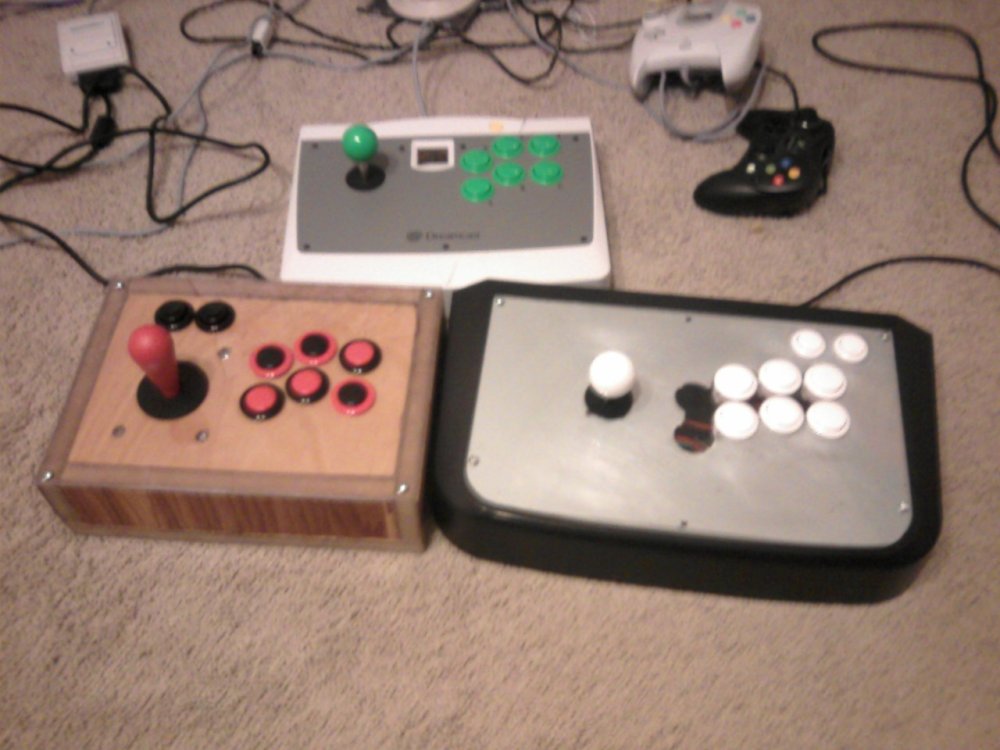
- Ideal: “bartop” projects, “DIY arcade” cabinets, hardware integrations.
- Less fun: when you want a “zero setup” solution.
Next step (choice in 30 seconds)
Your central question: do you mostly play on a modern TV or on a CRT? On modern TV, Batocera and Recalbox mainly differ in ergonomics and your tastes. On CRT, Recalbox often takes the lead thanks to the RGB Dual ecosystem (analog outputs designed for that).
Installation: from “flash” to first game
Step 1: choose the right medium (and avoid headaches)
Three simple rules: a fast medium, a stable power supply, and clean organization. A low-end card/SSD creates micro-lags, silent corruptions, and random startups. Aim for a known medium, and keep a backup plan (disk image or copy of the “userdata” partition).
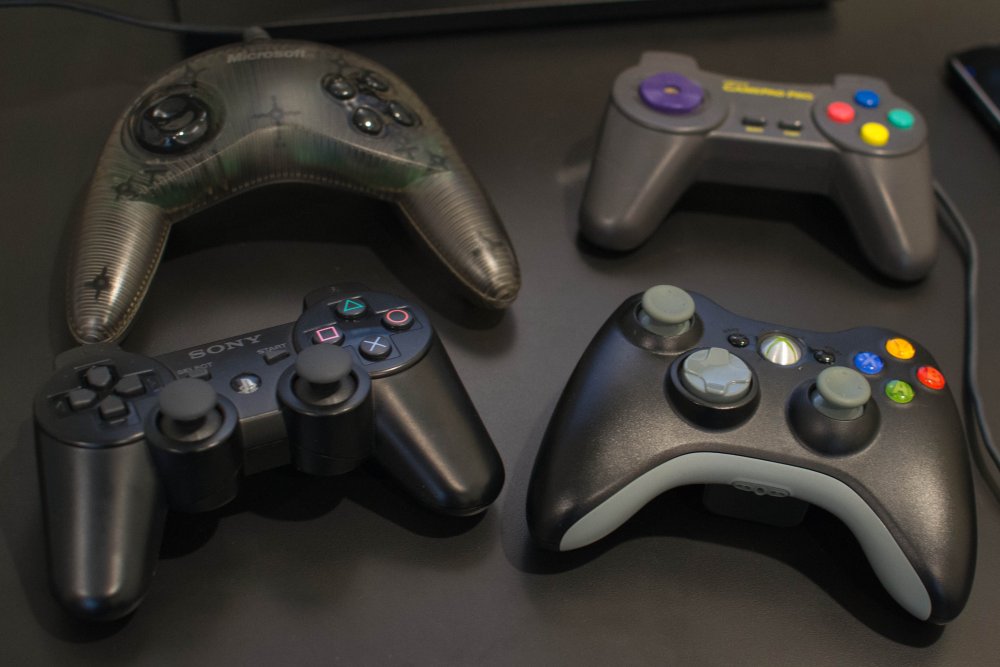
Step 2: first boot and controllers
On Batocera/Recalbox, the experience feels like a guided path: you boot, configure the controller, create your network, then feed your library. On RetroPie, you can follow the same logic via official images, or go through manual installation (more flexible, longer).
Step 3: ROMs, BIOS, folders — the mechanics that avoid chaos
No matter the OS: keep a stable structure. One folder per system, proper names, and a clear place for BIOS. Retrogaming OSes do not include copyrighted content; you must own your games and BIOS when required.
On Recalbox, a guided reading like the Recalbox 2026 guide helps avoid common mistakes (network, shares, scrapers, folders).
Step 4: scraper, media, and visual consistency
The scraper gives the “premium console” effect: clean covers, descriptions, dates, sometimes videos. Two tips that change everything: (1) scrape in small sessions (to correct bad matches), (2) lock a consistent source (same region, same names). When you alternate USA/EU/JP randomly, the interface becomes a patchwork.
Hardware compatibility & performance: what really changes
The classic: Raspberry Pi (simple, compact, efficient)
On Raspberry Pi, all three solutions exist, but the spirit differs: Batocera/Recalbox provide a “console” image, RetroPie lets you shape the base more. The Raspberry Pi generation, cooling, and power stability impact smoothness on demanding systems (Dreamcast, N64, PSP… depending on cores/emulators and settings).

The best comfort/performance ratio: mini-PC and old PCs
If you want a smooth menu, comfortable shaders, heavier systems, and stable latency, an x86_64 mini-PC often becomes the “sweet spot.” Batocera highlights this particularly through its “devices” documentation and recommendations by machine type.
“Hardware choice” table (simple and actionable)
| Use | Hardware | Why | Indicative budget |
|---|---|---|---|
| 8/16-bit | Raspberry Pi | Compact, sober, easy | € |
| Arcade + light 3D | Mini-PC x86 | More CPU/GPU headroom | €€ |
| “Authentic” CRT | Pi + RGB Dual | Suitable analog outputs | €€ |
| DIY project | Pi + accessories | GPIO, scripts, integrations | €–€€ |
| Total versatility | Dedicated PC | Upgrades, storage, drivers | €€–€€€ |
Latency: the topic you “feel” without measuring
In action games, a few tens of milliseconds change the feeling. HCI studies show measurable effects even at low levels: Friston et al. (2015) observe an impact on performance around ~16 ms in pointing tasks; Jota et al. (CHI 2013) discuss performance effects beyond about 25 ms in touch interaction; Claypool and Finkel (2014) indicate that some genres degrade significantly around 100 ms when responsiveness really matters.
Field translation: on a modern screen, your settings (vsync, run-ahead, heavy shaders) weigh almost as much as the OS. On CRT, the display can become very “direct” again if the signal is well managed.
Customization: RetroArch, shaders, scraper, netplay
The common foundation: EmulationStation + RetroArch (often)
In most setups, you find two pillars: a frontend like EmulationStation for navigation, then RetroArch (and its cores) for emulation. The differences lie in the default choices: controller profiles, video options, menu integration, save logic, and the way configs are stored.
Shaders, bezels, run-ahead: the “image & feel” trio
Shaders can enhance the image (scanlines, CRT mask, smoothing), but they sometimes cost performance. Run-ahead (when available and well configured) aims to reduce the feeling of latency at the cost of extra CPU usage. The right reflex: activate an option, test for 10 minutes, then validate. Stacking 12 settings at once clouds the diagnosis.
Netplay and achievements: the “modern” bonus
Netplay depends on network stability and core/romset compatibility. Here, Batocera and Recalbox make things more accessible “in the menu,” while RetroPie often leaves several possible paths (and therefore several ways to make mistakes).
Extensions and side projects (DMD, pinball, displays)
If your retrogaming touches pinball (virtual tables, scores, animations), projects like LED DMD panels quickly become tempting. A clean integration requires understanding the hardware and scripts: a complete RPi2DMD guide helps frame the steps (power supply, files, display), without turning your retro console into a complex machine.
CRT and Recalbox RGB Dual: the “authenticity” argument
Why CRT complicates everything (and why it’s worth it)
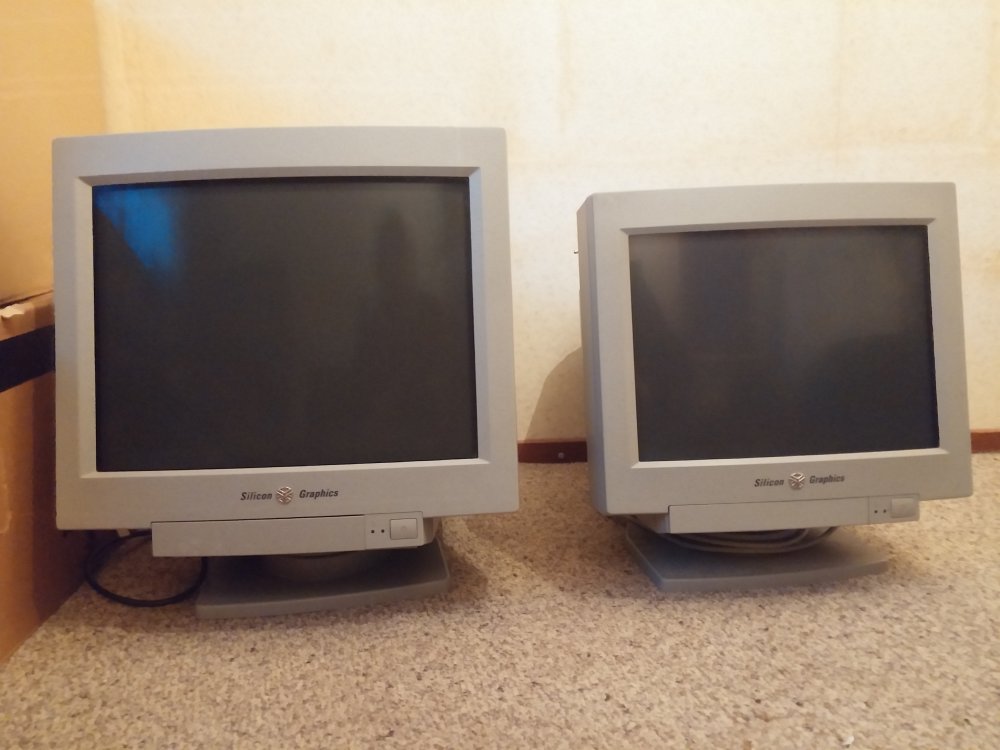
CRT does not forgive: frequencies, sync, “weird” resolutions, ratio, overscan. On modern TVs, everything is designed for 720p/1080p/4K. On CRT, you often want 240p/15 kHz, a clean signal, and stable sync. This is precisely the kind of topic where “it works on my setup” can make you lose hours if your cable or converter is not suitable.
RGB Dual: what it is, concretely
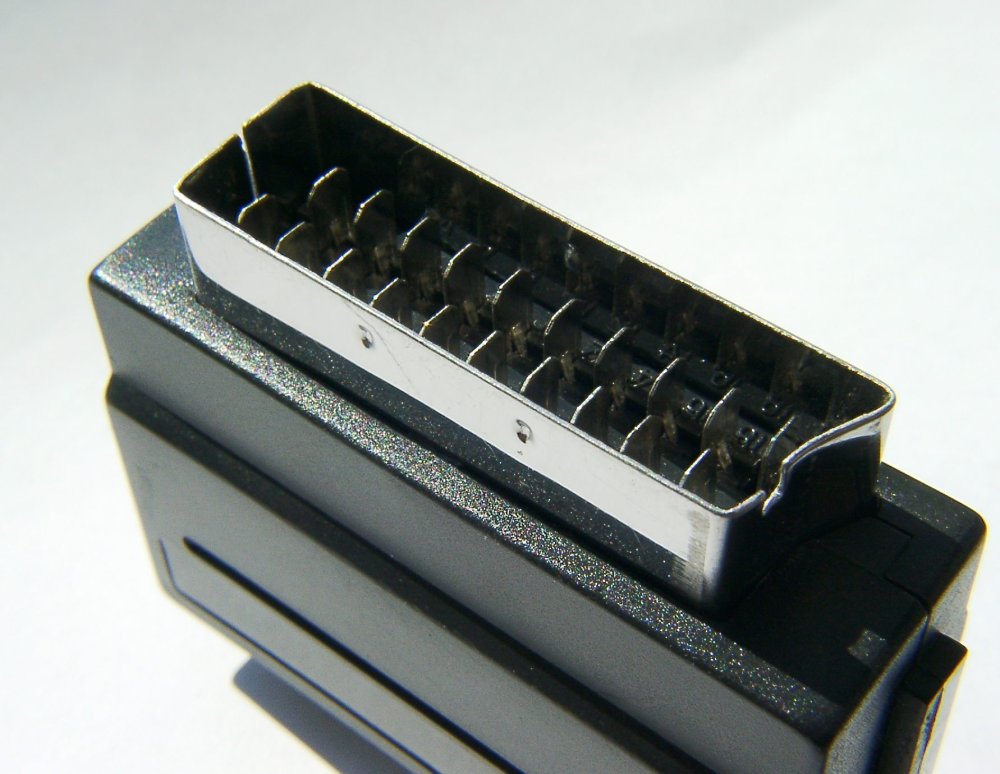
Recalbox RGB Dual is a HAT-type board that adds to certain Raspberry Pis to provide analog outputs, notably SCART and VGA (and, depending on generations/products, other outputs). The interest is not “one more port”: it’s the integration, with documented procedure and explicit prerequisites (hardware + Recalbox version).
“RGB Dual adds analog outputs designed to connect a CRT (SCART/VGA) to a Raspberry Pi, with dedicated documentation and clear system prerequisites.” Recalbox RGB Dual Documentation (Recalbox.com, 2024–2025)
And Batocera / RetroPie on CRT? Yes, but not the same
On the Batocera side, the documentation addresses analog output depending on the hardware (e.g., certain analog ports on PC/motherboards). On x86, native analog depends on the presence of a DAC and suitable ports (VGA/DVI-I), which is becoming rare on modern GPUs.
RetroPie often relies on community guides and setups (adapters, cables, 240p/15 kHz configurations). It works, but reliability varies depending on the hardware, cable quality, and your tolerance for fine tinkering.
“Batocera can output an analog signal natively if the hardware allows it (adapted ports and video chain), with details in the CRT guide.” Batocera Wiki, CRT / analog output section (Batocera.org)
RGB Dual 2 and evolutions: keep an eye on the generation
Recalbox has also communicated about an “RGB Dual 2” generation with more output options (SCART, composite RCA, VGA…). For a CRT project, this matters: the type of TV (SCART or not), the distance, and your audio needs change the shopping list.
Batocera, RetroPie, Recalbox FAQ (frequently asked questions)
Is Batocera really “installation-free” on my PC?
In practice, Batocera is designed to be copied onto a USB/SD/SSD and boot from there, without modifying your main OS. The PC boots from the media, and the retrogaming environment lives there.
Is RetroPie only for Raspberry Pi?
RetroPie is strongly associated with Raspberry Pi, but there are also possibilities on PC. The logic remains the same: a set of scripts and components (RetroArch, EmulationStation, etc.), with more control… and more responsibilities.
What is the simplest for a complete beginner?
Recalbox and Batocera are generally the most accessible thanks to their “ready-to-boot image” approach. Recalbox is often appreciated when you want a very guided experience.
What is the best choice for a mini-PC (NUC/USFF)?
Batocera is frequently chosen to recycle a mini-PC, thanks to its multi-device focus and device-oriented documentation.
Which handles Bluetooth controllers best?
All three can do very well, but the difference lies in default profiles and the stability of your adapter. On PC, a basic BT dongle may suffice; on some SBCs, the quality of the built-in chip varies.
Why do my games require BIOS?
Some systems (PS1, Saturn, Neo Geo…) require BIOS to function faithfully. Distributions do not include copyrighted BIOS: it’s up to you to provide them legally and place them in the right spot.
Can I play online (netplay)?
Yes, often via RetroArch. Expect some constraints: same core versions, same ROMs, stable network. The “plug & play” depends on your hardware/connection duo.
Batocera or Recalbox for an arcade cabinet?
Both are suitable. Batocera is liked for its “I boot everywhere” aspect, Recalbox for its support. If your cabinet targets a CRT in SCART, the RGB Dual ecosystem can weigh heavily.
RGB Dual: compatible with which Raspberry Pi?
Compatibility depends on the product generation, but Recalbox documentation specifies models (e.g., Pi 3/4/400/Zero 2 depending on versions) and system prerequisites.
Which to choose if I want “zero maintenance”?
None is magic, but Recalbox (and Batocera) aim for simplified maintenance via integrated updates. RetroPie will often require more attention if you stack modifications.
{ “@context”: “https://schema.org”, “@type”: “WebPage”, “about”: { “@type”: “Thing”, “name”: “Comparatif Batocera vs RetroPie vs Recalbox” }, “keywords”: [ “Batocera”, “RetroPie”, “Recalbox”, “comparatif retrogaming”, “RGB Dual” ], “mainEntity”: { “@type”: “ItemList”, “itemListElement”: [ { “@type”: “ListItem”, “position”: 1, “name”: “Batocera” }, { “@type”: “ListItem”, “position”: 2, “name”: “RetroPie” }, { “@type”: “ListItem”, “position”: 3, “name”: “Recalbox” } ] } } { “@context”: “https://schema.org”, “@type”: “Article”, “headline”: “Batocera vs RetroPie vs Recalbox : quel OS retrogaming choisir en 2026 ?”, “description”: “Comparatif Batocera, RetroPie et Recalbox avec tableau, profils d’usage, conseils d’installation et focus CRT/Recalbox RGB Dual.”, “keywords”: [“Batocera”, “RetroPie”, “Recalbox”], “mainEntity”: { “@type”: “FAQPage”, “mainEntity”: [ { “@type”: “Question”, “name”: “Batocera est-il vraiment “sans installation” sur mon PC ?”, “acceptedAnswer”: { “@type”: “Answer”, “text”: “Batocera est conçu pour être copié sur une clé/SD/SSD et démarrer dessus, sans modifier votre OS principal : le système vit sur le support de boot.” } }, { “@type”: “Question”, “name”: “RetroPie est-il seulement pour Raspberry Pi ?”, “acceptedAnswer”: { “@type”: “Answer”, “text”: “RetroPie est très populaire sur Raspberry Pi, mais peut aussi être envisagé sur PC. Il s’appuie sur un socle (EmulationStation/RetroArch) et des scripts, avec une grande liberté de configuration.” } }, { “@type”: “Question”, “name”: “Quel est le plus simple pour un débutant complet ?”, “acceptedAnswer”: { “@type”: “Answer”, “text”: “Recalbox et Batocera sont généralement les plus accessibles grâce à des images prêtes à booter et une configuration initiale guidée.” } }, { “@type”: “Question”, “name”: “Quel est le meilleur choix pour un mini-PC (NUC/USFF) ?”, “acceptedAnswer”: { “@type”: “Answer”, “text”: “Batocera est souvent choisi sur mini-PC pour sa compatibilité multi-appareils et sa logique de boot sur support dédié.” } }, { “@type”: “Question”, “name”: “Lequel gère le mieux les manettes Bluetooth ?”, “acceptedAnswer”: { “@type”: “Answer”, “text”: “Les trois peuvent très bien gérer le Bluetooth, mais la stabilité dépend aussi du matériel (dongle, puce intégrée) et des profils de manettes.” } }, { “@type”: “Question”, “name”: “Pourquoi mes jeux demandent des BIOS ?”, “acceptedAnswer”: { “@type”: “Answer”, “text”: “Certains systèmes ont besoin de BIOS pour fonctionner. Les distributions n’incluent pas de BIOS sous copyright : vous devez les fournir légalement et les placer dans le dossier prévu.” } }, { “@type”: “Question”, “name”: “Est-ce que je peux jouer en ligne (netplay) ?”, “acceptedAnswer”: { “@type”: “Answer”, “text”: “Oui, souvent via RetroArch. Il faut généralement des versions compatibles de cœurs et de ROMs, et un réseau stable.” } }, { “@type”: “Question”, “name”: “Batocera ou Recalbox pour une borne d’arcade ?”, “acceptedAnswer”: { “@type”: “Answer”, “text”: “Les deux conviennent. Batocera plaît pour la portabilité et le boot sur support, Recalbox pour l’accompagnement. Pour une borne CRT en SCART, RGB Dual peut être un avantage côté Recalbox.” } }, { “@type”: “Question”, “name”: “RGB Dual : compatible avec quels Raspberry Pi ?”, “acceptedAnswer”: { “@type”: “Answer”, “text”: “La compatibilité dépend des versions, mais la documentation Recalbox précise les modèles supportés et les prérequis système.” } }, { “@type”: “Question”, “name”: “Lequel choisir si je veux “zéro maintenance” ?”, “acceptedAnswer”: { “@type”: “Answer”, “text”: “Recalbox et Batocera visent une maintenance simplifiée via mises à jour intégrées. RetroPie demande souvent plus de suivi si vous personnalisez beaucoup la base.” } } ] } }









