| Key Points | Details to Remember |
|---|---|
| 📌 Definition | SUMIF and SUMIFS are Excel functions to sum with conditions. |
| ✅ Benefits | Automation of filtered calculations and reduction of manual errors. |
| ⚙️ Syntax | =SUMIF(range, criteria, [sum_range]) and =SUMIFS(sum_range, range1, criteria1, …). |
| 🔍 Examples | Simple case of total by product, multiple case by date and region. |
| 💡 Tips | Wildcards, logical operators, and dynamic ranges for more flexibility. |
| 📈 Applications | Budgets, reporting, sales tracking, performance analysis. |
Do you sometimes spend hours filtering your data before summing it? I was in that situation until a colleague told me about the SUMIF and SUMIFS functions in Excel. With two clicks, no more tedious copy-pasting and sorting errors. In this article, I offer you a comprehensive overview: definition, syntax, practical examples, and some tips to master the art of conditional totals. Whether you are a manager, analyst, or simply curious, you will leave with ready-to-use formulas.
1. Introduction to the SUMIF and SUMIFS Functions
1.1. What are they for?
In a few words, SUMIF and SUMIFS allow you to sum values in a range based on one or more conditions. The idea? Keep only what really matters, without using a pivot table or manual sorting. Extremely useful for monthly reports, inventory tracking, or calculating sales commissions.
1.2. When to use SUMIF instead of SUMIFS?
- Simple operation (only one condition) → prefer SUMIF.
- Calculation under multiple criteria (date, category, geographic area…) → choose SUMIFS.
« A good tool does not always replace skill, but it significantly boosts your productivity. »
2. Syntax and Detailed Parameters
2.1. SUMIF Syntax
The formula is as follows:
| Element | Description |
|---|---|
| range | Area where Excel looks for the criteria. |
| criteria | Condition to meet (number, text, expression). |
| sum_range (optional) | Range to sum if different from range. |
Example: =SUMIF(B2:B20, “>100”, C2:C20) sums the values in C2:C20 when the cells in B2:B20 are greater than 100.
2.2. SUMIFS Syntax
To chain multiple conditions:
| Element | Description |
|---|---|
| sum_range | Area to sum. |
| range1, criteria1 | First range/condition pair. |
| range2, criteria2 … | Additional conditions. |
Example: =SUMIFS(D2:D50, A2:A50, “France”, C2:C50, “>500″) totals D2:D50 for rows where A=”France” and C>500.
3. Practical Examples and Use Cases
3.1. Simple example with SUMIF
Imagine a sales table:
- Column A: Product
- Column B: Quantity
- Column C: Amount (€)
You want to know the total amounts for the product “Pen”:
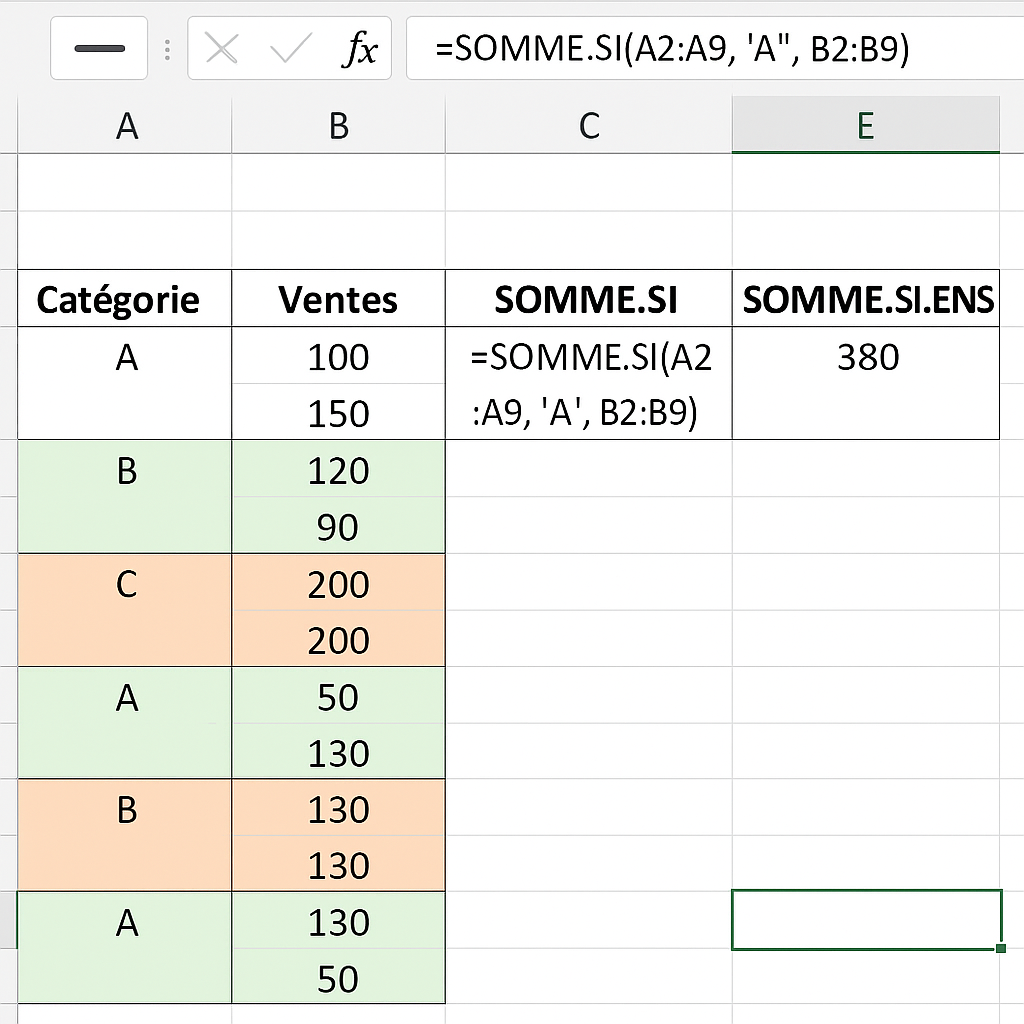
=SUMIF(A2:A100, “Pen”, C2:C100)
No need to sort or filter, Excel takes care of everything.
3.2. Multi-condition example with SUMIFS
You manage a marketing budget divided by campaign, date, and channel. Your columns:
- A: Campaign (Email, Social, PPC…)
- B: Date
- C: Channel (Facebook, Google, LinkedIn…)
- D: Cost (€)
To total the cost of “Email” campaigns on Facebook in March 2023:
=SUMIFS(D2:D500, A2:A500, “Email”, C2:C500, “Facebook”, B2:B500, “>=01/03/2023”, B2:B500, “<=31/03/2023”)
4. Tips and best practices
- Use wildcard characters: “St*lo” covers “Stylo” and “Stbylo”.
- Combine with the IF function (learn more) to create custom criteria.
- For precise counting, combine SUMIFS and COUNTIFS to get totals and counts simultaneously.
- Prefer named ranges for better readability and maintenance.
- In Excel tables, formulas adjust automatically when you add new rows.
5. Quick FAQ
- What is the order of arguments in SUMIFS?
Always start with the sum range, then alternate range/criteria pairs. - Can you use more than 127 conditions?
No, Excel’s limit is 127 range/criteria pairs. - How to manage a dynamic range?
Use an Excel table (CTRL+T) or the OFFSET function. - Are criteria case-sensitive?
No, Excel does not consider case for these functions.









