| Key Points | Details to Remember |
|---|---|
| 🔓 Vulnerabilities | Public networks expose your data to interceptions and man-in-the-middle attacks |
| 🛡️ VPN Protection | Full encryption of traffic with a reputable service (ExpressVPN, NordVPN) |
| 🌐 Secure Browsing | Mandatory HTTPS + browser security extensions |
| 🔑 Authentication | Two-factor (2FA) systematic for sensitive accounts |
| 🚫 Risky Behaviors | Avoid banking transactions and file sharing |
| ⚠️ Threat Detection | Recognize fake networks and activate the firewall |
You’re sipping a cappuccino while checking your emails in a café, or waiting at the airport while verifying your bank account. These everyday scenes hide an invisible danger: public Wi-Fi networks are prime hunting grounds for cybercriminals. According to a Kaspersky study, 24% of public access points have exploitable vulnerabilities. Yet, with the right practices, it is possible to browse without exposure. Here’s how to turn your connection into a digital fortress.
Why are public networks data sieves?
Unlike your home box, public hotspots operate like highways open to all vehicles – including those carrying malware. The WPA2 protocol, used in 90% of public places according to ANSSI, has known vulnerabilities since 2017. A hacker sitting at the next table can:
- Intercept your packets with tools like Wireshark
- Create a fake network with a similar name (e.g., “FreeWifi_Aeroport” vs “FreeWifi_Aéroport”)
- Inject malicious scripts into unsecured sites
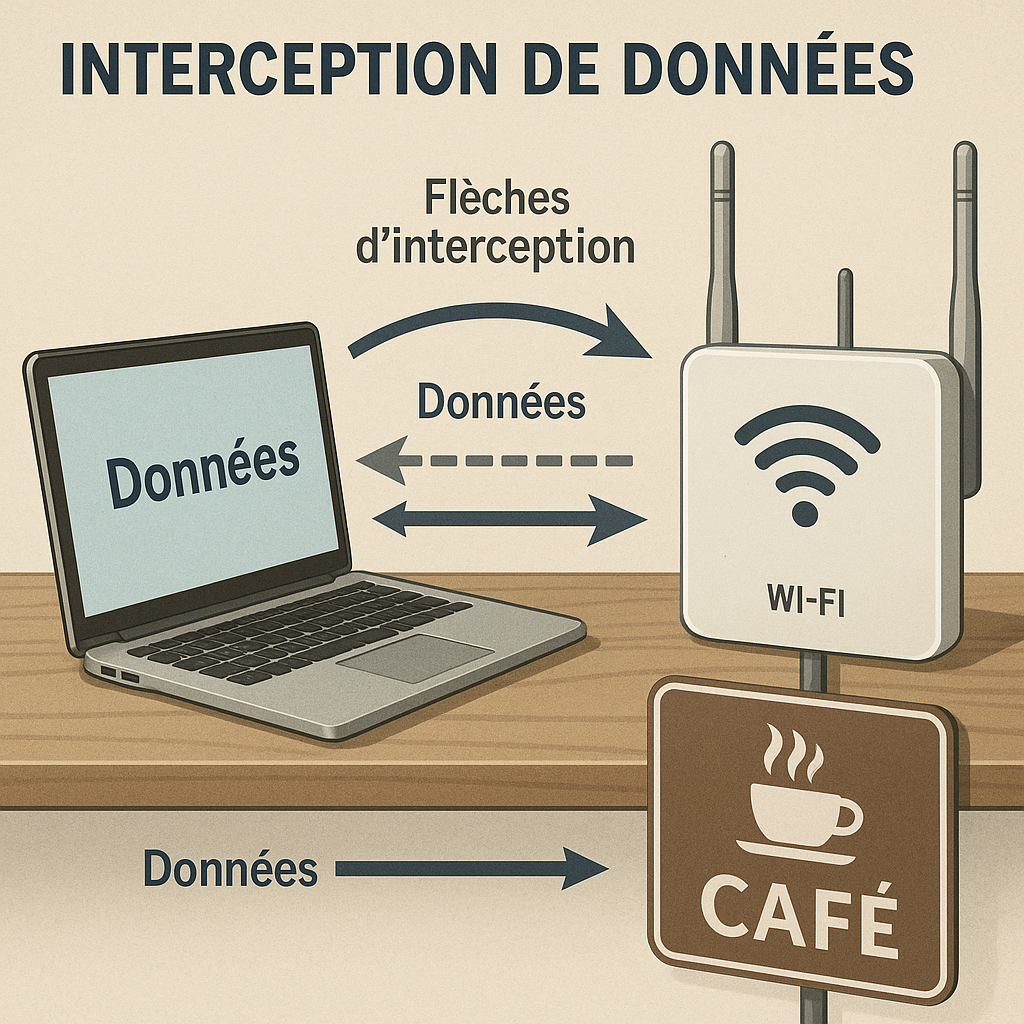
The “Man-in-the-Middle” attack explained
Imagine sending a confidential letter that passes through 10 intermediaries before reaching its destination. Each could open it, copy it, modify it. That’s exactly what happens when you send a password over HTTP. Hackers exploit the lack of encryption between your device and the router – no need to be a genius, apps like Firesheep automate the process.
“On an unencrypted network, your credentials are visible like messages written on postcards” – Martin G., cybersecurity expert at ESPCI
The VPN: your essential armored tunnel
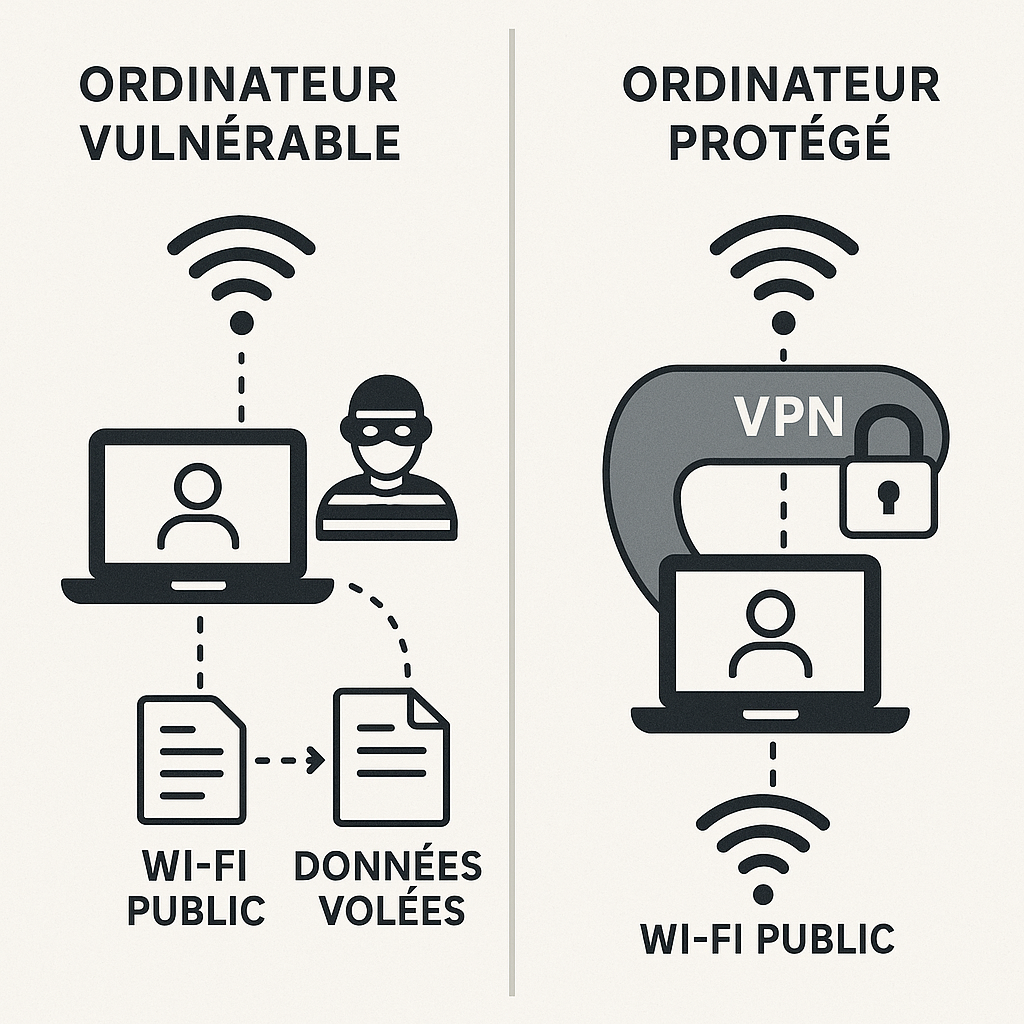
A Virtual Private Network acts like an armored convoy for your data. Instead of traveling in the open street, your traffic takes an encrypted underground passage from end to end. Even if a hacker intercepts the flow, they will see only indecipherable gibberish. Two essential criteria:
- AES-256 encryption (military standard)
- Strict no-log policy (the provider does not keep your data)
How to choose your VPN?
Beware of free solutions that monetize your data. Favor independently audited services like ExpressVPN or ProtonVPN. Test their kill switch: this feature automatically cuts your connection if the VPN fails, preventing accidental leaks. For advanced users, WireGuard offers an excellent speed/security ratio.
Optimizing your browser: the software barrier
Your browser is your first line of defense. Start by systematically checking for the presence of the green padlock and the HTTPS prefix in the address bar. Free extensions enhance your protection:
| Extension | Purpose | Availability |
|---|---|---|
| HTTPS Everywhere | Forces secure connection | Chrome, Firefox |
| uBlock Origin | Blocks malicious scripts | All browsers |
| Privacy Badger | Limits tracking | Chrome, Firefox |
Also enable private browsing which deletes cookies after the session. Chrome and Firefox now offer a “super secure” mode isolating each tab in a virtual sandbox.
Authentication: multilayer locking
A password, even a complex one, remains vulnerable on a public network. Two-factor authentication (2FA) adds a security buffer. Reliable methods include:
- Authentication apps (Google Authenticator, Authy) generating temporary codes
- Physical USB keys like YubiKey, tamper-proof
- Biometrics via your smartphone (facial recognition/fingerprint)
Avoid SMS for 2FA: a study by Princeton University showed that hackers can hijack your number via SIM swap attacks. Set this option on all your sensitive accounts (bank, emails, social networks).
System settings: built-in shields
Your OS contains little-known protection tools. On Windows:
- Enable the Windows Defender firewall
- Disable file sharing (Network Settings > Advanced options)
- Verify that Wi-Fi Sense is disabled (it shares your access)
On Mac, use the application firewall (System Preferences > Security) and disable AirDrop in public. For mobiles, always set connections to “Do not remember” public networks and turn off Wi-Fi when unused.
What to absolutely avoid
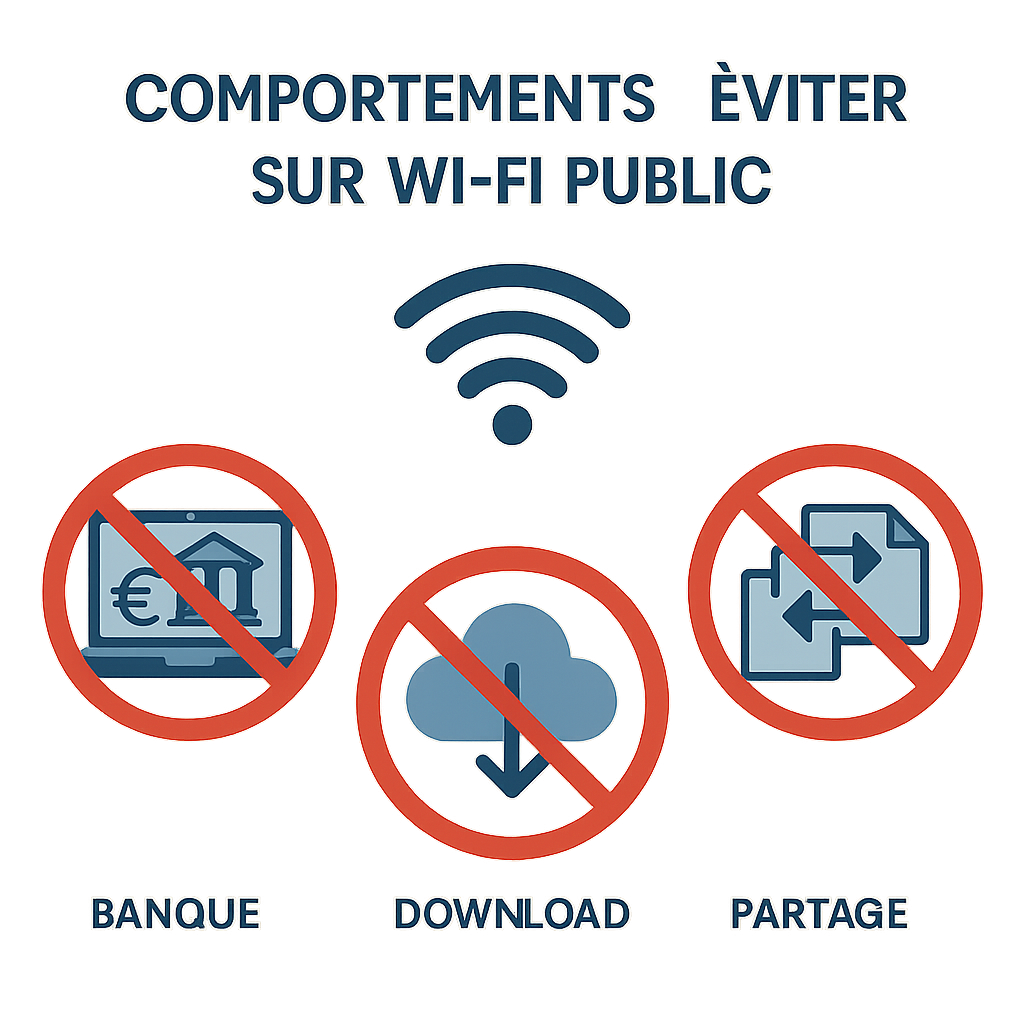
Certain actions turn your session into Russian roulette:
- Accessing your online bank – wait for a reliable network
- Downloading files (even seemingly harmless PDFs)
- Filling out forms with personal data
- Allowing “network sharing” in pop-ups
If you absolutely must view a sensitive document, use reading mode browsing (available on Edge and Safari) which disables scripts. Google Drive users can pre-download files to their device beforehand.
Practical scenarios: airports, hotels, train stations
Airports: spy nests
Airports concentrate all threats. Prefer the official network (check physical signage) rather than “Free Airport WiFi”. If possible, use your 4G/5G plan – latency is better than a data leak. For long trips, a portable router with a dedicated SIM card offers an elegant solution.
Hotels: distrust of open networks
Hotel systems are often outdated. Require a personal WPA2 password at check-in. If the network asks for excessive personal information, use a disposable email address. Activate your VPN before connecting to the captive portal.
FAQ: Security on public networks
Is a free VPN enough?
Free VPNs often have DNS leaks or sell your data. Investing 3-5€/month in a premium service is your best insurance.
How to check if my VPN is working?
Visit sites like ipleak.net before and after activation. None of your real IP addresses should appear.
Is airplane mode a solution?
It cuts all connections but offers no active protection. Combined with Bluetooth disabled, it can be useful in very risky areas.
Are networks with captcha more secure?
Not necessarily. Captcha only blocks bots, not human hackers. Only encryption (HTTPS/VPN) truly protects.
What to do after using a suspicious Wi-Fi?
Immediately change your main passwords via a secure network. Run a full antivirus scan.









